
How to Print Text Messages Without a Computer in 2026
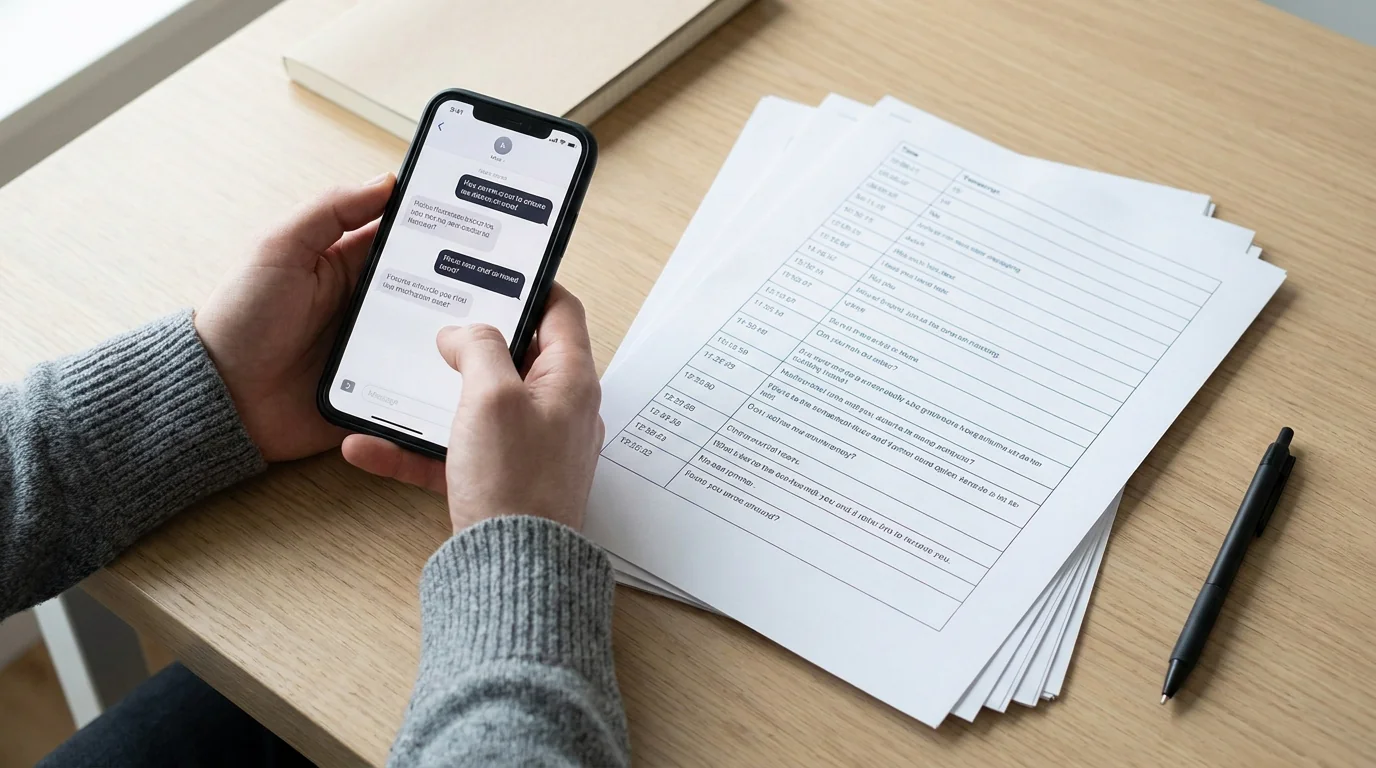
Most guides on printing text messages assume you have a MacBook or Windows PC sitting nearby. But a large share of people need a printout right now, from just their phone: for court, for work, or to keep a record. That share is bigger than most guides assume: according to Pew Research Center data published in January 2026, 16% of U.S. adults are "smartphone dependent," meaning they own a smartphone but have no home broadband, and for many of them no home computer either.
You don't need a computer. Here are the most practical methods that work in 2026, along with notes on where each one falls short.
Why people need printed text messages
The most common reasons people search for this:
- Legal proceedings: custody disputes, harassment claims, contract disagreements. Courts often require printed or PDF documentation of conversations.
- Workplace situations: HR complaints, client records, or compliance documentation.
- Personal archiving: preserving conversations with people who have passed, or keeping a record of something important.
However you're printing, the method you choose affects whether the output includes timestamps, sender names, and message order, details that matter a lot in formal contexts.
Method 1: Screenshots printed directly via AirPrint
This is the fastest no-install option for iPhone users with a Wi-Fi printer.
- Open the conversation in Messages, WhatsApp, or any other app.
- Scroll to the beginning and take screenshots as you scroll down. Overlap each screenshot slightly so no messages are cut off.
- Open the Photos app and select the screenshots.
- Tap the Share icon → Print.
- Select your AirPrint-compatible printer and tap Print.
The result is a set of printed images of your chat. The upside is zero setup. The downside is that long conversations require many screenshots, the phone's UI chrome (status bar, keyboard) appears in the images, and there's no text formatting, just photos of text.
For a handful of messages, this works well. For anything more than a few screens, it gets tedious fast.
Method 2: Share to email, then print
If you don't have a printer nearby but need a hard copy later:
- Take screenshots of the conversation.
- Open the Photos app, select all the screenshots, and tap Share → Mail.
- Email them to yourself or directly to a print shop.
- Print from any computer or at a library kiosk.
This method defers the printing step, which is useful if you're away from a printer entirely.
Method 3: Use a dedicated app to create a printable PDF (no computer needed)
For anything beyond a few screenshots (especially for legal or professional use), a purpose-built app produces far better results.
TextPort works entirely on iPhone and iPad. It pulls the conversation straight out of iMessage. No screenshots, no computer. The workflow:
- Open TextPort and tap Import.
- Choose the Messages conversation you want to export.
- Pick the date range you need.
- TextPort imports every message with sender names and timestamps preserved.
- Export as a clean, formatted PDF.
- Tap Share → Print to send directly to an AirPrint printer, or save the PDF to Files for printing elsewhere.
TextPort also works with WhatsApp, Instagram DMs, Telegram, Signal, Facebook Messenger, and any other messaging app on your iPhone.
The PDF output is properly formatted: messages appear in readable columns, timestamps are included, and the document looks like a real transcript rather than a collage of phone screenshots. That matters when you're handing something to a lawyer, an HR department, or a judge.
TextPort also supports CSV and plain text exports if you need the data in a spreadsheet or searchable format rather than a printout.
Which method should you use?
| Situation | Best method |
|---|---|
| 1–5 messages, need it now | AirPrint from Photos |
| No printer available right now | Email screenshots to yourself |
| Long conversation, any messenger | TextPort → PDF → Print |
| Legal or formal documentation | TextPort (timestamped PDF output) |
| WhatsApp, Instagram DMs, Telegram | TextPort (works with any messaging app) |
What to check before printing for court
Screenshots alone may not be sufficient for legal use. Courts increasingly scrutinize digital evidence, and bare images without verifiable metadata can be challenged. When printing messages for a legal proceeding:
- Include timestamps on every message. If the method you use doesn't preserve them, it may not hold up.
- Preserve sender names. A printout should clearly identify who sent each message.
- Keep the originals. Print a copy, but don't delete the source messages from the device. The phone itself may be needed as evidence.
- Check your jurisdiction's rules. Some courts require an affidavit authenticating digital evidence alongside the printout. Consult an attorney if you're unsure.
A formatted PDF with readable timestamps and sender names (produced by an app rather than a camera snapshot) generally holds up better and looks more credible in a formal setting.
A note on third-party apps that require a computer
Tools like iMazing and Decipher TextMessage are well-regarded options that export iPhone messages to PDF. Both require a Mac or Windows PC connected via USB. If you have access to a computer, they're worth considering, especially for bulk exports of iMessage or SMS history.
But if no computer is available, or if you need to export from WhatsApp, Telegram, Instagram DMs, or other third-party apps (which those tools often can't access), a mobile-first approach like TextPort fills the gap.
The screenshot-and-AirPrint route works in a pinch. For anything that needs to look professional or stand up to scrutiny, convert to a formatted PDF first.

Start exporting your messages
Available for iPhone, Mac, and Windows. No computer required.
