
Best Way to Print Text Messages from iPhone: Simple Guide
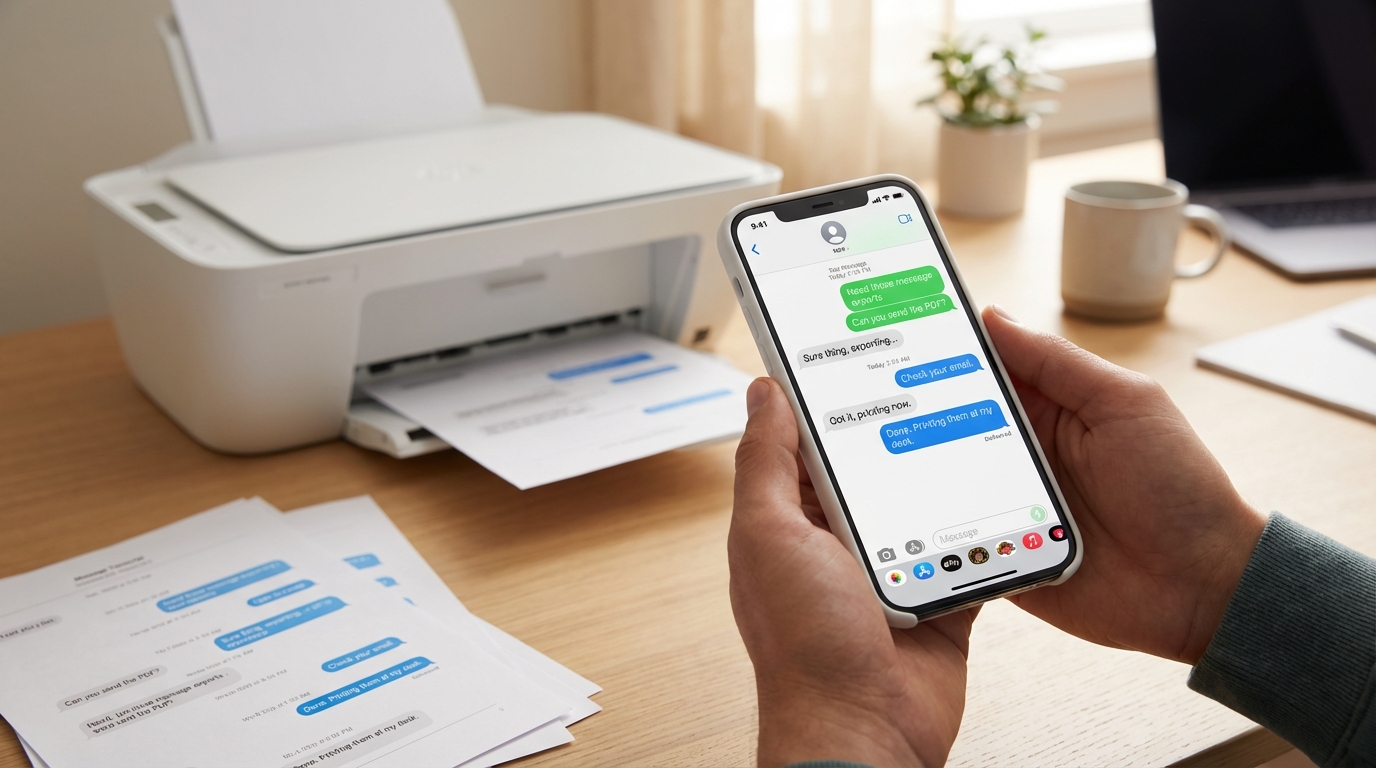
Printing text messages from your iPhone sounds like it should be simple, hit "print" and you're done, right? Unfortunately, Apple's Messages app doesn't have a print button. Whether you need a conversation for court, for work documentation, or just to save a meaningful exchange, you'll need to use a workaround.
The good news? There are several proven methods that range from completely free to professional-grade solutions, and I'll walk you through each one so you can pick what works best for your situation.
Why Can't You Just Print iPhone Messages Directly?
Before we dive into the solutions, it's worth understanding why this is even a problem. Apple designed the Messages app for reading and sending, not for exporting or printing. There's no "export as PDF" or "print conversation" option buried in the menus. This design choice makes sense for everyday texting, but it becomes a real headache when you need a paper copy.
That's especially frustrating when the messages matter. Maybe you're preparing for a custody hearing, documenting harassment, or keeping business communications on file. In those cases, screenshots alone might not cut it, you need something official-looking, with timestamps, contact details, and a format that won't raise eyebrows in a courtroom or boardroom.
Method 1: Screenshots (Quick and Free)
If you only have a handful of messages to print, taking screenshots is the fastest way to get started. Here's how:
- Open the Messages app and navigate to the conversation you want to print.
- Take a screenshot by pressing the Side Button + Volume Up (on newer iPhones) or Home Button + Power Button (on older models with a home button).
- Scroll up in the conversation and repeat until you've captured all the messages you need.
- Open the Photos app, find your screenshots, tap the Share icon, and choose Print or AirDrop them to your Mac.
When to use this method: Screenshots work well for short threads, maybe a dozen messages or less. They're instant, free, and don't require any software.
The downside: Screenshots don't scale. If you have hundreds of messages, you'll spend hours scrolling and tapping. Plus, screenshots can look unprofessional, especially if you need to present them as evidence. They also lack metadata like phone numbers, which courts often require.
Method 2: Print from a Mac (If You Have One)
If you own a Mac and have iMessage syncing enabled, you can print directly from the Messages app on your computer:
- Open Messages on your Mac and make sure your iPhone is syncing (Settings > Apple ID > iCloud > Messages should be turned on).
- Find the conversation you want to print.
- Select all the text by pressing Command + A, then right-click and choose Print.
- In the print dialog, you can adjust margins and layout, or choose Save as PDF to create a digital copy.
When to use this method: This is a solid option if you already have a Mac and your messages are synced. It's faster than screenshots and gives you a cleaner printout.
The downside: Not everyone has a Mac. And even if you do, this method only works for iMessages and SMS forwarded through your Mac, it won't help with WhatsApp, Instagram DMs, or other third-party apps. The formatting also tends to be basic, with no clear sender labels on every message.
Method 3: Screen Recording with Transcription (Flexible and Easy)
If you want a method that works across any messaging app, not just iMessage, screen recording with a transcription tool is one of the most versatile options. This is where TextPort really shines.
Here's how it works:
- Open your Messages app (or WhatsApp, Instagram, Telegram, Signal, anything that's on your screen).
- Start a screen recording using your iPhone's built-in screen recorder (swipe down from the top-right corner and tap the Record button).
- Scroll slowly through the conversation from top to bottom, making sure every message is visible.
- Stop the recording and open TextPort.
- Upload the video to TextPort, which will transcribe the entire conversation, complete with sender names, timestamps, and message order.
- Export to PDF or CSV and print directly or save for your records.
When to use this method: Screen recording is perfect when you're dealing with long threads, non-iMessage apps, or situations where you need professional formatting. It's fast, thorough, and doesn't require a computer or cable.
The upside: TextPort handles the heavy lifting. You don't have to stitch together dozens of screenshots or manually transcribe anything. The final PDF is clean, timestamped, and court-ready. Plus, it works with every messaging app, from SMS & iMessage to Instagram DMs and Signal.
Method 4: Third-Party Desktop Software
If you prefer working from a computer and want more control over the export process, desktop tools like iMazing or Decipher TextMessage can extract your iPhone's message database and convert it to a printable format.
The typical workflow looks like this:
- Connect your iPhone to your computer via USB.
- Launch the software and create a backup of your messages.
- Select the conversation(s) you want to export.
- Choose PDF as your output format and customize options like date range and metadata display.
- Print or save the exported PDF.
When to use this method: Desktop tools are a good fit if you're comfortable with software installations, need to export entire message histories at once, or want advanced filtering by date range.
The downside: These tools typically cost $40-$70, require a computer, and only work with iMessage and SMS. They can't access third-party apps unless you're using TextPort's desktop companion, which offers universal support.
What About Legal Situations?
If you're printing text messages for court, documentation standards matter. Judges and attorneys expect:
- Timestamps on every message so the sequence and timing are clear.
- Sender/recipient information (names, phone numbers) to prove who said what.
- Complete conversations rather than cherry-picked messages, which could be seen as tampering.
- Professional formatting that's easy to read and looks credible.
Screenshots can work, but they often raise questions about authenticity. A clean PDF export with visible metadata is much stronger. Tools like TextPort are specifically designed to produce court-ready printouts that include all the details legal professionals look for.
Which Method Should You Choose?
Here's a quick decision guide:
- Need to print 5-10 messages right now? Use screenshots. It's free and takes two minutes.
- Have a Mac and only need iMessages? Print directly from Messages on your Mac.
- Need to print a long conversation or messages from WhatsApp, Instagram, or another app? Use TextPort with screen recording, it's fast, flexible, and produces professional results.
- Want to export your entire message archive from a computer? Consider desktop software, but compare features and pricing first.
For most people, the screen recording + transcription method hits the sweet spot: it's simple, works everywhere, and delivers high-quality output without needing cables, computers, or expensive software subscriptions.
Tips for Better Printouts
- Always create a backup first. Whether you're using iCloud or a desktop tool, protect your data before you start exporting.
- Check your printer settings. Use grayscale or draft mode to save ink, and print double-sided if you have a lot of pages.
- Review before you print. Open the PDF on your phone or computer and make sure every message is legible and in the correct order.
- Include a cover page. For legal or business use, add a simple title page with the date, participants, and purpose of the document.
Final Thoughts
Printing text messages from your iPhone doesn't have to be complicated or expensive. Whether you choose a quick screenshot, a Mac-based export, or a full transcription tool, the key is matching the method to your needs.
For anyone dealing with long conversations, multiple messaging apps, or situations where presentation and accuracy matter, TextPort makes the process incredibly straightforward. You're not fighting with cables, learning complex software, or spending hours on manual transcription, you're just recording your screen, letting the app do the work, and walking away with a clean, professional PDF.
Whichever route you take, you now have the tools to turn your iPhone messages into a format you can print, share, and use with confidence.

Start exporting your messages
Available for iPhone, Mac, and Windows. No computer required.
