
How to Export Text Messages from iPhone
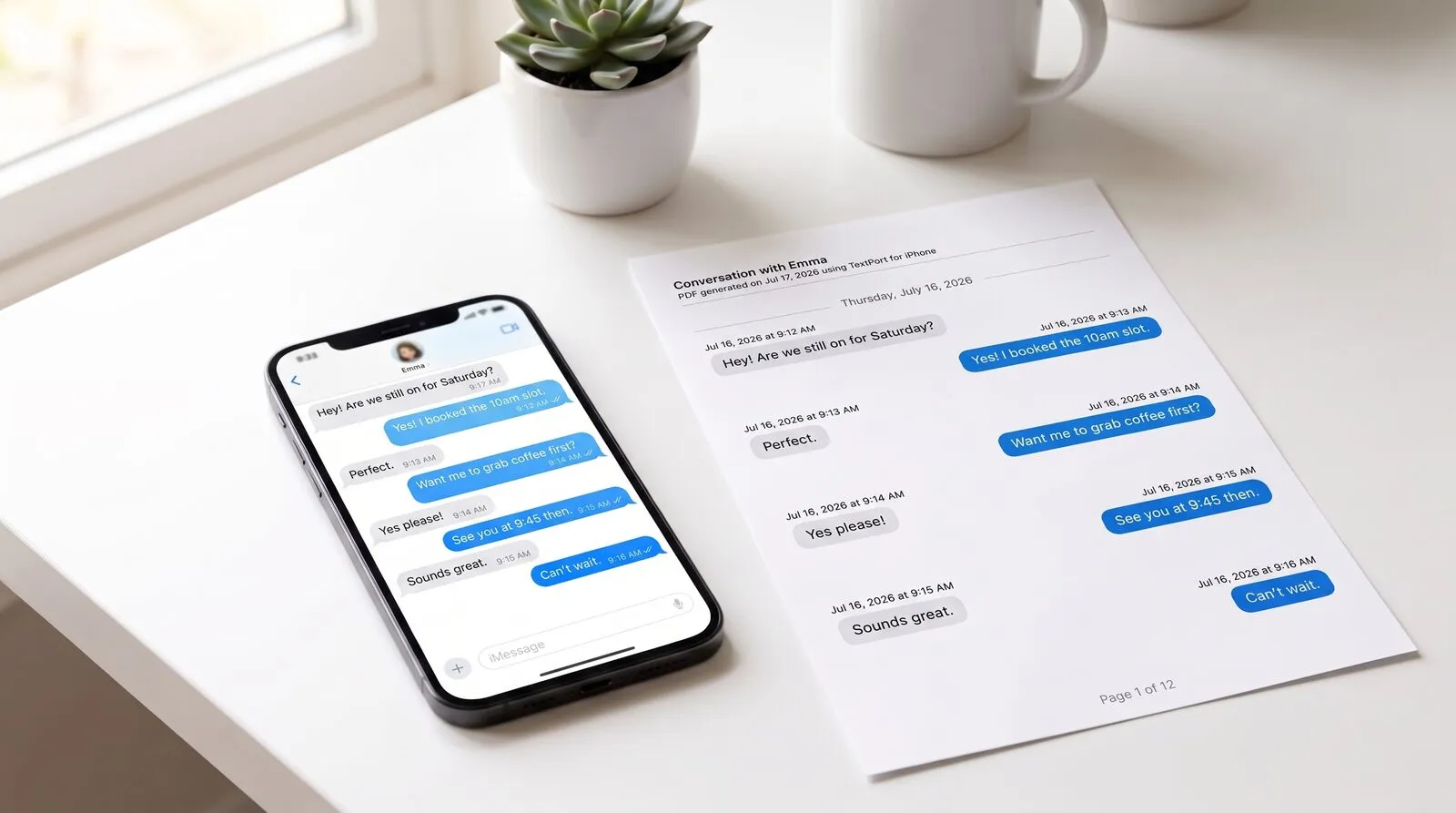
Your iPhone has no built-in "export" button for iMessage. You can screenshot a thread, but a stack of screenshots isn't searchable, isn't a real document, and looks weak the moment you need to hand it to a lawyer, an insurer, or an employer. You can turn any conversation into a proper PDF, CSV, or plain-text file in a couple of minutes, entirely on the phone. No computer, no cable, no iTunes backup.
TextPort pulls the conversation straight out of iMessage and turns it into a clean, timestamped document. This guide walks through every step, explains the export formats, and covers what to do when something doesn't go as expected.
This is a common need. In TextPort's 2026 survey of 1,081 U.S. adults, 55% said they had needed to save, export, or print an entire conversation for a serious or official purpose. Two-thirds had saved message evidence for work, money, housing, fraud, harassment, or family matters.
How TextPort works
TextPort imports your iMessage conversations directly, right on your iPhone. Pick a chat, pick a date range, and TextPort pulls in every message with its sender and timestamp, in order. The result is real text you can copy, search, and export to PDF, CSV, or TXT. There's no message-count cap, and no screenshots or scrolling involved.
Step-by-step: export your iPhone text messages
1. Open TextPort and tap Import. Download TextPort from the App Store, open it, and tap Import.
2. Choose the Messages conversation you want to export. Pick the thread (iMessage or SMS, one-on-one or group).
3. Pick the date range you need. Export the whole history or narrow it to the weeks or months that matter.
4. TextPort imports every message with sender and timestamp. Review the conversation, make any corrections, then export as PDF, CSV, or TXT from the preview screen.
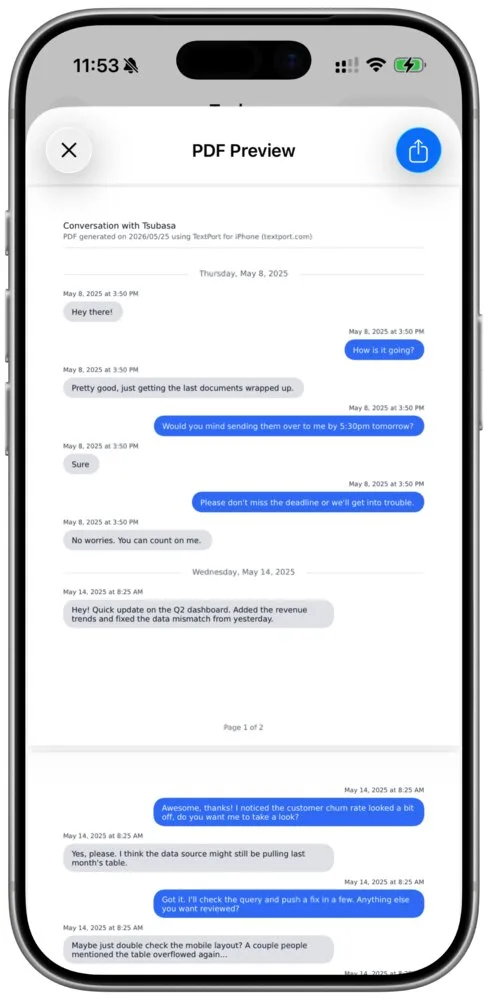
That's the whole process. No cable, no desktop software, no backup file. The finished document lives on your phone, ready to share, print, or file.
Choose your export format: PDF, CSV, or TXT
Once the conversation is imported, pick the format that matches what you'll do with it:
- PDF: a clean, paginated, timestamped document that looks like the original chat. Best for court filings, insurance claims, HR matters, or anything you'll print or hand to someone else. It's also the format most people ask for when they need to print text messages for court.
- CSV: a spreadsheet where each message is a row with its sender, date, and time. Ideal for sorting, filtering, keyword searches, or analyzing a long thread in Excel or Google Sheets.
- TXT: a simple plain-text file. Good for a quick, lightweight backup or importing into another tool.
No computer is needed for any of them. If your goal is specifically to get the conversation onto paper, see how to print text messages without a computer. For long-term storage across apps, see our guide to archiving iPhone text messages.
Which messaging apps are supported?
TextPort works with any messaging app on your iPhone, including:
- iMessage / SMS
- Facebook Messenger
- Instagram DMs
- Slack
- Microsoft Teams
- ChatGPT
- Discord
- Google Voice
- Telegram
- Signal
- Snapchat
- And many more
Tips for the cleanest export
- Pick a generous date range. Start slightly before and end slightly after the messages that matter, so the conversation reads as a complete record rather than a clipped fragment.
- Review before you export. Skim the imported thread once so you know exactly what the recipient will see.
- Choose the format for the job. PDF for anything you'll hand to a person, CSV for anything you'll search or sort.
- Keep the originals. Don't delete the thread from your phone after exporting; the device itself may be needed later.
Troubleshooting
Some messages are missing from the export. Check the date range you picked. Widen it and import again; the export will include every message in the range.
I can't find the conversation. Make sure it still exists in iMessage on this iPhone. Deleted threads can't be imported.
The thread is very long. That's fine. The direct import handles a conversation of any length, with no message cap.
I want to fix a typo or a name. Review the conversation before exporting and edit any message inline. The correction only affects your export, never the original thread.
Which approach fits your situation
| Situation | Recommended path |
|---|---|
| Quick personal backup of one thread | Direct import → TXT |
| Printing or filing a conversation | Direct import → PDF |
| Spreadsheet analysis or keyword search | Direct import → CSV |
| Court filing or formal documentation | Direct import → PDF (see text messages as legal evidence) |
| One iMessage conversation on a Mac or Windows PC | See how to export an iMessage conversation |
| Years of texts, or many conversations at once | TextPort's desktop apps for Mac and Windows (iMessage and SMS) |
FAQ
Is TextPort free?
TextPort is free to download and try. You can export a limited number of chats for free, then upgrade for unlimited exports.
Do I need a computer?
No. TextPort works entirely on your iPhone. Need to export everything at once? Our desktop apps for Mac and Windows can export your iMessage and SMS conversations in a single session if you prefer working from a computer.
Are my messages private?
Yes. Your messages are processed securely and are never shared with third parties. You can delete your data at any time.
Frequently asked questions
-
No. The entire workflow runs on the iPhone itself. TextPort pulls the conversation straight out of iMessage and exports it to PDF, CSV, or TXT. No Mac, PC, iTunes, or Lightning cable required.
-
Yes. TextPort imports every message in order, keeping the sender and the date and time for each one. Outgoing and incoming messages are labeled, so a reader can always tell who said what and when.
-
Yes. TextPort imports iMessage (blue), SMS/MMS (green), and group chats alike. In a group thread each message is attributed to its sender.
-
A clean, timestamped PDF that preserves sender names and the original chat layout is far more credible than a loose screenshot, and TextPort is built to produce exactly that. Admissibility rules still vary by jurisdiction, so confirm specifics with a legal professional. See our guide on whether text messages can be used in court.

Start exporting your messages
Available for iPhone, Mac, and Windows. No computer required.
