
How to Export Discord Messages from iPhone
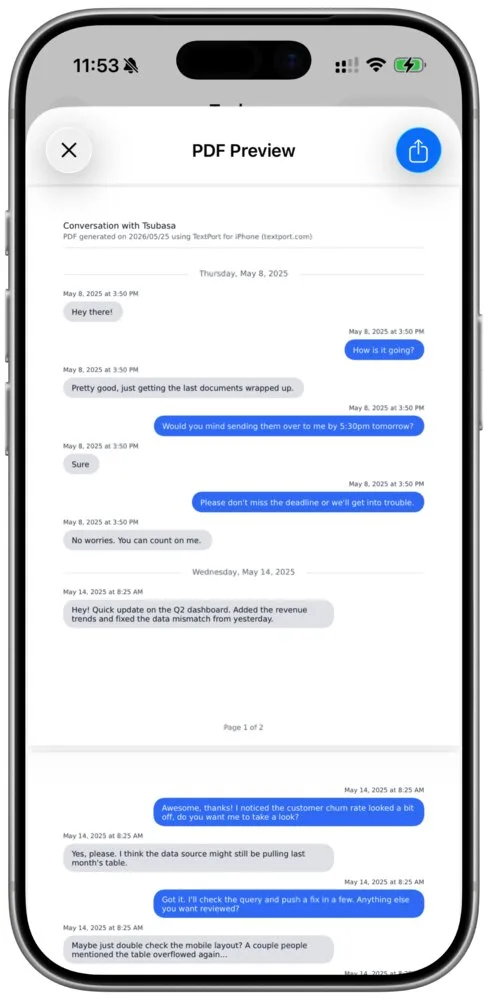
Discord has no Export Chat button. Its only built-in export, the data package, holds only the messages you sent. If you're saving a DM because of what someone said to you, that's exactly the half it leaves out. To keep both sides as a PDF, record the chat on your iPhone with TextPort, before anything gets deleted.
The data package is also slow and hard to read: a ZIP of raw data files (JSON) that can take up to 30 days to arrive.
What Discord's data package includes, and what it leaves out
Discord calls it a Data Package: a ZIP folder with "all of your Discord data for your account." Read the fine print, though: the messages folder "contains all the messages that you have sent on Discord."
| What you might need | In the data package? |
|---|---|
| Messages you sent in DMs, group DMs and server channels | Yes, one folder per channel |
| The date and time of each message you sent | Yes |
| Images and files you sent | Only as links, not the files |
| Messages the other person sent you | No |
| Messages you deleted | No. Discord says a deleted message "is no longer stored" |
| A server you left before you asked | Maybe not. It includes servers you're in, "as well as any recently-departed servers" |
| Your messages to Discord Support or Trust & Safety | No |
You can open the JSON files in Notepad, TextEdit or a browser, but they don't read like a conversation. A DM's folder lists the chat by channel ID and user IDs. Discord's support team also says it "cannot assist you with going through your Data Package." It's a good backup of your own words, and that's all.
You'll also see desktop exporters and browser extensions when you search for this. Google's top answer for "export discord chat" walks you through copying your account token (a secret key that logs in as you) into one. Discord's own rules say not to: "You should never give your account password or token to anyone," and "using a user token in any application (known as a selfbot), or any automation of your account, may result in account suspension or termination." A chat export isn't worth risking your account.
How to request your Discord data on iPhone
- Open Discord and tap your avatar in the bottom-right corner.
- Tap the cogwheel in the upper-right corner to open Settings.
- Tap Data & Privacy, then Request all of my data.
- Tap Request My Data to send the request.
- Tap Okay on the confirmation. It says the package should arrive within 30 days.
On a computer or in a browser, click the cogwheel in the lower-left corner, open the Data & Privacy tab, and click Request Data under Request your data. Then pick what you want and click Request My Data.
Discord's help pages on data requests and the data package list a few catches worth knowing before you start:
- Your account needs a verified email address, and the download link goes to that address.
- You can't send a second request until the first one is done.
- The download link stays active for 30 days. Save the ZIP as soon as it arrives.
- If you disable or delete your Discord account before the link arrives, the request is canceled.
Save both sides of a Discord DM on your iPhone
To keep what the other person wrote, capture the chat itself. With TextPort, you record your screen while you scroll through the chat, and TextPort turns the video into a chat you can search, fix and export. It works the same for a DM, a group DM or a server channel.
Get the chat ready in Discord
- Find where it starts. In the chat, tap the search icon in the upper-right corner. On the iPhone, Discord's search has Sent on a date, Before a date and After a date filters, and From a specific person. Tap a result to go to that message, then scroll up a little so you start before it.
- Show hidden messages. If you ignored the person, Discord hides their messages until you press Show. Press it on each hidden message before you record. If you blocked them, Discord hides their messages too, and its help center doesn't say how to show them. Anything that stays hidden on screen won't be in the recording.
- Keep the dates in view. TextPort can only use the dates and times the recording shows, so scroll slowly enough that the dates and times stay on screen.
Record the chat with Scroll Capture
- Open TextPort and tap Add Chat.
- Tap the app name at the top. Discord isn't in the list, so scroll to the end and tap Other. (Why that's fine: Scroll Capture reads text the same way for every app.)
- Tap On Your iPhone.
- On the Scroll Capture tab, tap Start Screen Recording, then Start Broadcast.
- Open Discord, go to the first message you need, and scroll down slowly, from oldest to newest. Keep each message on screen for about one second.
- Go back to TextPort and tap Stop Recording. Drag the yellow handles so the video starts and ends on the chat, then tap Start Processing.
The recorder stops by itself after 15 minutes, so split a long chat into separate recordings. The Scroll Capture guide has every step with pictures. Scroll Capture works the same way in other chat apps too, like Microsoft Teams and ChatGPT.
Already took screenshots? Use the Screenshots tab instead and tap Import Screenshots. Overlap them, so the last message in one is the first in the next, and TextPort removes the doubles. See how to import a chat from screenshots.
Check it, then export a PDF
Open the chat in Saved Chats and read it against Discord. Long press a message to fix its text or time, or to delete it. TextPort can't add a message by hand, so if one is missing, record that part again.
Then tap Export and PDF. Need only some dates? Tap the filter icon next to the share button and pick a start and end date. The PDF holds real text you can search, not pictures of the screen. Photos in a chat imported from screenshots show as text placeholders, so keep any image you need as its own file. The PDF guide shows how to share, save or print it.
Keep the screen recording too. It's the original the PDF came from, and TextPort lets you open it again from the chat whenever you need to check a message.
You can import your first three conversations for free.
Capture it before it's deleted
A Discord chat can change after the fact. Whoever sent a message can delete it while they still have access to the chat, and in a server, so can the owner and any moderator with Manage Messages permission. Discord says that once content is deleted, "it will no longer be available to other users" and is deleted from Discord's systems, though Discord may keep it longer if it has a legal obligation to preserve it. If someone deletes their whole account, though, Discord keeps showing their messages, just no longer tied to that account.
So capture the whole thread now, not only the worst message. TextPort's page on documenting harassment explains why the full pattern matters.
Two more things you can do in Discord while you're at it. To report a message, hold it and tap Report Message, then pick what's wrong. To keep a pointer to a message, hold it and tap Copy Message Link, and save the links next to your PDF. If someone has made a credible threat of violence and you're in immediate danger, Discord says to contact your local law enforcement agency.
If you plan to use the messages in a case, read Can Text Messages Be Used in Court? and the guide to preparing messages for court.
Frequently asked questions
-
That depends on your court and your case, and TextPort can't give legal advice. Can Text Messages Be Used in Court? covers the general rules for messages as evidence, with sources. Ask a lawyer about your own case.
-
Discord keeps most of your data for as long as your account is active, and it may delete an account that's been inactive for two years. A single message can disappear sooner, because whoever sent it can delete it.

Start exporting your messages
Available for iPhone, Mac, and Windows. No computer required.
