

How to import a chat from screenshots
Quick answer
In TextPort:
- Tap Add Chat. Pick the chat's app at the top.
- Tap Import with Scroll Capture (other apps: On Your iPhone).
- Tap Screenshots, then Import Screenshots.
- Tap your screenshots. Tap the checkmark.
- Keep TextPort open until the chat opens.
The chat then shows in Saved Chats.
What you need
- ✓TextPort on your iPhone
- ✓Screenshots of the chat in Photos
Steps
-
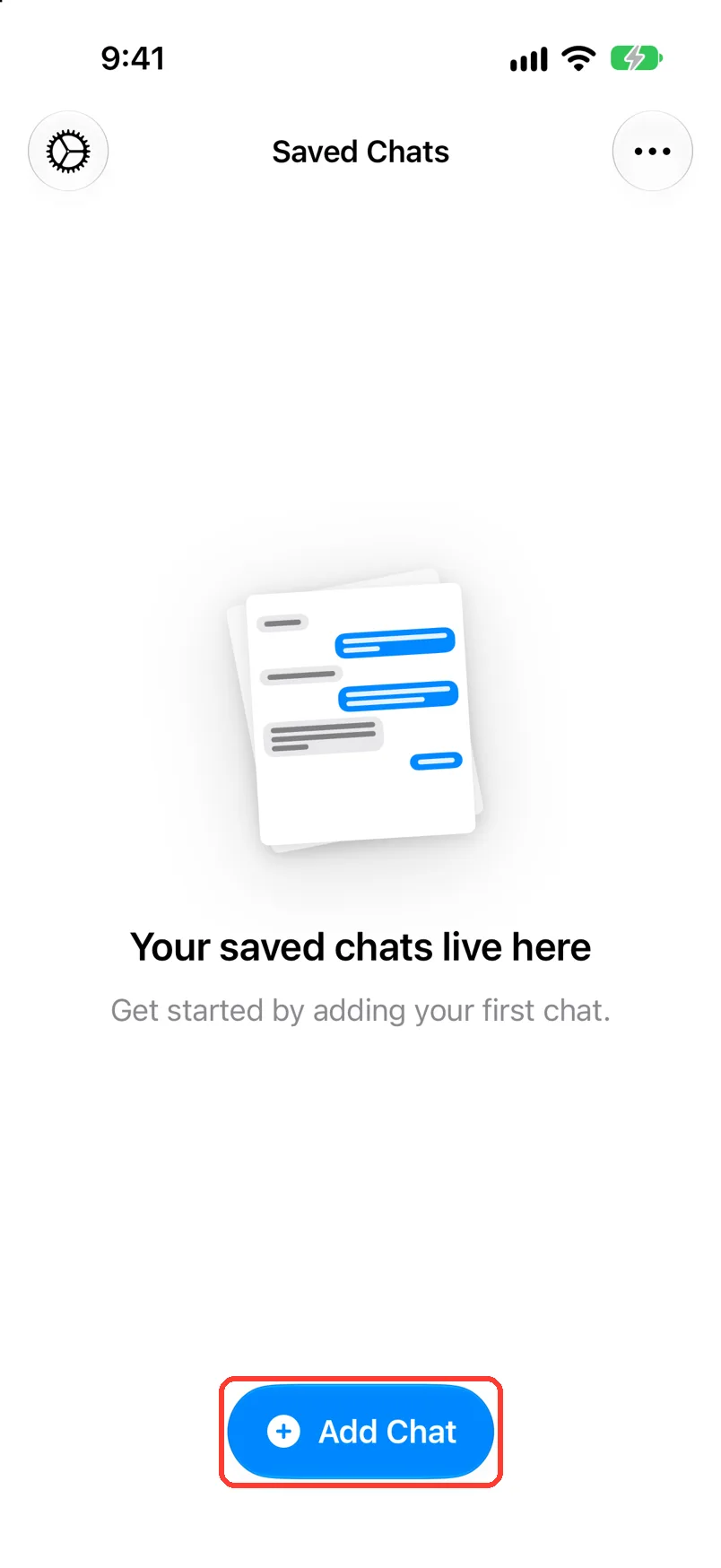
Tap Add Chat
Open TextPort. It is at the bottom of Saved Chats.
-
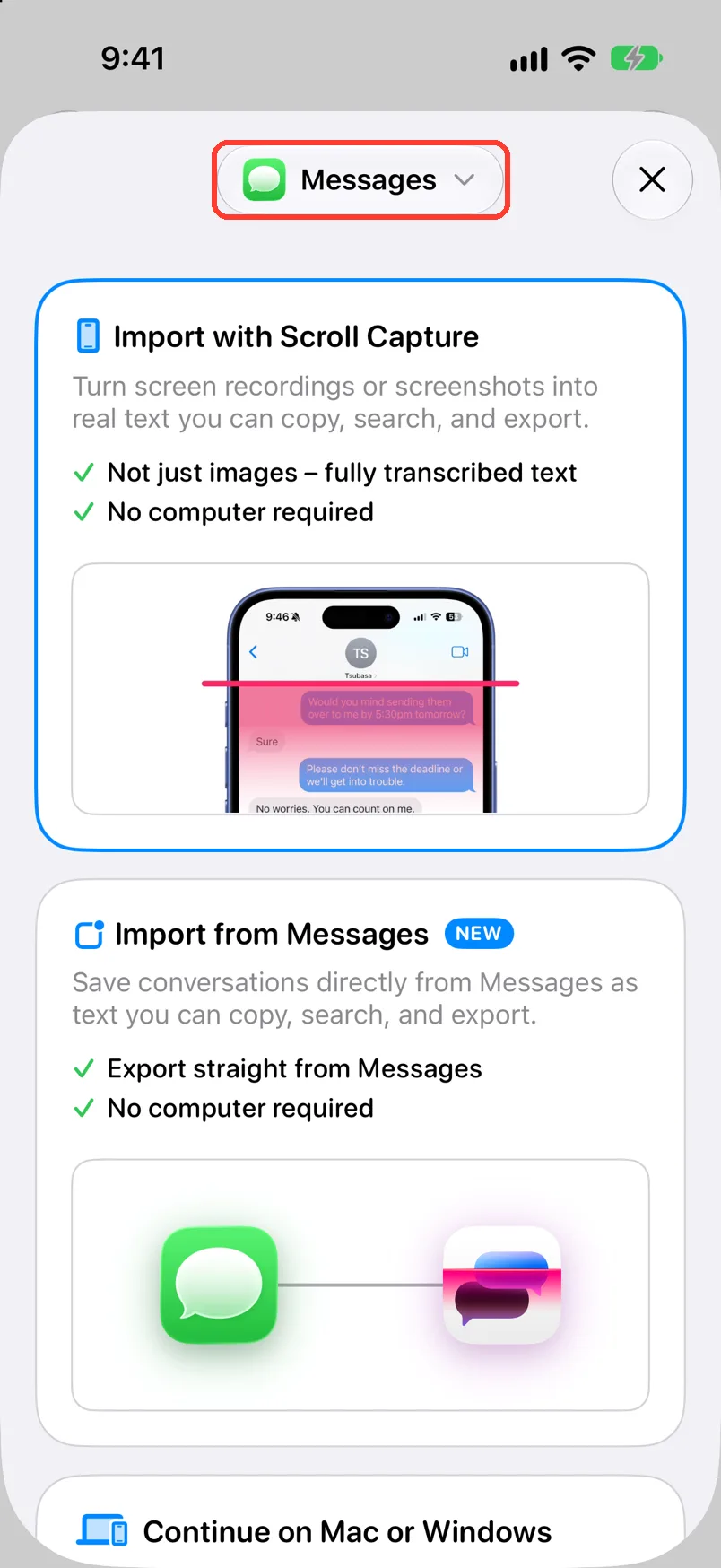
Tap the app name at the top
It may say Messages. Select Chat App opens.
-
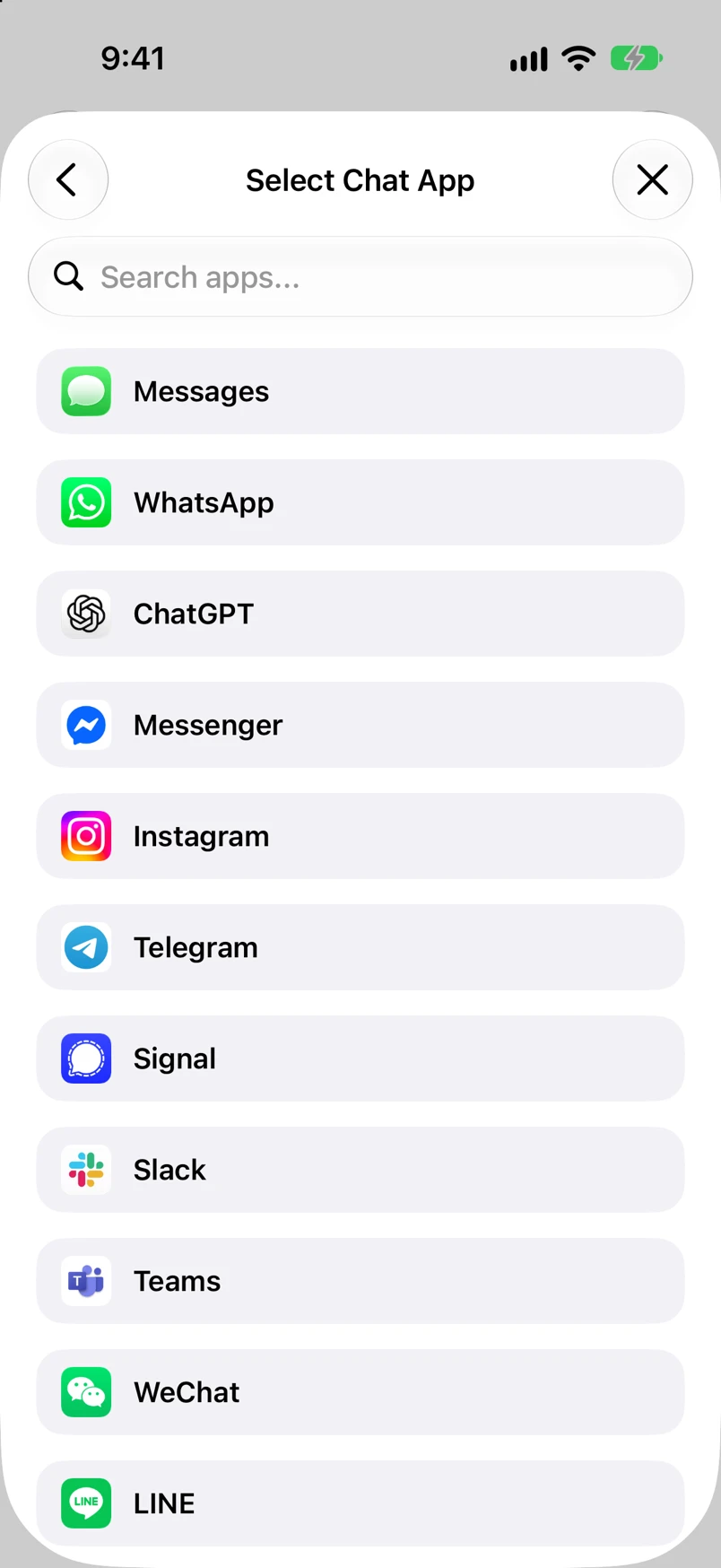
Tap the app the chat is in
Type in Search apps... to find it fast. You are back on the cards.
For WhatsApp, use Export a WhatsApp chat to TextPort instead.
-
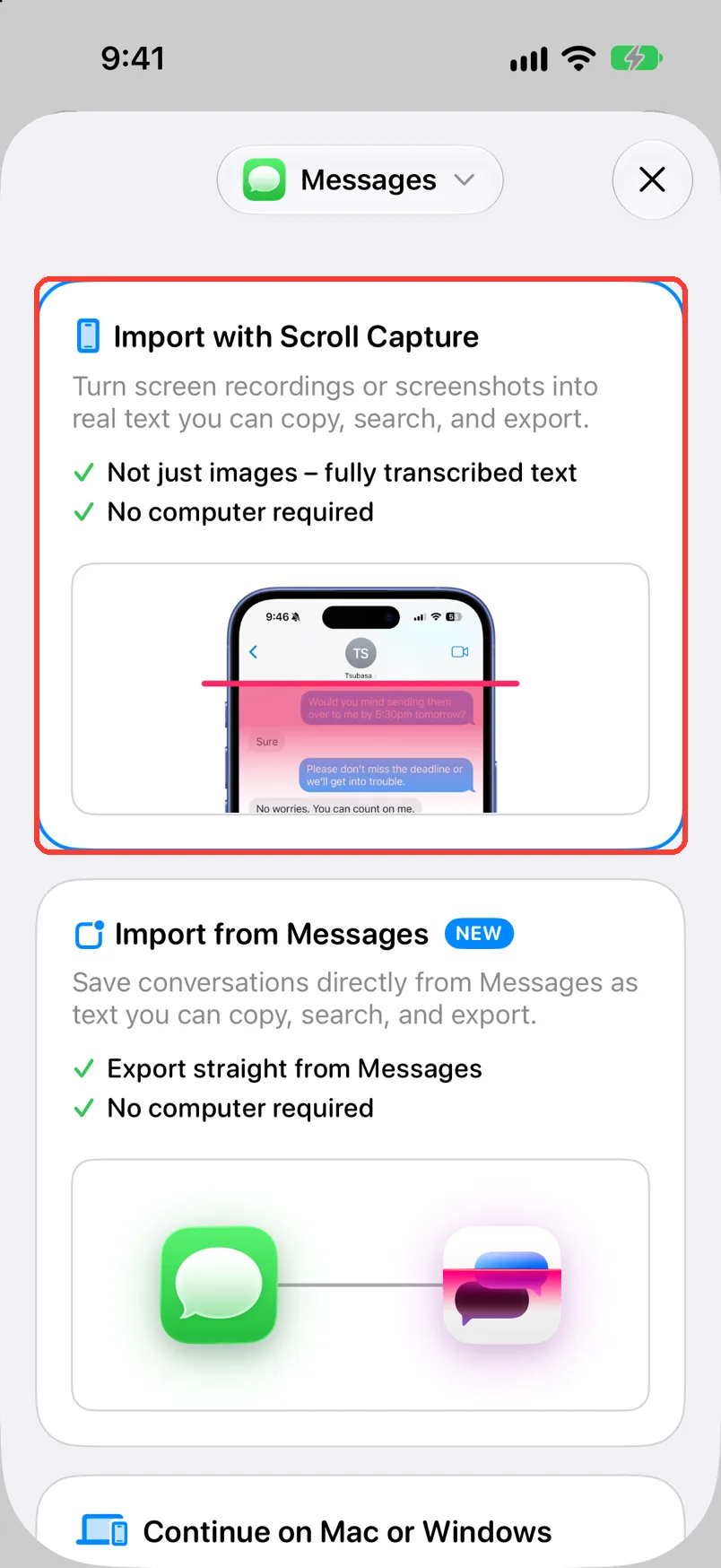
Tap Import with Scroll Capture
For other apps it says On Your iPhone. Scroll Capture opens.
-
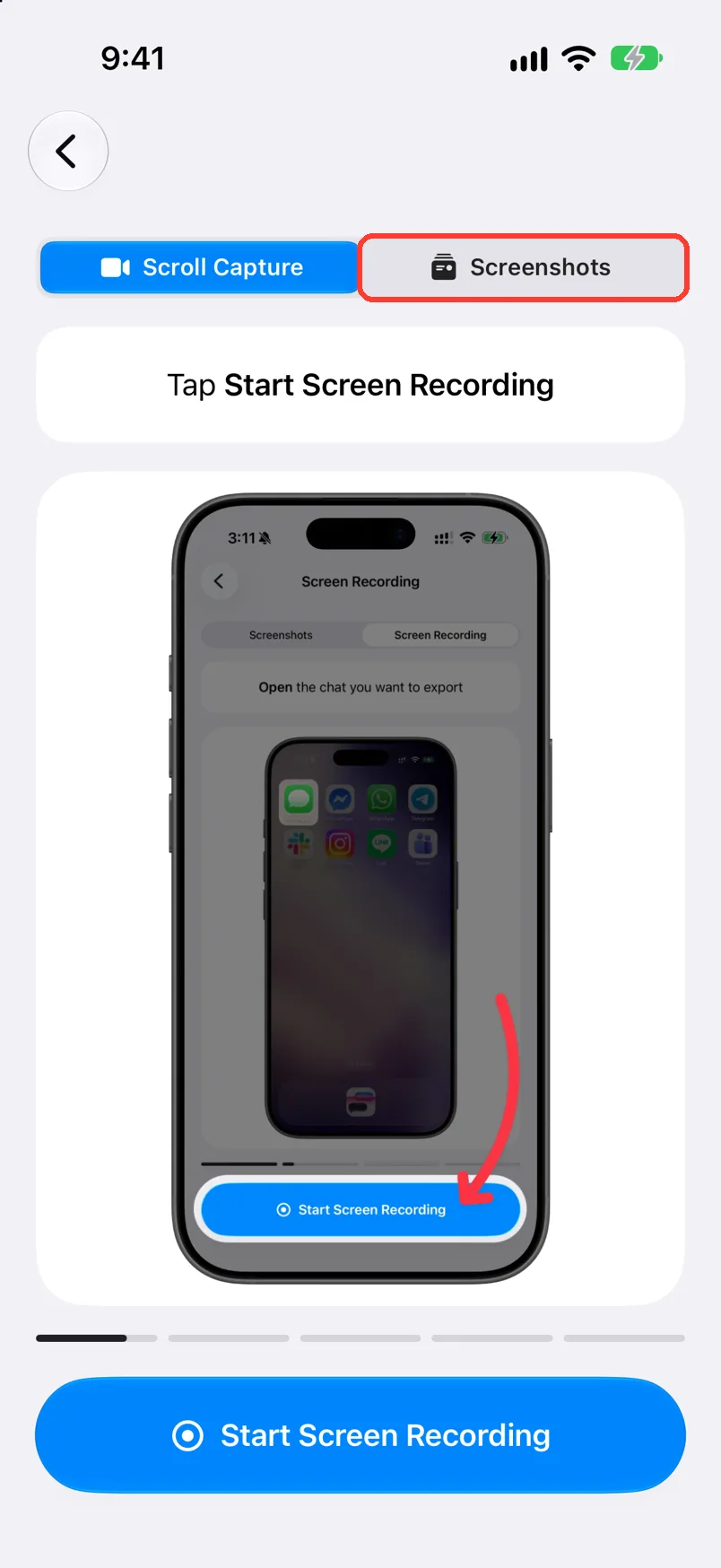
Tap Screenshots
It is at the top. The screen says Open the chat you want to export.
-
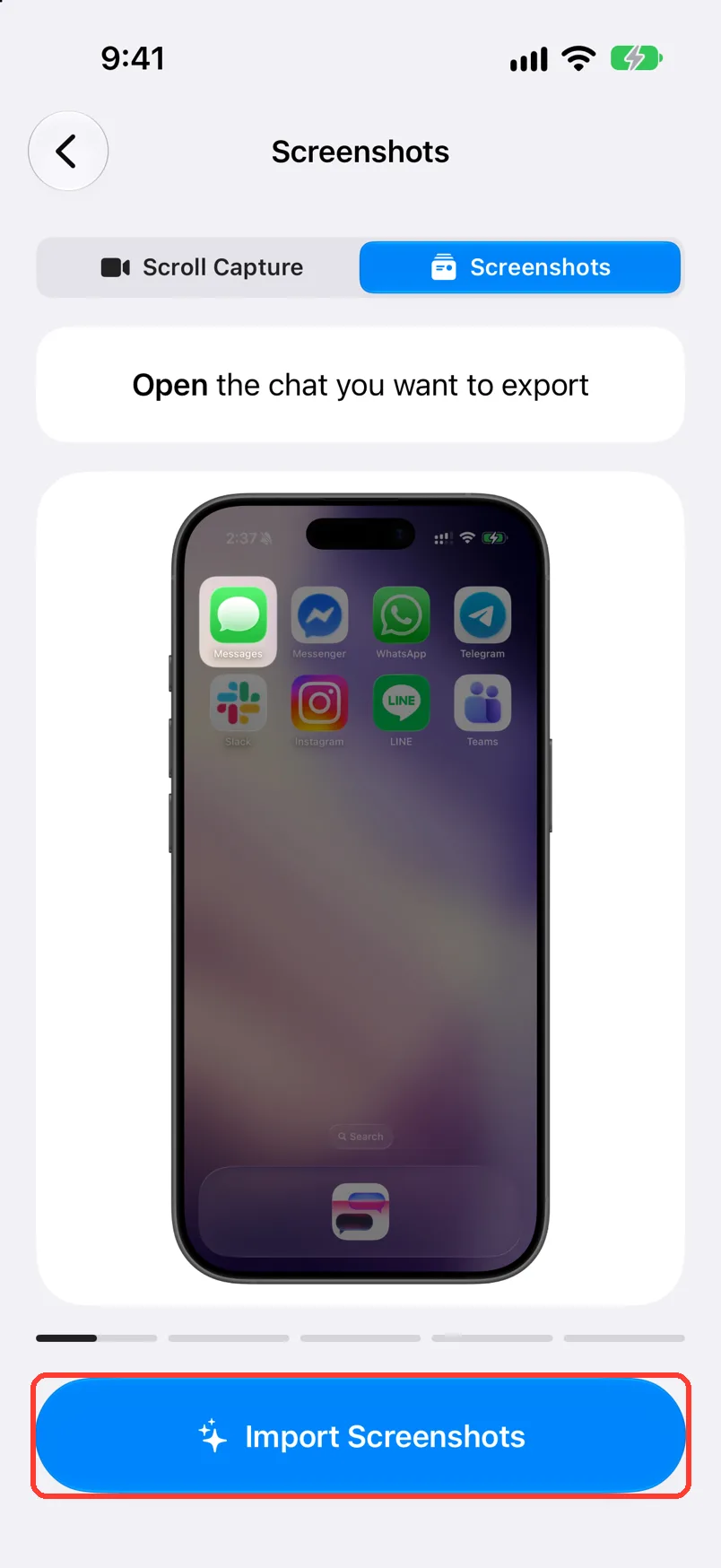
Tap Import Screenshots
It is at the bottom. Your photos open.
TextPort may ask you to unlock this.
-
Tap your screenshots, then the checkmark
Tap each screenshot, top of the chat first. Tap the checkmark. TextPort starts reading.
Before iOS 26, tap Add instead of the checkmark.
-
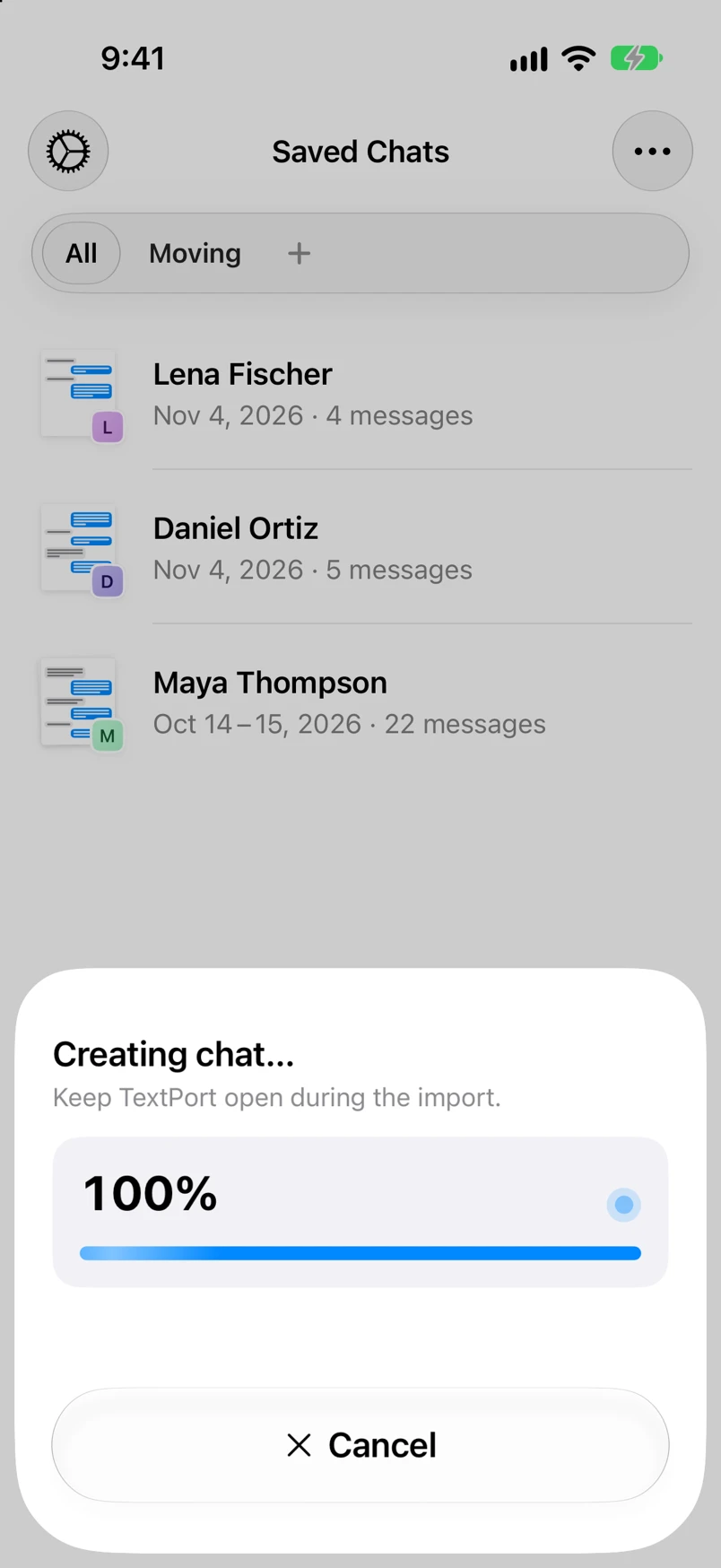
Keep TextPort open
TextPort shows Processing screenshots and a progress bar. Then Creating chat....
To stop, tap Cancel.
-
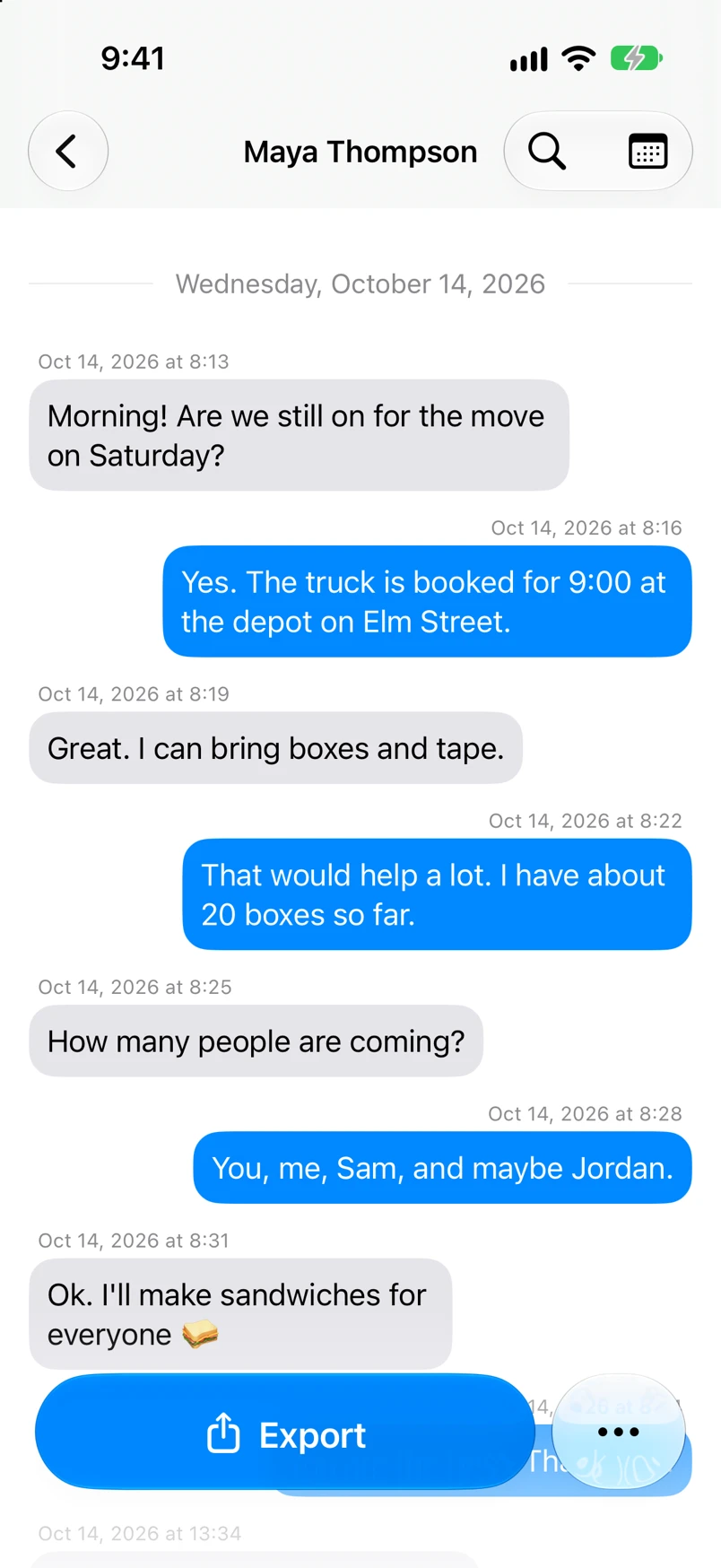
Read your chat
The chat opens by itself. It may show Processing your Chat for a few minutes first.
Done
The chat is saved in TextPort as text. You can search it, fix it, and export it.
Problems
Couldn't import this chat
Check that your iPhone is online. Tap Retry.
Processing failed.
Tap Retry. Or press and hold the chat in Saved Chats. Tap Retry.
The chat name says Processing... for a long time.
It can take a few minutes. You can leave TextPort. Pull down on Saved Chats to check again.
There are no Scroll Capture and Screenshots tabs.
Older iOS versions show only Screenshots. Go on with step 6.
Words, times, or messages are wrong or missing.
Every message has the wrong year.
None of these match.
Email [email protected]. Say which step you were on. Say what you saw. We usually reply within a day.
Questions
-
There is no set limit. More screenshots take longer.
-
Yes. Your screenshots stay in Photos. TextPort keeps its own copy so you can see the source later. You can delete that copy in Settings › Your Data › Screenshots.
-
For a long chat, yes. You record the screen while you scroll, so you take no screenshots. See the Scroll Capture guide.
Next guides
-
 How to take good screenshots for TextPort
You will have a set of screenshots that TextPort can read with few mistakes.
How to take good screenshots for TextPort
You will have a set of screenshots that TextPort can read with few mistakes.
-
 How to fix wrong text, times, or missing messages
Every message TextPort read wrong from a screenshot or recording will say the right thing.
How to fix wrong text, times, or missing messages
Every message TextPort read wrong from a screenshot or recording will say the right thing.
-
 How to import a chat with Scroll Capture
You will get a chat from any app saved in TextPort, made from a screen recording of you scrolling.
How to import a chat with Scroll Capture
You will get a chat from any app saved in TextPort, made from a screen recording of you scrolling.
-
 How to export a chat to PDF
You will get a PDF of one chat, with names, dates, and times, ready to share or print.
How to export a chat to PDF
You will get a PDF of one chat, with names, dates, and times, ready to share or print.

Start exporting your messages
Available for iPhone, Mac, and Windows. No computer required.
