

How to change the year for many messages at once
Every message in your chat will show the right year.
What you need
- ✓TextPort on your iPhone
- ✓A chat imported from screenshots or Scroll Capture
Screenshots often do not show the year. If TextPort guessed the wrong year, fix every message in one go.
Steps
-
1
Open the … menu
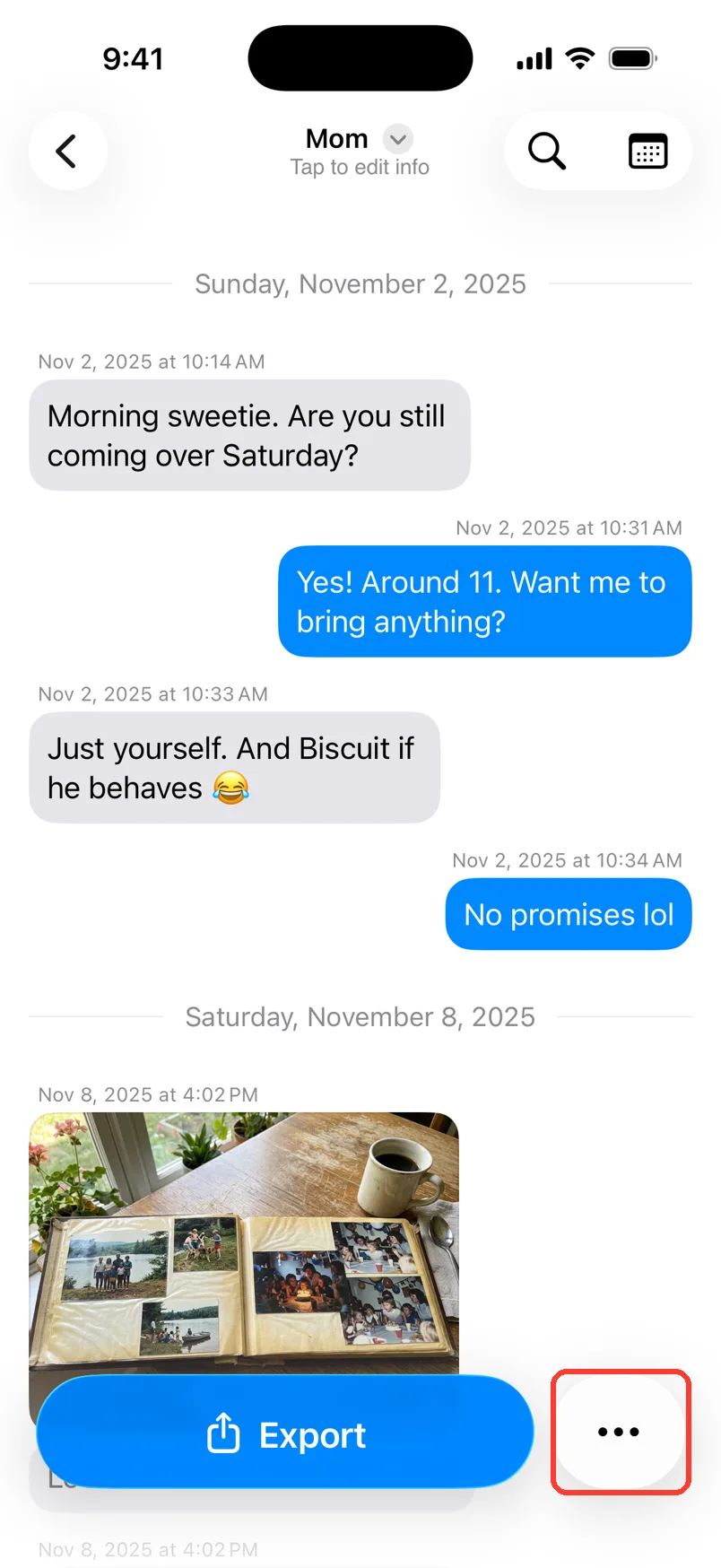
Open the chat. Tap the … button at the bottom right.
-
2
Tap Edit Messages
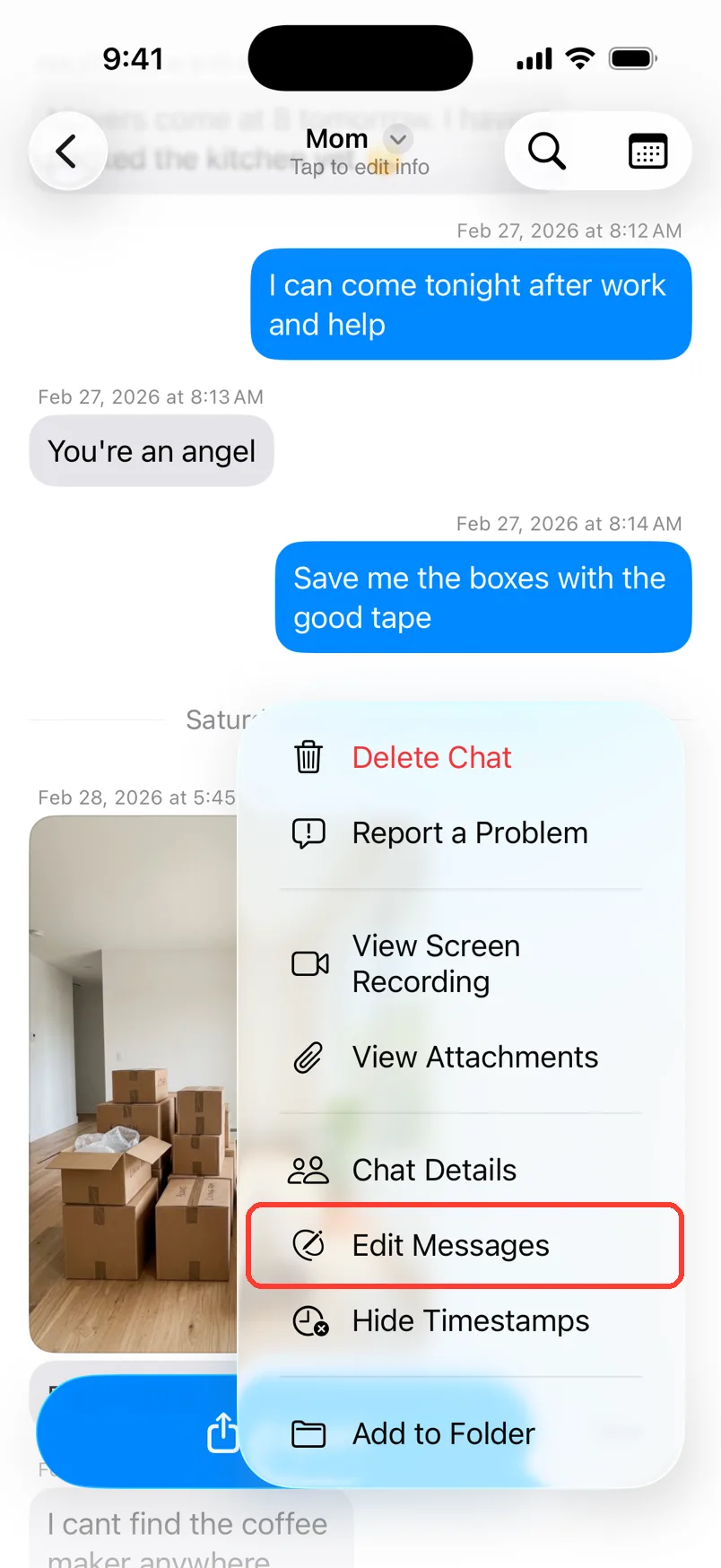
Tap Edit Messages. A sheet opens.
-
3
Tap Bulk Edit Timestamps
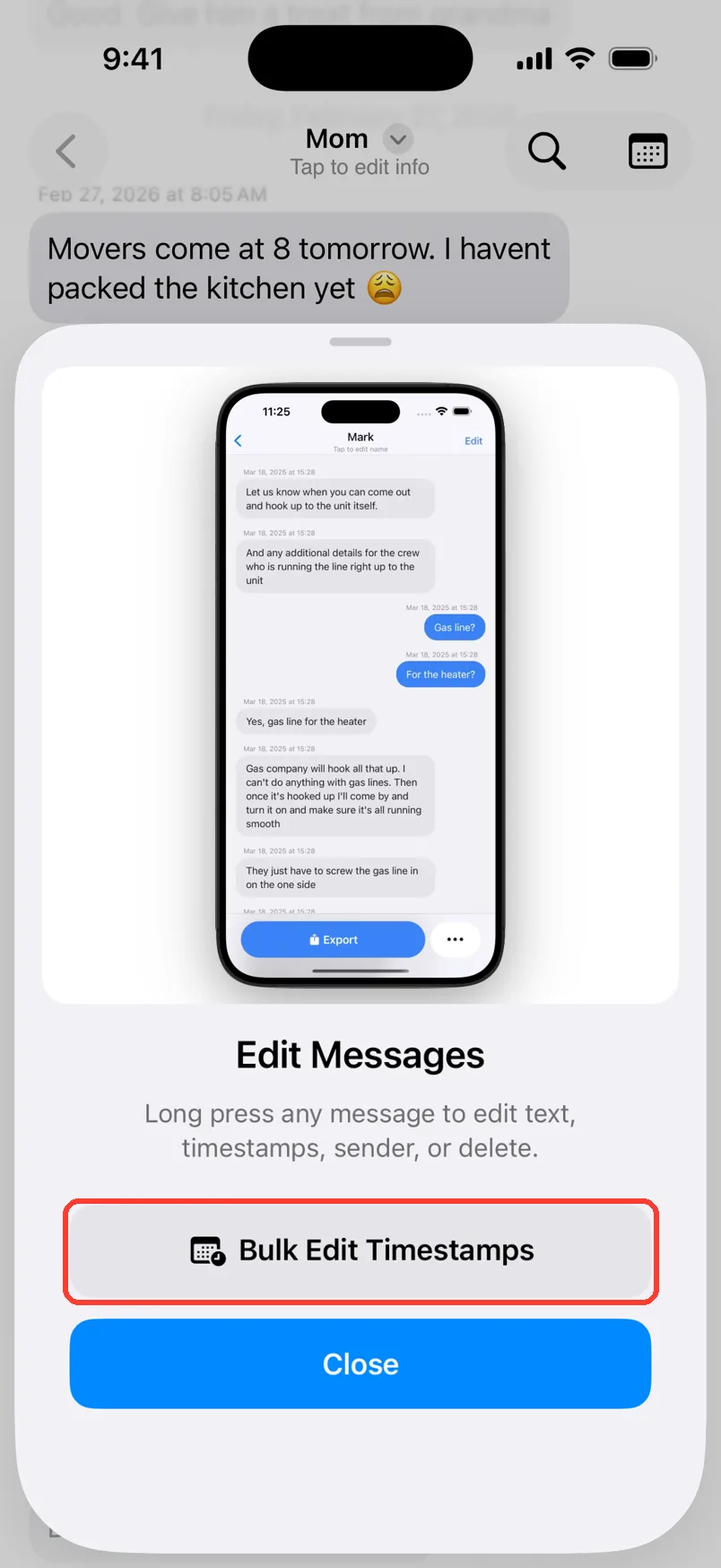
Tap Bulk Edit Timestamps.
-
4
Pick how many years
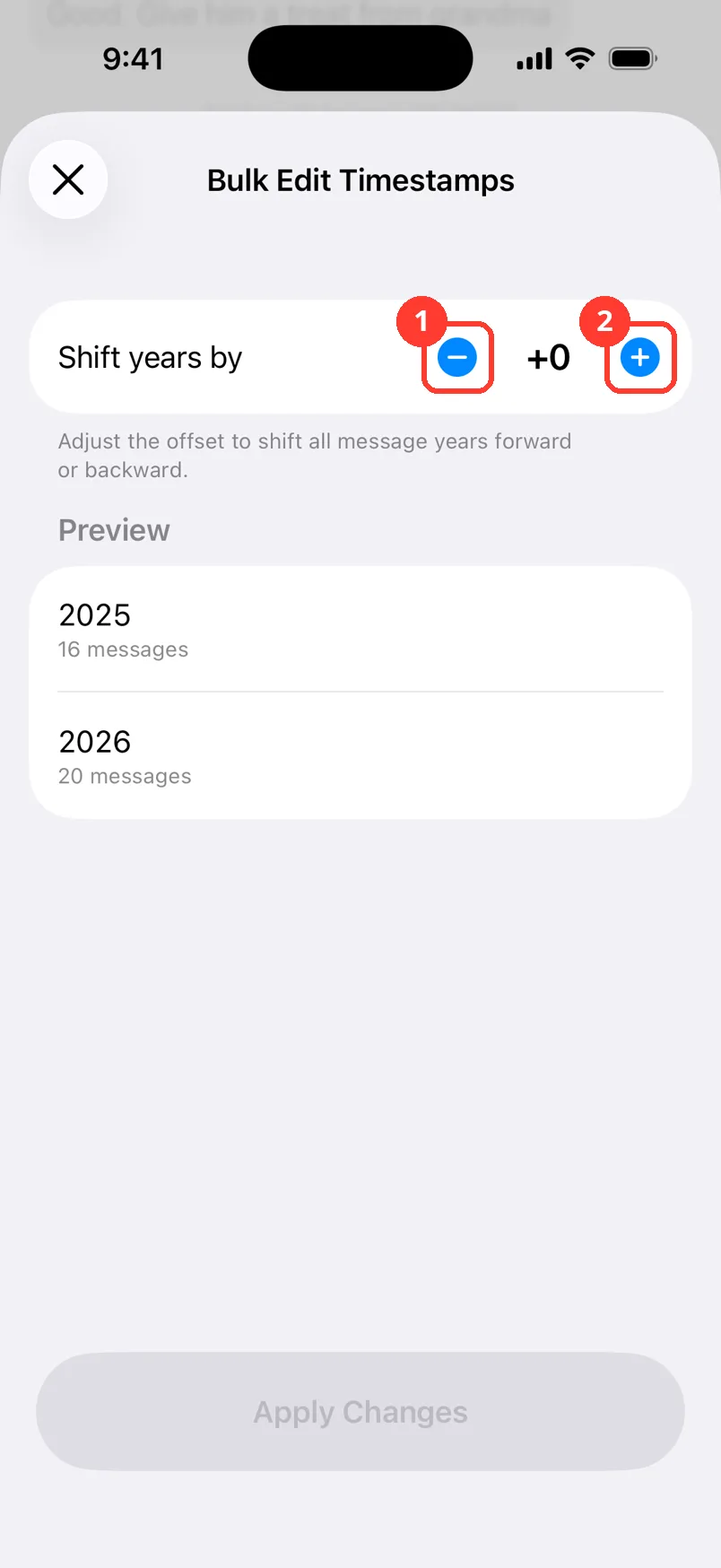
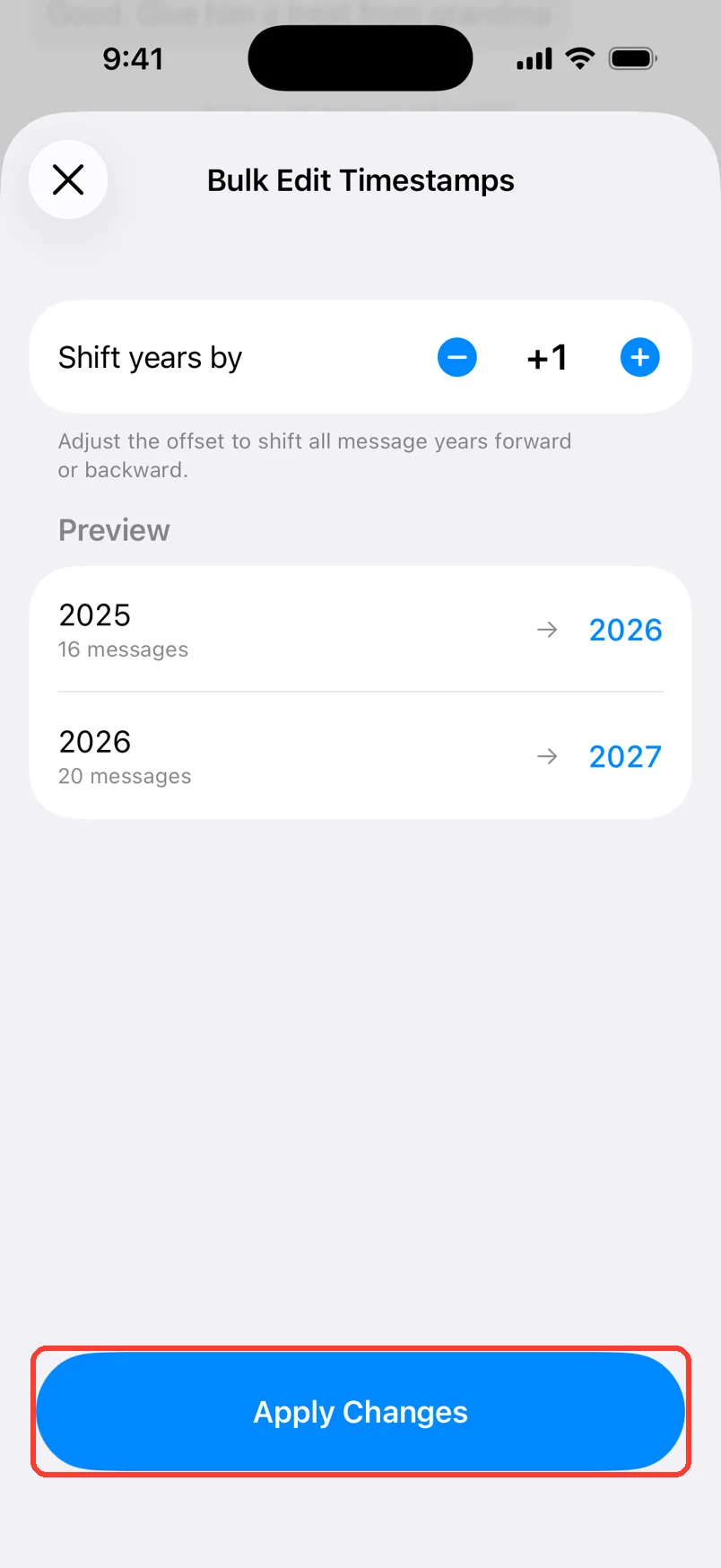
Next to Shift years by, tap − (1) to go back a year. Tap + (2) to go forward a year. Tap again for more years.
-
5
Check the preview
Under Preview, each old year shows an arrow to the new year. It also shows how many messages move.
-
6
Tap Apply Changes
Tap Apply Changes at the bottom.
-
7
Check the chat
The sheet closes. The dates in the chat show the new years.

Done
All messages with a date moved by the same number of years. The day and time did not change.
Tips
-
You can shift up to 10 years back or 10 years forward.
-
This moves every dated message. To fix just one day, long press the gray date line. Tap Edit Date.
-
To fix one message, long press it. Tap Edit Timestamp.
-
Moved the wrong way? Do it again with the opposite number.
Questions
-
Many chat apps do not show the year on recent messages. TextPort has to guess it from your screenshots.
-
It only shows for chats from screenshots or Scroll Capture. Messages and WhatsApp chats have exact dates, so they can not be edited.
-
No. The year shift moves every message that has a date. Use Edit Date on a date line to change one day.
Next guides
-
 How to fix wrong text, times, or missing messages
You will fix any message that TextPort read wrong from a screenshot or recording.
How to fix wrong text, times, or missing messages
You will fix any message that TextPort read wrong from a screenshot or recording.
-
 How to read a chat in TextPort
You will know who sent each message and when, and how to hide or show the times.
How to read a chat in TextPort
You will know who sent each message and when, and how to hide or show the times.
-
 How to edit the chat name and people's names
You will have the right chat name and the right name for each person in the chat.
How to edit the chat name and people's names
You will have the right chat name and the right name for each person in the chat.

Start exporting your messages
Available for iPhone, Mac, and Windows. No computer required.
