

How to read a chat in TextPort
You will know who sent each message and when, and how to hide or show the times.
What you need
- ✓TextPort on your iPhone
- ✓A chat saved in TextPort
A chat in TextPort looks a lot like your messaging app. Here is how to read it.
Steps
-
1
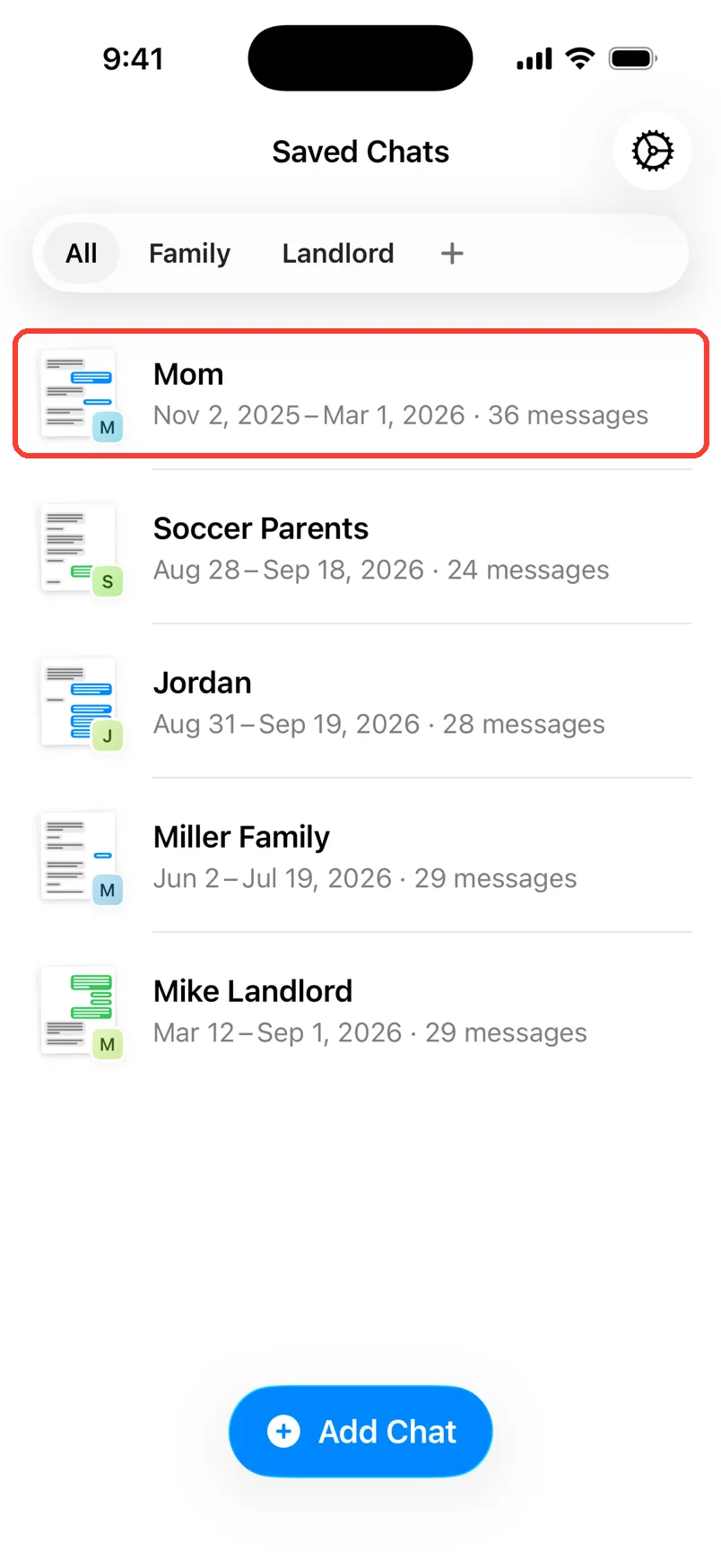
Open the chat
Tap the chat in Saved Chats.
-
2
Find the date line
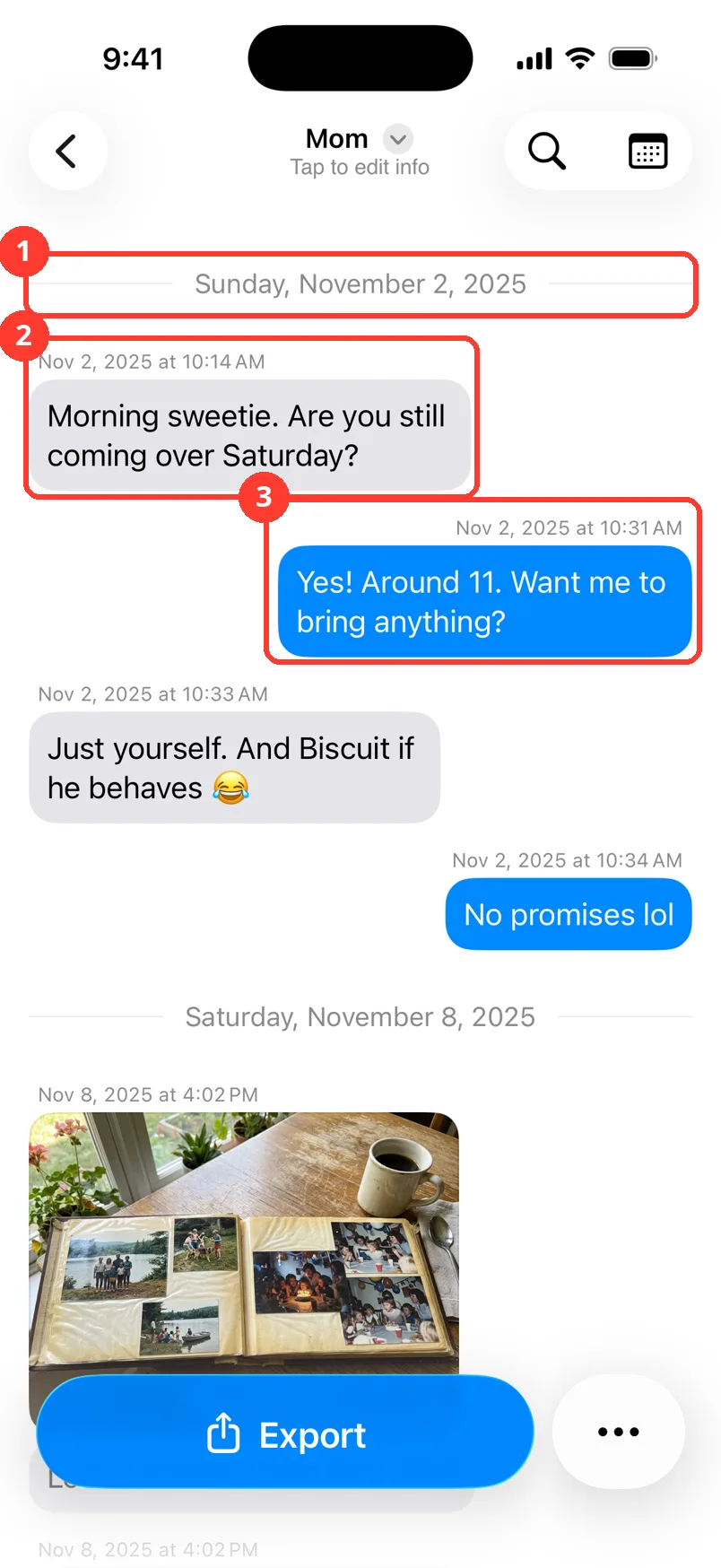
A gray line with a date (1) starts each new day.
-
3
Read who sent it
Gray bubbles on the left (2) come from the other person. The date and time sit on top. In a group chat, the name shows there too.
-
4
Find your own messages
Your messages are on the right (3). They are blue, or green for WhatsApp. The time sits on top.
-
5
Scroll
Swipe up to see newer messages. Swipe down to see older ones.
-
6
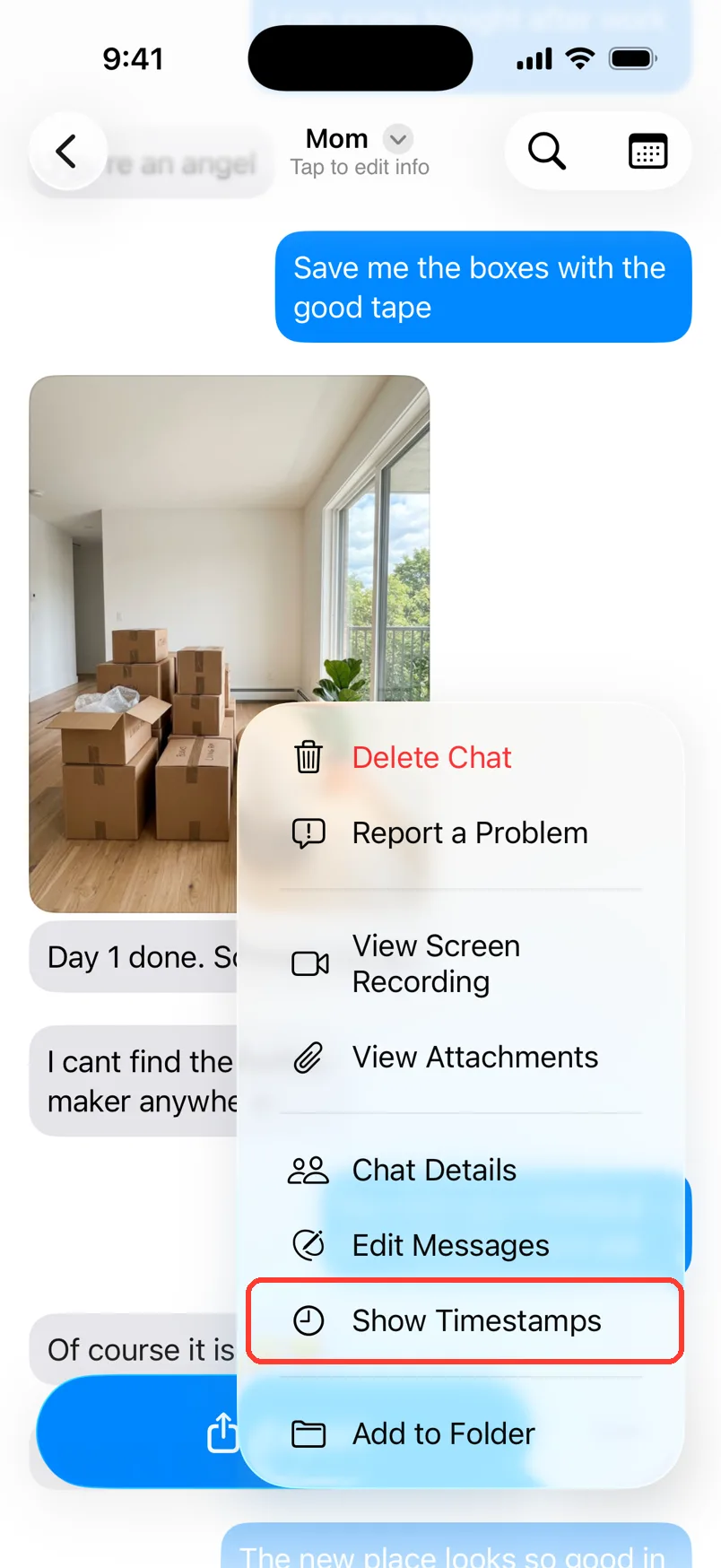
Open the … menu
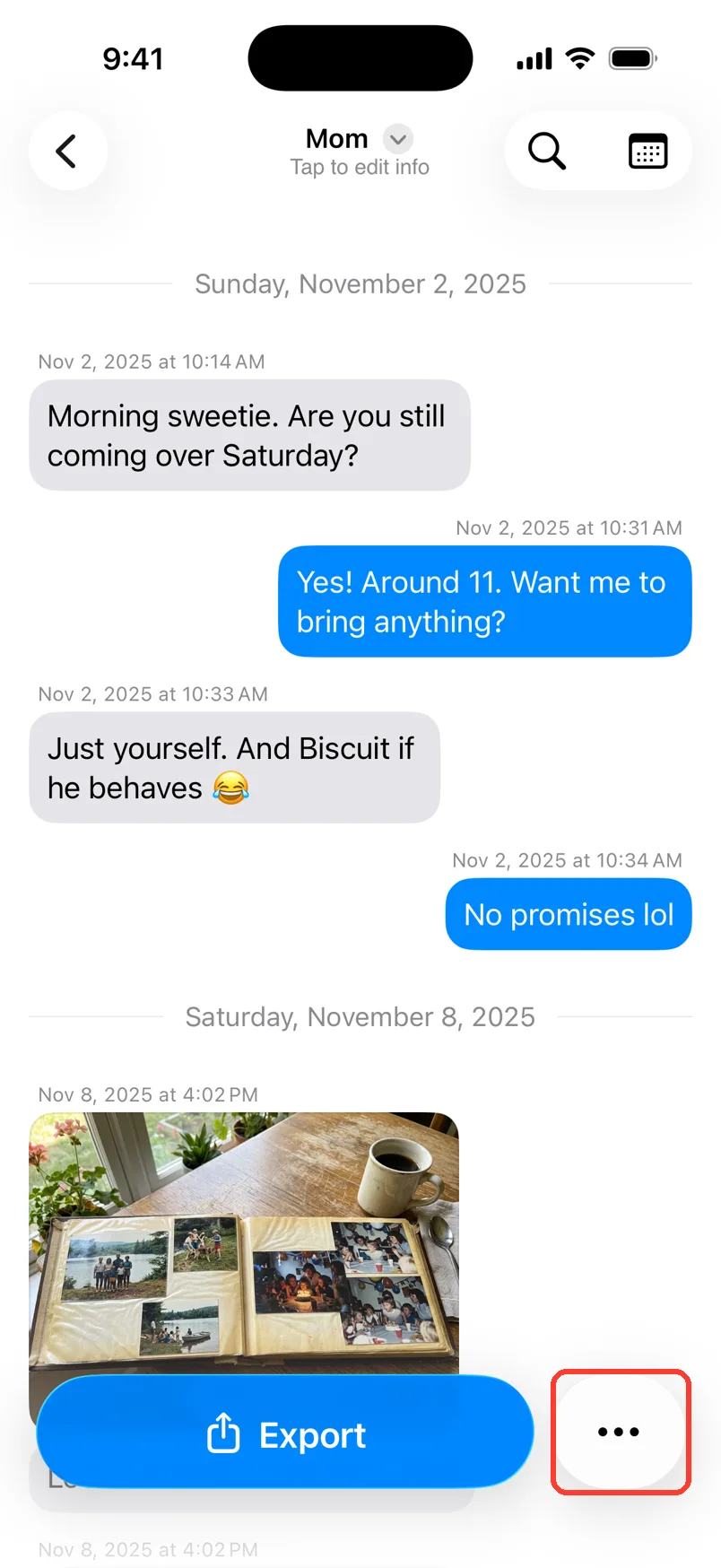
Tap the … button at the bottom right.
-
7
Tap Hide Timestamps
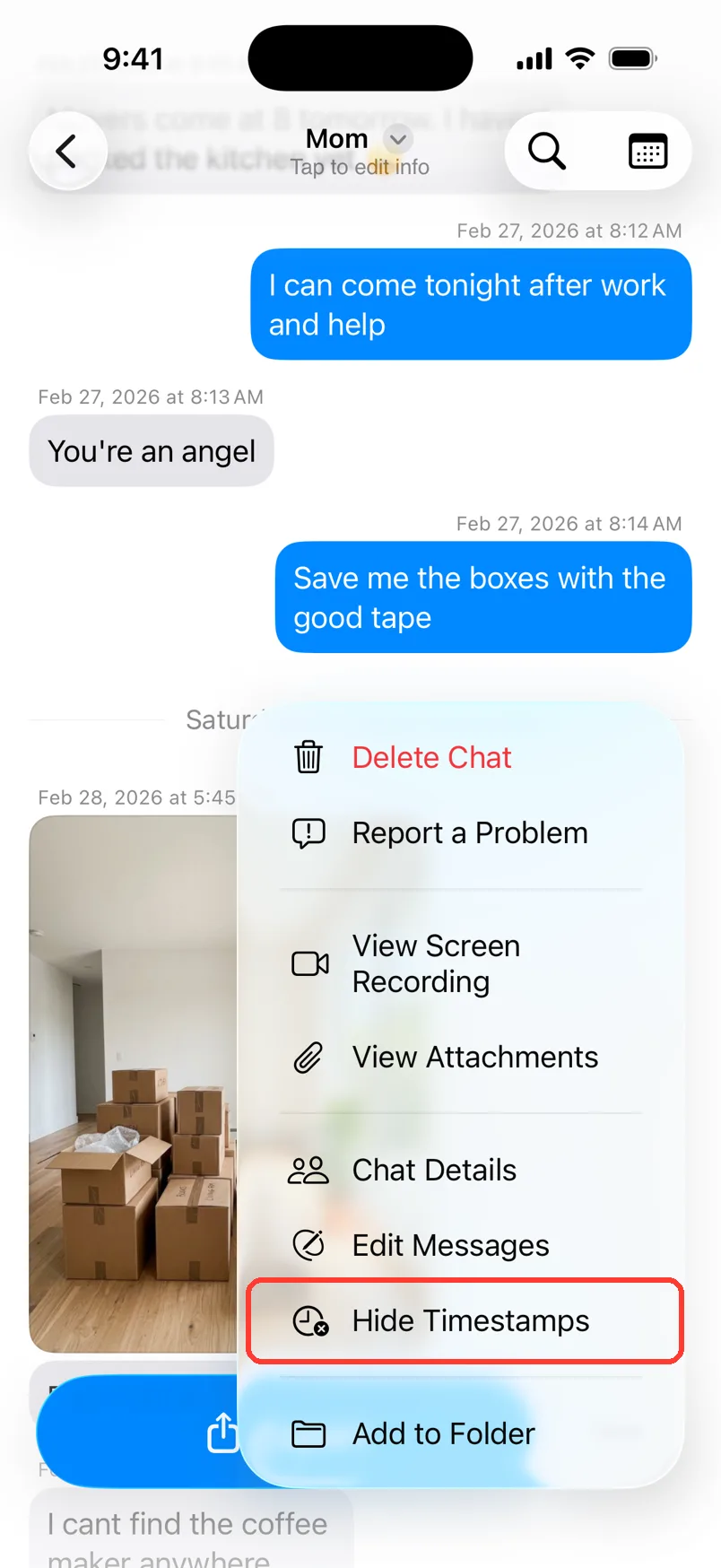
Tap Hide Timestamps. The times, dates, and names go away. Only the bubbles stay.
-
8
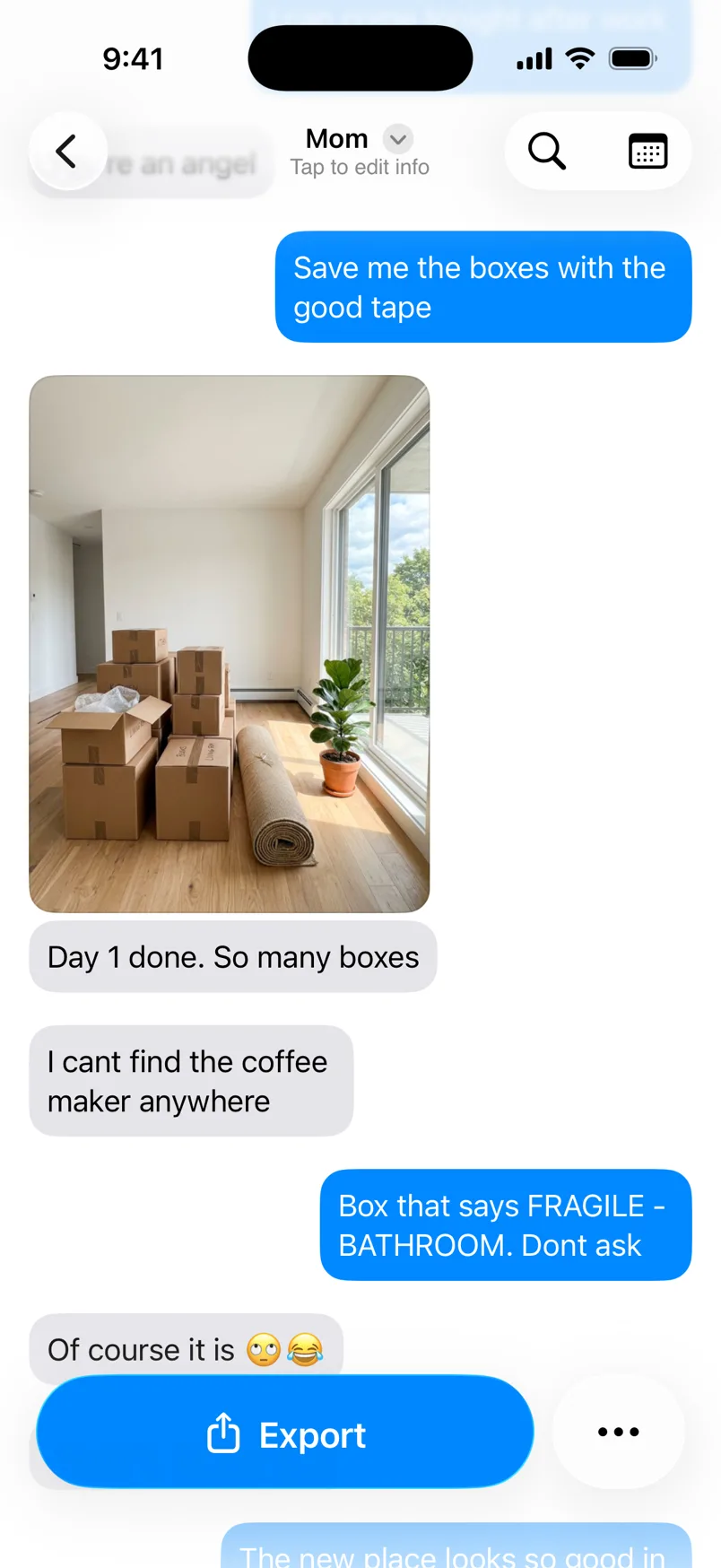
See the clean view
Only the bubbles show now. Your PDF will hide the times too.
-
9
Show the times again
Tap … again. Tap Show Timestamps.
Done
You can read the whole chat. You know who wrote each message and when.
Tips
-
Tap the magnifying glass at the top to search the messages.
-
The calendar button at the top jumps to another month. It shows in longer chats.
-
Hide Timestamps only shows for chats from screenshots or Scroll Capture. Messages and WhatsApp chats always show the times.
-
No date on a message? It says No date. Long press it to add one.
Questions
-
The screenshot or recording did not show a time for them. Long press the message and tap Edit Timestamp to add one.
-
Yes. The PDF leaves out the times too. Tap Show Timestamps before you export a chat for a lawyer or a court.
-
Long press it. Tap Change Sender in a group, or Mark as Outgoing or Mark as Incoming in a chat with two people. This works for screenshot and Scroll Capture chats.
Next guides
-
 How to fix wrong text, times, or missing messages
You will fix any message that TextPort read wrong from a screenshot or recording.
How to fix wrong text, times, or missing messages
You will fix any message that TextPort read wrong from a screenshot or recording.
-
 How to edit the chat name and people's names
You will have the right chat name and the right name for each person in the chat.
How to edit the chat name and people's names
You will have the right chat name and the right name for each person in the chat.
-
 How to change the year for many messages at once
Every message in your chat will show the right year.
How to change the year for many messages at once
Every message in your chat will show the right year.
-
 How to see all photos, videos, and files in a chat
You will see every photo, video, and file in one chat, and save the ones you want.
How to see all photos, videos, and files in a chat
You will see every photo, video, and file in one chat, and save the ones you want.

Start exporting your messages
Available for iPhone, Mac, and Windows. No computer required.
