

How to find and read a conversation on Windows
Quick answer
In TextPort:
- Click Messages at the top.
- Type a name in Filter by name.
- Click the conversation.
- To see some days, click All time next to Export. Pick the days. Click Apply.
- On iPhone: How to read a chat in TextPort
- On Mac: How to find and open a chat on Mac
What you need
- ✓TextPort for Windows, with a backup open
Steps
-
Click Messages
It is at the top left. The conversation list opens.
-
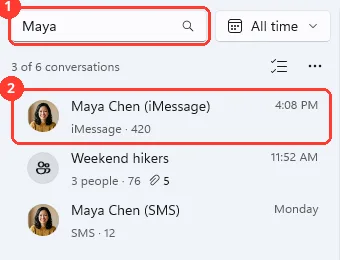
Type a name and click the conversation
Type a name, number, or email in Filter by name (1). Click the conversation (2). Its messages open.
You can also press Ctrl+K to go to Filter by name.
-
Read the messages
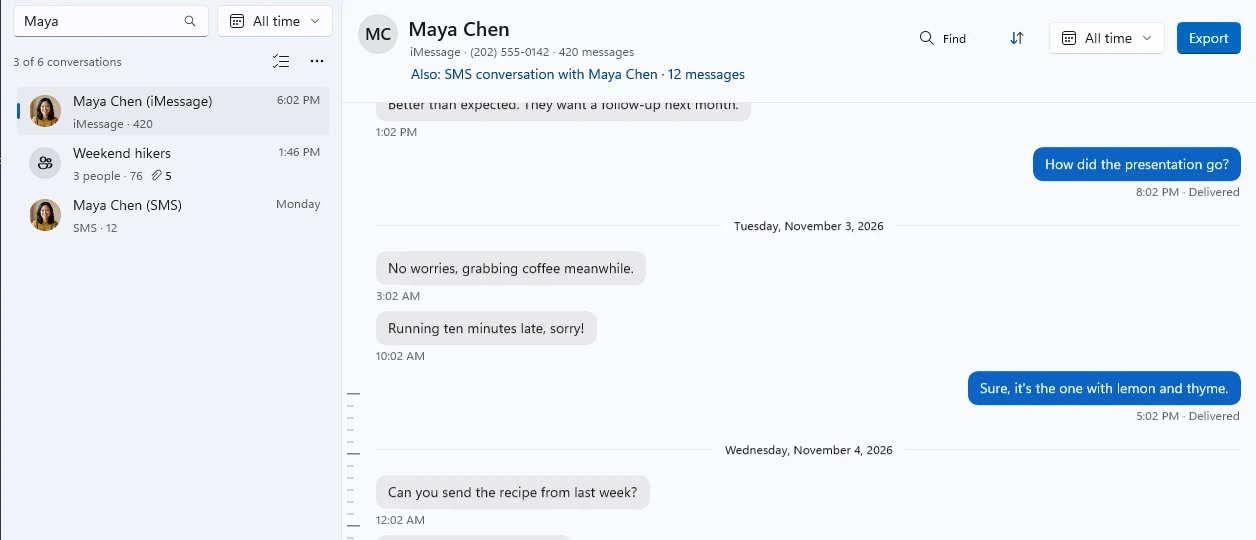
The newest are at the bottom. Scroll up for older ones. Click Newest to go back.
-
Click All time, then Apply
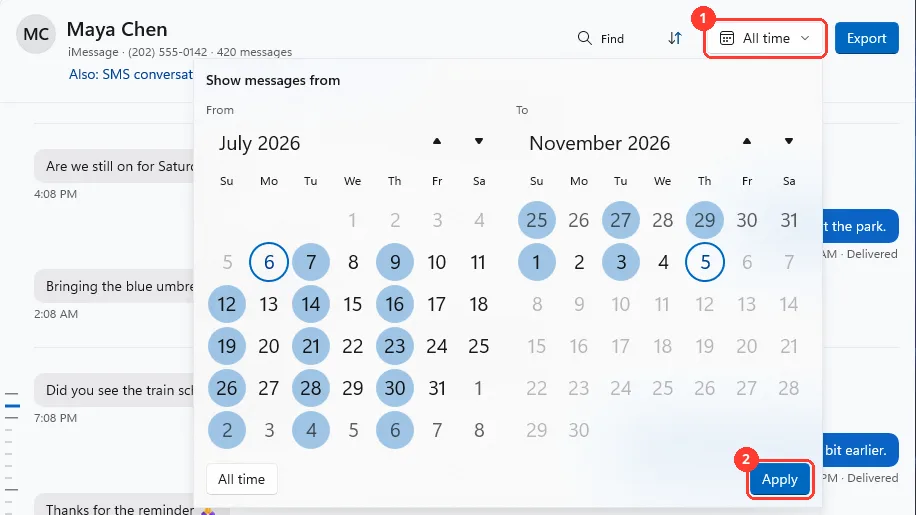
Click All time next to Export (1). Pick a day under From and To. Click Apply (2).
You can also press Ctrl+G. To see every day again, click All time in this window.
Done
The conversation is open and shows the days you picked. You can export it from here.
Problems
No conversations match “Maya”
Check the spelling, or try part of the name, the number, or the email. Click Clear filter to see all conversations.
No conversations in this date range
The date button above the list limits it. Click Clear date filter.
No messages in this date range
This conversation has no messages in the days you picked. Click Clear date filter.
No backup is open
Click Choose a backup. Pick a backup.
This backup didn’t finish
Some messages may be missing. See Fix a stuck or stopped backup.
No messages yet
Click Go to Backups. Then back up your iPhone.
Not in this backup
This file wasn't in the iPhone's backup. Files kept only in iCloud aren't included.
None of these match.
Email [email protected]. Say which step you were on. Say what you saw. We usually reply within a day.
Questions
-
The one above the list limits the list. The one next to Export limits the open conversation only.
-
Click the button with two arrows, next to the All time button in the conversation. Its tip says Show newest first. Exports use the same order.
-
Click it, or Preview. See Preview and save photos and files.
-
Click People at the top of the conversation. See Copy a message or go to a reply.
-
iMessage and SMS are two conversations. Click the Also: line under the name to open the other one.
Next guides
-
 How to search all your messages on Windows
You will find a message in any conversation and jump right to it.
-
 How to find words in a conversation on Windows
You will find a word in one conversation and step through each place it shows.
-
 How to preview and save photos and files on Windows
You will see a photo or file from a conversation, and have your own copy if you want.
-
 How to export only some dates on Windows
You will get a file with only the days you picked from one conversation.
-
 How to export a conversation to PDF, CSV, or TXT on Windows
You will get a file of one conversation on your PC, as a PDF, a spreadsheet, or plain text.

Start exporting your messages
Available for iPhone, Mac, and Windows. No computer required.
