
How to back up your iPhone to your PC with TextPort
You will have a backup of your iPhone on your PC, and your messages open in TextPort.
What you need
- ✓TextPort for Windows on your PC
- ✓Your iPhone and its passcode
- ✓A USB cable that carries data, not just power
TextPort reads your messages from a backup of your iPhone. You make that backup once, in TextPort. After that, you can read your messages without the iPhone.
Steps
-
1
Open TextPort
Open TextPort from the Start menu. The page Get your iPhone messages on this PC opens. It lists five steps.
-
2
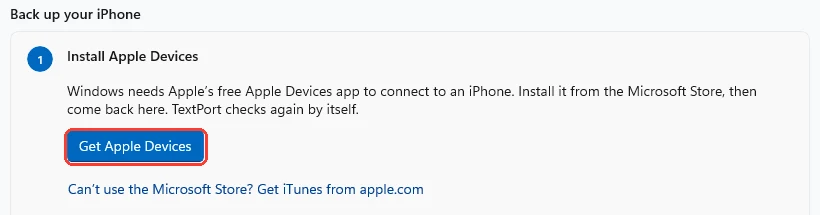
Click Get Apple Devices, if TextPort asks
Windows needs Apple’s free Apple Devices app to talk to an iPhone. Click Get Apple Devices. The Microsoft Store opens.
-
3
Install Apple Devices
In the Microsoft Store, click Get or Install. Wait until it is done. Then go back to TextPort. It checks again by itself.
-
4
Plug in your iPhone
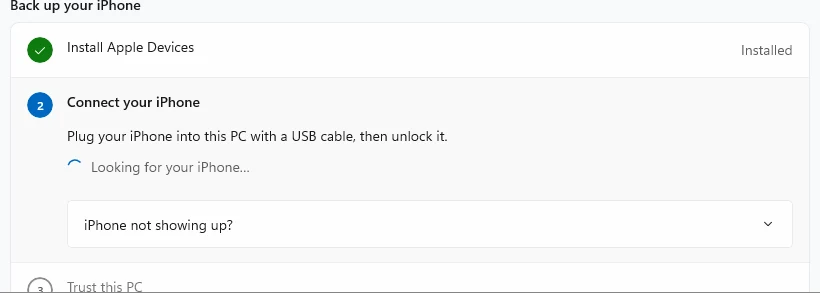
Use a USB cable. Plug it straight into your PC, not into a hub. Unlock your iPhone. TextPort shows Looking for your iPhone… until it finds it.
-
5
Tap Trust on your iPhone
Your iPhone asks Trust This Computer? Tap Trust. Enter your iPhone passcode. TextPort then shows Trusted.
-
6
Wait for the encryption check
TextPort checks if your backups are encrypted. When it says Off, go on. If it says Backup encryption is on, see the guide on turning it off.
-
7
Click Back up now
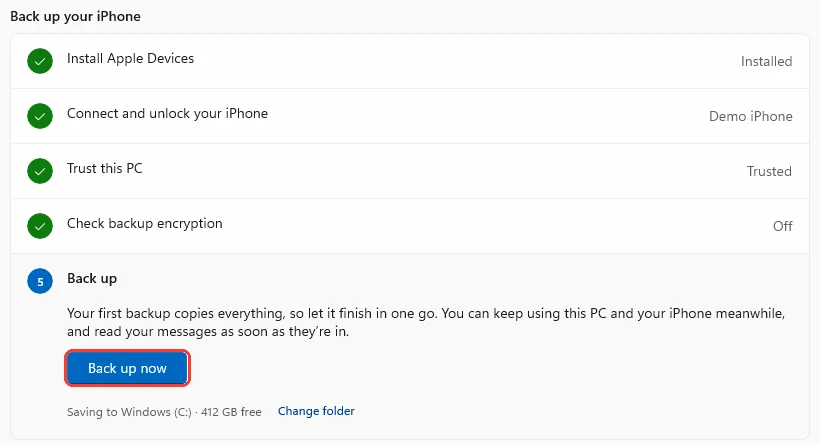
All four steps now have a green check. Click Back up now.
-
8
Keep your iPhone plugged in
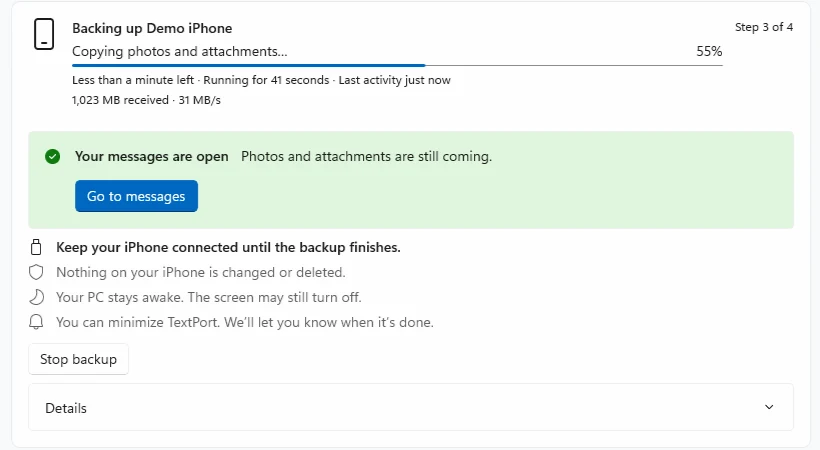
TextPort shows the progress. Keep the cable in until the backup is done. You can use your PC and your iPhone meanwhile.
-
9
Read your messages
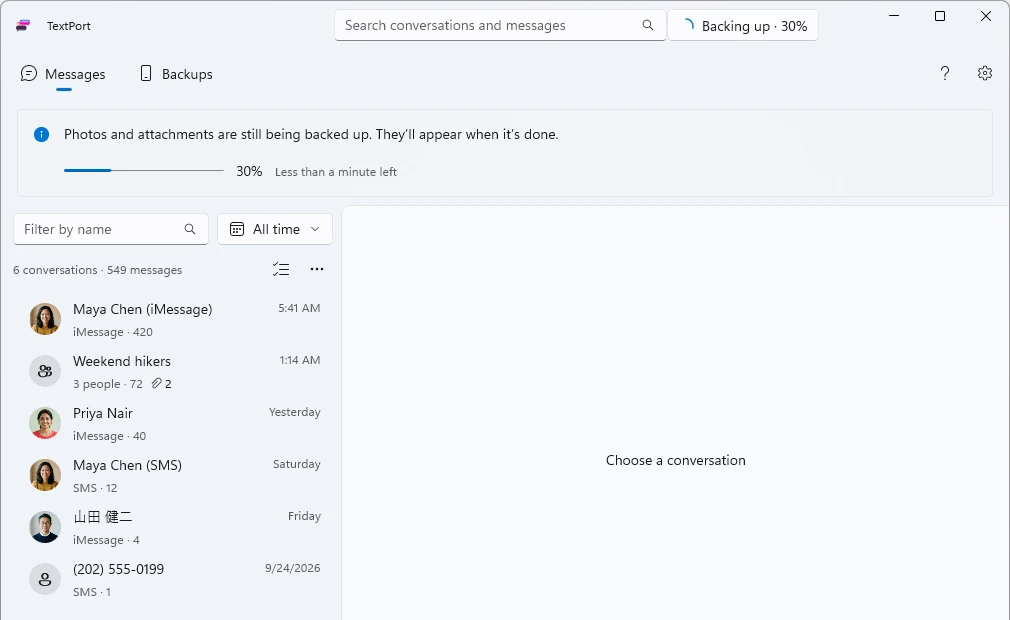
Your messages open as soon as they are copied. Photos and files come later. When the backup is done, TextPort says Backup complete.
Done
Your iPhone is backed up to your PC. Click a conversation to read it, or export it.
Tips
-
The first backup copies everything. Large iPhones can take an hour or more. Later backups copy only what changed.
-
Backing up doesn’t change or delete anything on your iPhone.
-
Your PC stays awake while it backs up. You can minimize TextPort. It tells you when the backup is done.
-
Back up again any time to get new messages. Go to Backups and click Back up now.
Questions
-
Your iPhone doesn’t let apps read your messages. A backup copies them to your PC, so TextPort can show them to you.
-
Unlock your iPhone and keep it on the Home Screen. Unplug the cable and plug it back in. If TextPort shows Ask again, click it.
-
Your iPhone needs its passcode to trust a PC. Apple offers no way around it. Do not erase the iPhone. If Apple Devices or iTunes already made a backup on this PC, TextPort can open that backup instead.
-
Yes, iTunes from apple.com works too. Click Can’t use the Microsoft Store? Get iTunes from apple.com. On older versions of Windows 10, TextPort asks for iTunes by itself.
-
No. TextPort keeps your messages, your contacts, and the photos and files sent in your messages. It skips the rest.
Next guides
-
 How to fix an iPhone not showing up on Windows
Your iPhone will show up in TextPort for Windows, so you can back it up.
How to fix an iPhone not showing up on Windows
Your iPhone will show up in TextPort for Windows, so you can back it up.
-
 How to turn off iPhone backup encryption on Windows
Your iPhone’s backups will be unencrypted, and TextPort will start the backup.
How to turn off iPhone backup encryption on Windows
Your iPhone’s backups will be unencrypted, and TextPort will start the backup.
-
 How to fix a stuck or stopped backup on Windows
Your iPhone backup will finish, or you will know what to send to support.
How to fix a stuck or stopped backup on Windows
Your iPhone backup will finish, or you will know what to send to support.
-
 How to export a conversation to PDF, CSV, or TXT on Windows
You will get a file of one conversation on your PC, as a PDF, a spreadsheet, or plain text.
How to export a conversation to PDF, CSV, or TXT on Windows
You will get a file of one conversation on your PC, as a PDF, a spreadsheet, or plain text.

Start exporting your messages
Available for iPhone, Mac, and Windows. No computer required.
