
How to export a conversation to PDF, CSV, or TXT on Windows
You will get a file of one conversation on your PC, as a PDF, a spreadsheet, or plain text.
What you need
- ✓TextPort for Windows, with your iPhone backed up
Steps
-
1
Click the conversation
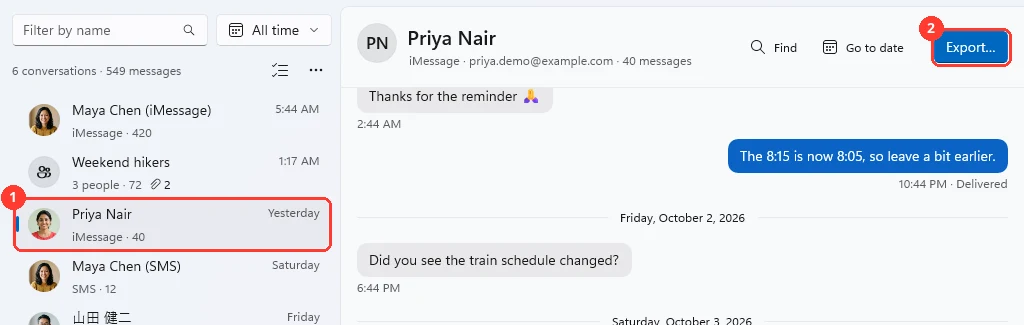
Click Messages at the top. Click the conversation in the list on the left (1). Its messages show on the right.
-
2
Click Export…
It is the blue button at the top right (2). Or press Ctrl+E. The Export window opens.
-
3
Pick a format
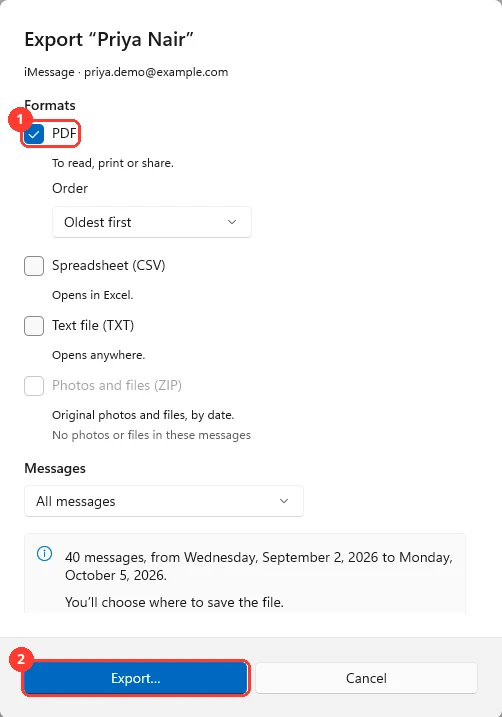
Check PDF (1) to read, print, or share. Check Spreadsheet (CSV) for Excel. Check Text file (TXT) for plain text. You can check more than one.
-
4
Pick which messages
Under Messages, keep All messages. Or pick Last 30 days, Last 12 months, or Custom range.
-
5
Click Export…
Click Export… (2) at the bottom. If you picked more than one format, the button says Choose folder and export….
-
6
Click Save
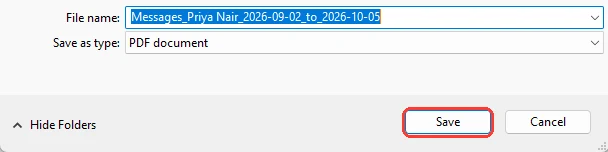
Windows asks where to save. Documents is fine. Click Save. For more than one file, pick a folder and click Select Folder.
-
7
Click Open or Show in folder
TextPort says Export complete. Click Open (1) to see the file. Click Show in folder (2) to find it in File Explorer.

Done
Your conversation is saved as a file on your PC.
Tips
-
You can keep reading while the export runs. A bar at the top shows the progress.
-
The same person can have an iMessage and an SMS conversation. TextPort shows them as two conversations. The Export window offers to export the other one too.
-
Every message shows its date and time in the PDF.
Questions
-
To the folder you picked in the save window. That is Documents unless you chose another one. Click Show in folder on the Export complete notice to see it.
-
Click a conversation first. The button also waits while another export of one conversation runs.
-
Yes. Check Photos and files (ZIP) in the Export window. See the ZIP guide.
Next guides
-
 How to print text messages from a Windows PC
You will have a printed copy of one conversation, with names, dates, and times.
How to print text messages from a Windows PC
You will have a printed copy of one conversation, with names, dates, and times.
-
 How to save photos and attachments as a ZIP on Windows
You will have a ZIP file on your PC with the original photos, videos, and files from one conversation.
How to save photos and attachments as a ZIP on Windows
You will have a ZIP file on your PC with the original photos, videos, and files from one conversation.
-
 How to export all conversations at once on Windows
You will have one folder on your PC with a file for every conversation.
How to export all conversations at once on Windows
You will have one folder on your PC with a file for every conversation.

Start exporting your messages
Available for iPhone, Mac, and Windows. No computer required.
