
How to print text messages from a Windows PC
You will have a printed copy of one conversation, with names, dates, and times.
What you need
- ✓TextPort for Windows, with your iPhone backed up
- ✓A printer set up on your PC
Steps
-
1
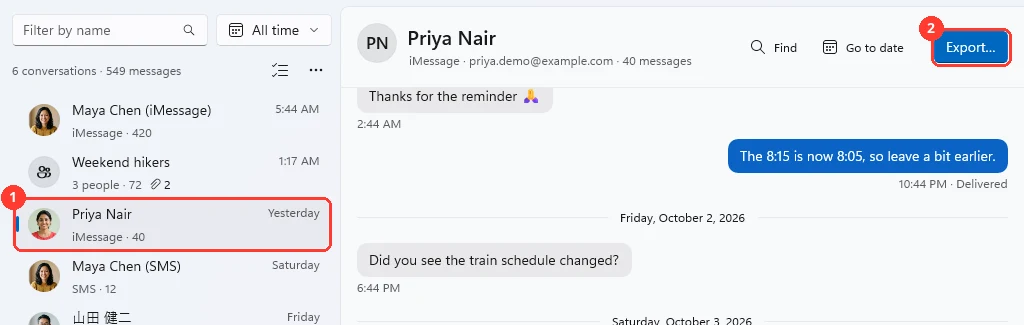
Click the conversation
Click Messages at the top. Click the conversation in the list (1).
-
2
Click Export…
Click the blue Export… button (2). The Export window opens.
-
3
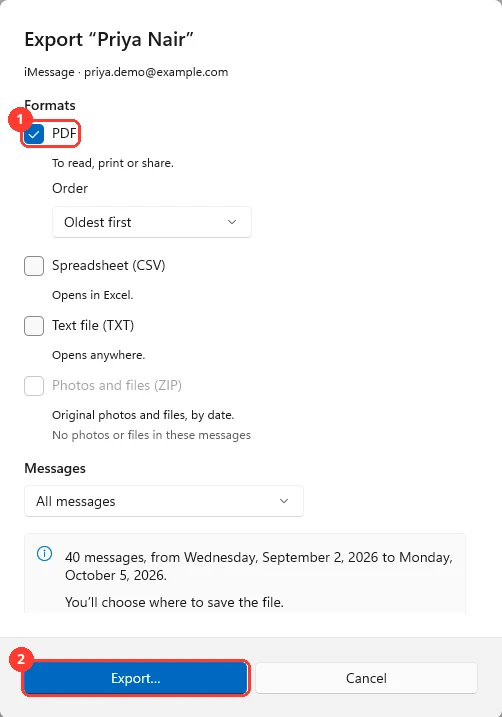
Check PDF and click Export…
Check PDF (1). Leave the other formats unchecked. Click Export… (2).
-
4
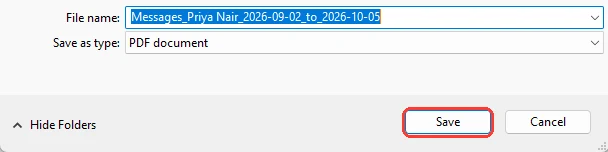
Click Save
Windows asks where to save the PDF. Click Save.
-
5
Click Open
TextPort says Export complete. Click Open. The PDF opens, often in Microsoft Edge.

-
6
Press Ctrl+P
The print window opens.
-
7
Pick your printer and click Print
Choose your printer. Click Print.
Done
Your conversation is printed, with each sender, date, and time.
Tips
-
Only need some dates? In the Export window, pick Custom range under Messages. Then pick the first and last day.
-
Want the newest messages first? Change Order to Newest first before you export.
-
Keep the PDF. You can print it again, or send it, any time.
Questions
-
No. TextPort makes a PDF first. Then you print the PDF. That way the pages look the same every time.
-
Letter in the US and a few other countries. A4 everywhere else. It follows your PC’s region.
-
Photos sent in the conversation show in the PDF, so they print with it.
Next guides
-
 How to export a conversation to PDF, CSV, or TXT on Windows
You will get a file of one conversation on your PC, as a PDF, a spreadsheet, or plain text.
How to export a conversation to PDF, CSV, or TXT on Windows
You will get a file of one conversation on your PC, as a PDF, a spreadsheet, or plain text.
-
 How to save photos and attachments as a ZIP on Windows
You will have a ZIP file on your PC with the original photos, videos, and files from one conversation.
How to save photos and attachments as a ZIP on Windows
You will have a ZIP file on your PC with the original photos, videos, and files from one conversation.

Start exporting your messages
Available for iPhone, Mac, and Windows. No computer required.
