

How to save photos and attachments as a ZIP on Windows
You will have a ZIP file on your PC with the original photos, videos, and files from one conversation.
What you need
- ✓TextPort for Windows, with your iPhone backed up
Steps
-
1
Click the conversation
Click Messages at the top. Click the conversation in the list.
-
2
Click Export…
Click the blue Export… button at the top right. Or press Ctrl+E.
-
3
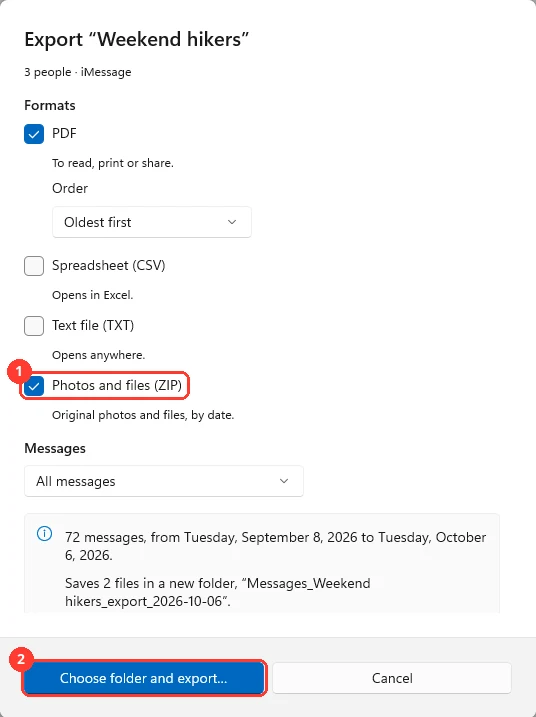
Check Photos and files (ZIP)
Check Photos and files (ZIP) (1). Want the messages too? Keep PDF checked.
-
4
Click Choose folder and export…
Click Choose folder and export… (2). Windows asks for a folder.
-
5
Pick a folder and click Select Folder
Documents is fine. Click Select Folder. TextPort makes a new folder in it for the files.

-
6
Click Open folder
TextPort says Export complete. Click Open folder to see the files.
Done
A ZIP with the conversation’s photos and files is saved on your PC, next to any PDF you exported.
Tips
-
Photos keep their original quality. HEIC photos stay HEIC. Windows can show them with Microsoft’s free HEIF Image Extensions.
-
Inside the ZIP, files are in folders by date.
-
Only want some dates? Under Messages, pick Custom range before you export.
Questions
-
That conversation has no photos or files in the dates you picked. Pick All messages under Messages, or another conversation.
-
Photos kept only in iCloud are not in the iPhone’s backup. TextPort says how many files it could not read. Turn off Optimize iPhone Storage on the iPhone, wait for photos to download, then back up again.
-
Yes. Use Export all conversations… and check Photos and files (ZIP). See the export-all guide.



Start exporting your messages
Available for iPhone, Mac, and Windows. No computer required.
