

How to save all photos and files from a chat on Mac
You will get one ZIP file with every photo, video, and file from a chat.
What you need
- ✓TextPort for Mac, set up with Messages access
- ✓Access to the Attachments folder, so TextPort can read the photos
TextPort can pack every photo and file from one chat into a single ZIP file.
Steps
-
1
Click the chat
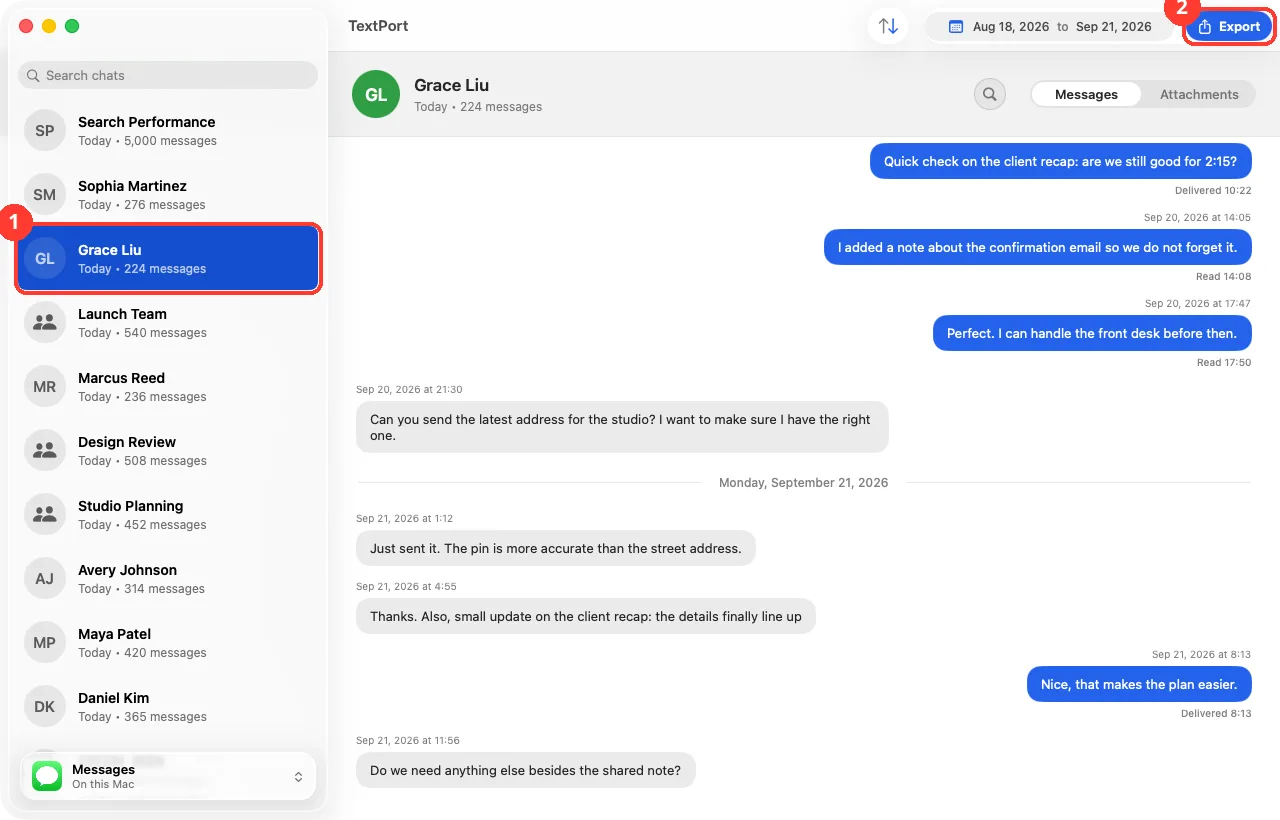
Open TextPort. Click the chat in the list on the left (1). Its messages show on the right.
-
2
Click Export
Click Export in the toolbar (2). Or press Command-E. The Export Conversation sheet opens.
-
3
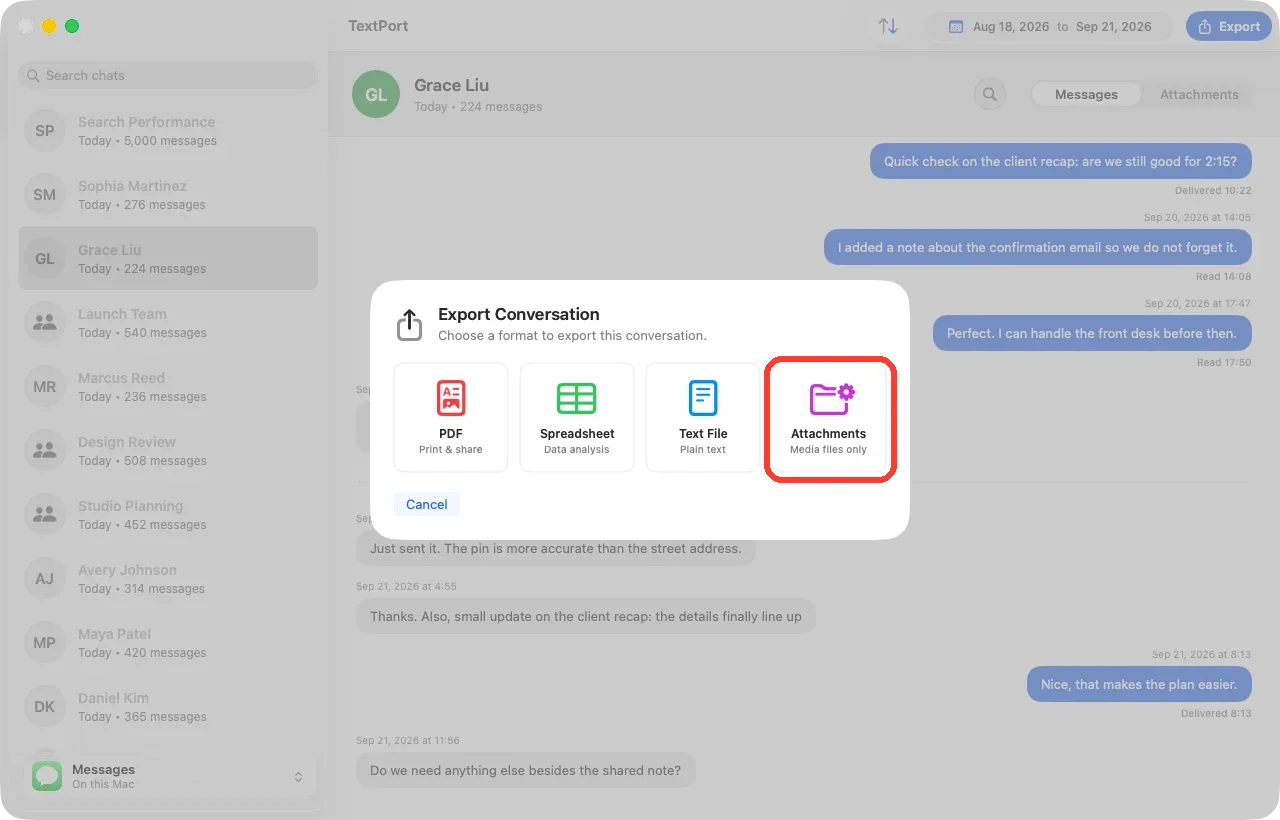
Click Attachments
Click Attachments. It says Media files only under it. A save window opens.
-
4
Pick a place and click Export
Choose a folder like Desktop or Downloads. Click Export. Wait while TextPort collects the files.
-
5
Click Show in Finder
The sheet says Attachments exported. Click Show in Finder to see the ZIP file.
Done
You have one ZIP file with the photos, videos, and files from the chat. Double-click it to open it.
Tips
-
Inside the ZIP, there is one folder for each day. Each file name starts with the time and who sent it.
-
Only need some dates? Set the date filter above the messages first. The ZIP keeps only those dates.
-
Do not see Attachments? That chat has no photos or files.
Questions
-
TextPort found no photos or files saved on this Mac for that chat. Some photos stay in iCloud and are not on the Mac. Open the chat in the Messages app and scroll to them so they download. Then try again.
-
TextPort needs the Attachments folder. Open TextPort, then Settings, then General. Under Attachments Access, click Choose Folder…. See the fix guide.
-
Yes. Hold Command and click several chats. Press Command-E and click Attachments. Pick a folder and click Export. You get one ZIP for each chat.
-
No. TextPort copies the original files from Messages.
Next guides
-
 How to export one chat to PDF, CSV, or TXT on Mac
You will get a file of one chat on your Mac, as a PDF, a spreadsheet, or plain text.
How to export one chat to PDF, CSV, or TXT on Mac
You will get a file of one chat on your Mac, as a PDF, a spreadsheet, or plain text.
-
 How to fix “TextPort can’t read your Messages” on Mac
You will get TextPort for Mac to show your chats again.
How to fix “TextPort can’t read your Messages” on Mac
You will get TextPort for Mac to show your chats again.
-
 How to install TextPort for Mac and give it Messages access
You will have TextPort for Mac open, showing every chat saved in Messages on that Mac.
How to install TextPort for Mac and give it Messages access
You will have TextPort for Mac open, showing every chat saved in Messages on that Mac.

Start exporting your messages
Available for iPhone, Mac, and Windows. No computer required.
