

How to export one chat to PDF, CSV, or TXT on Mac
Quick answer
In TextPort for Mac:
- Click the chat in the list on the left.
- Click Export in the top right, or press Command-E.
- Click PDF, Spreadsheet, or Text File.
- Pick a folder and click Export.
TextPort then says Export complete.
- On iPhone: How to export a chat to PDF
- On Windows: How to export a conversation to PDF, CSV, or TXT on Windows
What you need
- ✓TextPort for Mac, set up with Messages access
Steps
-
Click the chat
It is in the list on the left. Its messages show on the right.

-
Click Export
It is the blue button in the top right. Export Conversation opens.
Or press Command-E.

-
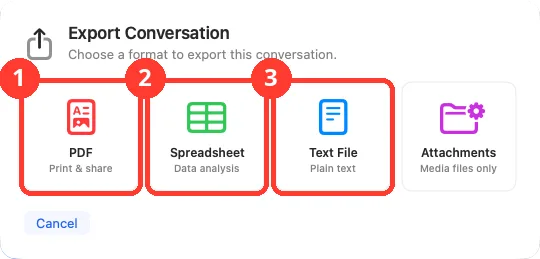
Click PDF, Spreadsheet, or Text File
PDF (1) is a document to print or share. Spreadsheet (2) is a CSV file. Text File (3) is plain text. A save window opens.
-
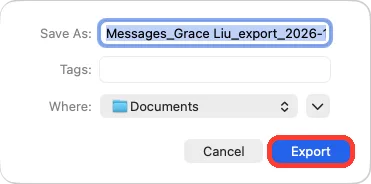
Click Export
Pick a folder next to Where first, like Documents. TextPort saves the file.
-
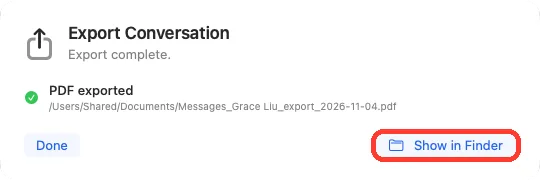
Click Show in Finder
The sheet says Export complete. Finder opens with the file selected.
Done
Your chat is saved as a file on your Mac.
Problems
The file has dates you do not need.
Filter the chat by date. Then click Export in the toolbar. That export keeps only those dates. Command-E exports every date.
Photos show as placeholders in the PDF.
TextPort cannot read the Attachments folder. See missing photos, then export again.
Export is gray.
The date range has no messages. Click the date range in the toolbar. Click Reset, then Done.
Export is gray on the Attachments tab.
The chat has no attachments in those dates. Click Messages.
The file has only photos and files, and no text.
You clicked Export in the toolbar on the Attachments tab. Click Messages at the top of the chat. Then export again.
None of these match.
Email [email protected]. Say which step you were on. Say what you saw. We usually reply within a day.
Tips
-
To print instead, see how to print a chat.
Questions
-
One row per message: the chat name, date and time, sender, the message, and its attachments. It opens in Excel, Numbers, and Google Sheets.
-
Yes. See how to export many or all chats.
-
Yes, exports can be used in court. Each message shows who sent it and when. See how to prepare messages for court.
Next guides
-
 How to save all photos and files from a chat on Mac
You will get one ZIP file with every photo, video, and file from a chat.
How to save all photos and files from a chat on Mac
You will get one ZIP file with every photo, video, and file from a chat.
-
 How to export many or all chats on Mac
You will get one file for each chat, all in one folder on your Mac.
How to export many or all chats on Mac
You will get one file for each chat, all in one folder on your Mac.
-
 How to prepare text messages for court
You will have a PDF of the chat that shows who said what, and when, with phone numbers.
How to prepare text messages for court
You will have a PDF of the chat that shows who said what, and when, with phone numbers.
-
 How to fix “TextPort can’t read your Messages” on Mac
You will get TextPort for Mac to show your chats again, with photos and names.
How to fix “TextPort can’t read your Messages” on Mac
You will get TextPort for Mac to show your chats again, with photos and names.

Start exporting your messages
Available for iPhone, Mac, and Windows. No computer required.
