

How to export a chat to PDF
Quick answer
In TextPort:
- Open the chat in Saved Chats.
- Tap Export at the bottom.
- Tap PDF. PDF Preview opens.
- Tap the share button in the top right.
- Tap Share to send it, or Files to save it.
- On Mac: How to export one chat to PDF, CSV, or TXT on Mac
- On Windows: How to export a conversation to PDF, CSV, or TXT on Windows
What you need
- ✓TextPort on your iPhone
- ✓A chat saved in TextPort
Steps
-
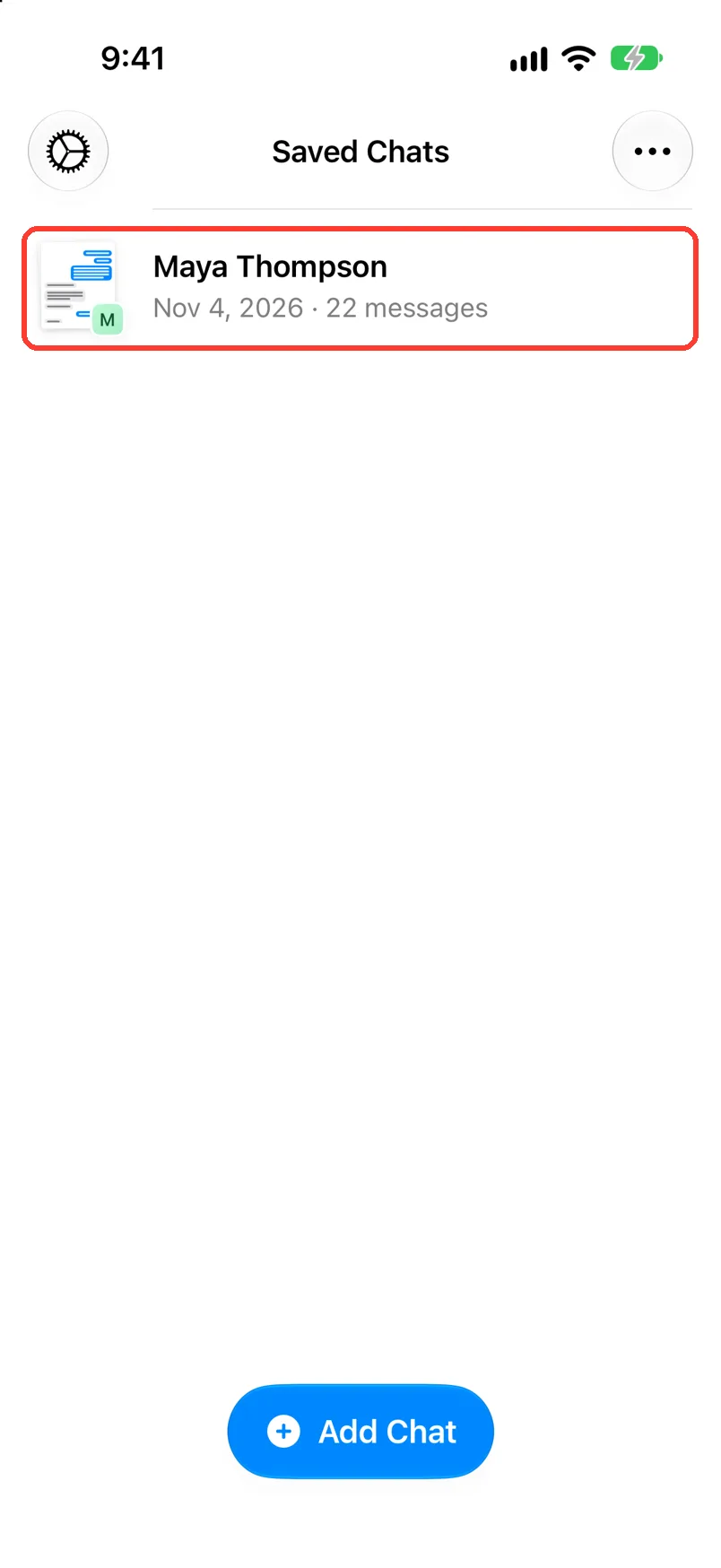
Tap the chat in Saved Chats
Open TextPort. The chat opens.
-
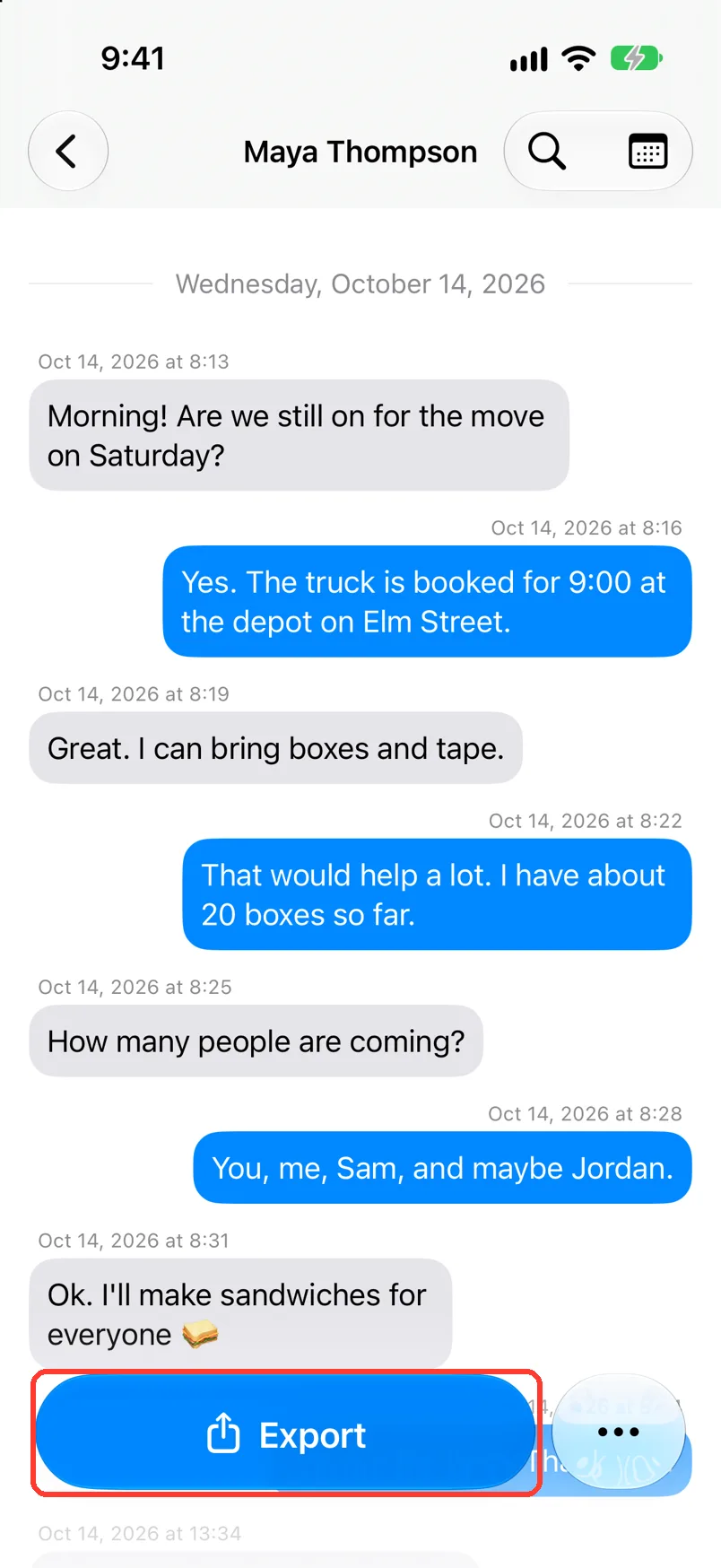
Tap Export
It is the blue button at the bottom. Export Chat opens.
-
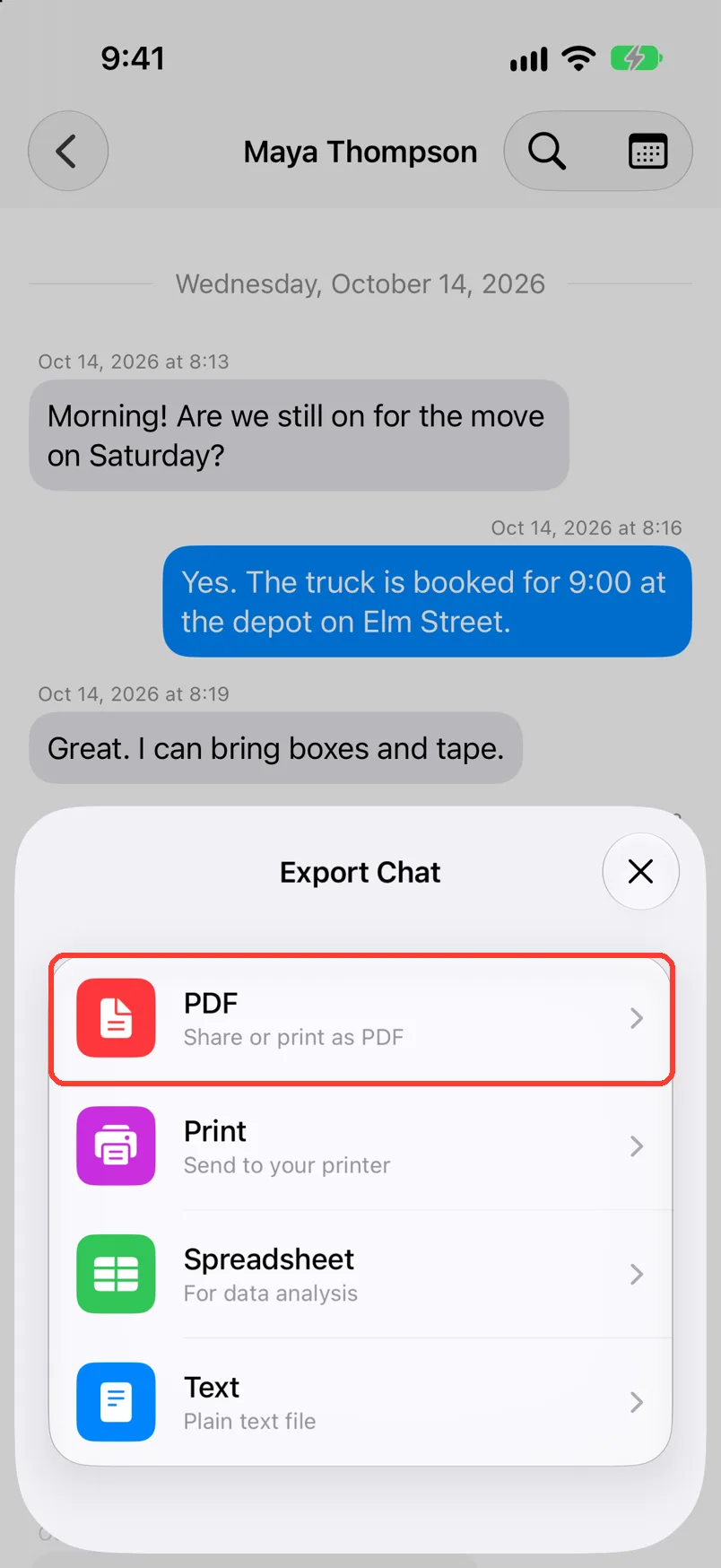
Tap PDF
TextPort builds the PDF. PDF Preview opens.
TextPort may ask you to unlock this.
-
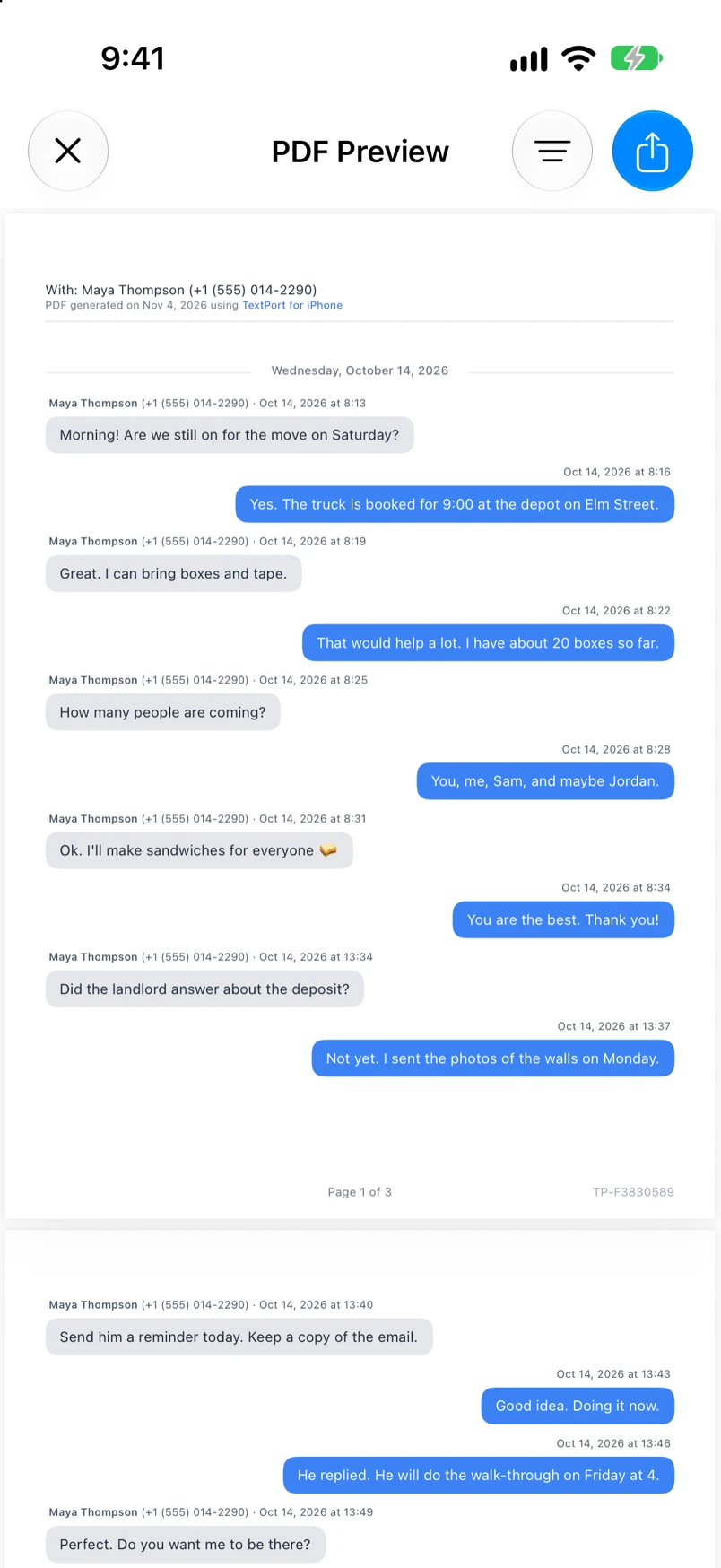
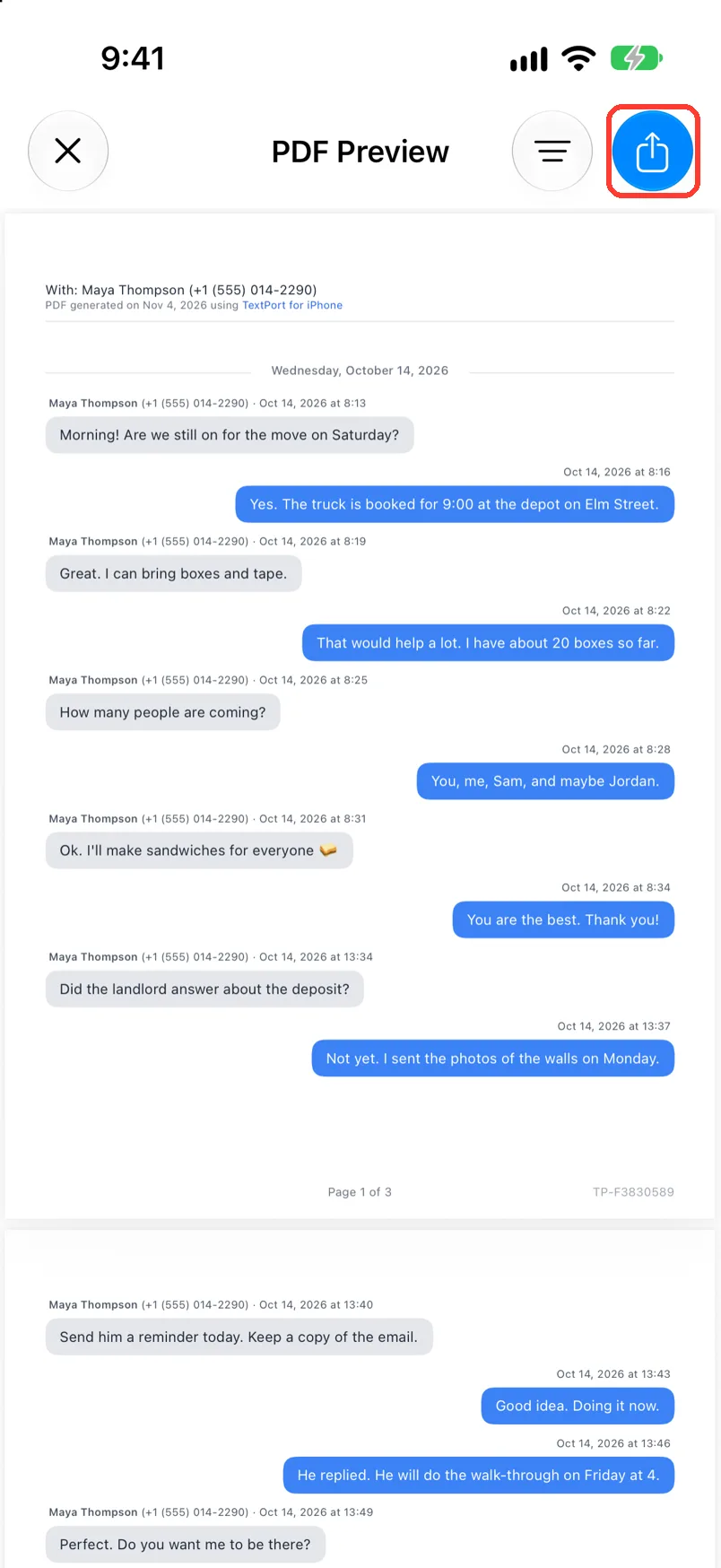
Check the preview
Scroll to check it. Each message shows the name, date, and time.
-
Tap the share button
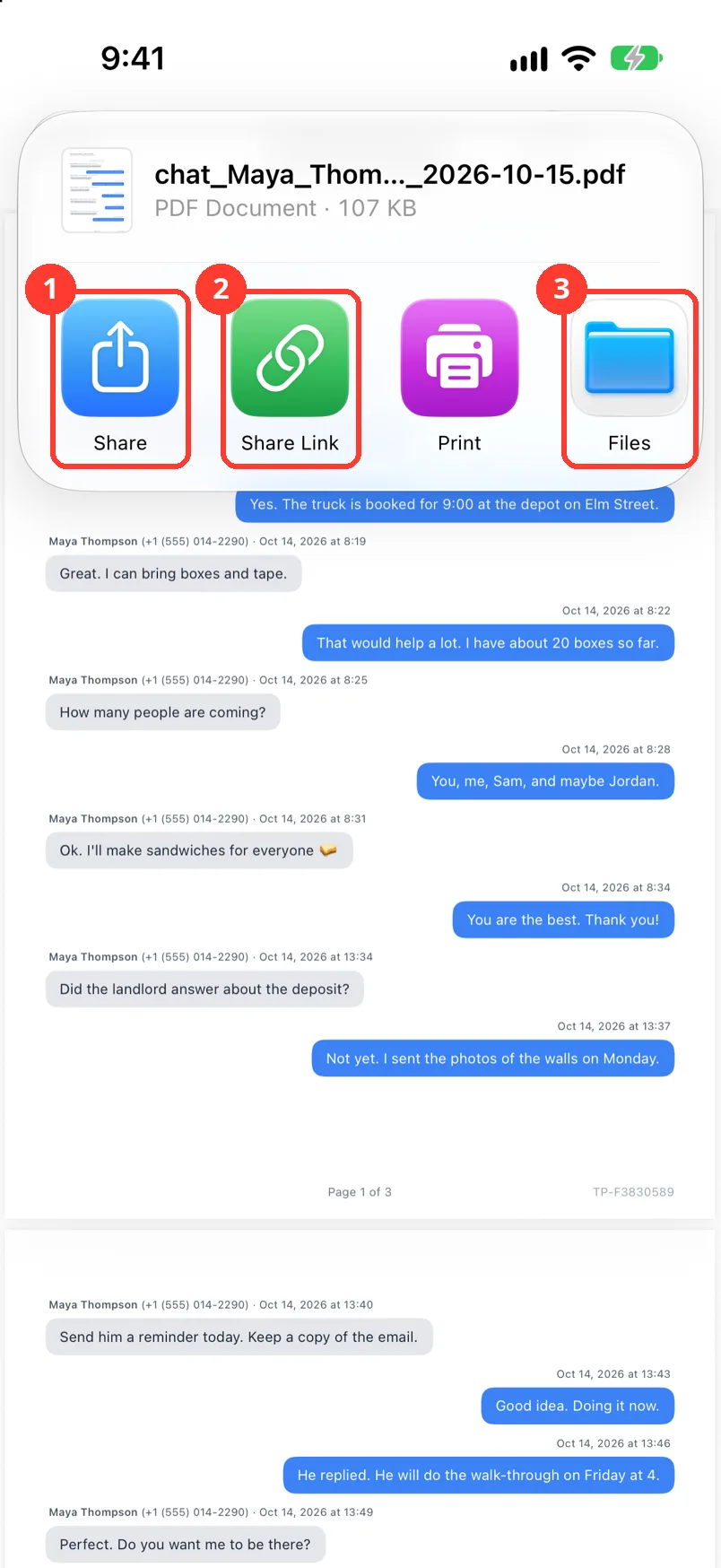
It is the blue button in the top right. Share, Share Link, and Files show.
-
Tap Share or Files
Share (1) sends it with Mail, AirDrop, or another app. Files (3) saves it.
If the file is too big to email, tap Share Link (2).
Done
You have a PDF of the chat. It is sent, saved, or ready to print.
Problems
The PDF has dates you do not need.
In PDF Preview, tap the filter icon next to the share button. Pick a start date and an end date. The filter shows only for chats from Messages, WhatsApp, or LINE that cover more than one day.
Names show, but no phone numbers.
Tap Add phone numbers to this PDF in the preview. See Add phone numbers to a PDF.
The file is too big to email.
Tap Share Link instead of Share. Send the link. See Share a big export with a link.
Photos show as text, not pictures.
The chat came from screenshots. Screenshot imports have no photos. Import the chat from Messages or WhatsApp to get photos.
None of these match.
Email [email protected]. Say which step you were on. Say what you saw. We usually reply within a day.
Questions
-
The PDF uses the paper size of your region. To pick another size, print the PDF and choose it in the print options.
-
About 40 pages for 1,000 messages.
Next guides
-
 How to print a chat from your iPhone
You will have a paper copy of one chat, with names, dates, and times.
How to print a chat from your iPhone
You will have a paper copy of one chat, with names, dates, and times.
-
 How to add phone numbers to a PDF
Your PDF will show each person's phone number next to their name.
How to add phone numbers to a PDF
Your PDF will show each person's phone number next to their name.
-
 How to prepare text messages for court
You will have a PDF of the chat that shows who said what, and when, with phone numbers.
How to prepare text messages for court
You will have a PDF of the chat that shows who said what, and when, with phone numbers.

Start exporting your messages
Available for iPhone, Mac, and Windows. No computer required.
