

How to share a big export with a link
You will get a web link to your file that anyone can open for 7 days.
What you need
- ✓TextPort on your iPhone
- ✓A chat saved in TextPort
- ✓An internet connection
Some files are too big for email. Share Link puts your file online and gives you a link to send instead.
Steps
-
1
Make the export
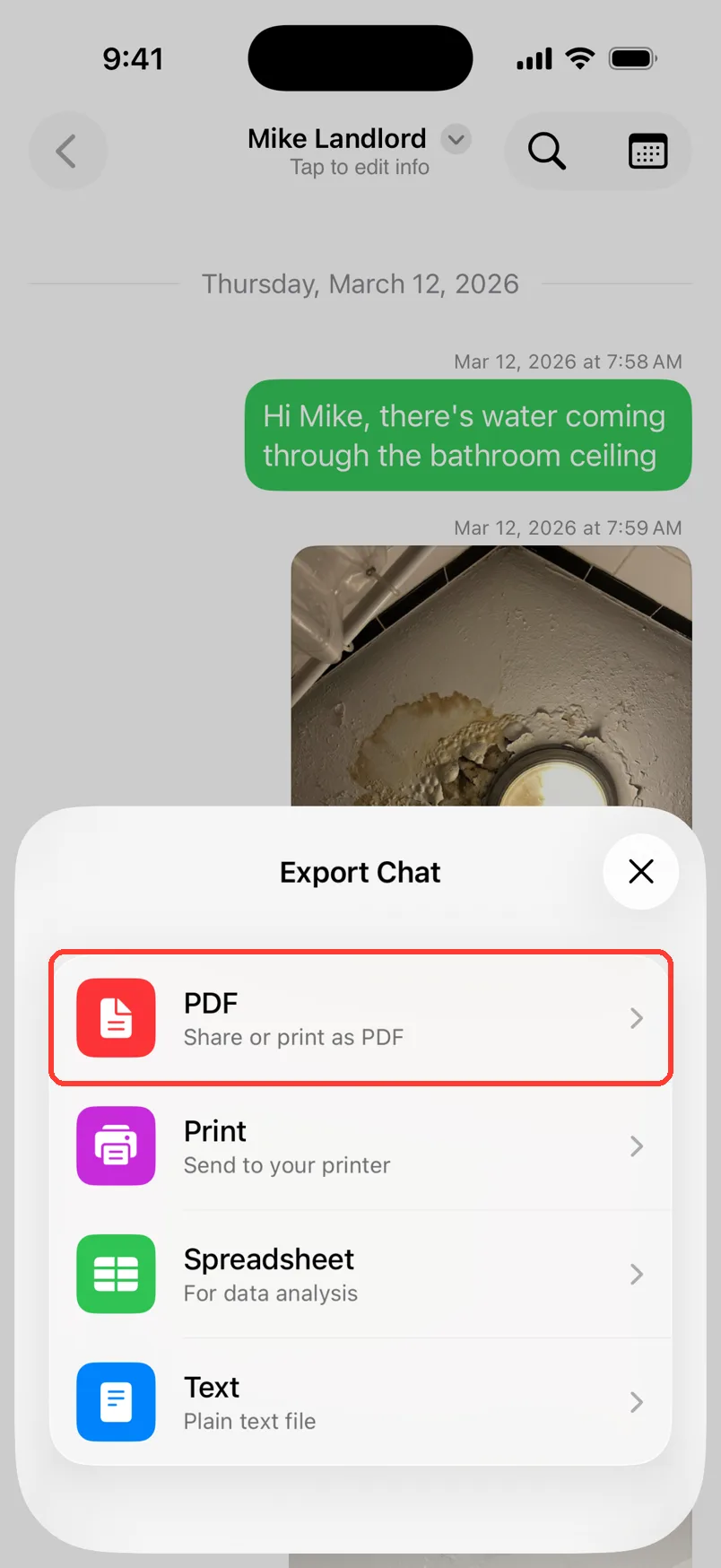
Open the chat. Tap Export. Pick PDF, Spreadsheet, or Text.
-
2
Tap the Share button
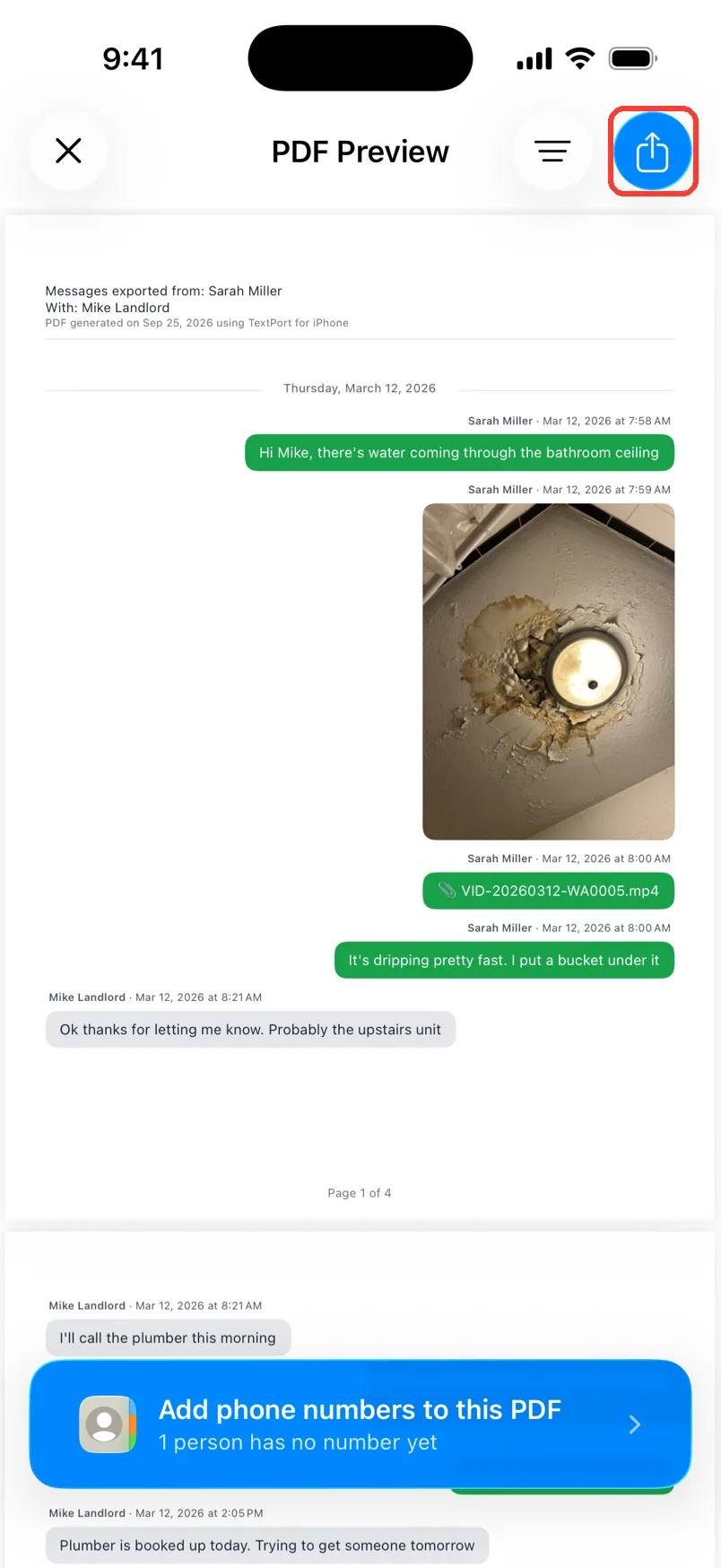
The preview opens. Tap the blue Share button in the top right.
-
3
Tap Share Link
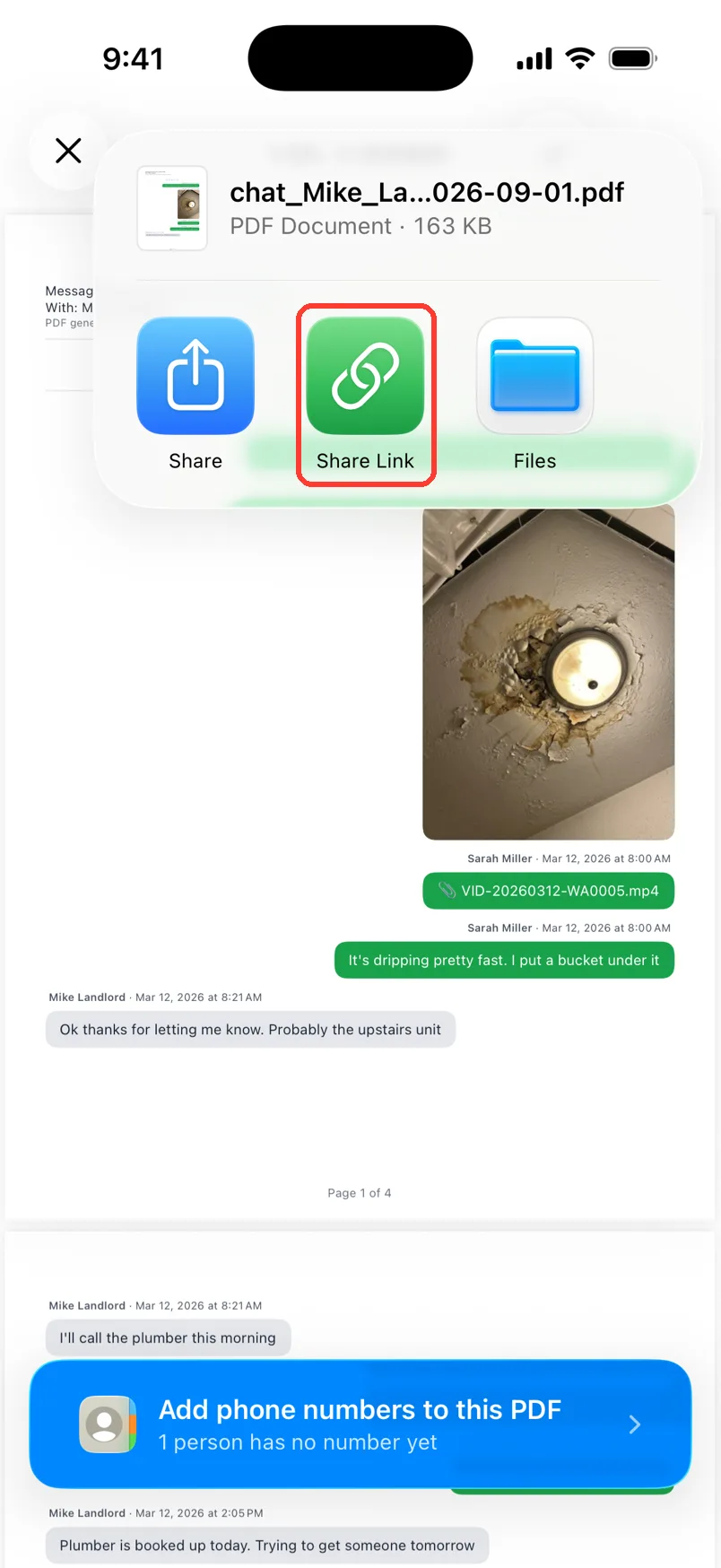
Tap Share Link. TextPort uploads the file. A ring fills while it works.
-
4
Send the link
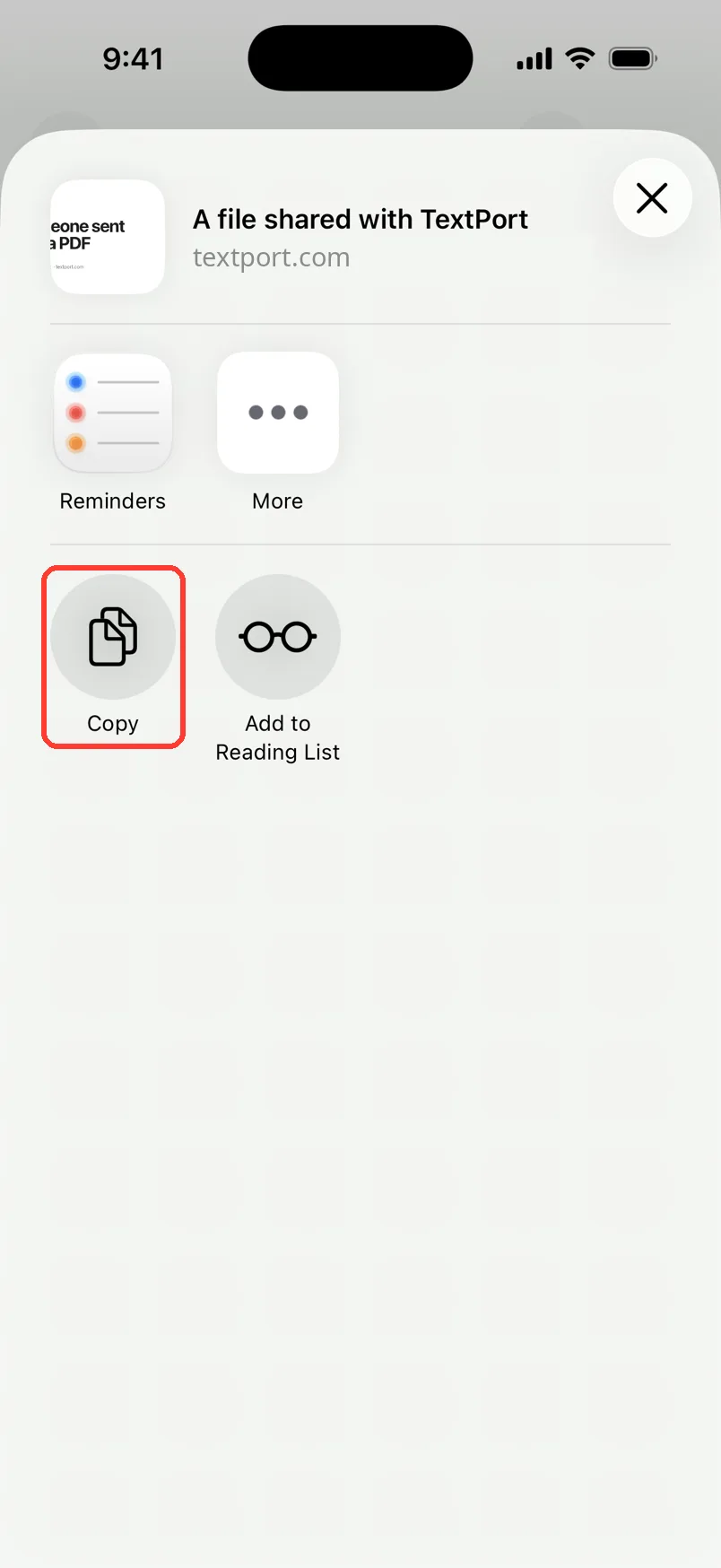
The share sheet opens with the link. Tap Copy to paste it anywhere. Or pick an app to send it.
Done
The person can open the link and download your file. The link works for 7 days.
Tips
-
Tell the person to download the file soon. After 7 days the link stops working.
-
Big files take longer to upload. Tap the tile again to cancel.
-
Gmail always sends a link. Mail sends a link when the file is over 5 MB.
-
See your links in Settings › Your Data › Shared Links.
Questions
-
Anyone who has it. Only send it to people you trust.
-
Open Settings, then Your Data, then Shared Links. Swipe left on the link. Tap Delete. It stops working right away.
-
Check your internet. Then tap Try Again.
-
Yes. A file can be up to 200 MB.
-
No. Every link lasts 7 days. Make a new one if you need it later.
Next guides
-
 How to export a chat to PDF
You will get a PDF of one chat, with names, dates, and times, ready to share or print.
How to export a chat to PDF
You will get a PDF of one chat, with names, dates, and times, ready to share or print.
-
 How to send text messages to a lawyer
Your lawyer will get a clear PDF of the chat, with names, phone numbers, dates, and times.
How to send text messages to a lawyer
Your lawyer will get a clear PDF of the chat, with names, phone numbers, dates, and times.
-
 How to back up a chat before you delete it or switch phones
You will have a PDF copy of the chat saved in iCloud Drive or another safe place.
How to back up a chat before you delete it or switch phones
You will have a PDF copy of the chat saved in iCloud Drive or another safe place.

Start exporting your messages
Available for iPhone, Mac, and Windows. No computer required.
