

How to copy or delete a shared link
Quick answer
In Saved Chats:
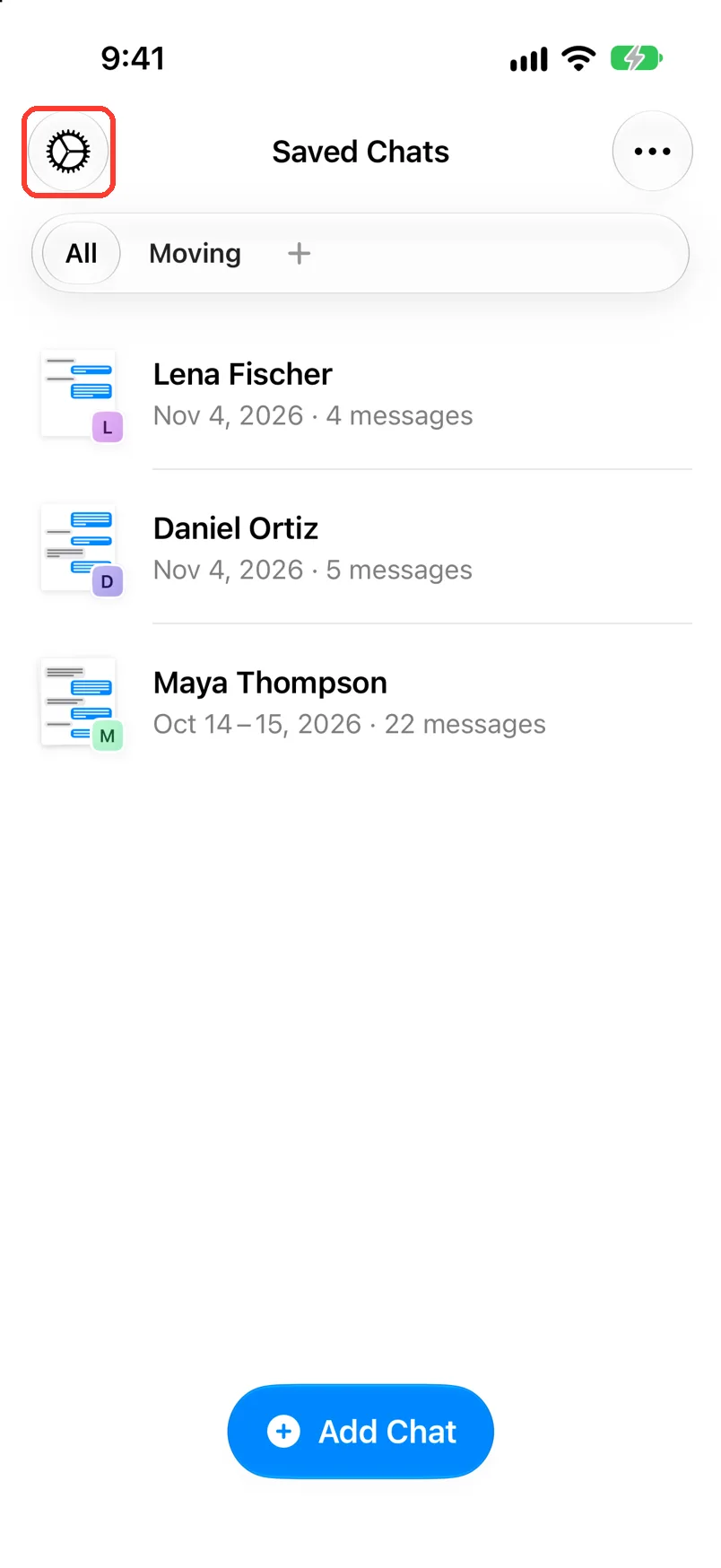
- Tap the gear in the top left.
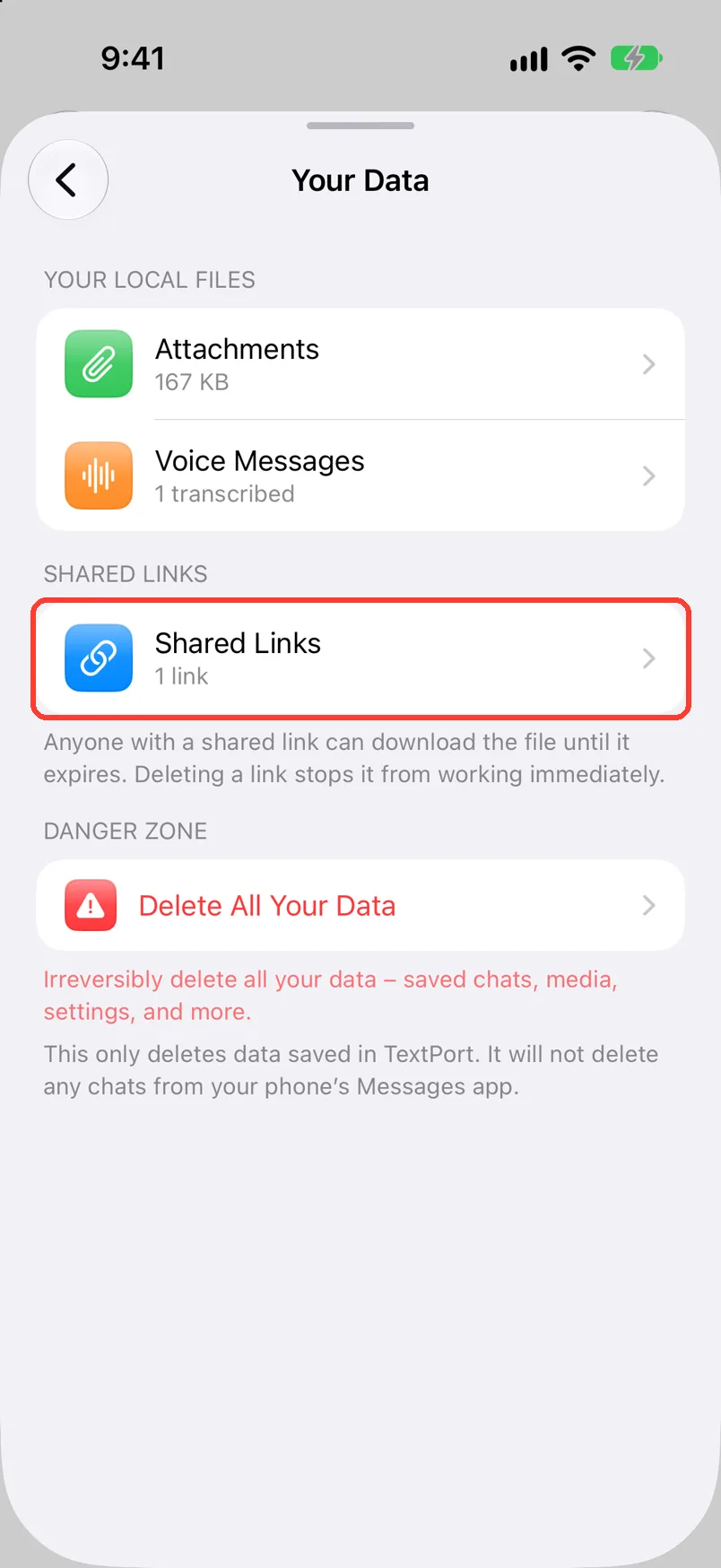
- Tap Your Data, then Shared Links.
- To copy a link, tap it. Then tap Copy.
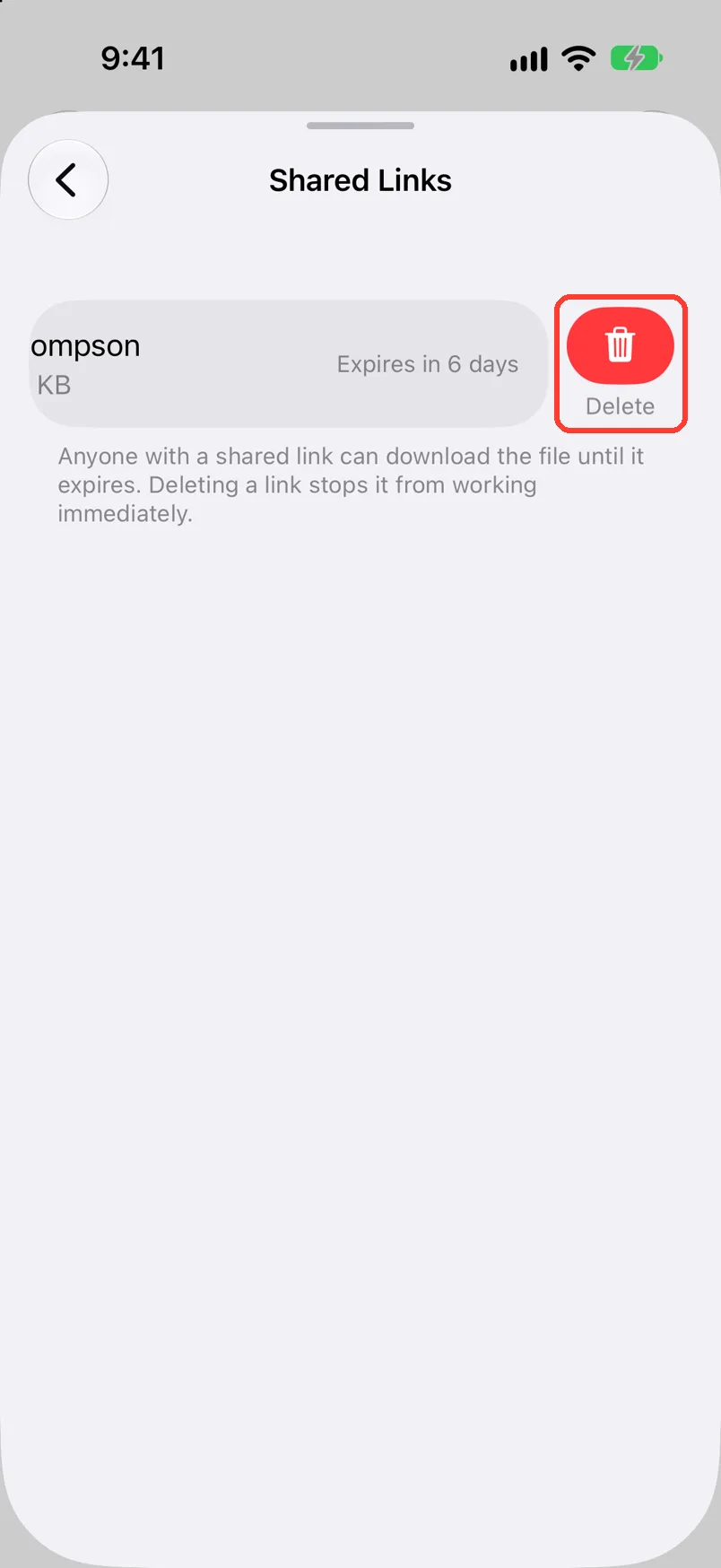
- To stop a link, swipe left on it, tap Delete, then slide Slide to delete to the right.
Each link ends by itself after 7 days.
What you need
- ✓TextPort on your iPhone
- ✓A link you made
Steps
-
Tap the gear
It is in the top left of Saved Chats. Settings opens.
-
Tap Your Data
Your Data opens.
-
Tap Shared Links
It shows how many links you have. Shared Links opens.
Copy or send a link
-
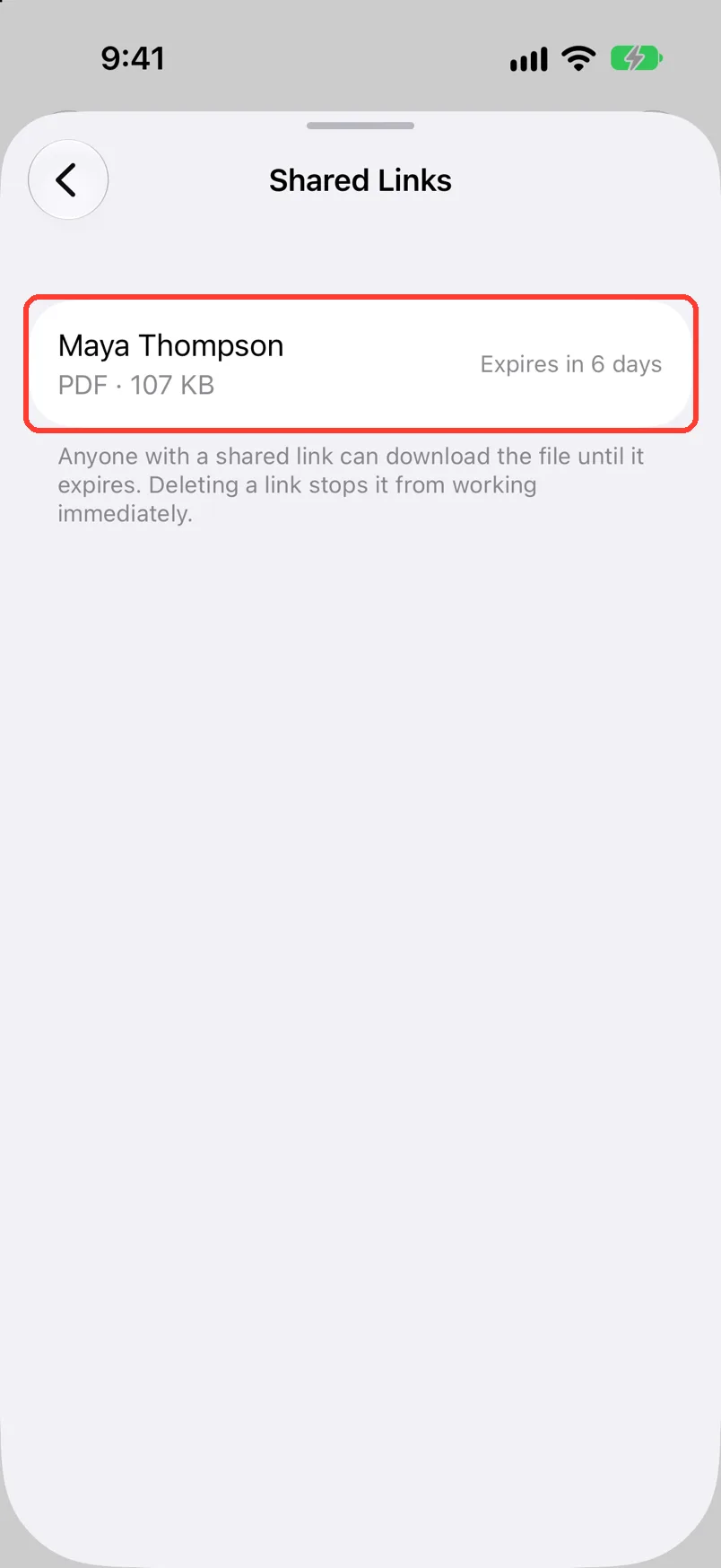
Tap the link
Each row shows the chat, the file, and when it ends. The iPhone share sheet opens.
-
Tap Copy
Paste the link in any app. Or tap an app to send it.
Stop a link
-
Swipe left on the link
A red Delete button shows.
-
Tap Delete
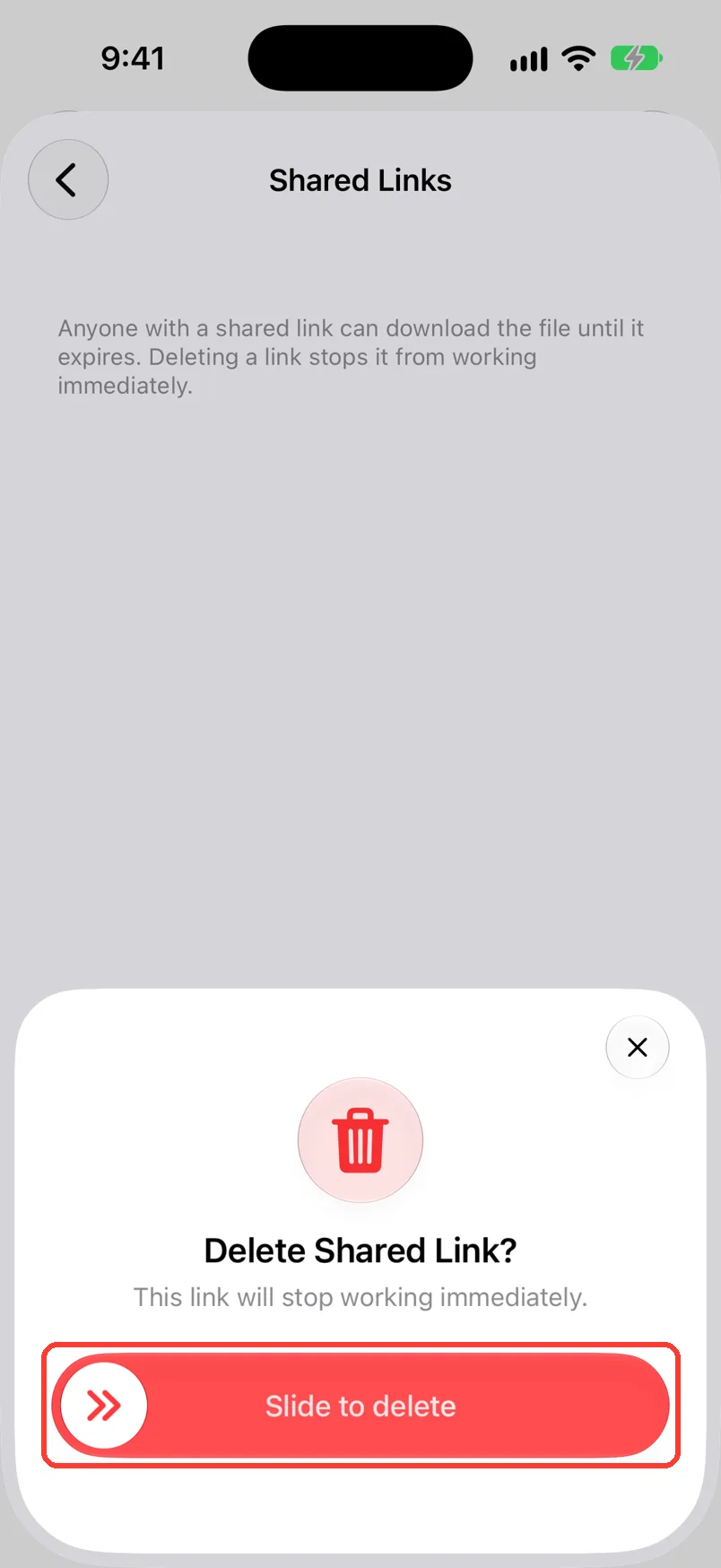
A sheet asks Delete Shared Link?
-
Slide Slide to delete to the right
Drag the button all the way across. The link stops working right away.
To keep the link, tap the X at the top of the sheet.
Done
You copied the link, or it no longer works for anyone.
Problems
No Shared Links
You have no links right now. Links leave this list when they end. Make a new one. See Share a big export with a link.
You want a link to last longer.
You cannot change the end date. Make a new link when this one ends.
Failed to delete the link. Please try again.
Check your internet. Then do the steps again.
None of these match.
Email [email protected]. Say which step you were on. Say what you saw. We usually reply within a day.
Questions
-
7 days. Each row shows the time left, such as Expires in 6 days.
-
Anyone who has it can download the file until it ends.


Start exporting your messages
Available for iPhone, Mac, and Windows. No computer required.
