

How to back up a chat before you delete it or switch phones
You will have a PDF copy of the chat saved in iCloud Drive or another safe place.
What you need
- ✓TextPort on your iPhone or Mac
- ✓The chat, still on your phone
- ✓Space in iCloud Drive, Google Drive, or another place in Files
Before you delete a chat or trade in your phone, save a copy. A PDF in iCloud Drive lasts, even without the phone.
Steps
-
1
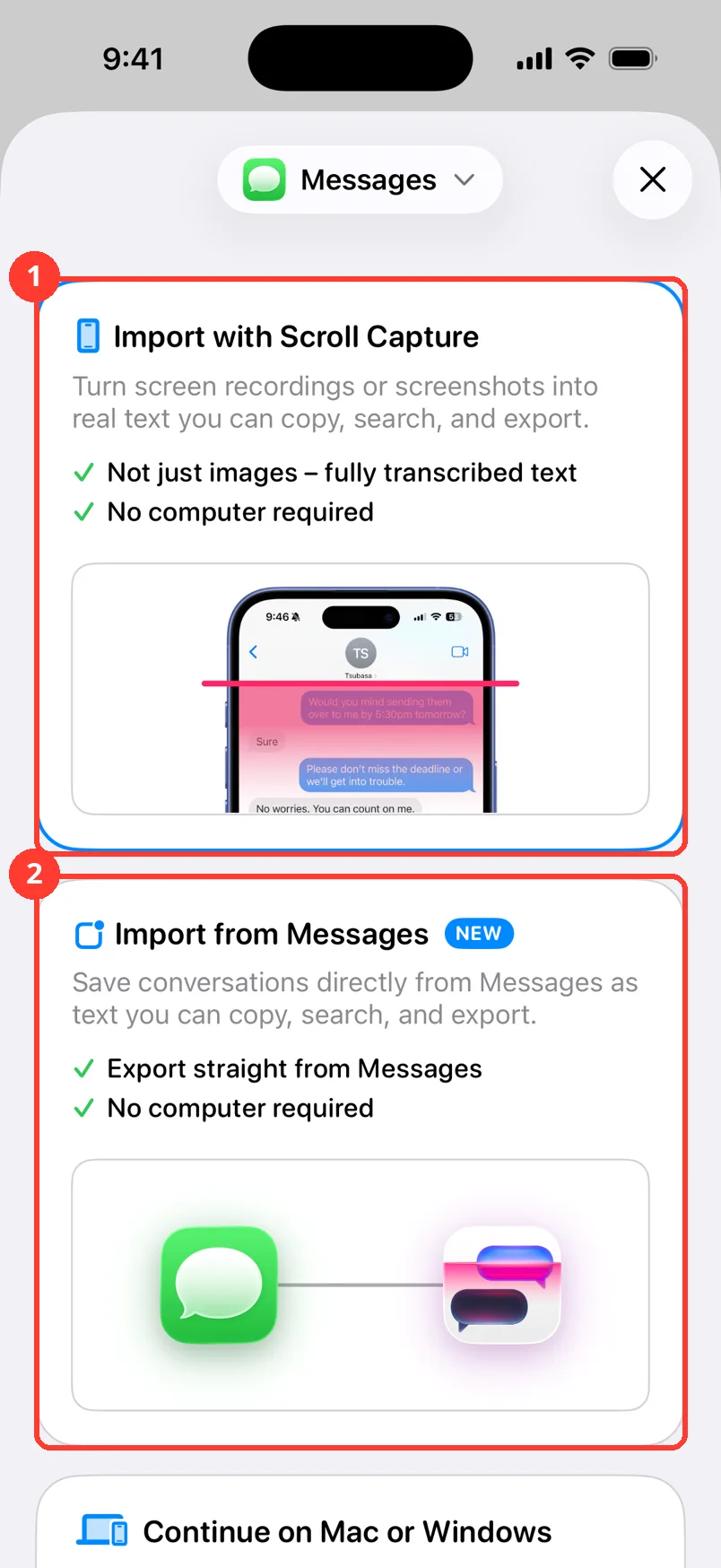
Import the chat
Tap Add Chat in TextPort. Pick the app the chat is in. Follow the import steps.
-
2
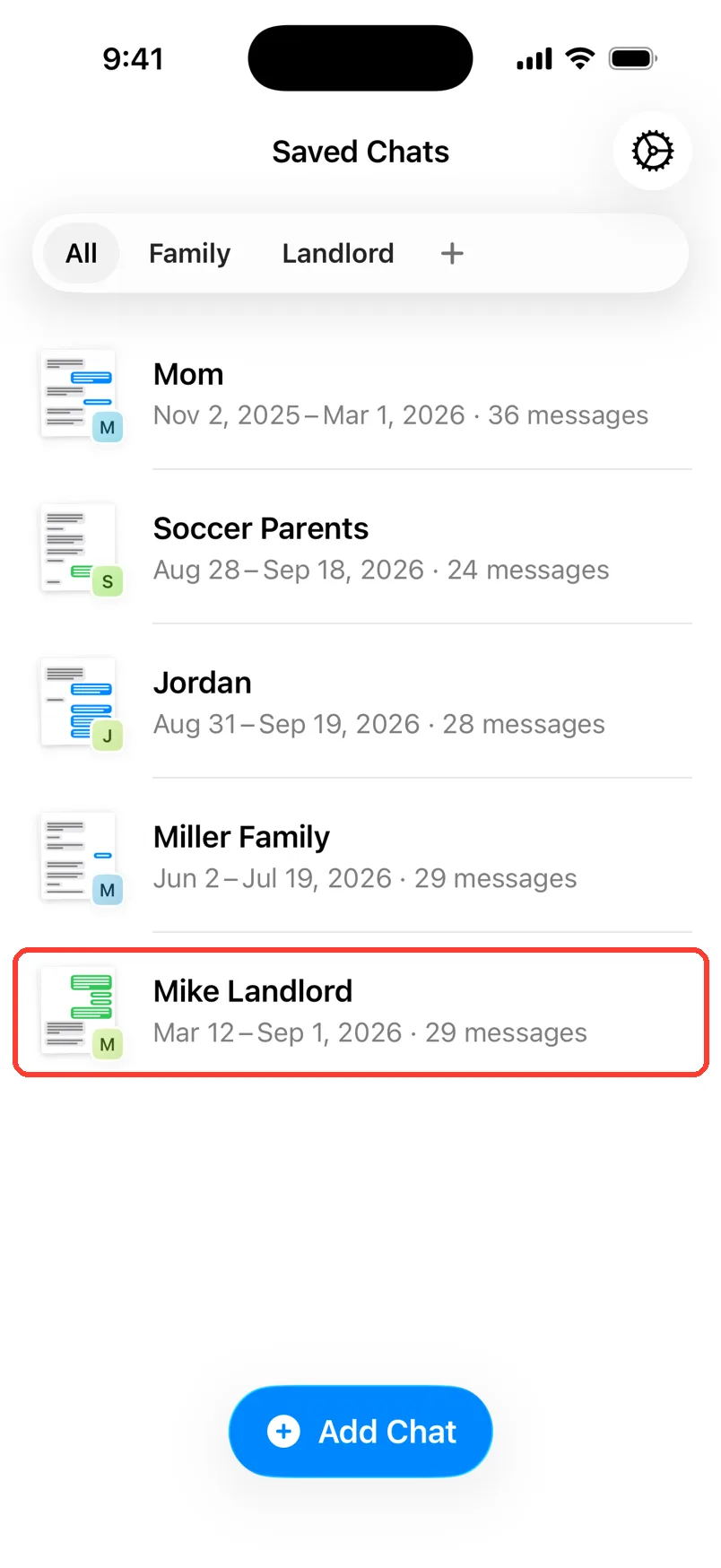
Open the chat
Tap the chat in Saved Chats. Scroll through it. Check that the messages you need are there.
-
3
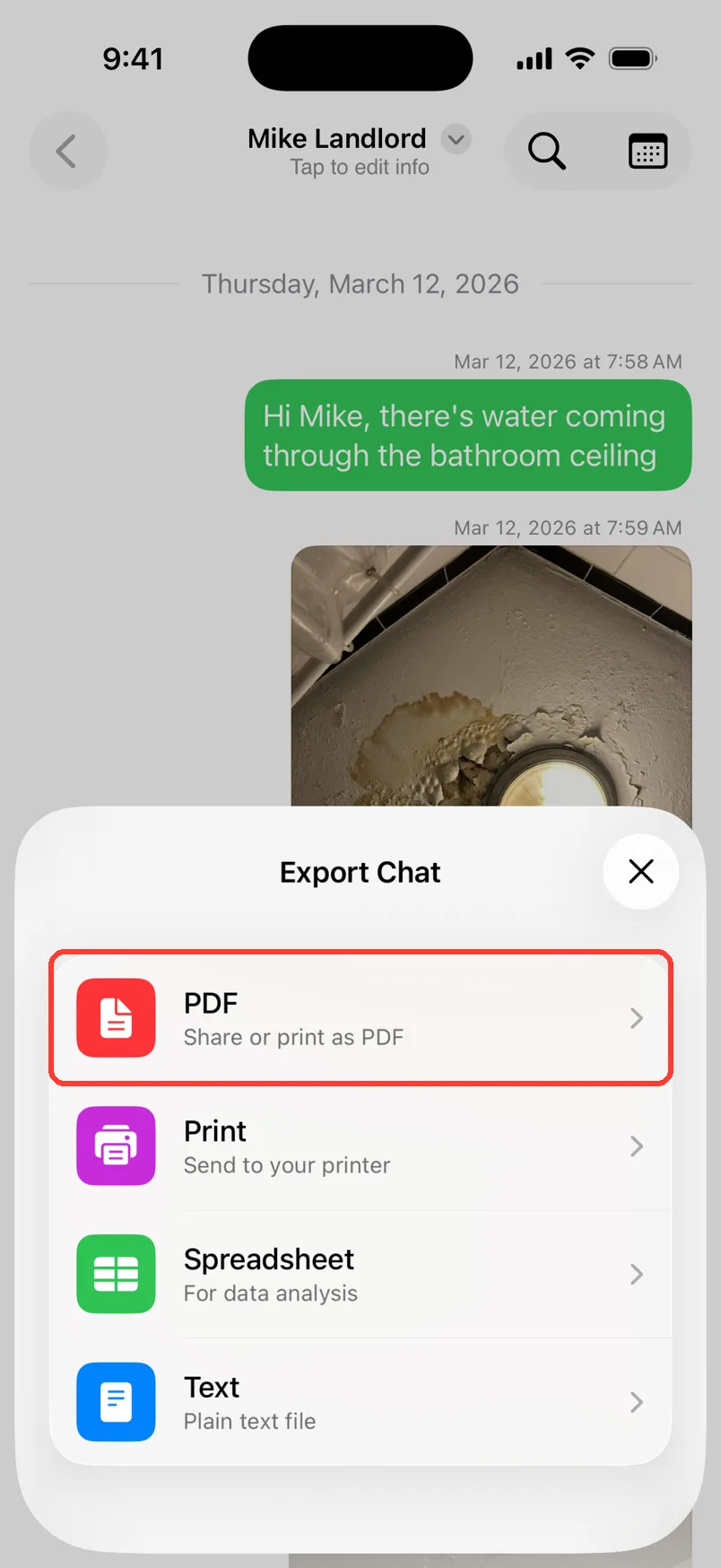
Tap Export, then PDF
Tap Export at the bottom. Tap PDF.
-
4
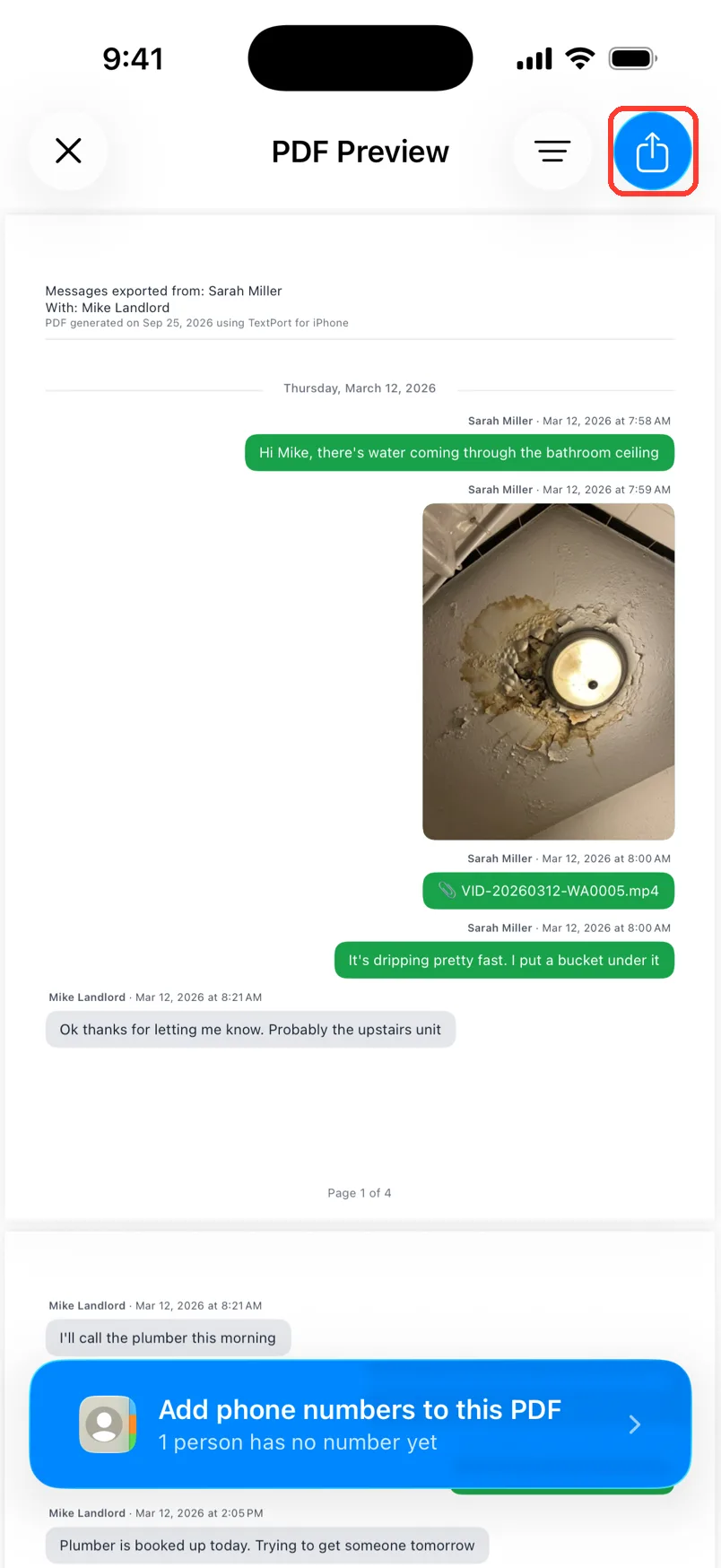
Tap the Share button
Tap the blue Share button in the top right.
-
5
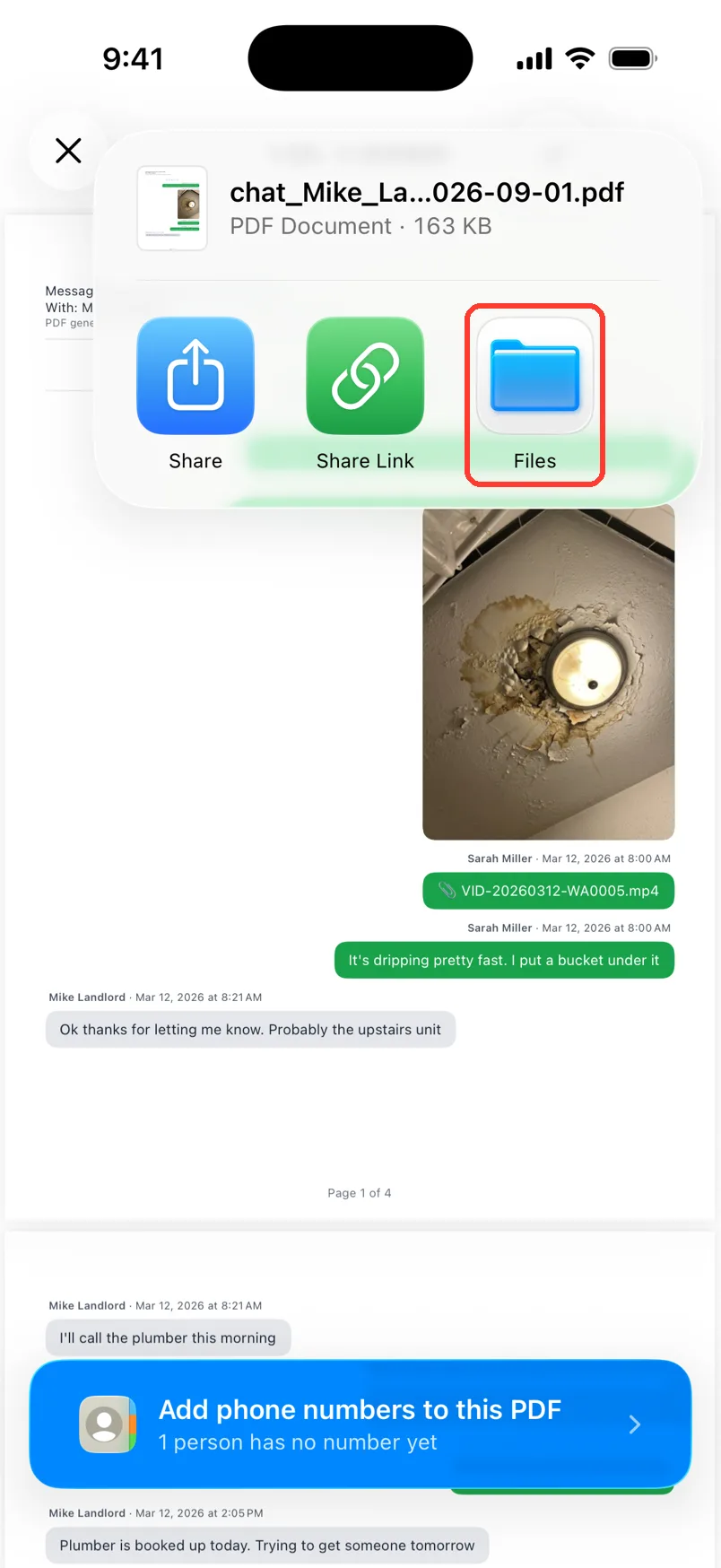
Tap Files
Tap Files.
-
6
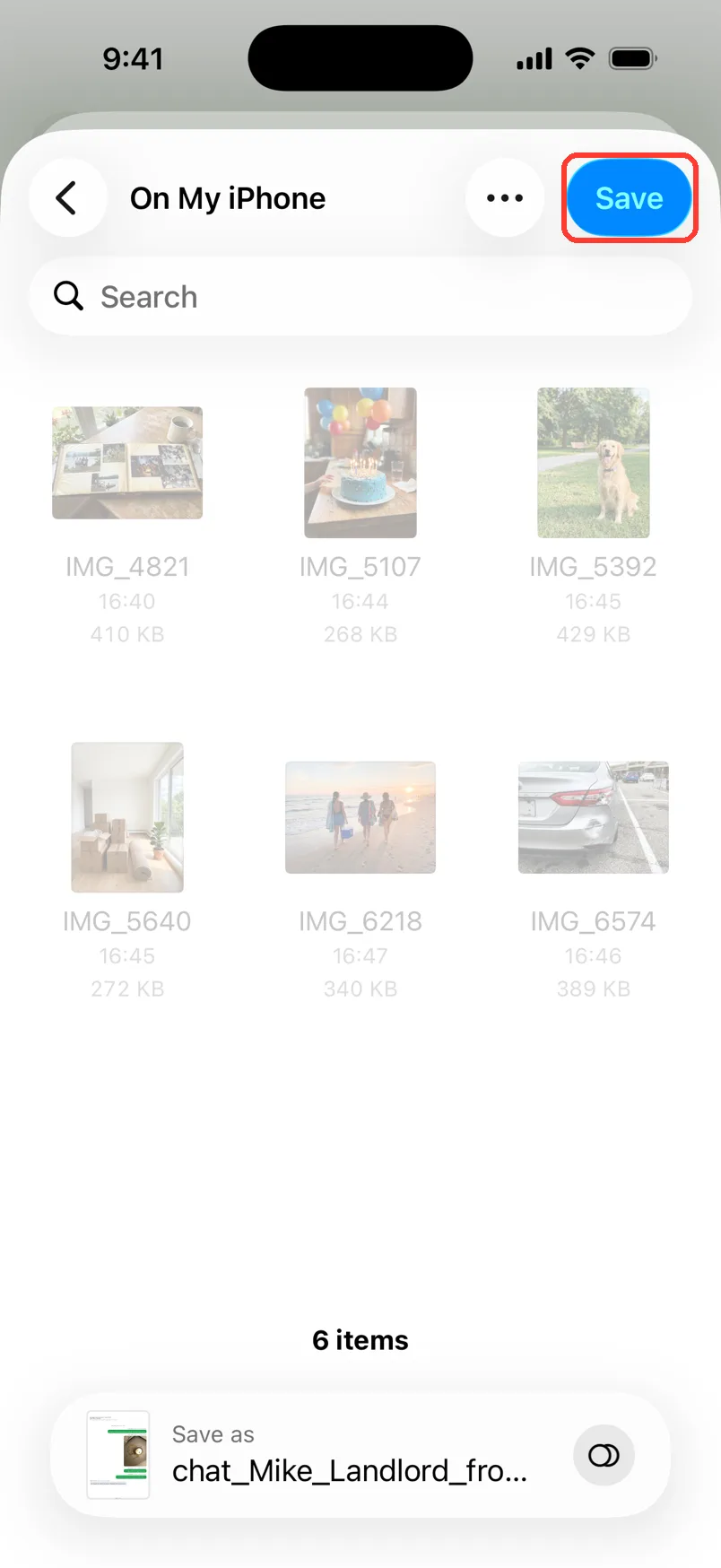
Pick iCloud Drive
Tap < to see all places. Pick iCloud Drive or another cloud folder. Tap Save.
-
7
Check the file
Open the Files app. Find the PDF. Tap it to make sure it opens.
-
8
Now delete or switch
Your copy is safe. You can delete the chat or move to a new phone.
Done
You have a PDF of the chat in the cloud. It stays there even if you lose or change your phone.
Tips
-
Want the words in a file you can search or sort? Also export Text or Spreadsheet. Save them the same way.
-
Do not use Share Link as a backup. Links stop working after 7 days.
-
On Mac, pick the chat and press Command-E. Choose PDF and save it to iCloud Drive.
Questions
-
Do not count on it alone. Save a PDF in a place you control, like iCloud Drive. Then you can open it without TextPort.
-
No. TextPort makes a copy you can read, print, and share. It can not put messages back into those apps.
-
On iPhone, do one chat at a time. Repeat the steps for each chat you want to keep.
Next guides
-
 How to export a chat to PDF
You will get a PDF of one chat, with names, dates, and times, ready to share or print.
How to export a chat to PDF
You will get a PDF of one chat, with names, dates, and times, ready to share or print.
-
 How to pick a way to import a chat
You will know which import method fits your chat, and where to tap to start it.
How to pick a way to import a chat
You will know which import method fits your chat, and where to tap to start it.
-
 How to share a big export with a link
You will get a web link to your file that anyone can open for 7 days.
How to share a big export with a link
You will get a web link to your file that anyone can open for 7 days.
-
 How to rename or delete a chat
Your chat will have a clear name, or it will be gone from TextPort.
How to rename or delete a chat
Your chat will have a clear name, or it will be gone from TextPort.
-
 How to export one chat to PDF, CSV, or TXT on Mac
You will get a file of one chat on your Mac, as a PDF, a spreadsheet, or plain text.
How to export one chat to PDF, CSV, or TXT on Mac
You will get a file of one chat on your Mac, as a PDF, a spreadsheet, or plain text.

Start exporting your messages
Available for iPhone, Mac, and Windows. No computer required.
