

How to rename or delete a chat
Your chat will have a clear name, or it will be gone from TextPort.
What you need
- ✓TextPort on your iPhone
- ✓A chat saved in TextPort
Long press a chat in Saved Chats to rename it or delete it.
Steps
-
1
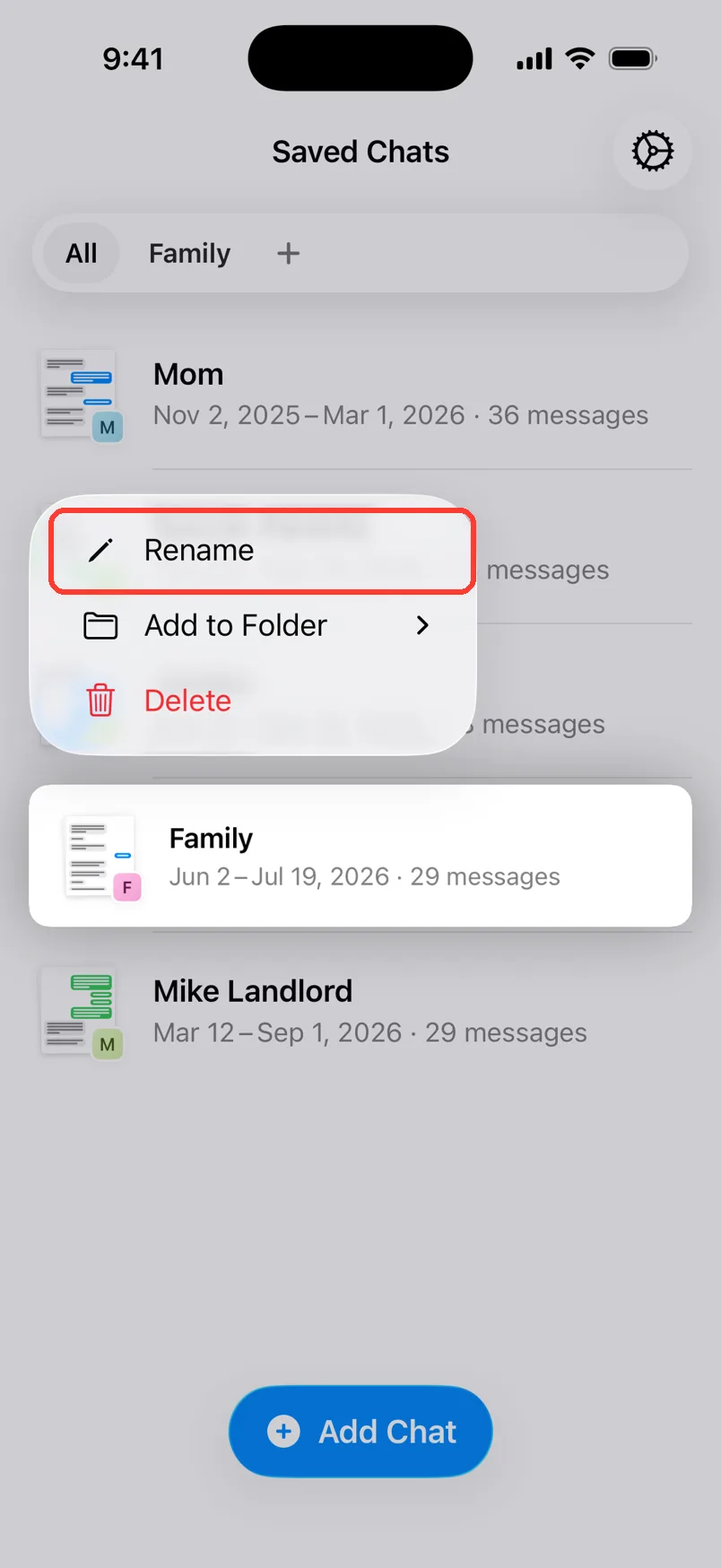
Long press the chat
In Saved Chats, press and hold the chat. A menu appears.
-
2
Tap Rename
Tap Rename. A box called Rename Chat opens.
-
3
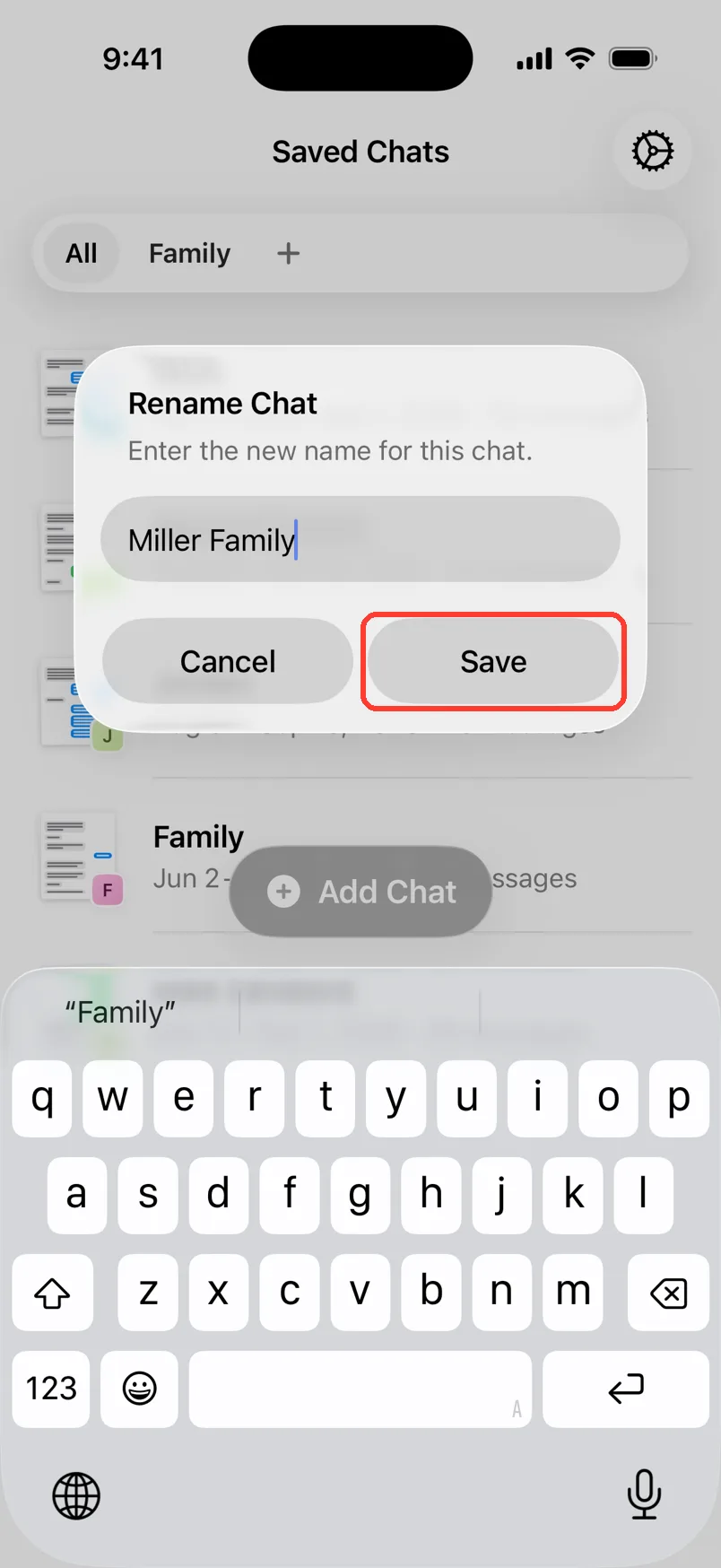
Type the new name
Delete the old name. Type the new one. Tap Save.
-
4
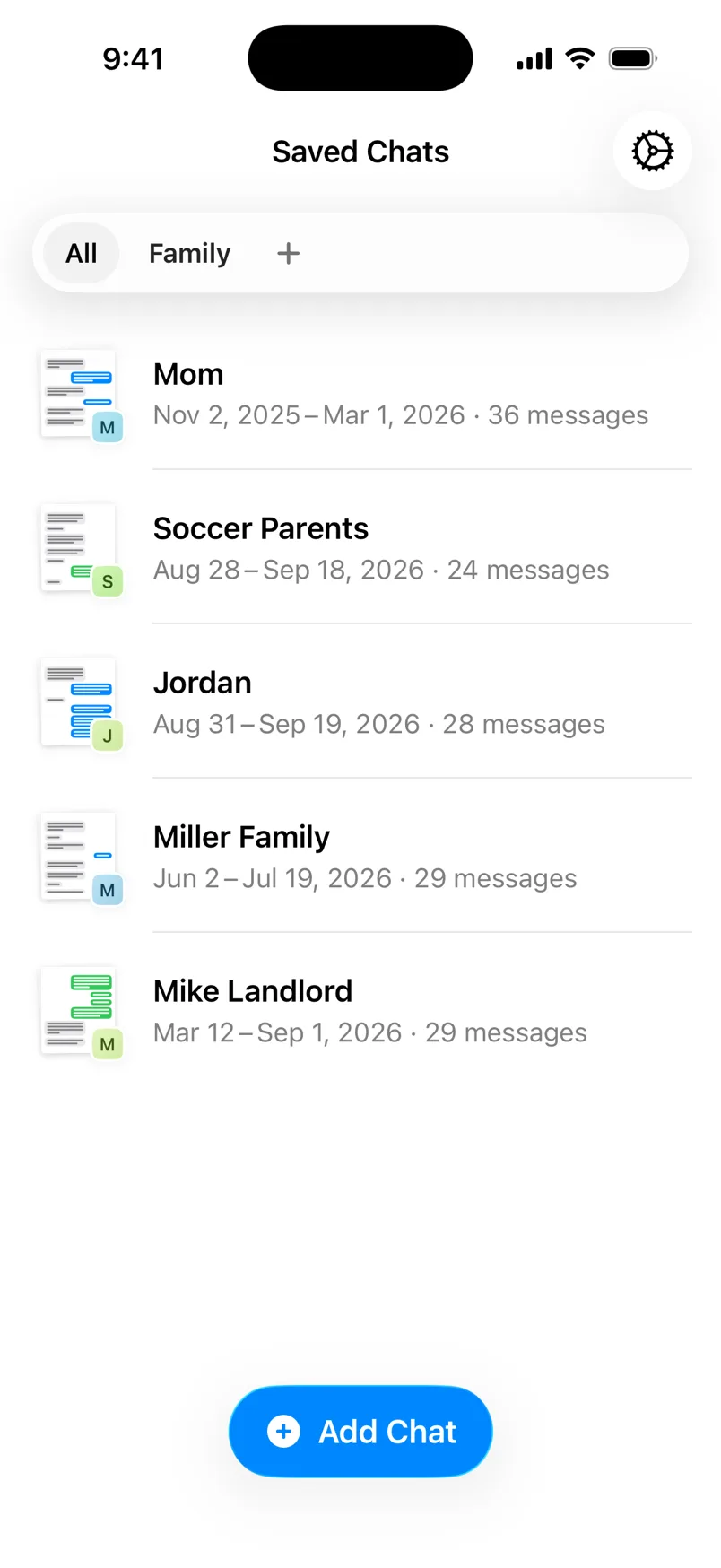
See the new name
The chat shows the new name in the list.
-
5
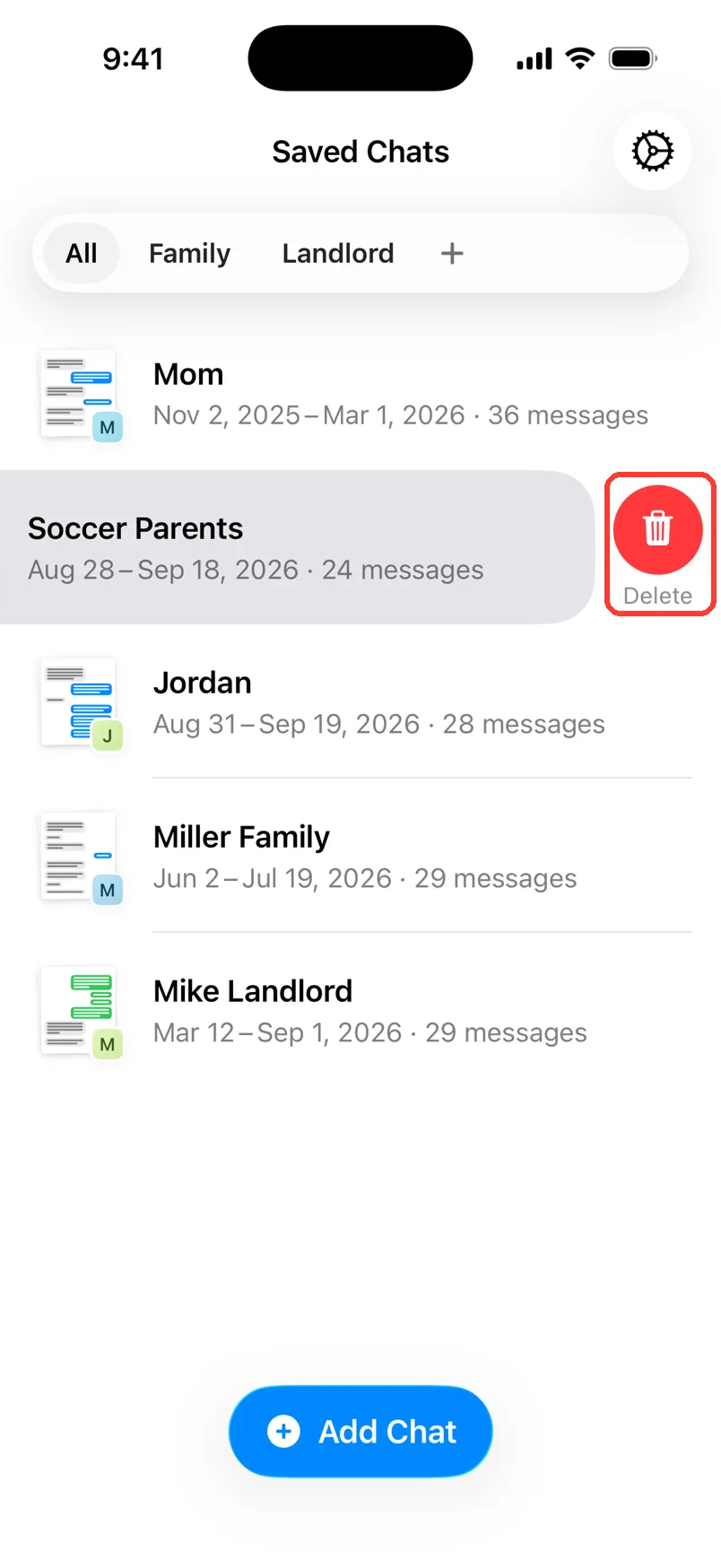
To delete, swipe left
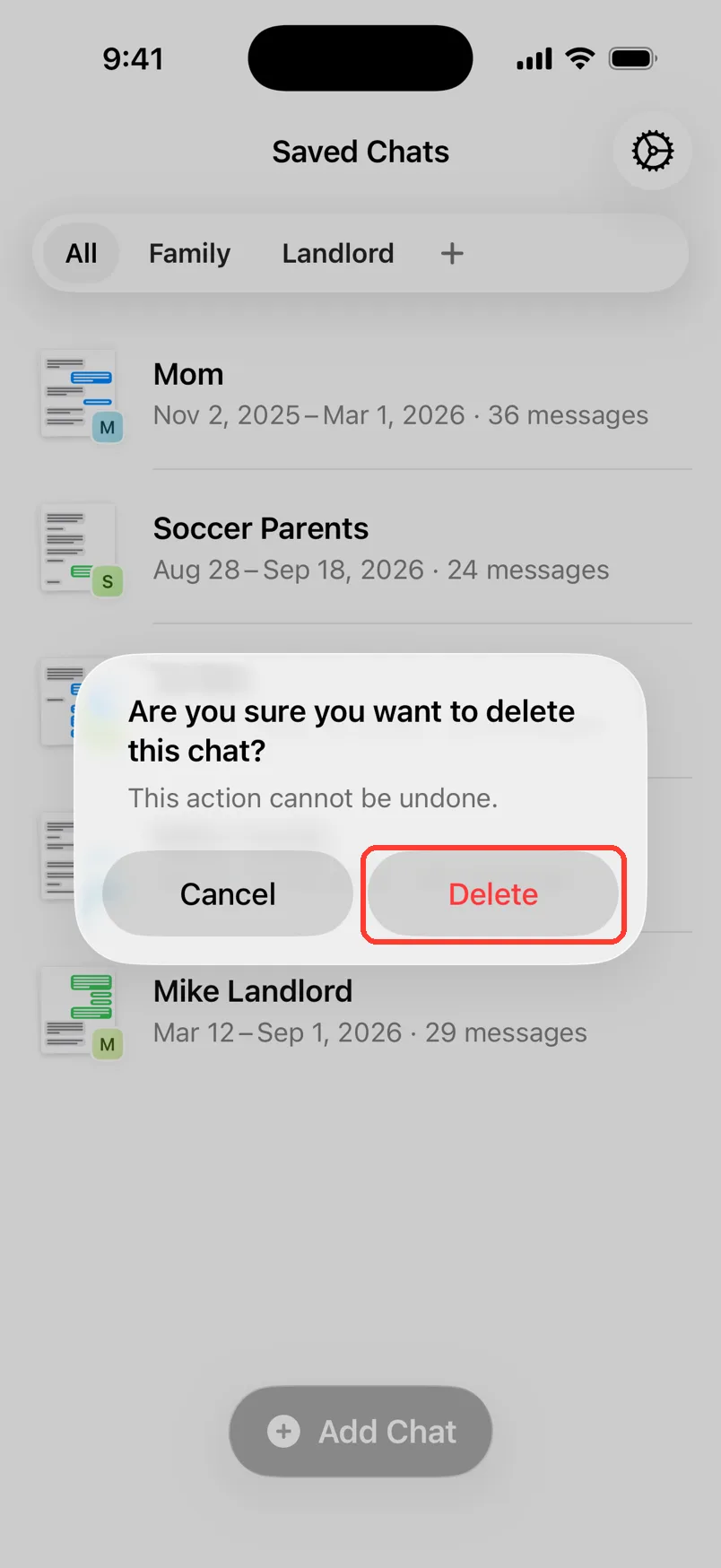
Swipe left on the chat. Tap the red Delete button.
-
6
Confirm
TextPort asks Are you sure you want to delete this chat? Tap Delete.
Done
The chat has its new name. Or it is gone from TextPort.
Tips
-
Inside a chat, you can delete it too. Tap … at the bottom. Tap Delete Chat.
-
Inside a chat, you can rename it too. Tap the name at the top. Tap Chat Details. Tap Chat Name.
-
Deleting a chat in TextPort does not touch Messages or WhatsApp. The chat is still on your phone.
Questions
-
No. A deleted chat can not be brought back. Save a PDF first if you might need it.
-
The chat name is a label for you. The PDF shows the people's names.
-
Open Settings, then Your Data. It has buttons to delete saved chats in bulk.
Next guides
-
 How to back up a chat before you delete it or switch phones
You will have a PDF copy of the chat saved in iCloud Drive or another safe place.
How to back up a chat before you delete it or switch phones
You will have a PDF copy of the chat saved in iCloud Drive or another safe place.
-
 How to edit the chat name and people's names
You will have the right chat name and the right name for each person in the chat.
How to edit the chat name and people's names
You will have the right chat name and the right name for each person in the chat.
-
 How to put chats in folders
Your chats will be sorted into folders you can open with one tap.
How to put chats in folders
Your chats will be sorted into folders you can open with one tap.
-
 What the Saved Chats screen shows
You will know what each part of the Saved Chats screen means and what you can tap.
What the Saved Chats screen shows
You will know what each part of the Saved Chats screen means and what you can tap.

Start exporting your messages
Available for iPhone, Mac, and Windows. No computer required.
