

How to edit the chat name and people's names
You will have the right chat name and the right name for each person in the chat.
What you need
- ✓TextPort on your iPhone
- ✓A chat saved in TextPort
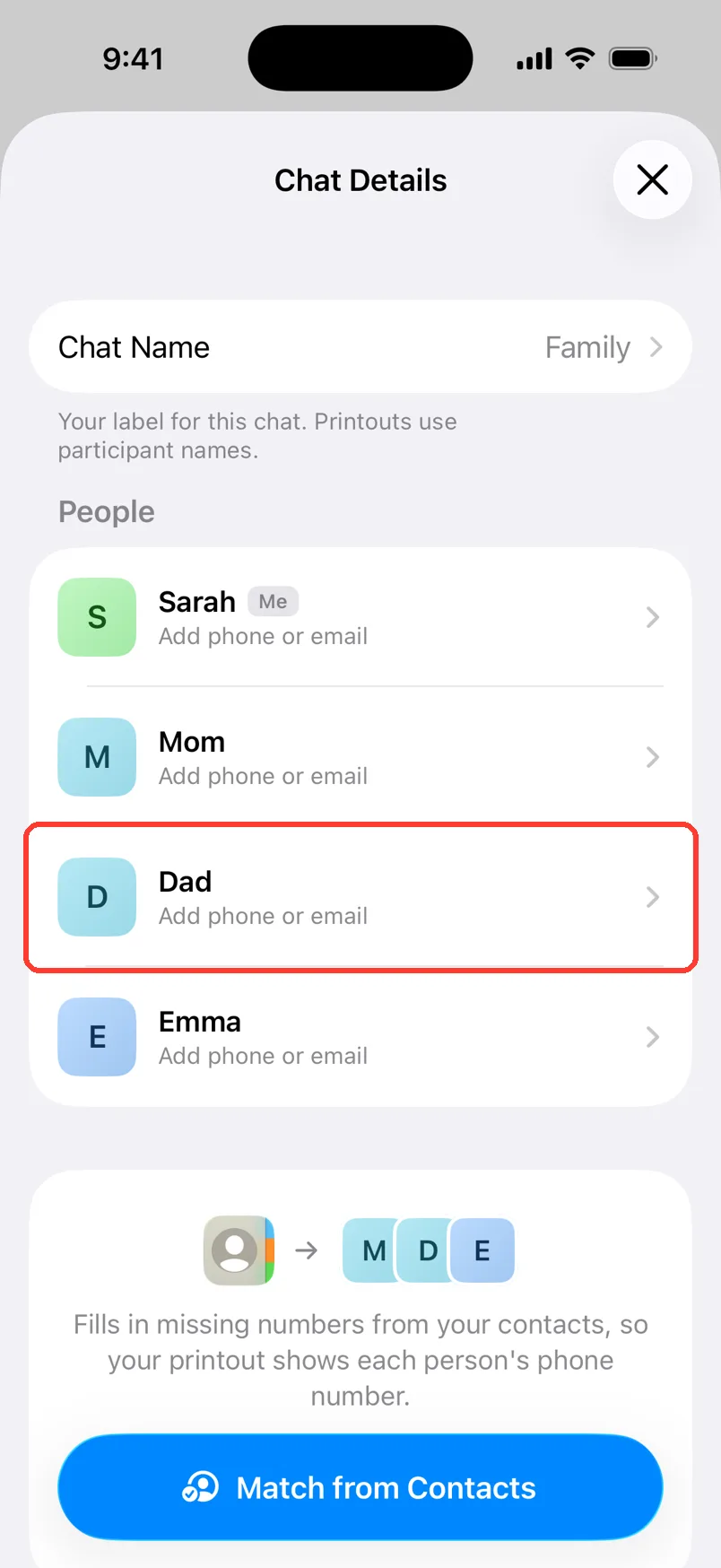
Each chat has a name you can change. Each person in it has a name and a phone number or email. You fix all of them in Chat Details.
Steps
-
1
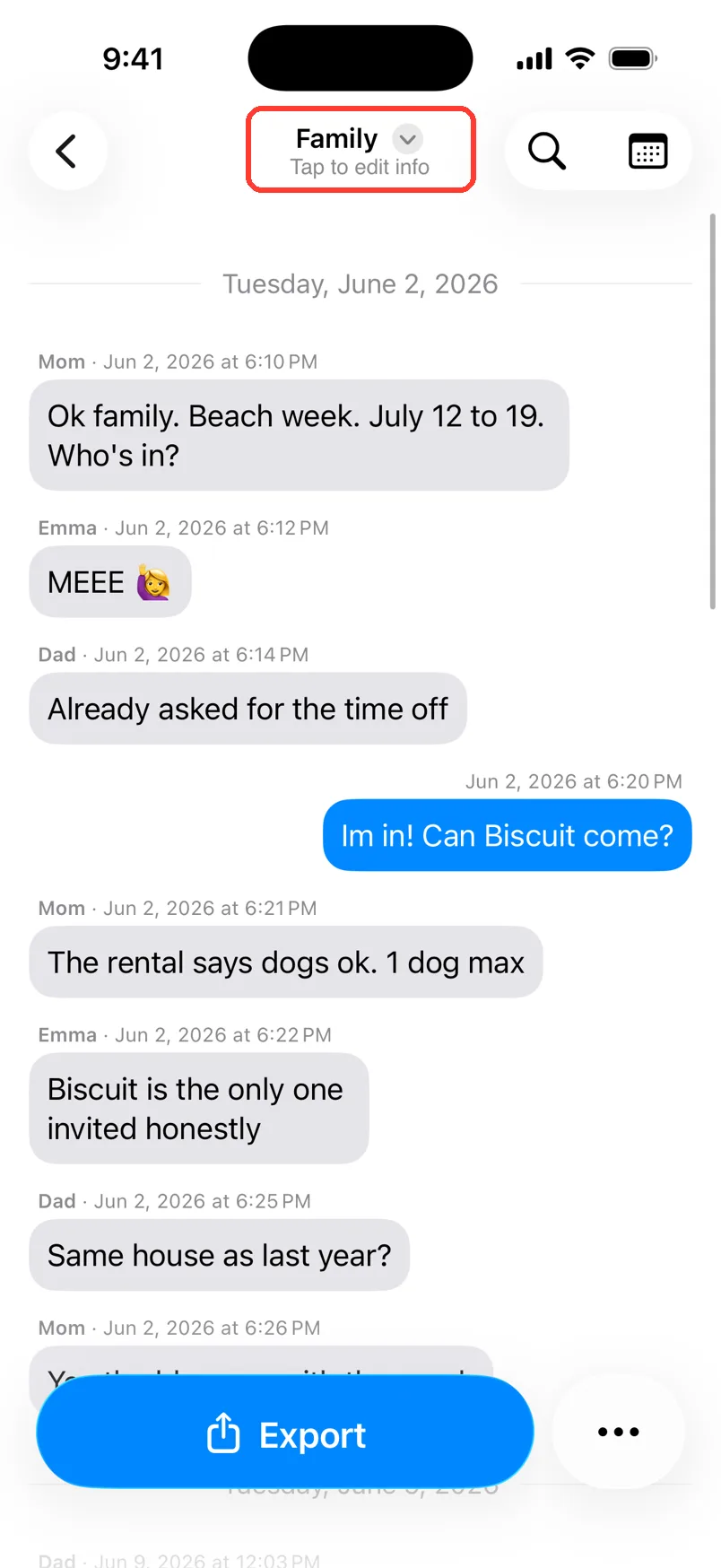
Tap the name at the top
Open the chat. Tap the chat name at the top. Under it, it says Tap to edit info.
-
2
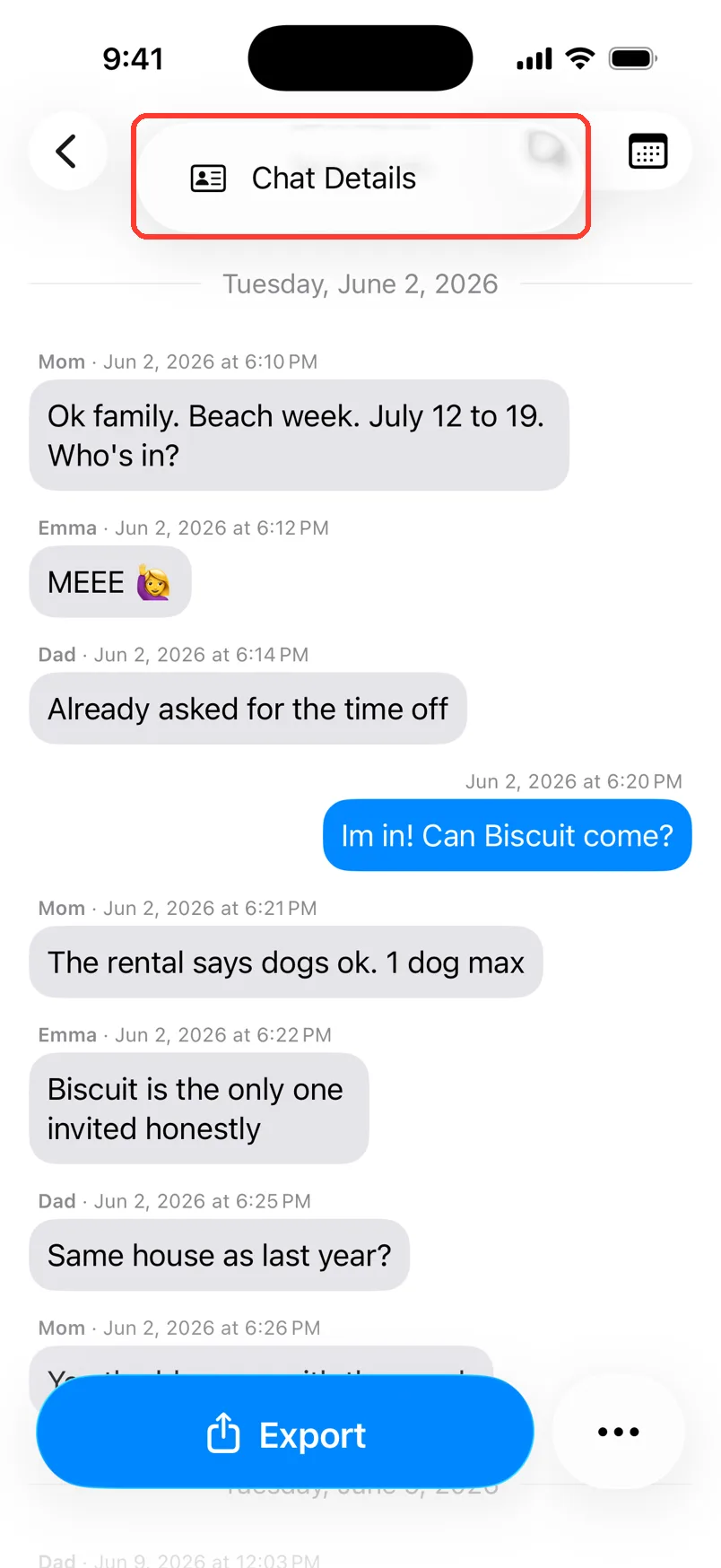
Tap Chat Details
Tap Chat Details. The Chat Details screen opens.
-
3
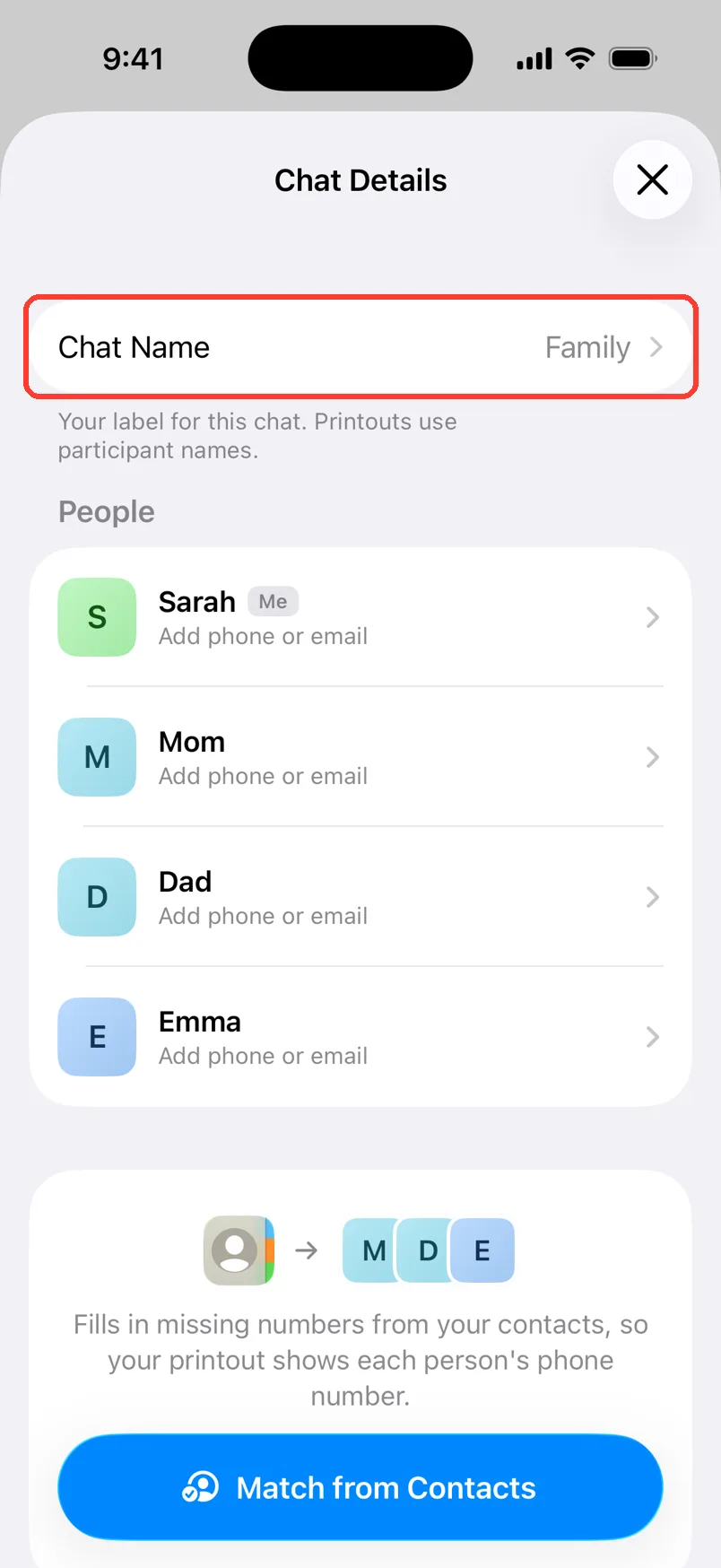
Tap Chat Name
Tap Chat Name at the top.
-
4
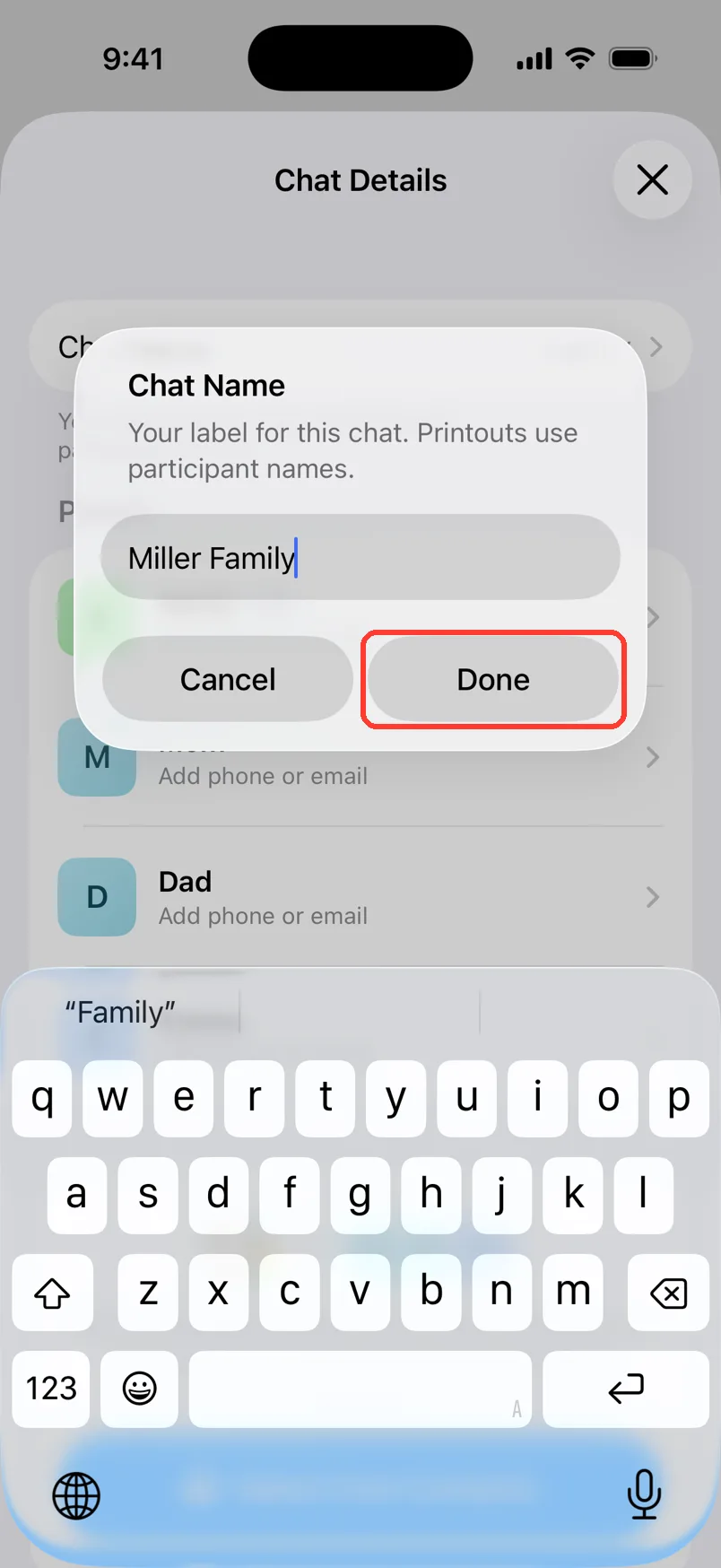
Type the new name
Type the name you want, like Miller Family. Tap Done.
-
5
Tap a person
Look under People. Tap the person you want to fix.
-
6
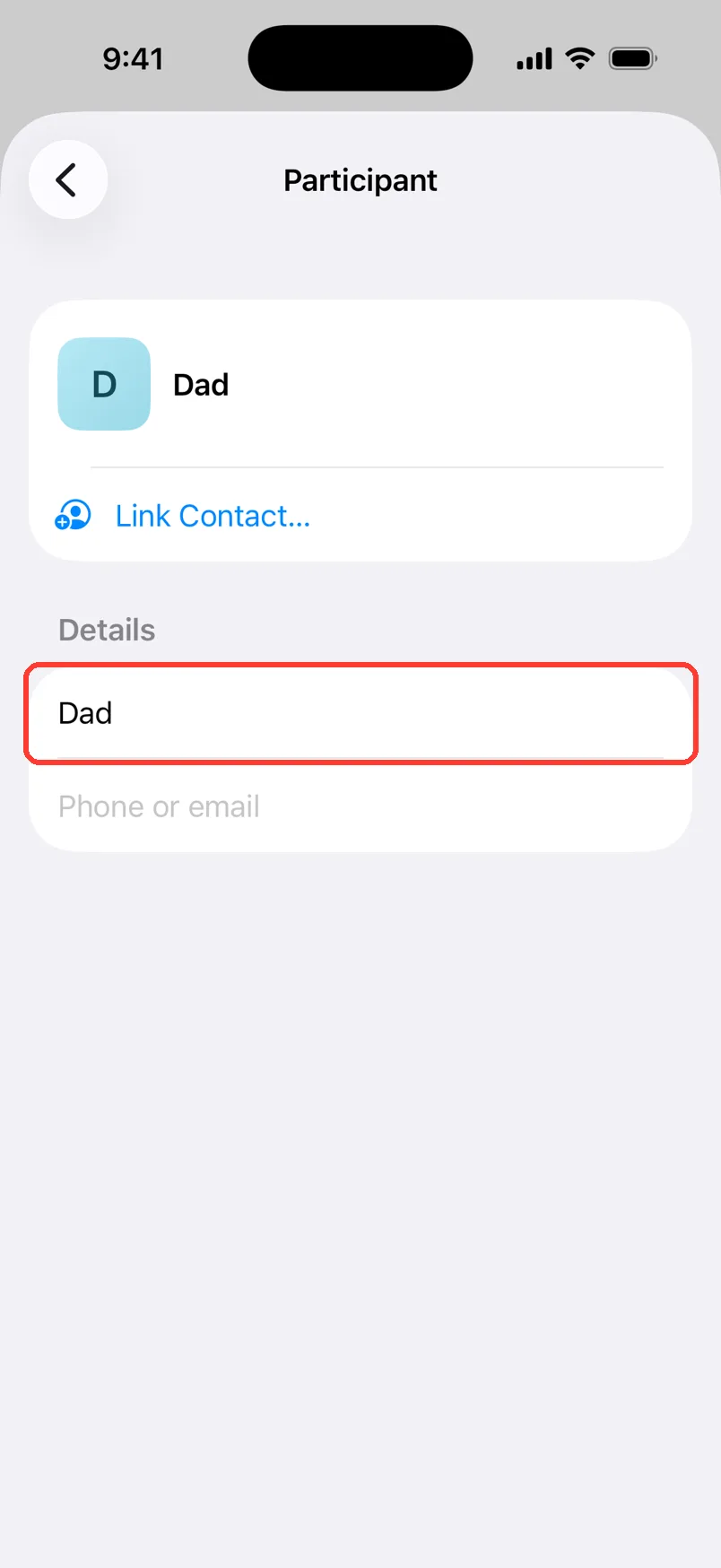
Change the name
Tap the name box. Type the right name. You can add a phone number or email in the box under it.
-
7
Close to save
Tap < to go back. Tap the X to close. Your changes save when you close.
-
8
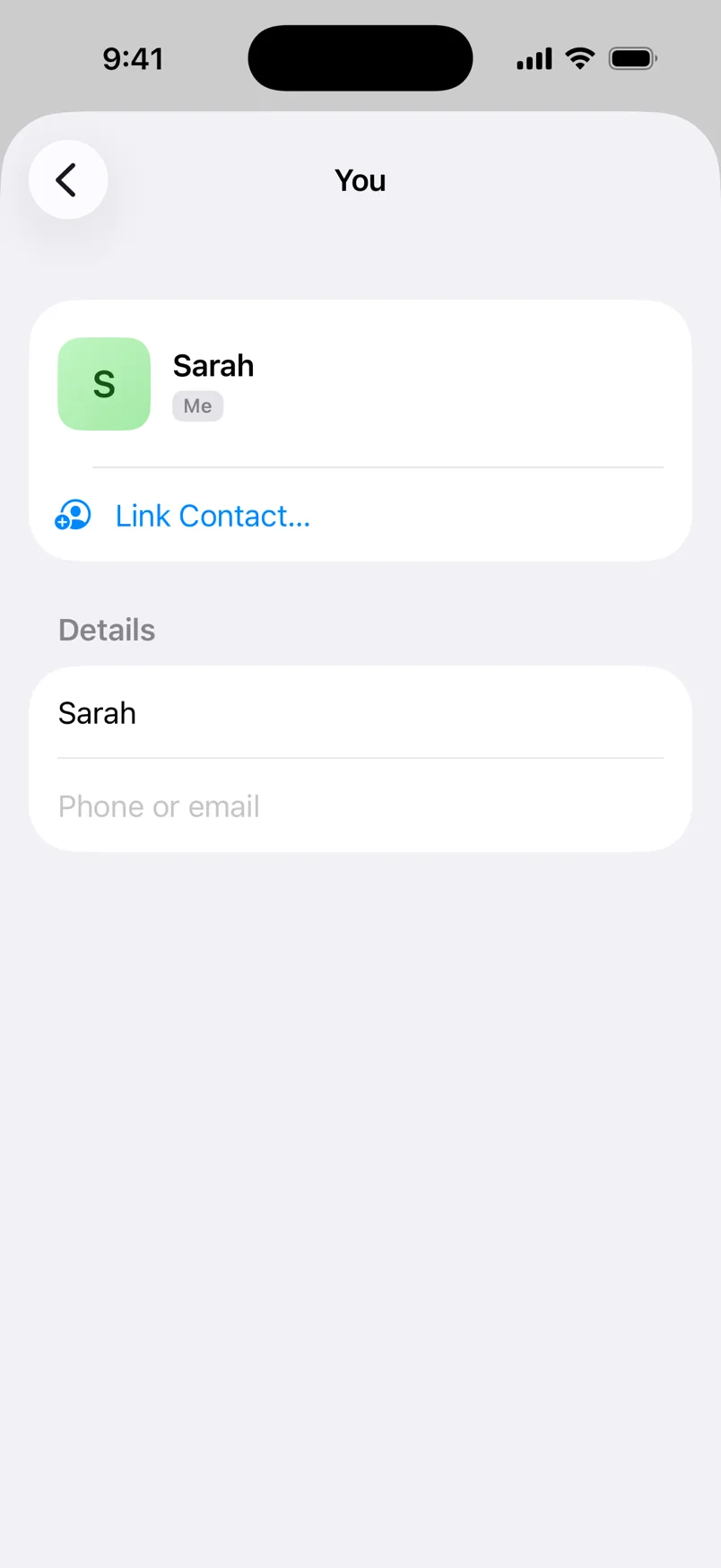
Fix your own name
Your row has a gray Me tag. Tap it to change your name. This screen is called You.
-
9
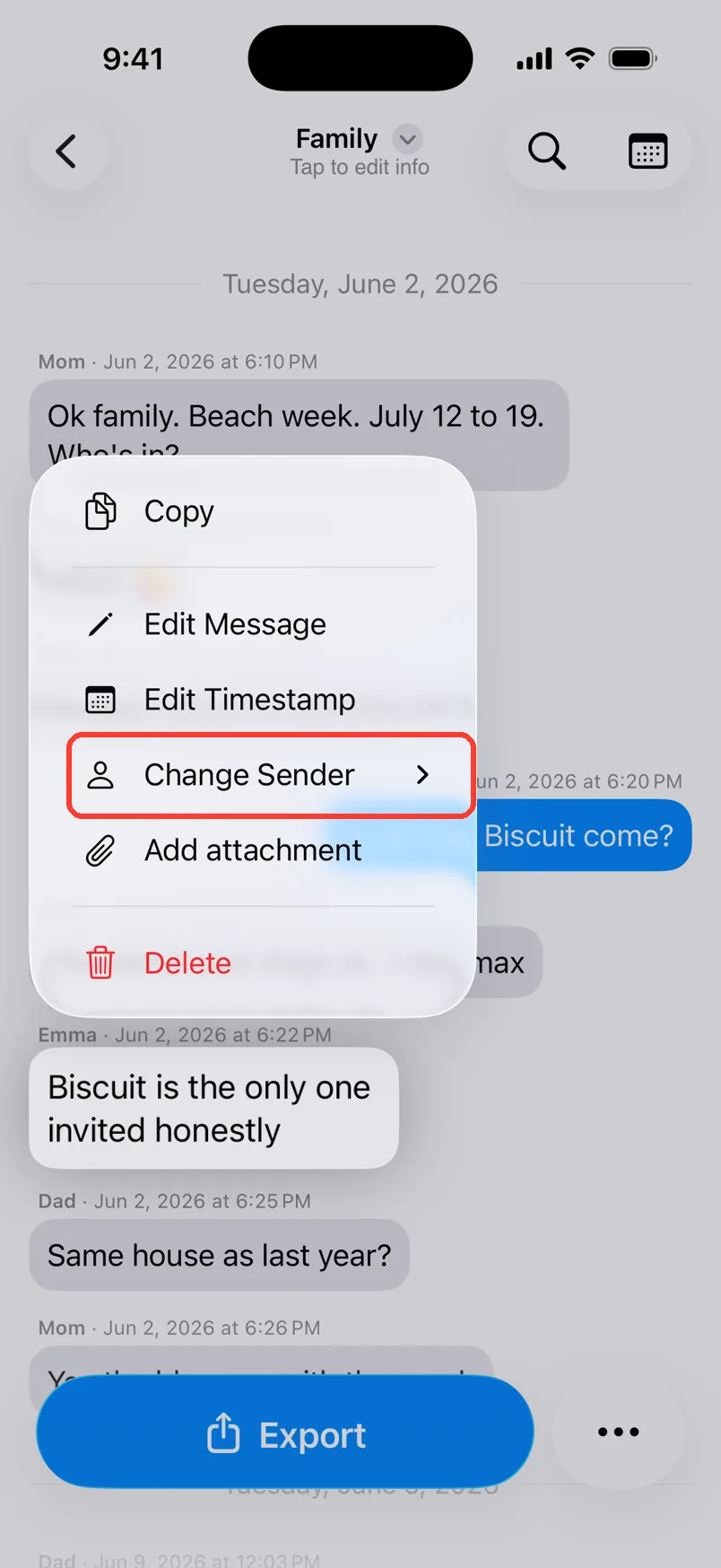
Fix who sent a message
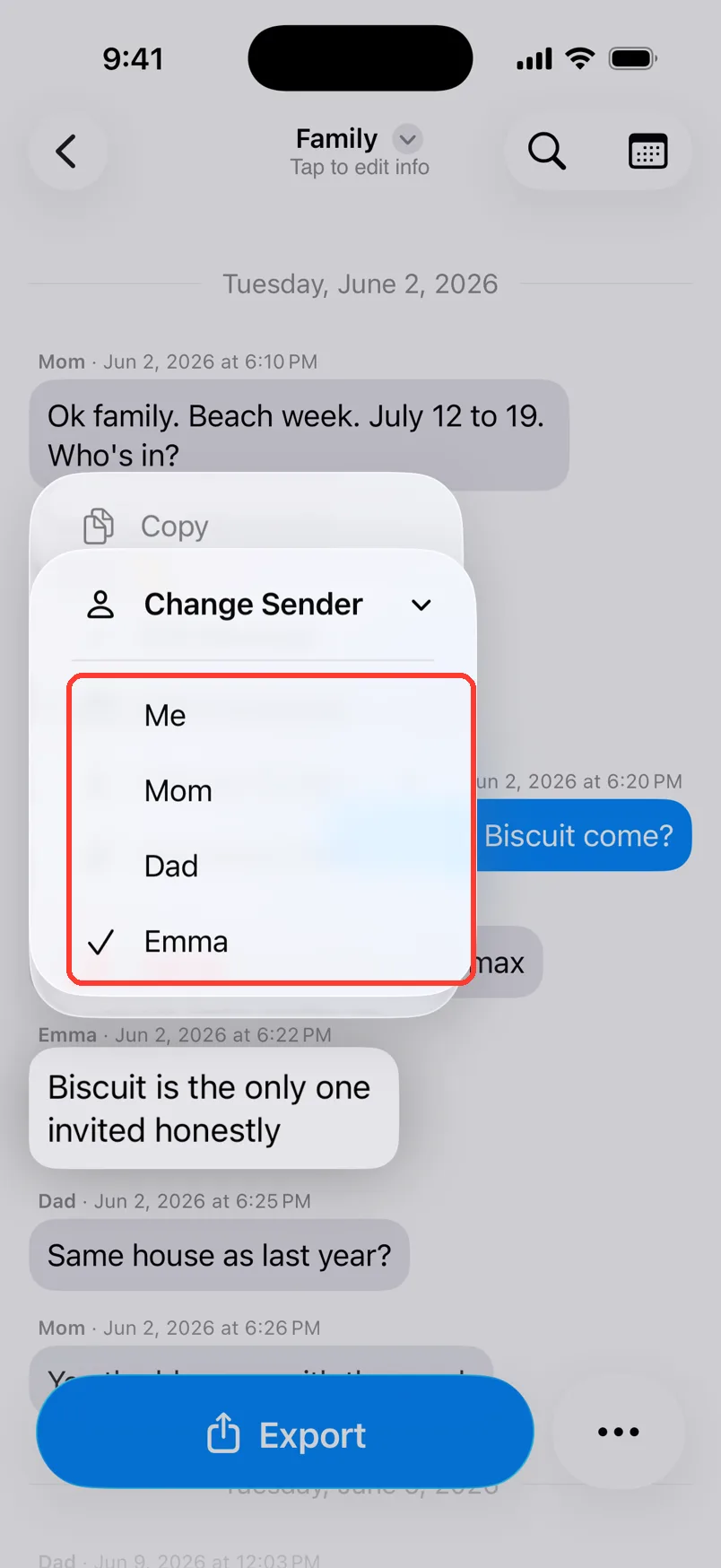
This works in chats from screenshots or Scroll Capture. Long press the message. Tap Change Sender.
-
10
Pick the right person
Tap Me or a name. A check mark shows the sender now.
Done
The chat has the name you picked. Each person shows the right name. Your PDF uses these names.
Tips
-
The chat name is just your label. The PDF shows the people's names.
-
Chat with just two people? You see Mark as Outgoing or Mark as Incoming instead of Change Sender.
-
You can also open Chat Details from the … button at the bottom of the chat.
-
Tap Match from Contacts to fill in phone numbers from your contacts.
Questions
-
There is no switch for that in Chat Details. The Me tag shows who TextPort thinks is you. In a chat from screenshots or Scroll Capture, long press each of your messages and pick Me under Change Sender.
-
You pick who is you while you import. It can not be changed later. Delete the chat and import it again. Pick your own name when TextPort asks Which one is you?
-
Yes. You can change the chat name, each person's name, and their phone or email. You can not change the messages or who sent them. Those chats are exact copies.
-
No. The names only change inside TextPort.
Next guides
-
 How to choose which WhatsApp person is you
Your own WhatsApp messages will show on the right side, marked as Me.
How to choose which WhatsApp person is you
Your own WhatsApp messages will show on the right side, marked as Me.
-
 How to add phone numbers to a PDF
Your PDF will show each person's phone number next to their name.
How to add phone numbers to a PDF
Your PDF will show each person's phone number next to their name.
-
 How to rename or delete a chat
Your chat will have a clear name, or it will be gone from TextPort.
How to rename or delete a chat
Your chat will have a clear name, or it will be gone from TextPort.
-
 How to fix wrong text, times, or missing messages
You will fix any message that TextPort read wrong from a screenshot or recording.
How to fix wrong text, times, or missing messages
You will fix any message that TextPort read wrong from a screenshot or recording.

Start exporting your messages
Available for iPhone, Mac, and Windows. No computer required.
