

How to link, change, or unlink a contact
Quick answer
In the chat:
- Tap the chat name at the top.
- Tap the person under People.
- Tap Link Contact…. Pick the contact.
- To change it later, tap the … button. Tap Change Contact… or Unlink.
- Tap the back button, then the X.
What you need
- ✓TextPort on your iPhone
- ✓The person saved in your iPhone contacts
Steps
-
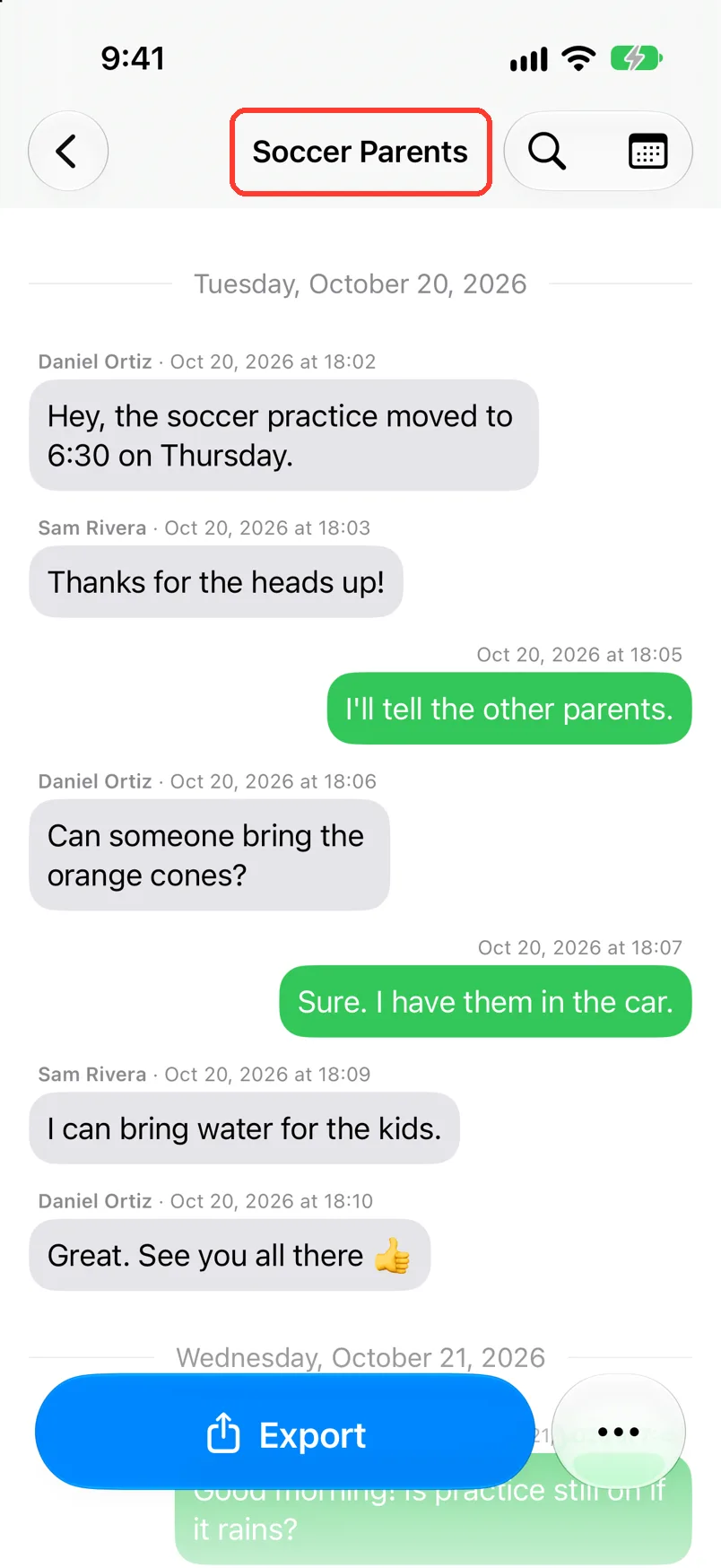
Tap the chat name at the top
Open the chat first. Chat Details opens.
-
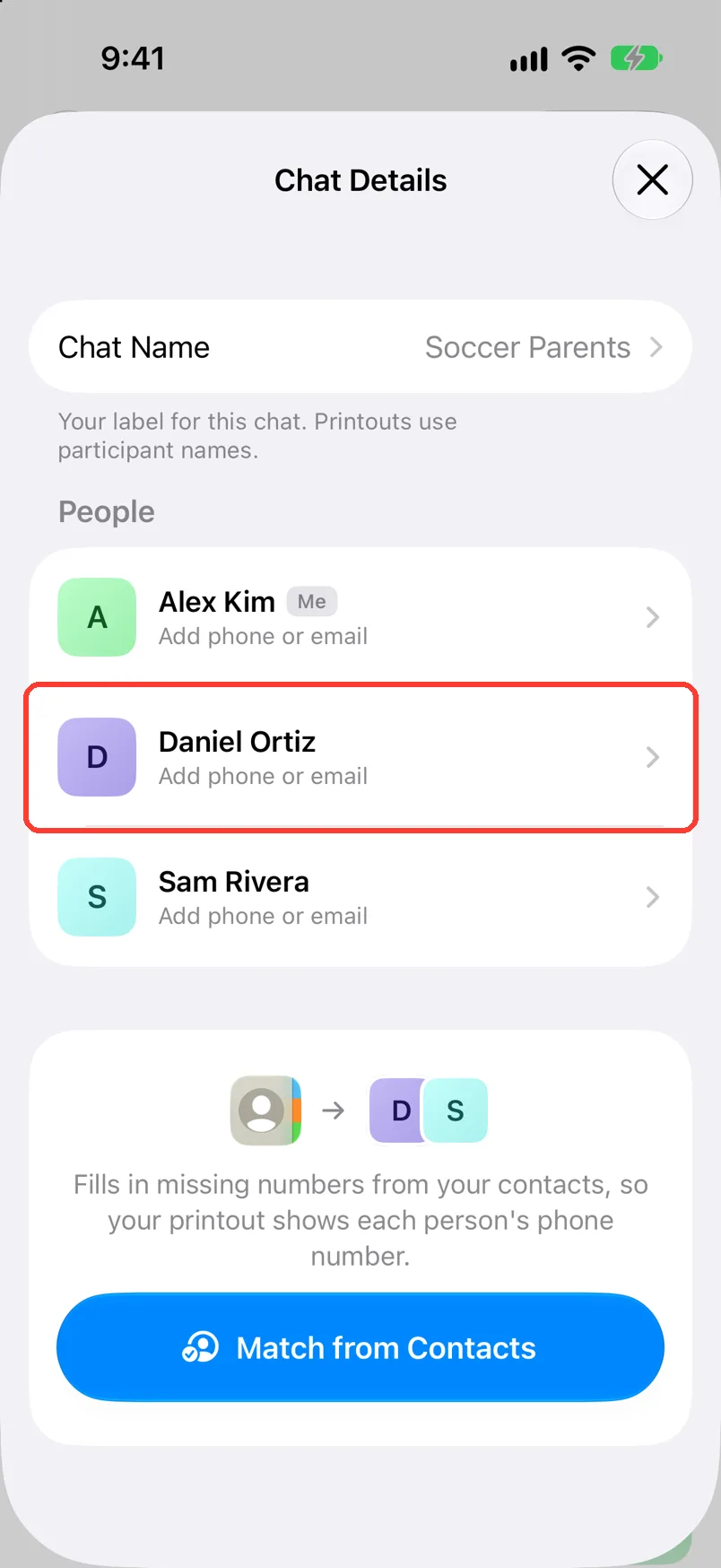
Tap the person under People
Participant opens. Your own screen is called You.
-
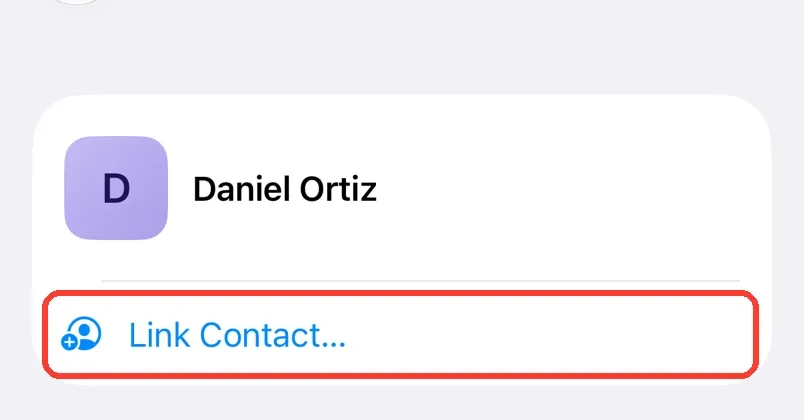
Tap Link Contact…
It is under the name. Your contact list opens.
If it says 2 possible matches, tap it. Pick one under Possible Matches.
-
Tap the contact
If it has more than one number, tap the one you want. The name and number fill in.
-
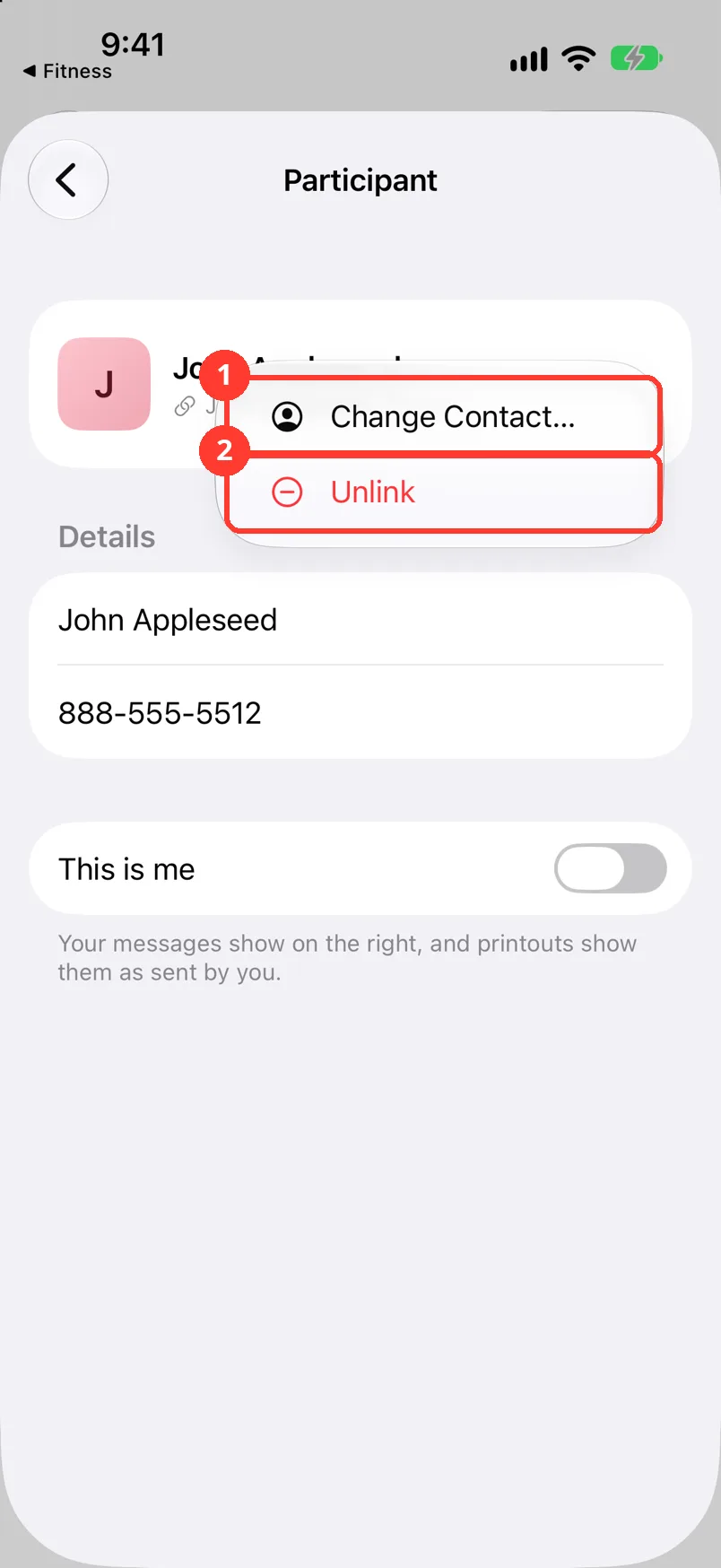
To change it, tap the … button
It is next to the name. Tap Change Contact… (1) or Unlink (2).
Unlink keeps the name and number. Type over them if they are wrong.
-
Tap the back button, then the X
The back button is in the top left. Your changes save when Chat Details closes.
Done
The person has the right name and number in the chat and on your PDF.
Problems
Link Contact… is not there.
The person is linked already. Or this chat shows Participant details can't be edited for this chat. See Edit the chat name and people's names.
It linked the wrong person.
Tap the … button. Tap Change Contact… and pick the right one. Or tap Unlink and type over the name and number.
You want to fill in many numbers at once.
Tap Match from Contacts in Chat Details. See Add phone numbers to a PDF.
None of these match.
Email [email protected]. Say which step you were on. Say what you saw. We usually reply within a day.
Questions
-
No. Matching runs on your iPhone. Only the name and number you see in the chat are saved with it.
-
No. Your iPhone contact stays the same.



Start exporting your messages
Available for iPhone, Mac, and Windows. No computer required.
