

How to choose which WhatsApp person is you
Your own WhatsApp messages will show on the right side, marked as Me.
What you need
- ✓TextPort on your iPhone
- ✓A WhatsApp chat you are importing
When you import a WhatsApp group, TextPort needs to know which person is you. You tell it once, during the import.
Steps
-
1
Start the WhatsApp import
Export the chat from WhatsApp and pick TextPort. The guide below shows how. TextPort opens and looks at who is in the chat.
-
2
Read the question
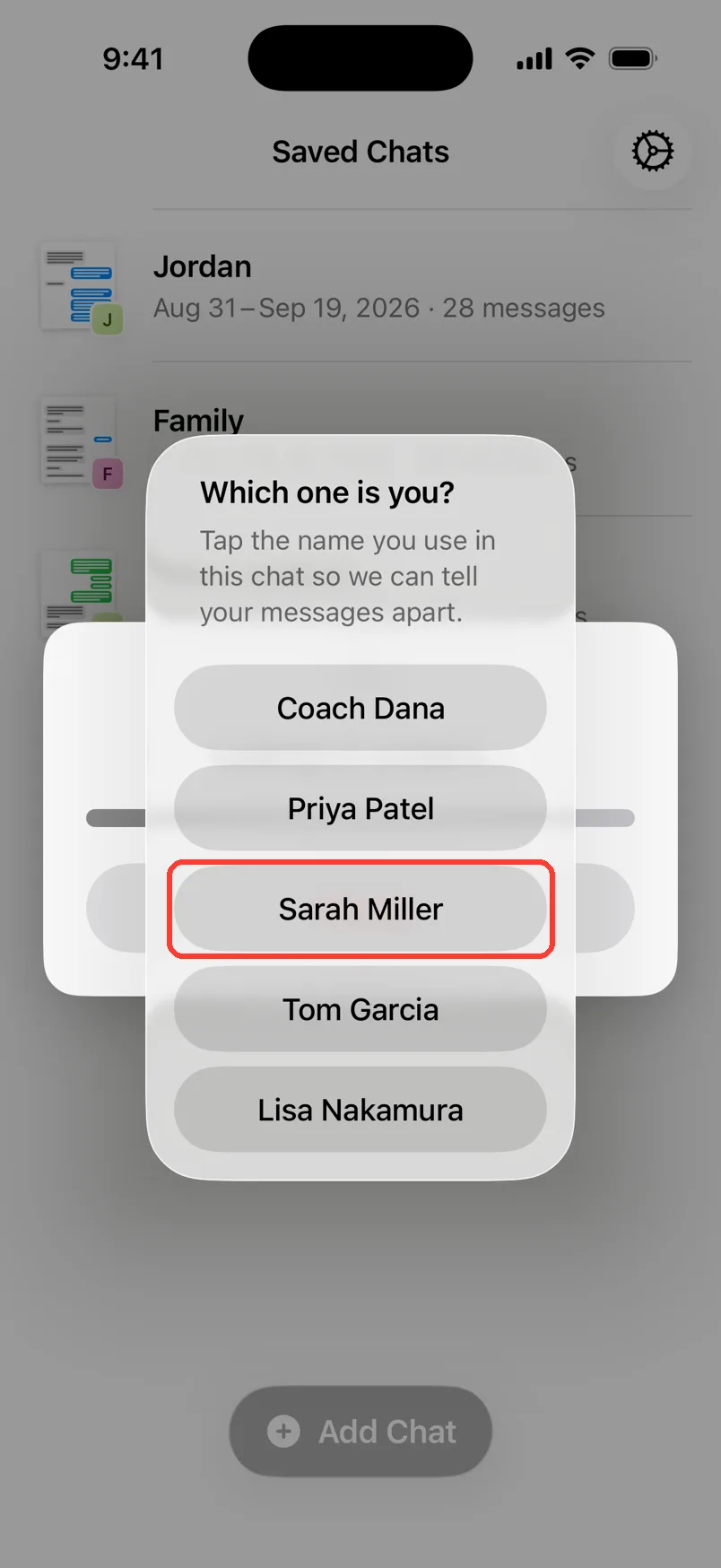
A box asks Which one is you? It lists each person who wrote in the chat.
-
3
Tap your name
Tap the name you use in this chat. It is the name other people see for you.
-
4
Wait
TextPort saves the chat. It opens when it is done.
-
5
Check the chat
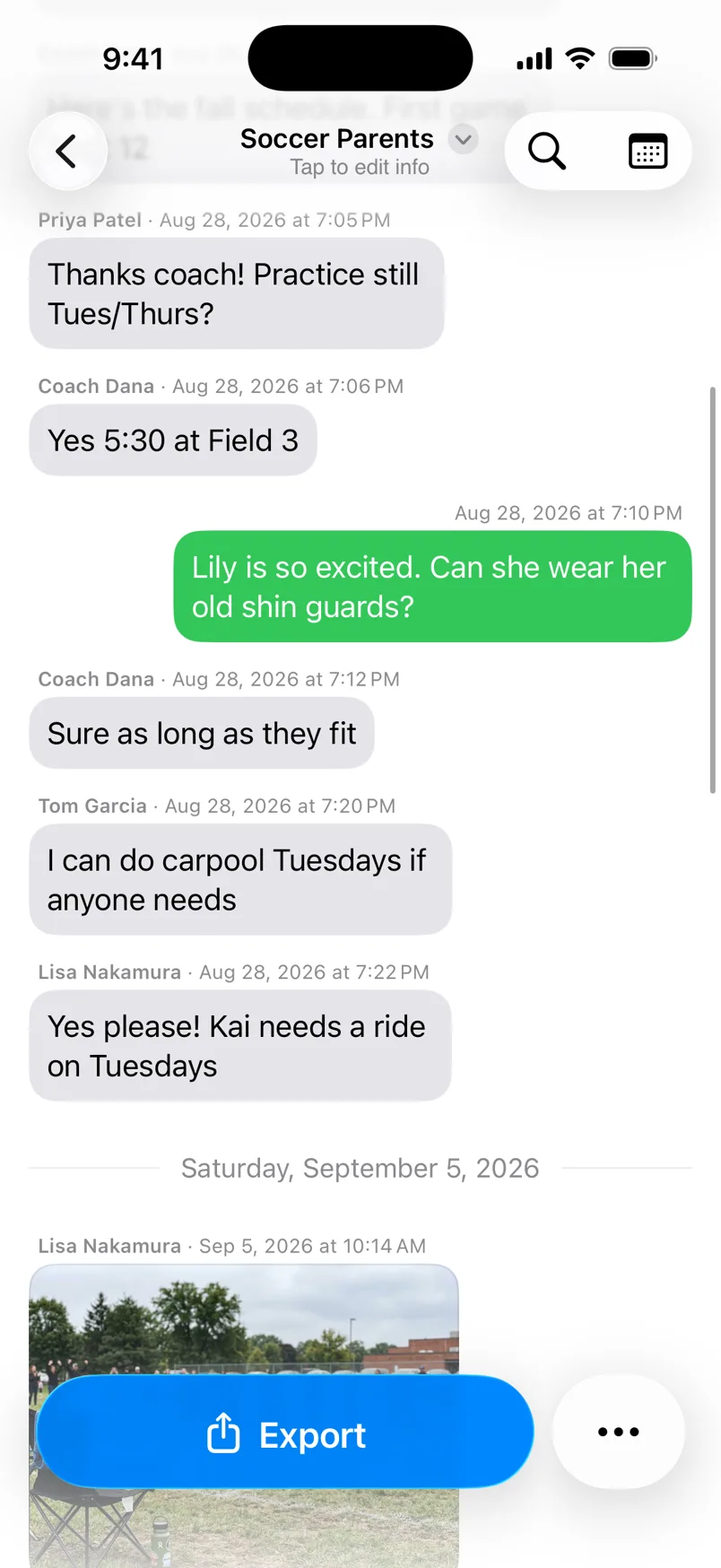
Your messages are on the right. Everyone else is on the left, with their name on top.
Done
TextPort knows which messages are yours. The PDF shows them as sent by you.
Tips
-
More than six people? You get a list instead of buttons. Scroll to find your name.
-
Tapping Cancel stops the import. Nothing is saved.
-
A chat with just two people usually skips this question. TextPort can tell who is who.
Questions
-
A WhatsApp export does not say which person is you. Group chats always need you to pick.
-
Not in the saved chat. Delete the chat. Then export it from WhatsApp again and pick your own name.
-
Only people who wrote a message in the chat are listed. Check the name you use in WhatsApp. It may be a nickname or a phone number.
Next guides
-
 How to export a WhatsApp chat to TextPort
You will get a WhatsApp chat saved in TextPort, with every message and photo.
How to export a WhatsApp chat to TextPort
You will get a WhatsApp chat saved in TextPort, with every message and photo.
-
 How to edit the chat name and people's names
You will have the right chat name and the right name for each person in the chat.
How to edit the chat name and people's names
You will have the right chat name and the right name for each person in the chat.
-
 How to rename or delete a chat
Your chat will have a clear name, or it will be gone from TextPort.
How to rename or delete a chat
Your chat will have a clear name, or it will be gone from TextPort.

Start exporting your messages
Available for iPhone, Mac, and Windows. No computer required.
