

How to export a WhatsApp chat to TextPort
Quick answer
- In TextPort, tap Add Chat. Pick WhatsApp at the top.
- Tap Import from WhatsApp, then Open WhatsApp.
- In WhatsApp, open the chat. Tap the name at the top.
- Tap Export chat, then Attach media.
- Tap TextPort in the share sheet.
- In TextPort, tap Import … Messages.
The chat then opens in TextPort.
What you need
- ✓TextPort on your iPhone
- ✓WhatsApp on the same iPhone
Steps
-
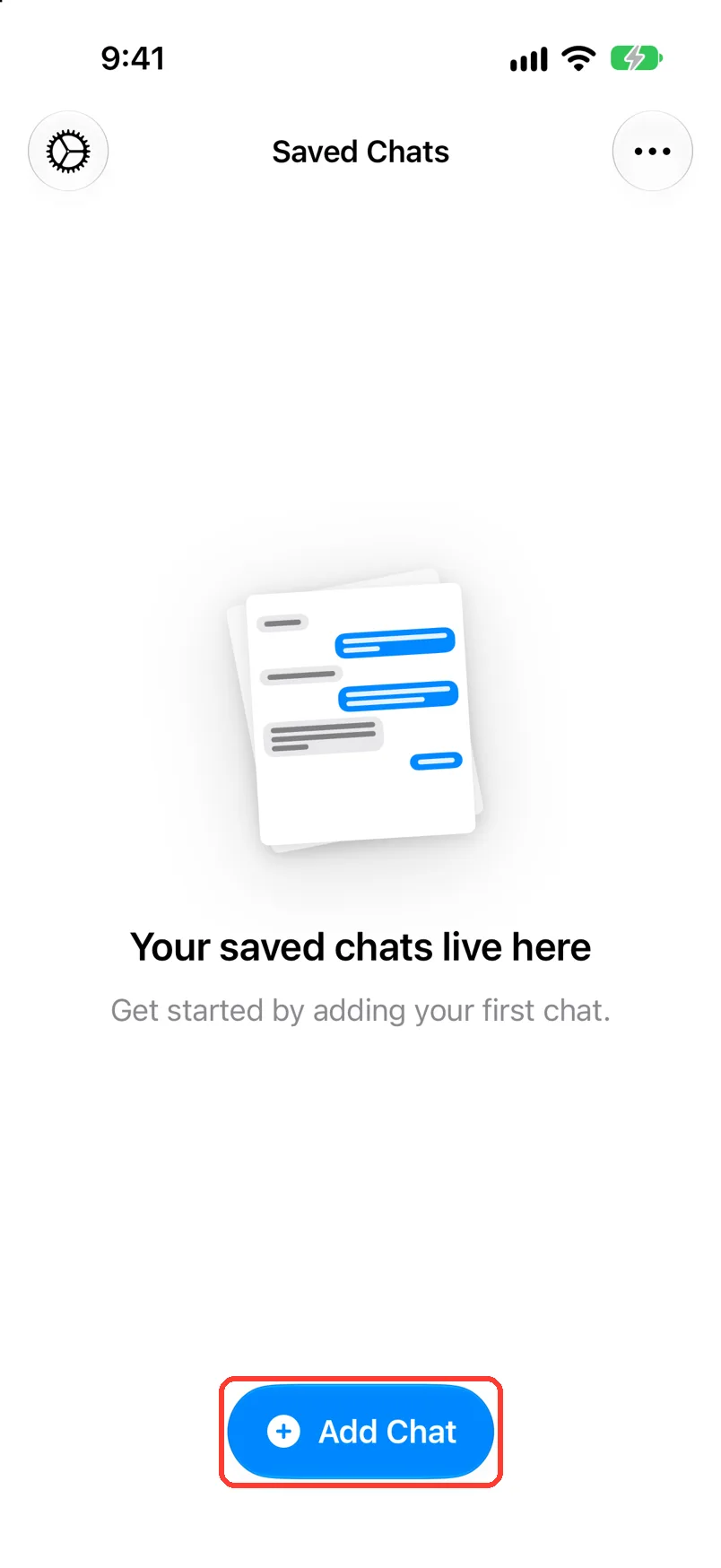
Tap Add Chat
Open TextPort. It is at the bottom of Saved Chats.
-
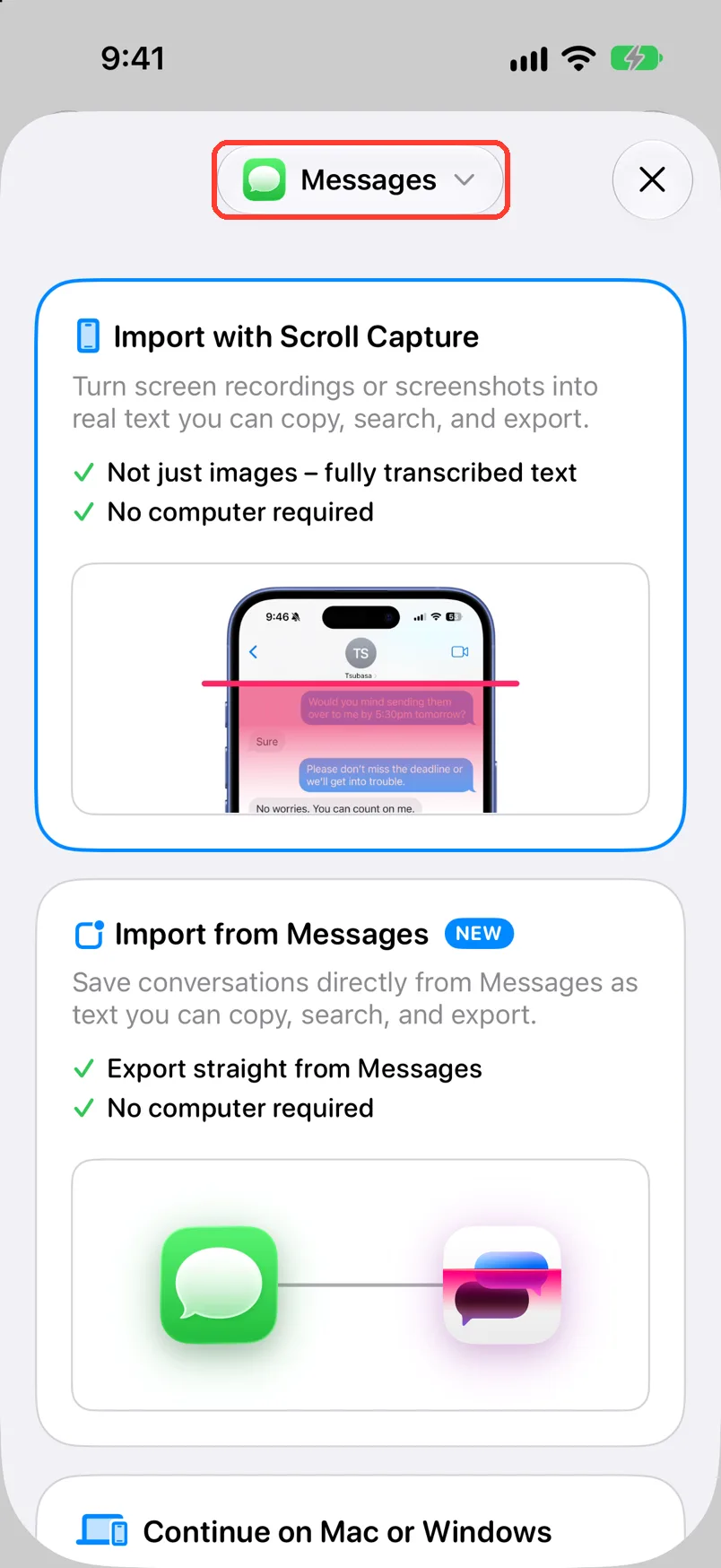
Tap the app name at the top
It may say Messages. Select Chat App opens.
-
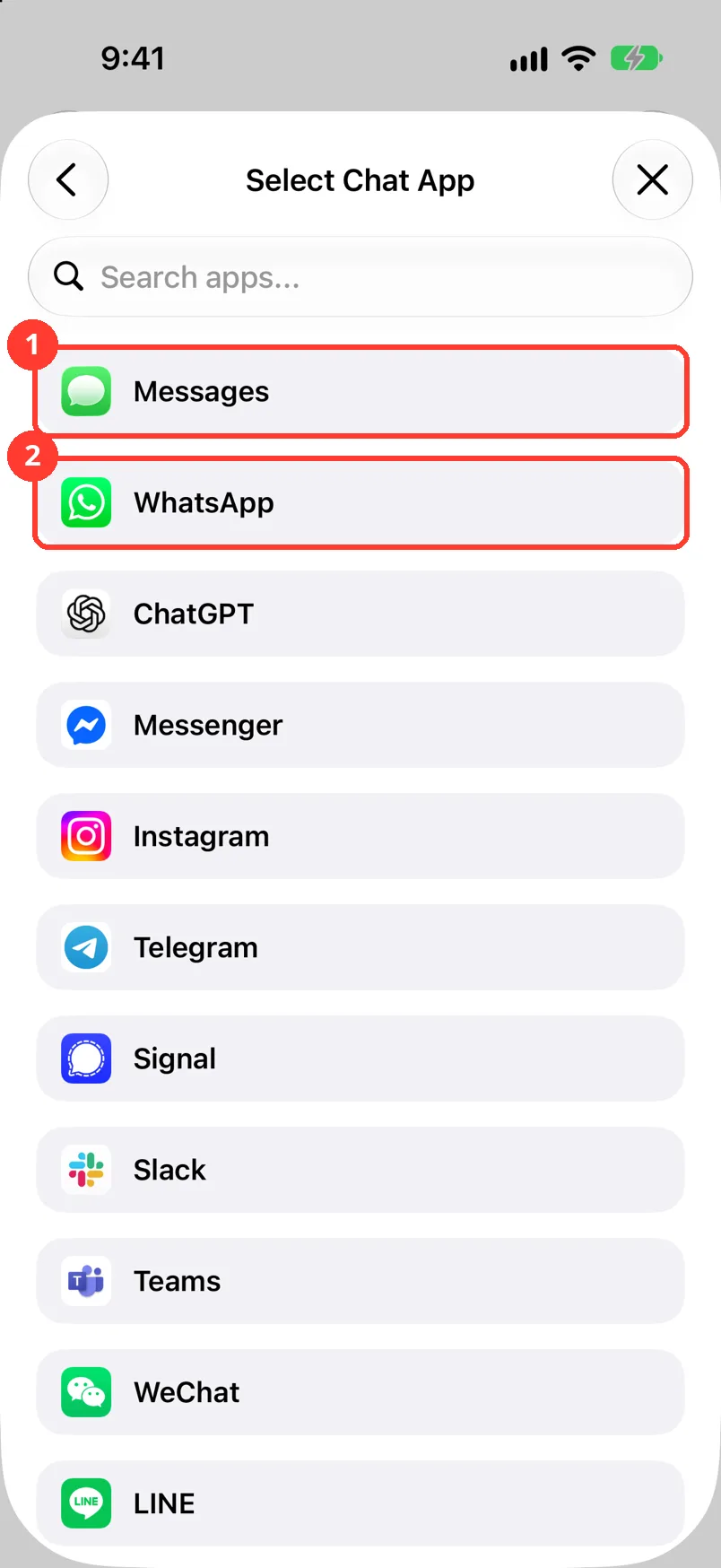
Tap WhatsApp
It is near the top of the list (2). The sheet shows Import from WhatsApp.
-
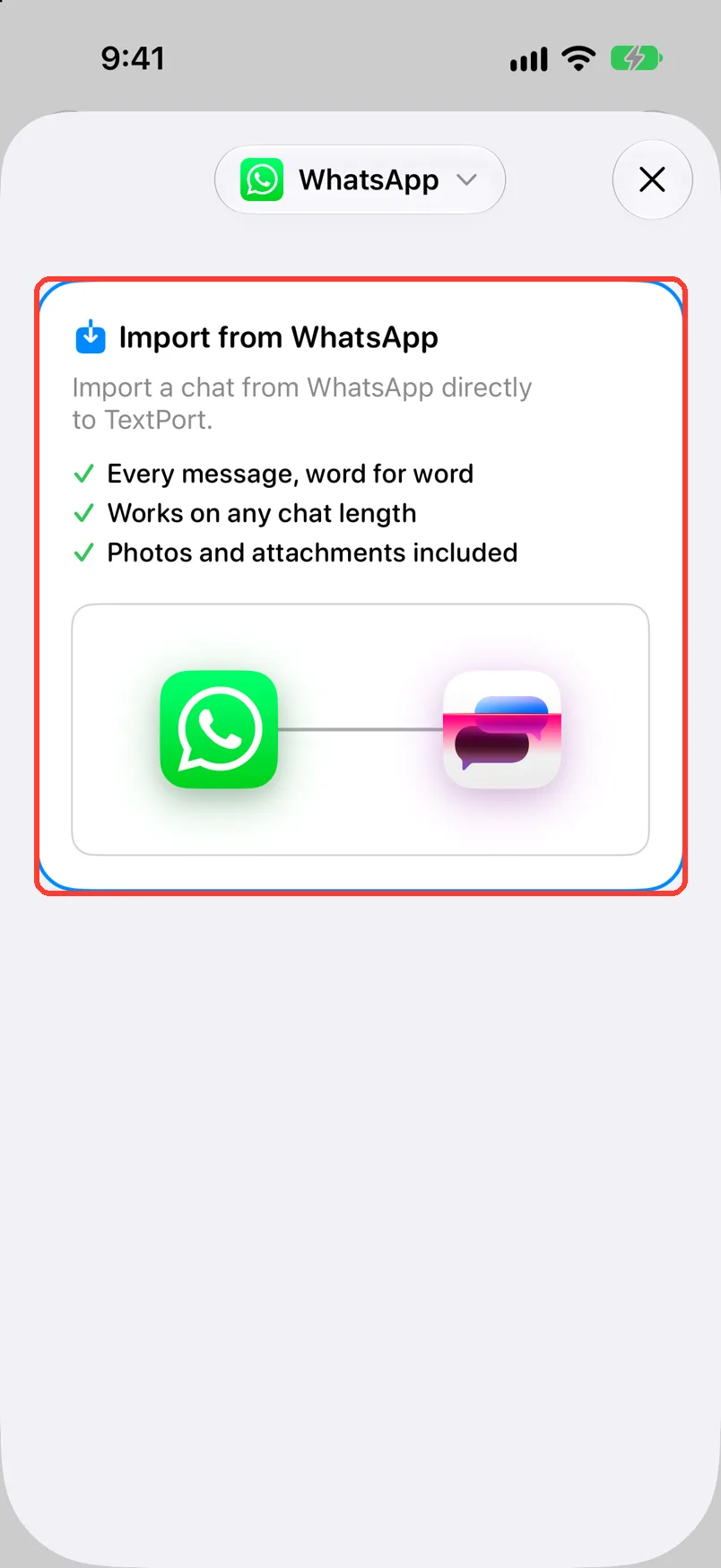
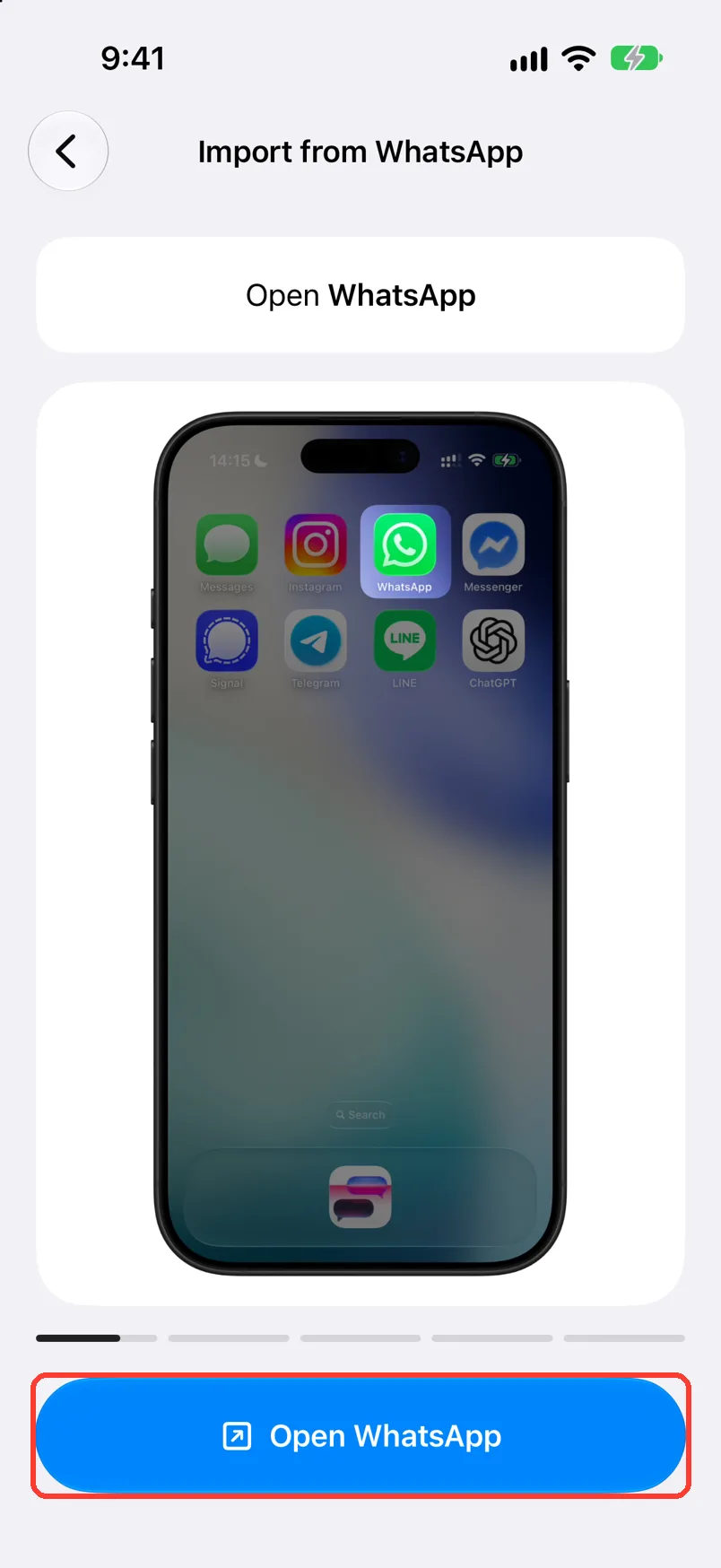
Tap Import from WhatsApp
Import from WhatsApp opens. It shows the steps.
-
Tap Open WhatsApp
It is the blue button at the bottom. WhatsApp opens.
-
Tap the chat in WhatsApp
Find the chat you want to save. The chat opens.
-
Tap the name at the top
Tap the contact or group name. The chat info page opens.
-
Tap Export chat
Scroll to the bottom of the page. WhatsApp asks about media.
-
Tap Attach media
This keeps photos, videos, and voice notes. The share sheet opens.
For text only, tap Without media.
-
Tap TextPort
Find it in the row of apps. TextPort opens and shows Reading your chat.
-
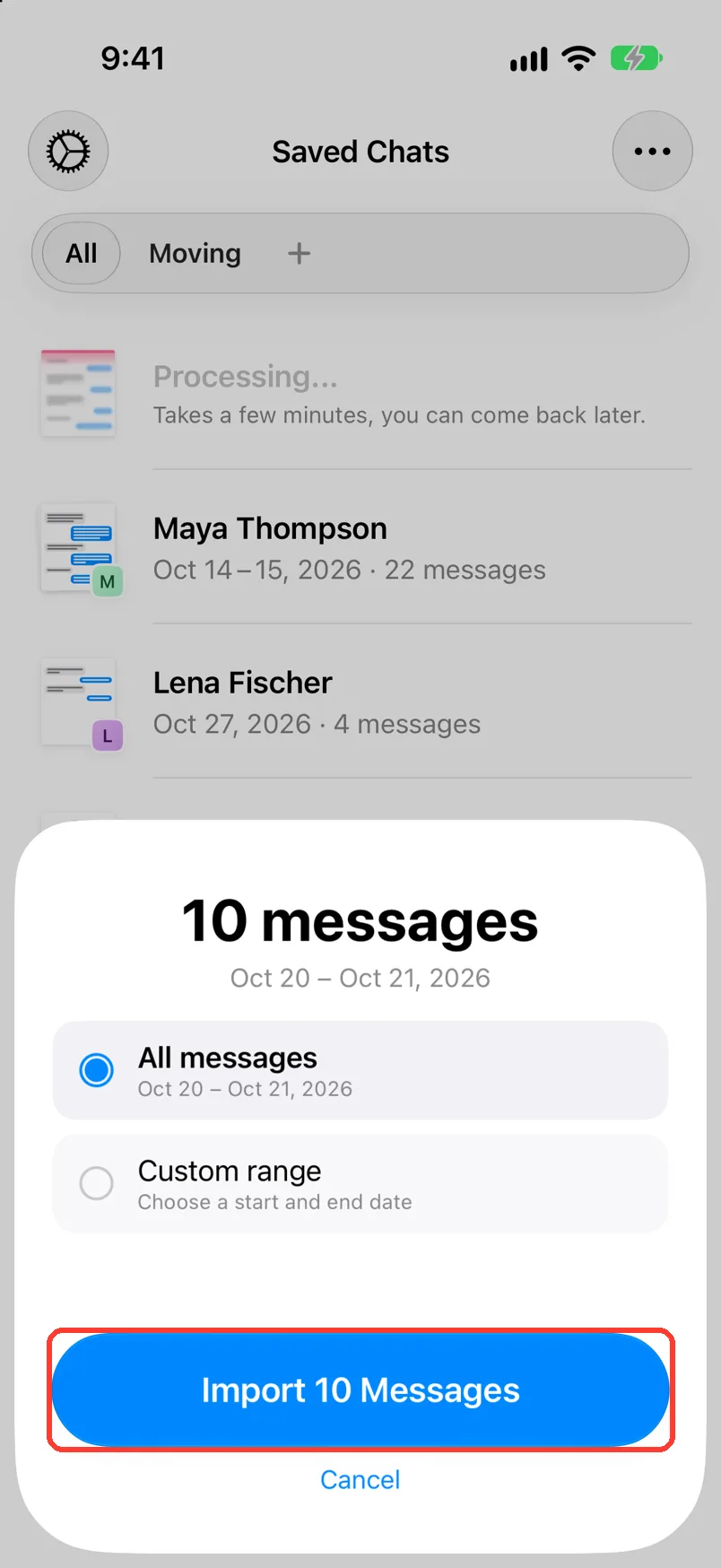
Tap Import … Messages
The button shows how many messages the chat has. TextPort shows Importing your chat.
To save fewer days, tap Custom range first. Then pick From and To.
-
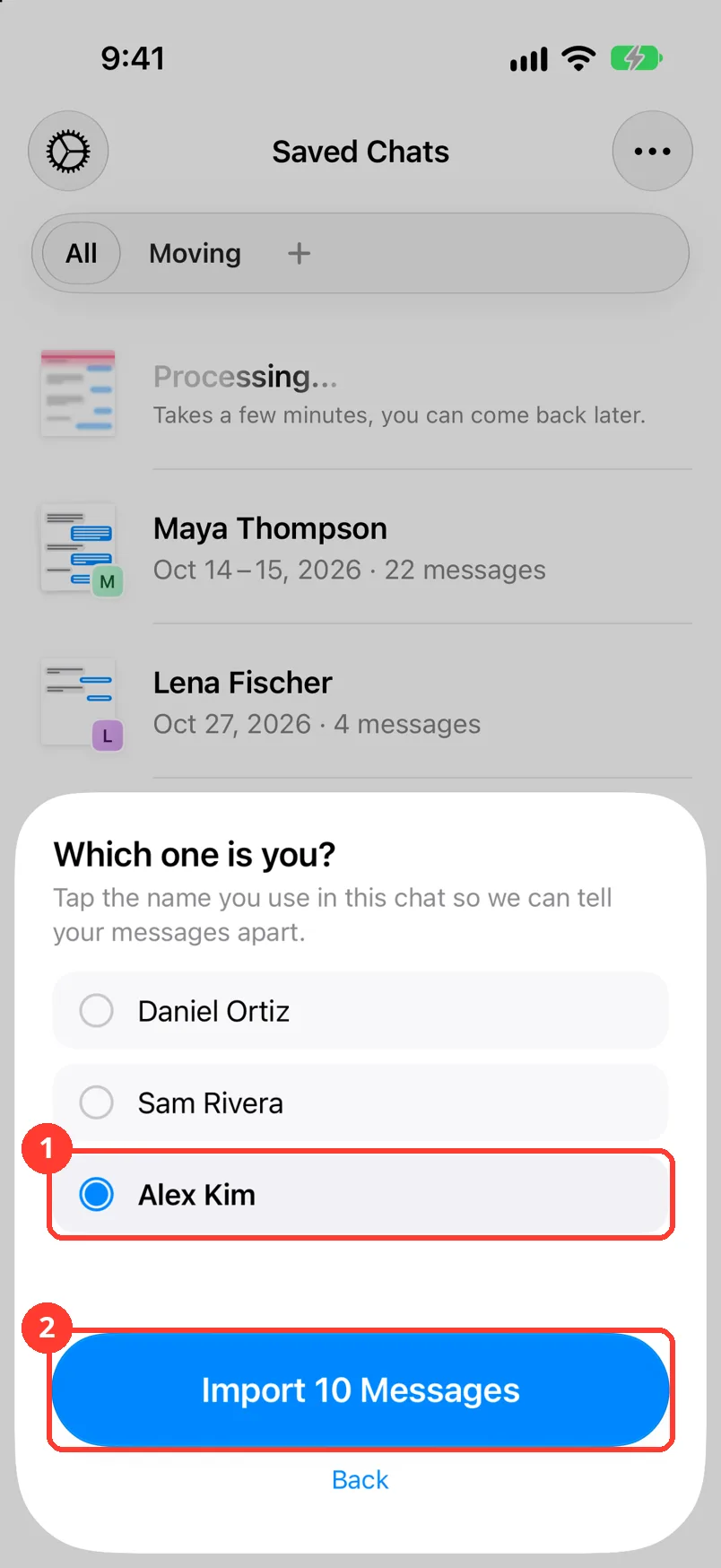
Tap your name, then Import … Messages
You see this only if TextPort asks Which one is you? Tap your name (1). Tap Import … Messages (2).
-
Wait for the chat to open
Keep TextPort open during the import. The chat then opens.
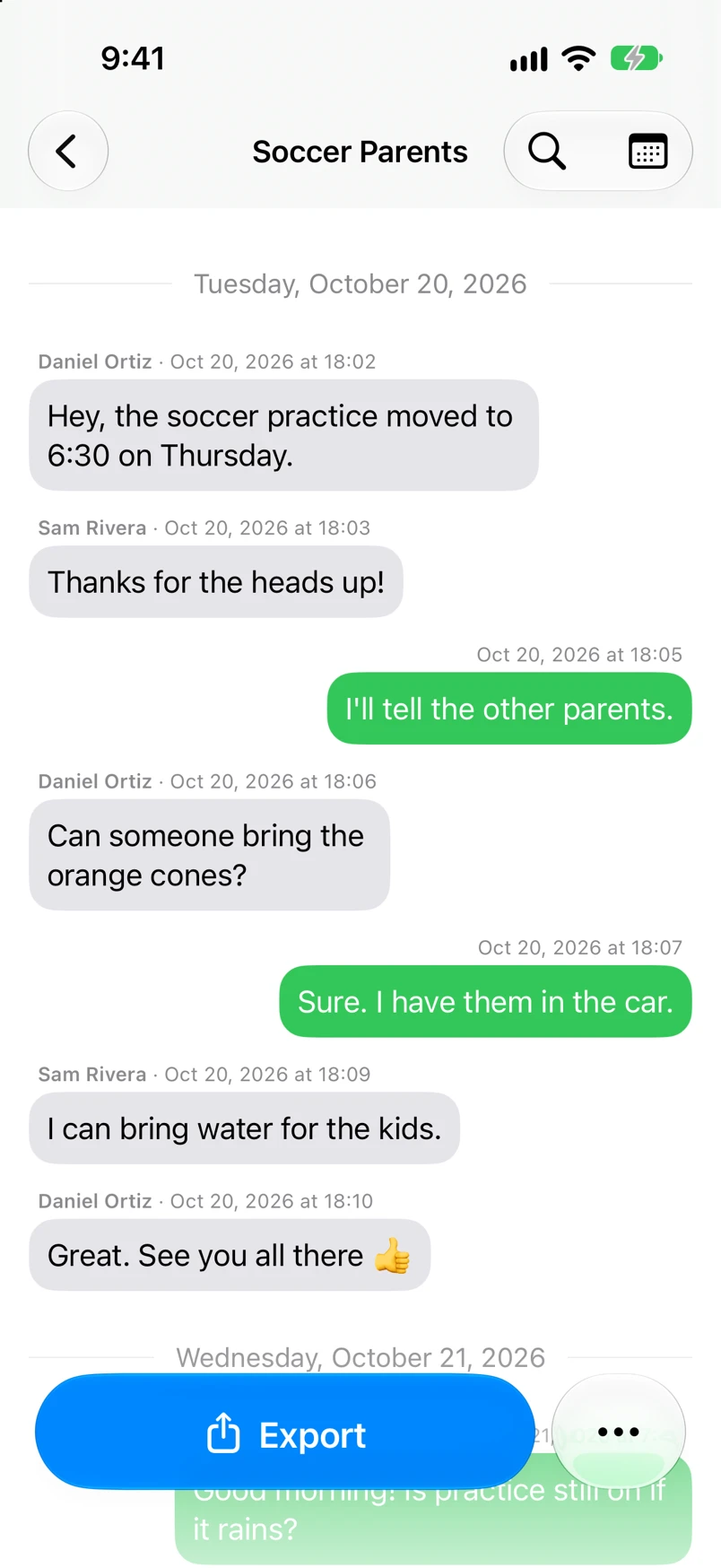
Done
Your WhatsApp chat is saved in TextPort with every message. Now you can export it as a PDF, spreadsheet, or text file.
Problems
Export chat is gray or missing.
The chat may have Advanced Chat Privacy turned on. That blocks export for everyone in the chat. Ask the other person to turn it off. Or see Import a chat with Scroll Capture.
The chat has no photos.
The export was made with Without media. Export the chat again. Tap Attach media.
The sheet says some attachments won't be saved.
The iPhone is low on storage, or a file is over 2 GB. Free up space. Then export the chat again.
Couldn't import this chat
Tap Retry. If it fails again, export the chat from WhatsApp again.
Your messages are on the wrong side.
You picked the wrong name. See Choose which WhatsApp person is you.
TextPort asks you to unlock this.
Follow the steps on the screen. Then share the chat from WhatsApp again.
None of these match.
Email [email protected]. Say which step you were on. Say what you saw. We usually reply within a day.
Questions
-
Yes. Each message shows who sent it.
-
A text-only chat takes seconds. With Attach media, a long chat can take a few minutes. WhatsApp first builds a bigger file.
-
No. An export is a copy for reading and sharing. To restore chats, use WhatsApp's own backup.
Next guides
-
 How to choose which WhatsApp person is you
Your own WhatsApp messages will show on the right side, marked as yours.
How to choose which WhatsApp person is you
Your own WhatsApp messages will show on the right side, marked as yours.
-
 How to export a chat to PDF
You will get a PDF of one chat, with names, dates, and times, ready to share or print.
How to export a chat to PDF
You will get a PDF of one chat, with names, dates, and times, ready to share or print.
-
 How to print a chat from your iPhone
You will have a paper copy of one chat, with names, dates, and times.
How to print a chat from your iPhone
You will have a paper copy of one chat, with names, dates, and times.

Start exporting your messages
Available for iPhone, Mac, and Windows. No computer required.
