

How to fix who sent a message
Quick answer
In a chat from screenshots or Scroll Capture, long press the message. Then:
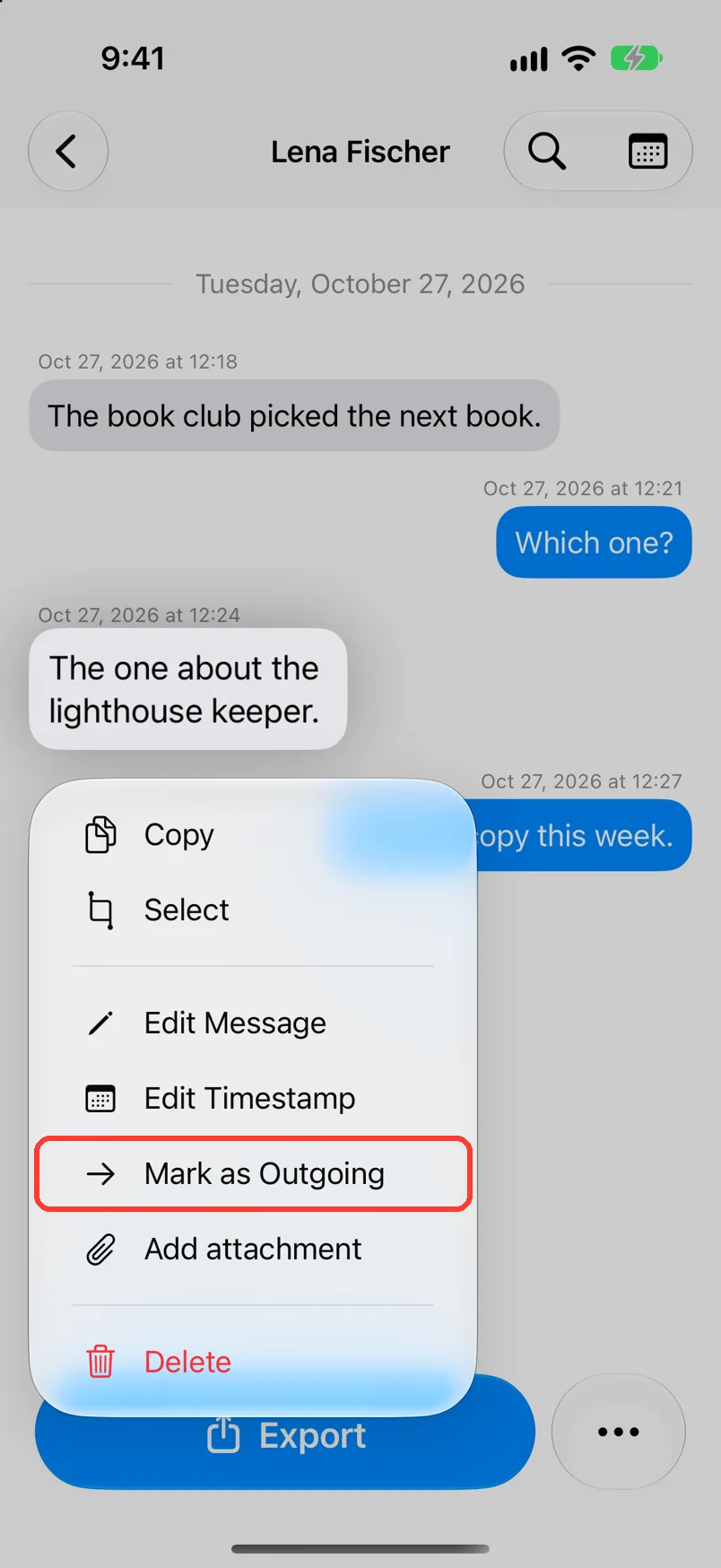
- With two people, tap Mark as Outgoing or Mark as Incoming.
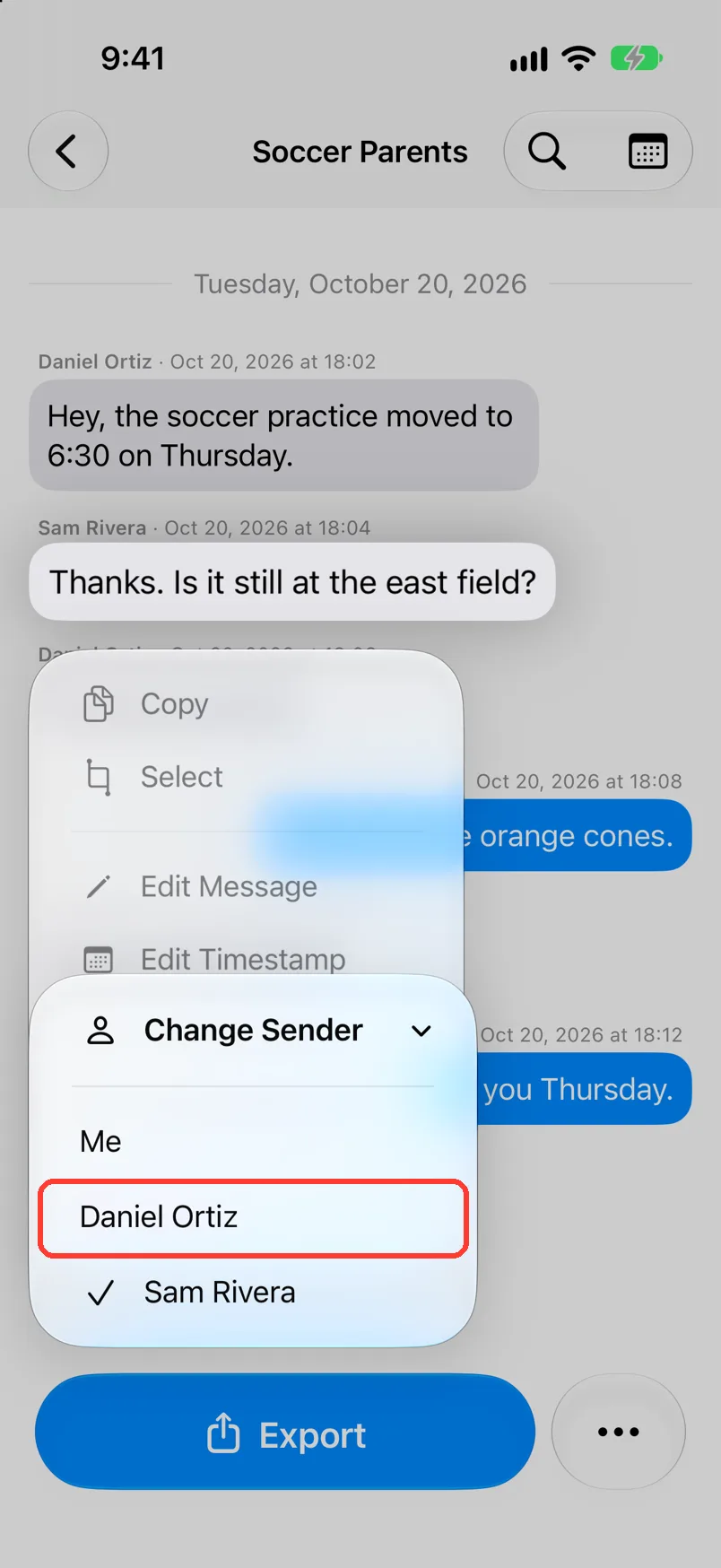
- In a group, tap Change Sender, then the person.
The message then shows the right sender.
What you need
- ✓TextPort on your iPhone
- ✓A chat imported from screenshots or Scroll Capture
Steps
Two people
-
Long press the message
Open the chat. Press and hold the bubble. A menu opens.
-
Tap Mark as Outgoing or Mark as Incoming
You see the one that fits. The message moves to the other side.
Group chat
-
Long press the message
Open the chat. Press and hold the bubble. A menu opens.
-
Tap Change Sender
A list of the people opens. A check mark shows the sender now.
-
Tap the right person
The message shows that person's name.
-
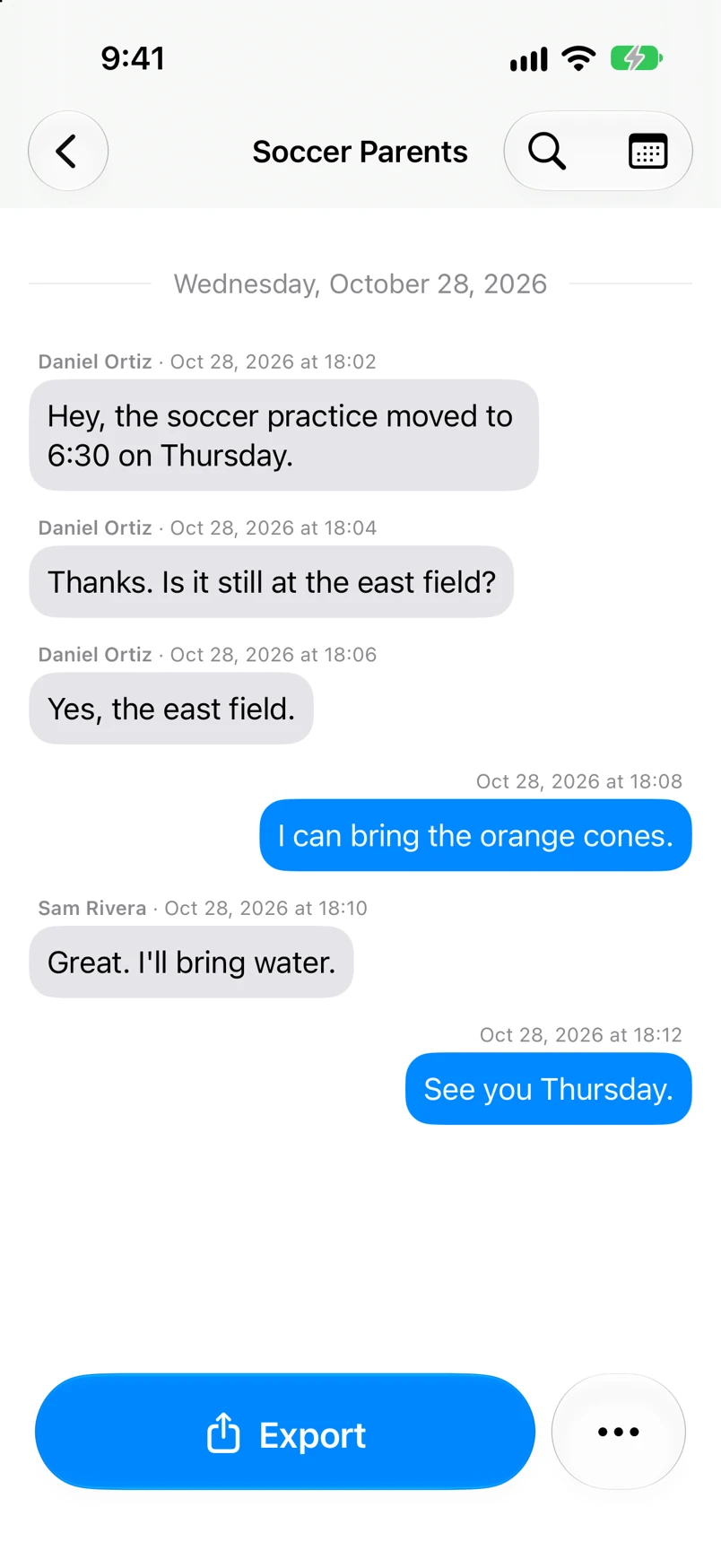
Check the chat
The name above the message is now right.
Done
The message shows the right sender. Your exports use it too.
Problems
A name is spelled wrong on many messages.
Fix the name once in Chat Details. See Edit the chat name and people's names.
The person is not in the list.
The list has only the people TextPort found in this chat. Pick another person. Or import the chat again with more screenshots.
None of these match.
Email [email protected]. Say which step you were on. Say what you saw. We usually reply within a day.
Questions
-
No. Long press each message. To swap who is you for the whole chat, use This is me in Chat Details.
Next guides
-
 How to edit a message's text or time
The message will show the right words and the right date and time.
-
 How to edit the chat name and people's names
You will have the right chat name and the right name for each person in the chat.
-
 How to fix wrong text, times, or missing messages
Every message TextPort read wrong from a screenshot or recording will say the right thing.

Start exporting your messages
Available for iPhone, Mac, and Windows. No computer required.
