

How to fix wrong text, times, or missing messages
Quick answer
In the chat:
- Press and hold the wrong message.
- Tap Edit Message for words, or Edit Timestamp for the time.
- Make the change. Tap the checkmark.
On the wrong side? Tap Mark as Outgoing or Mark as Incoming. Extra message? Tap Delete. A missing message needs a new screenshot and a new import.
What you need
- ✓TextPort on your iPhone
- ✓A chat imported from screenshots or Scroll Capture
Steps
-
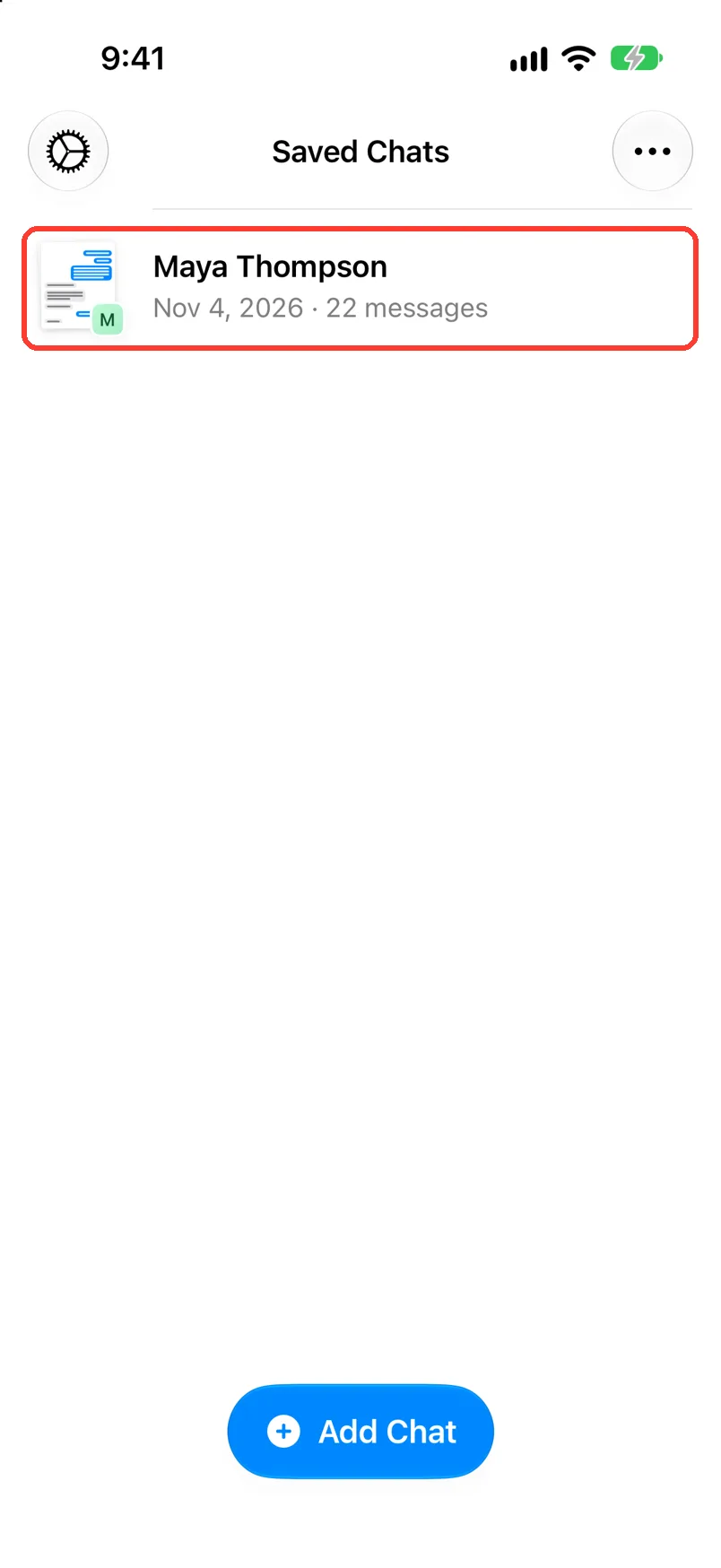
Tap the chat in Saved Chats
The chat opens. Scroll to the wrong message.
-
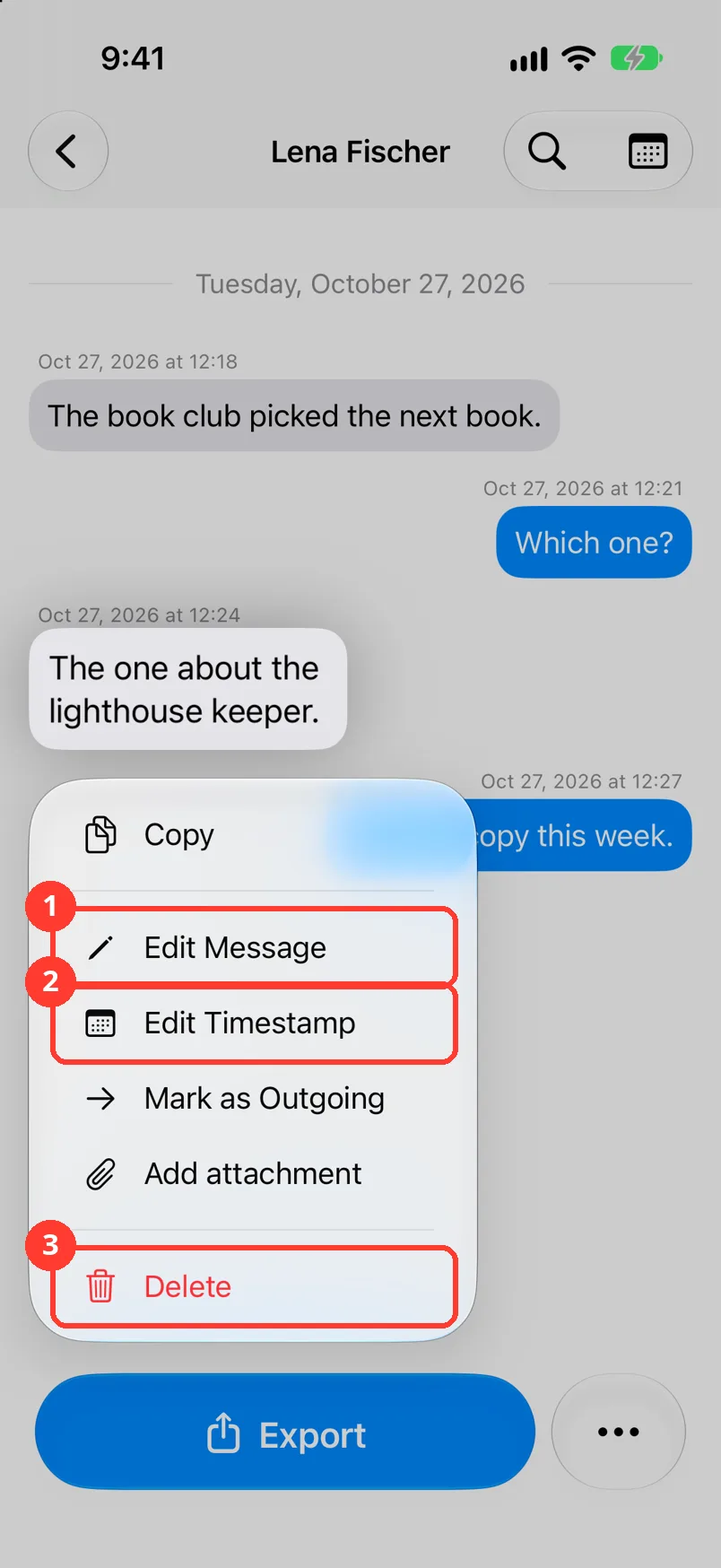
Press and hold the message
A menu opens with Edit Message (1), Edit Timestamp (2), and Delete (3).
If there is no Edit Message, see the problems below.
-
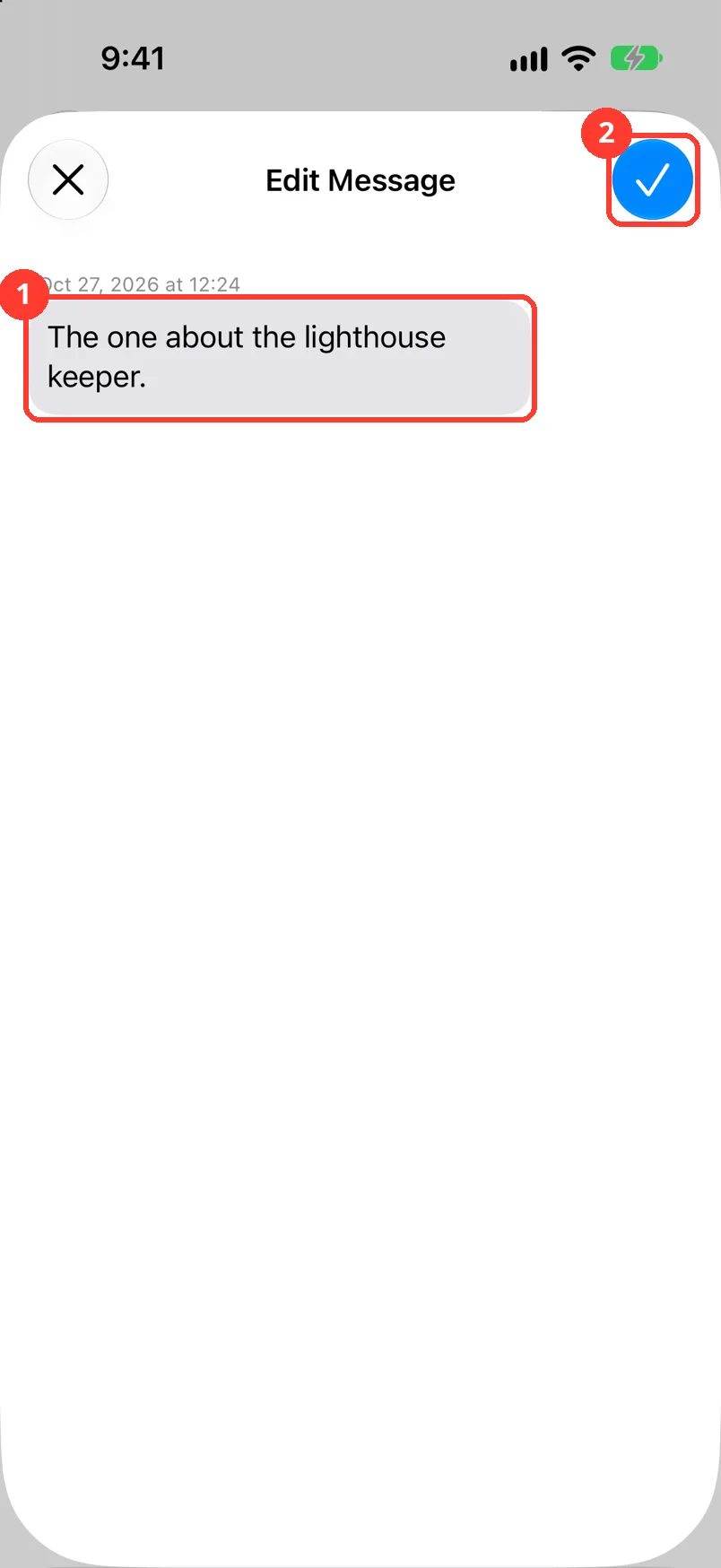
Tap Edit Message
Edit Message opens with the text.
-
Fix the words, then tap the checkmark
Change the text (1). Tap the checkmark (2). The sheet closes.
-
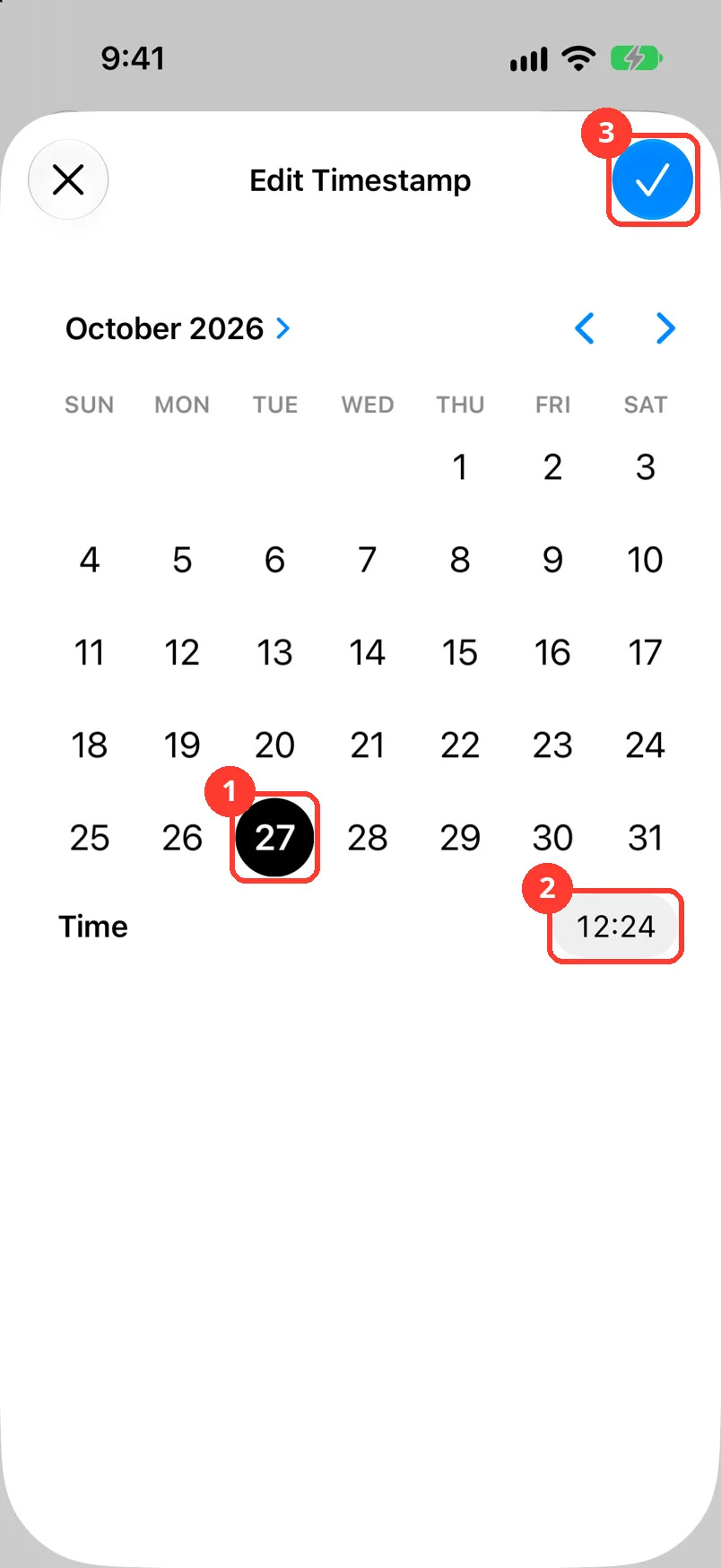
Tap Edit Timestamp
Press and hold the message first. Edit Timestamp opens.
-
Pick the day and time, then tap the checkmark
Tap the day (1). Tap the time (2) to change it. Tap the checkmark (3).
-
Tap Mark as Outgoing
Press and hold the message first. It moves the message to the other side. Mark as Incoming moves it back.
In a group chat, tap Change Sender. Pick the right name.
-
Tap Delete
Press and hold the message first. TextPort asks Delete this message? Slide Slide to delete to the end.
Done
The chat says what the real chat said. Exports use the fixed text.
Problems
There is no Edit Message in the menu.
The chat came from Messages, WhatsApp, or LINE. Those are exact copies, so you cannot edit them.
A message is missing.
TextPort cannot add a message by hand. Take the screenshots again with more overlap. Import them as a new chat.
Every message has the wrong year.
Many words are wrong.
The screenshots may be blurry or small. See How to take good screenshots for TextPort. Then import again.
A person's name is wrong.
None of these match.
Email [email protected]. Say which step you were on. Say what you saw. We usually reply within a day.
Tips
-
For court, fix only names, dates, and times. Do not change what people said.
Questions
-
Not with one tap. Press and hold the message. Edit it back.
-
It reads the words from the picture. Blurry or small text makes mistakes more likely.
-
Yes. Tap … at the bottom of the chat. Tap View Screenshots.
Next guides
-
 How to import a chat from screenshots
You will get a saved chat in TextPort, made from screenshots you already took.
How to import a chat from screenshots
You will get a saved chat in TextPort, made from screenshots you already took.
-
 How to take good screenshots for TextPort
You will have a set of screenshots that TextPort can read with few mistakes.
How to take good screenshots for TextPort
You will have a set of screenshots that TextPort can read with few mistakes.
-
 How to change the year for many messages at once
Every message in your chat will show the right year.
How to change the year for many messages at once
Every message in your chat will show the right year.
-
 How to prepare text messages for court
You will have a PDF of the chat that shows who said what, and when, with phone numbers.
How to prepare text messages for court
You will have a PDF of the chat that shows who said what, and when, with phone numbers.

Start exporting your messages
Available for iPhone, Mac, and Windows. No computer required.
