

How to change the bubble color in a chat
Quick answer
In the chat:
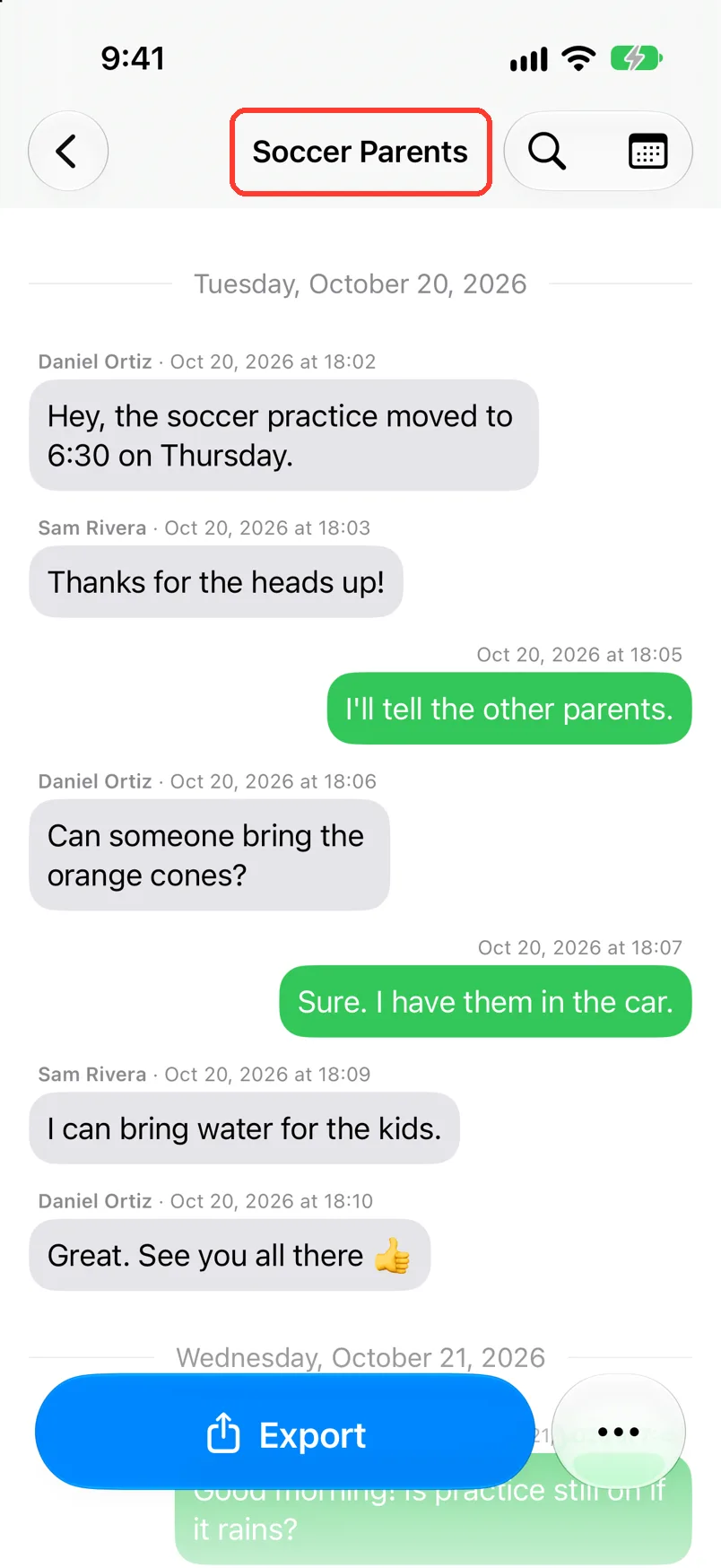
- Tap the chat name at the top. Chat Details opens.
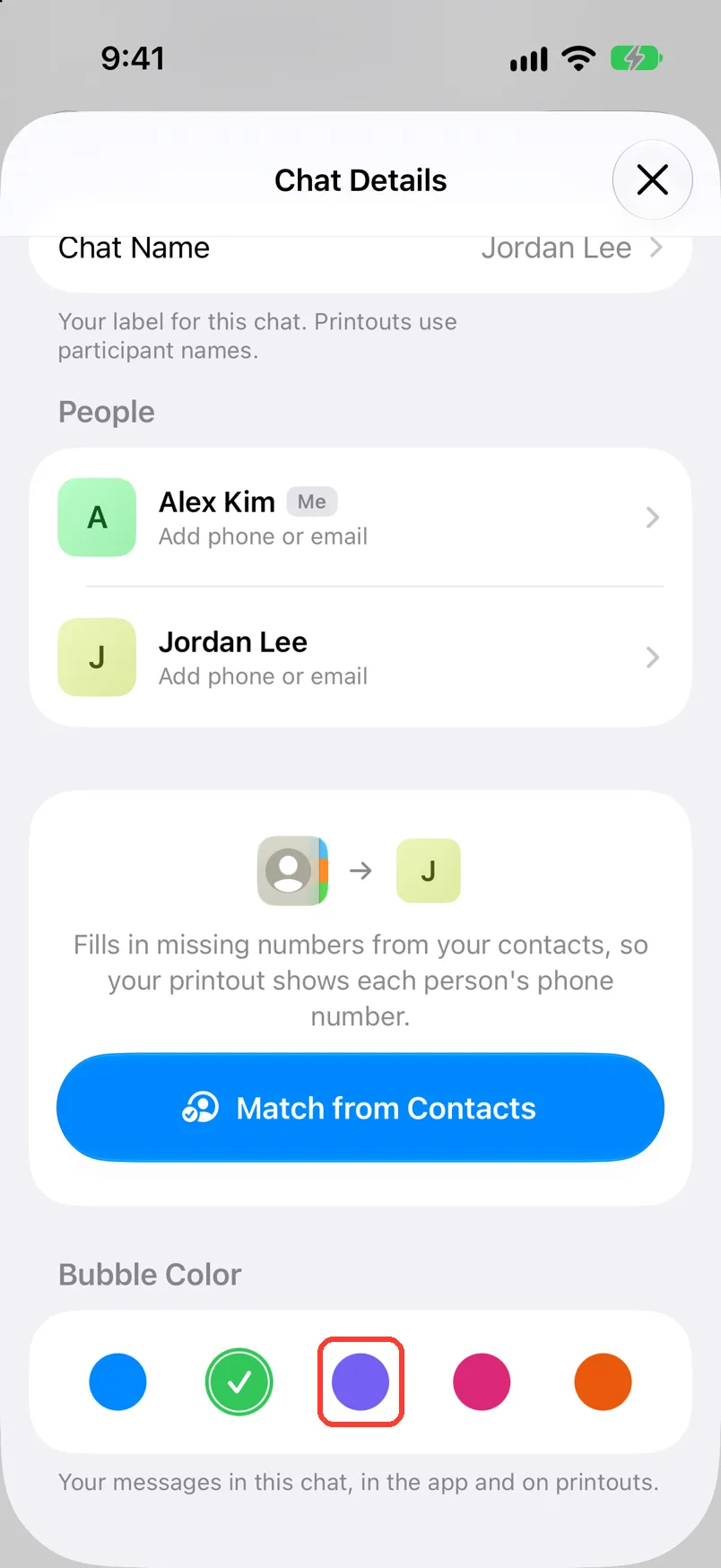
- Scroll to Bubble Color.
- Tap a color.
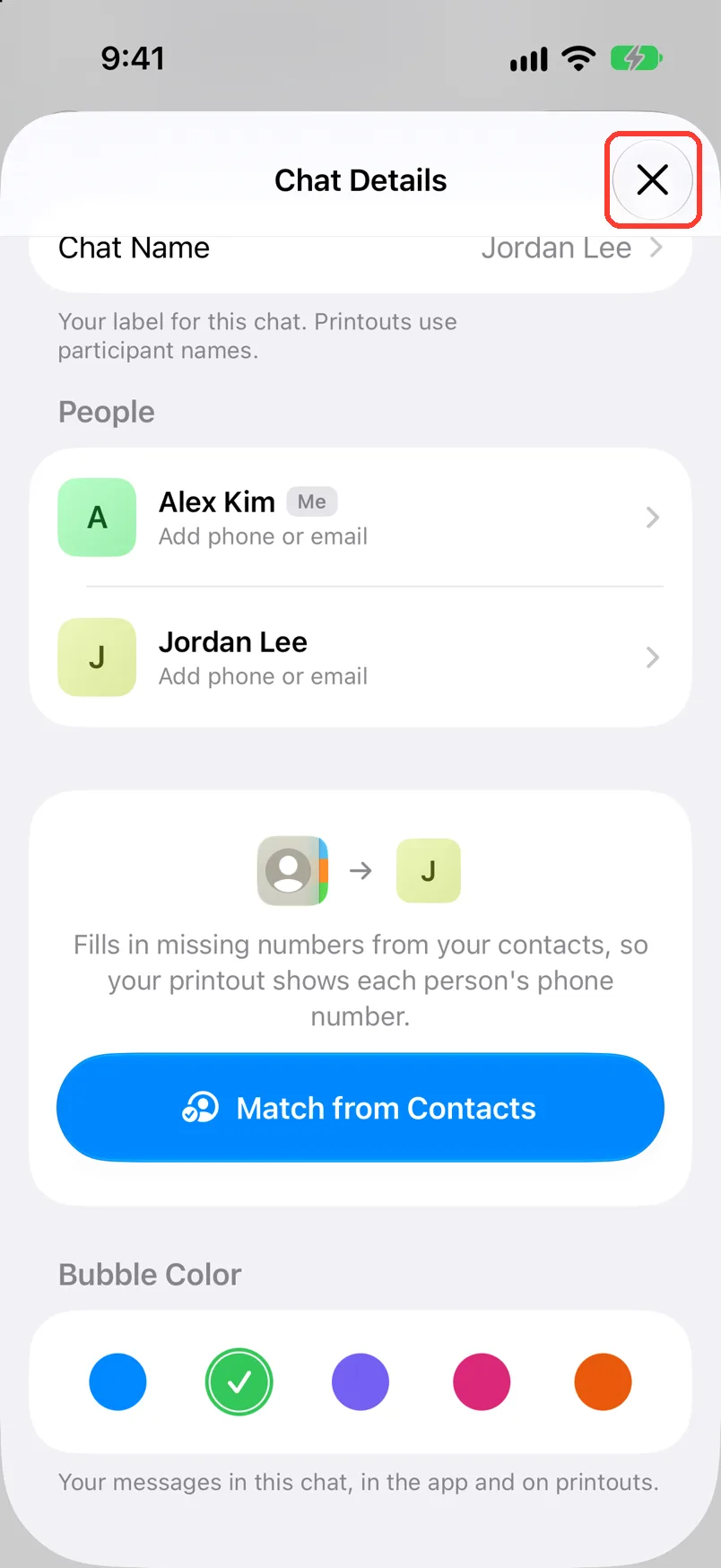
- Tap the X in the top right.
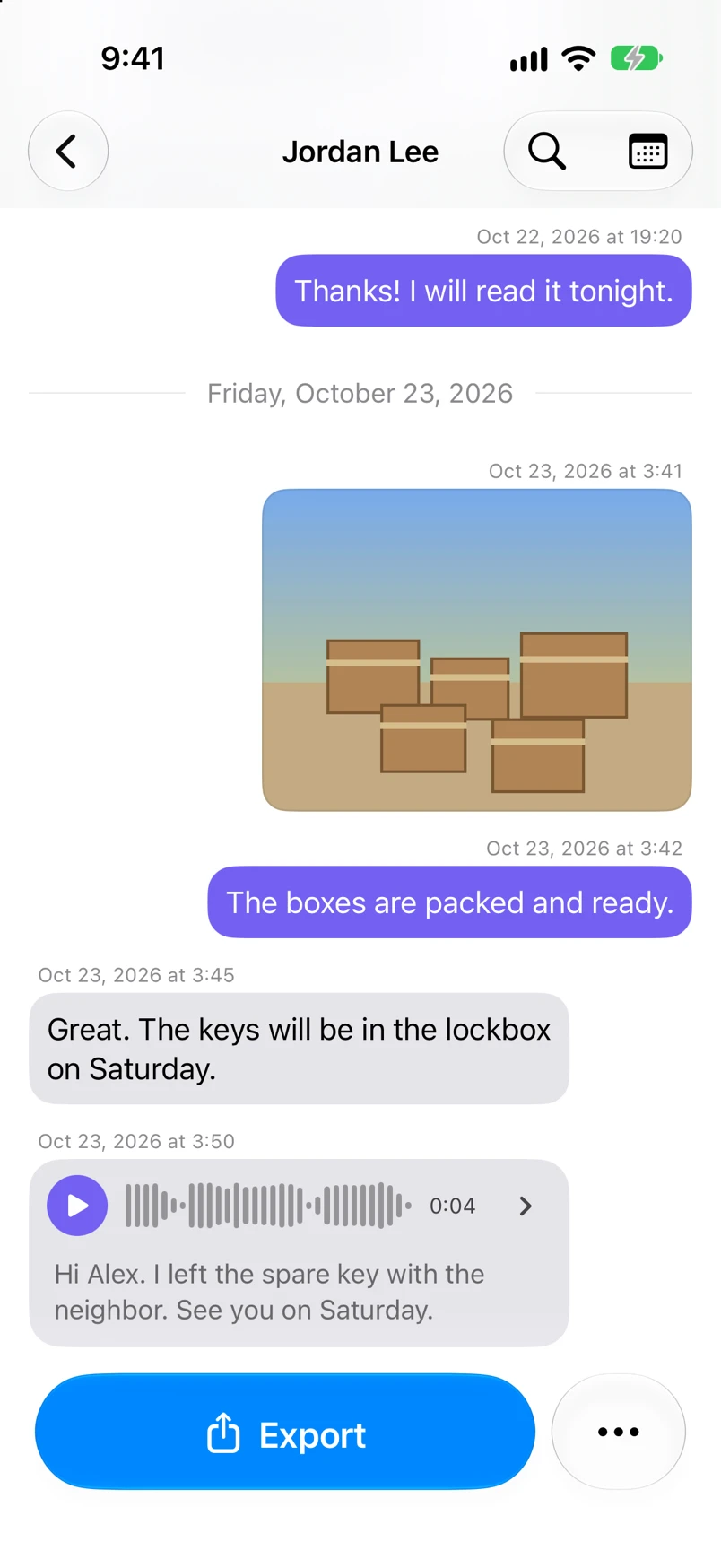
Your messages then show in that color, in the app and on printouts.
What you need
- ✓TextPort on your iPhone
- ✓A chat saved in TextPort
Steps
-
Tap the chat name at the top
Open the chat first. Chat Details opens.
-
Scroll to Bubble Color
It is at the bottom of Chat Details.
-
Tap a color
Pick blue, green, purple, pink, or orange. A check mark shows on it.
-
Tap the X
It is in the top right. The color saves when Chat Details closes.
-
Check the chat
Your messages show in the new color.
Done
Your messages in this chat have the color you picked. Your printouts use it too.
Problems
The other person's bubbles did not change.
The color is only for your messages. The other people stay gray.
The wrong messages changed color.
TextPort has the wrong person as you. See Edit the chat name and people's names.
Another chat did not change.
Each chat has its own color. Do the steps in that chat.
None of these match.
Email [email protected]. Say which step you were on. Say what you saw. We usually reply within a day.
Questions
-
Yes. The app and the printout use the same color.
Next guides
-
 How to edit the chat name and people's names
You will have the right chat name and the right name for each person in the chat.
-
 How to read a chat in TextPort
You will know who sent each message and when, and how to hide or show the times.
-
 How to export a chat to PDF
You will get a PDF of one chat, with names, dates, and times, ready to share or print.

Start exporting your messages
Available for iPhone, Mac, and Windows. No computer required.
