

How to put chats in folders
Your chats will be sorted into folders you can open with one tap.
What you need
- ✓TextPort on your iPhone
- ✓A chat saved in TextPort
Have a lot of chats? Put them in folders. Then tap a folder to see only the chats you need.
Steps
-
1
Open the chat
Open the chat you want to move. Tap the … button at the bottom right.
-
2
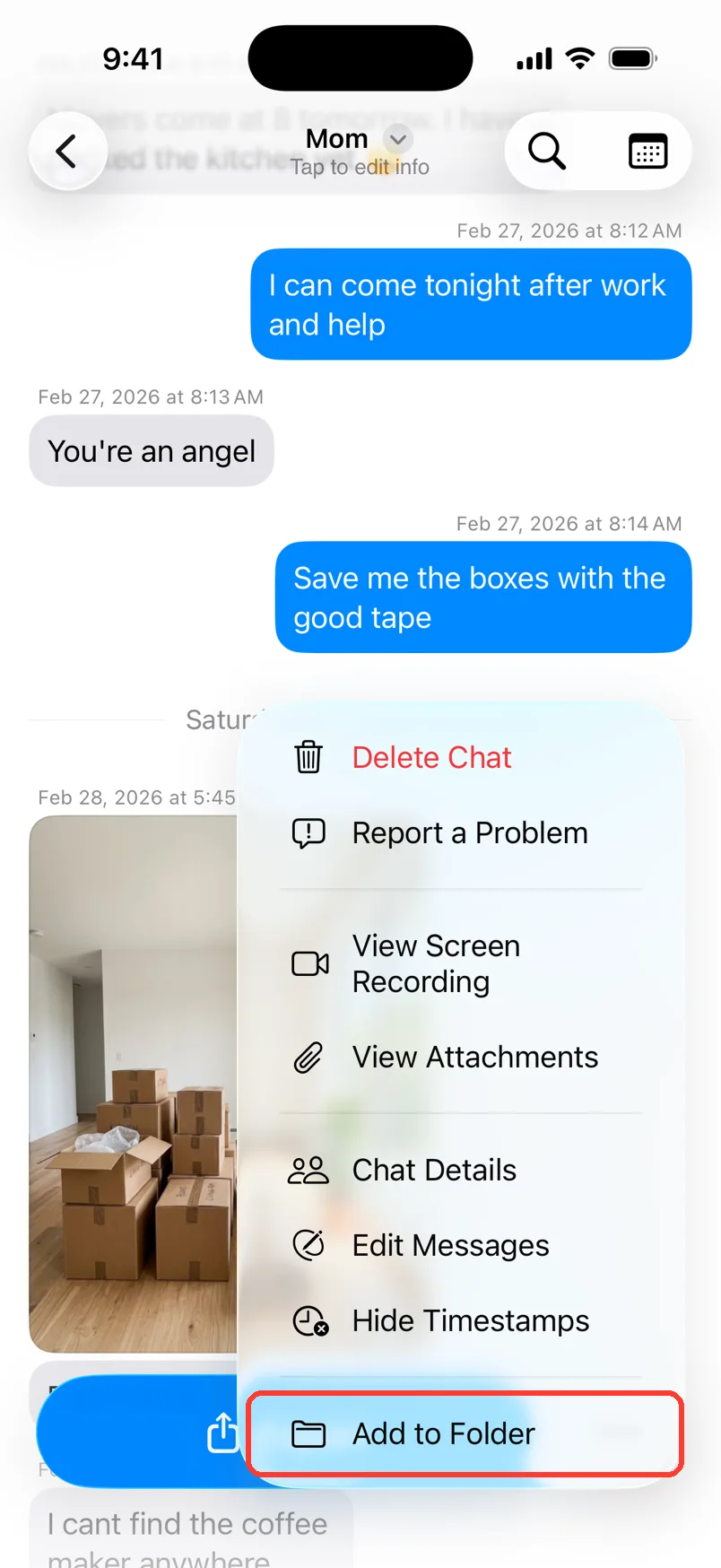
Tap Add to Folder
Tap Add to Folder. A list of folders opens.
-
3
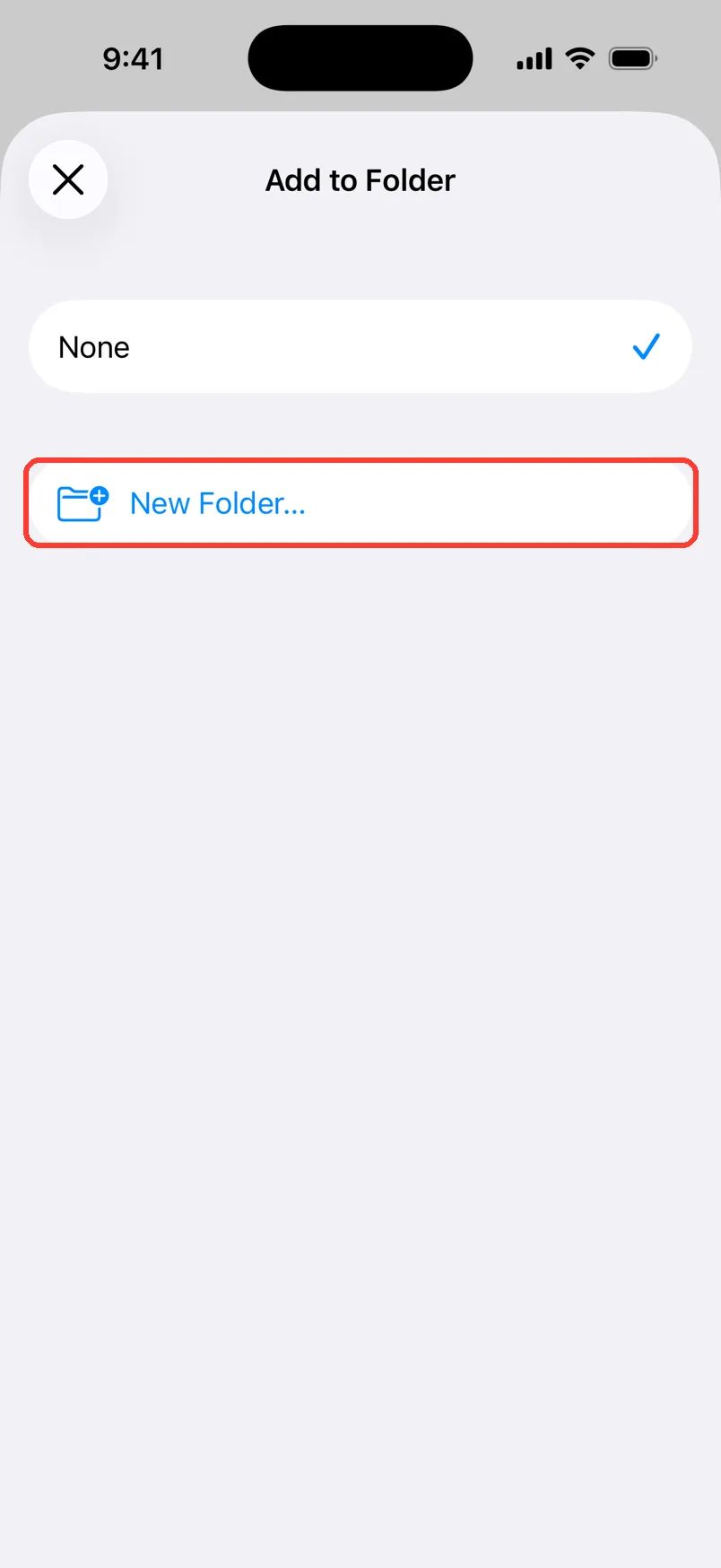
Tap New Folder…
No folder yet? Tap New Folder…. If you have one, tap its name instead.
-
4
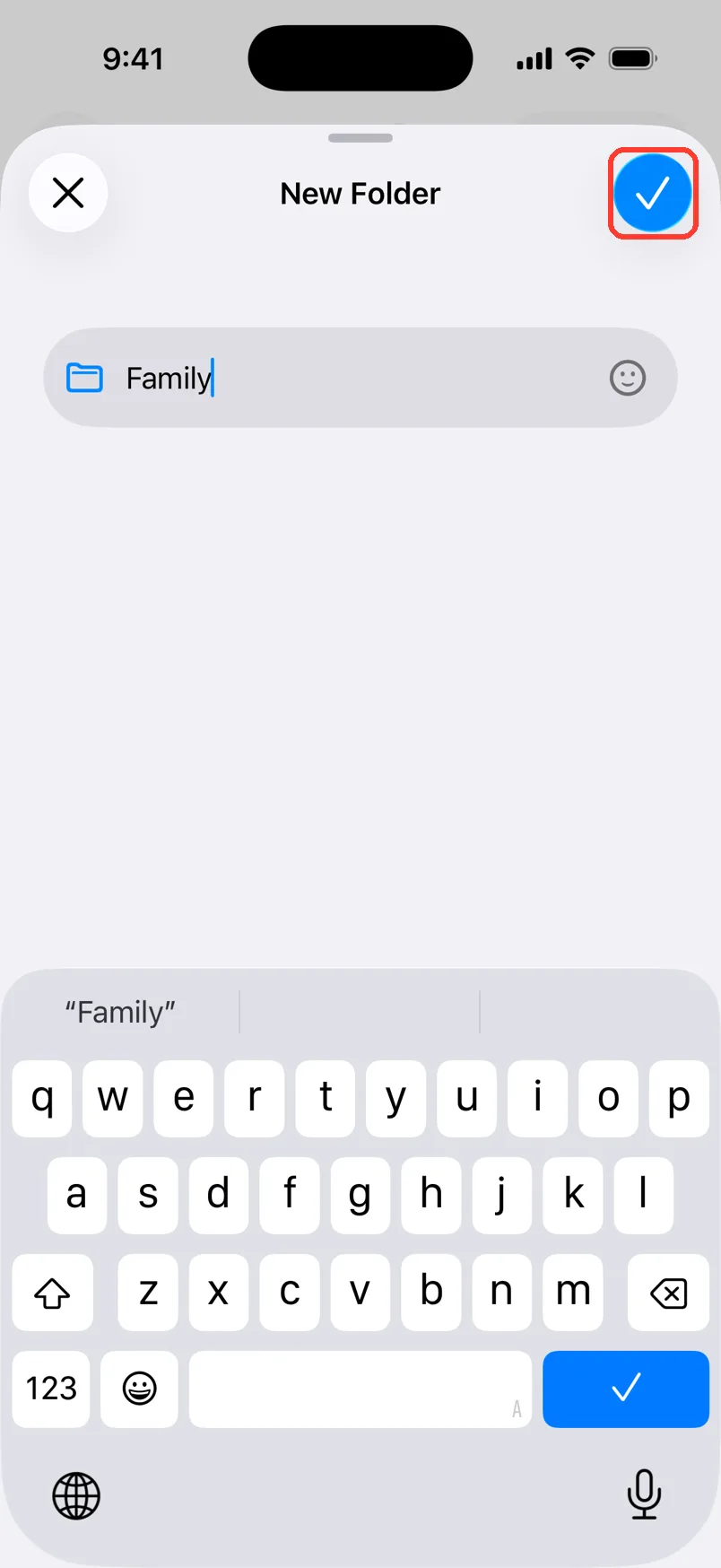
Name the folder
Type a name, like Family. Tap the blue check mark.
-
5
Go back to Saved Chats
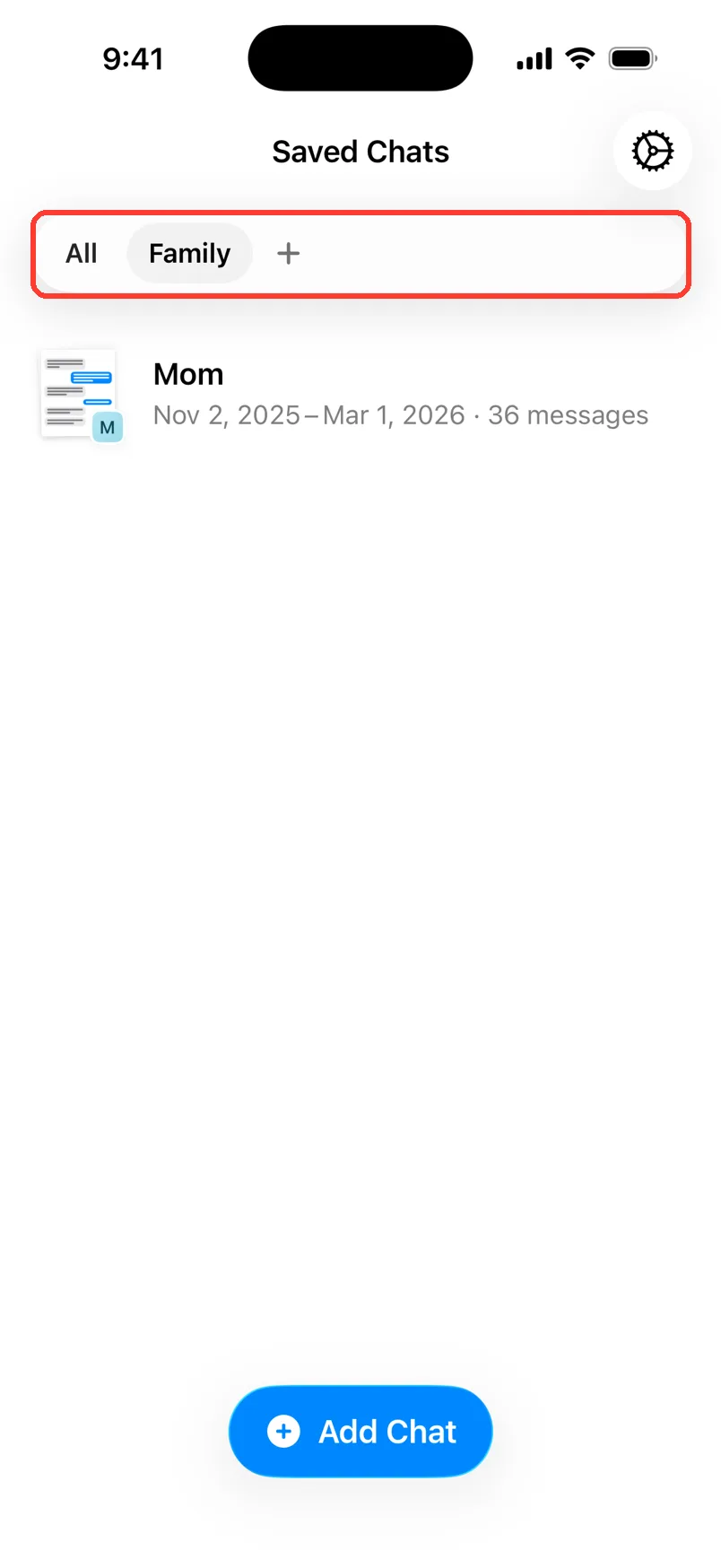
Tap < in the top left. A folder bar now shows at the top.
-
6
Tap a folder
Tap Family to see only its chats. Tap All to see every chat. Tap + to make another folder.
-
7
Move more chats
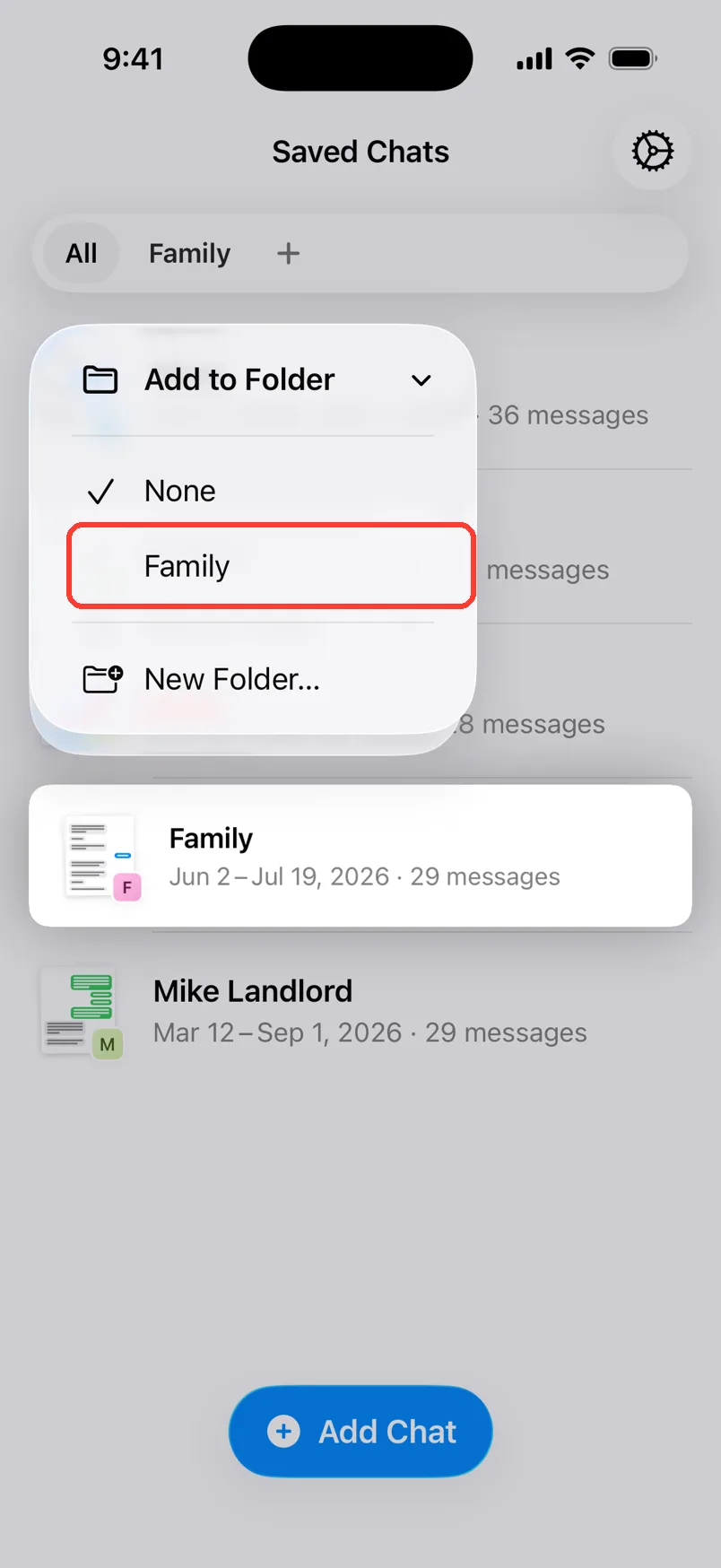
In the list, long press a chat. Tap Add to Folder. Tap the folder.
-
8
Change a folder
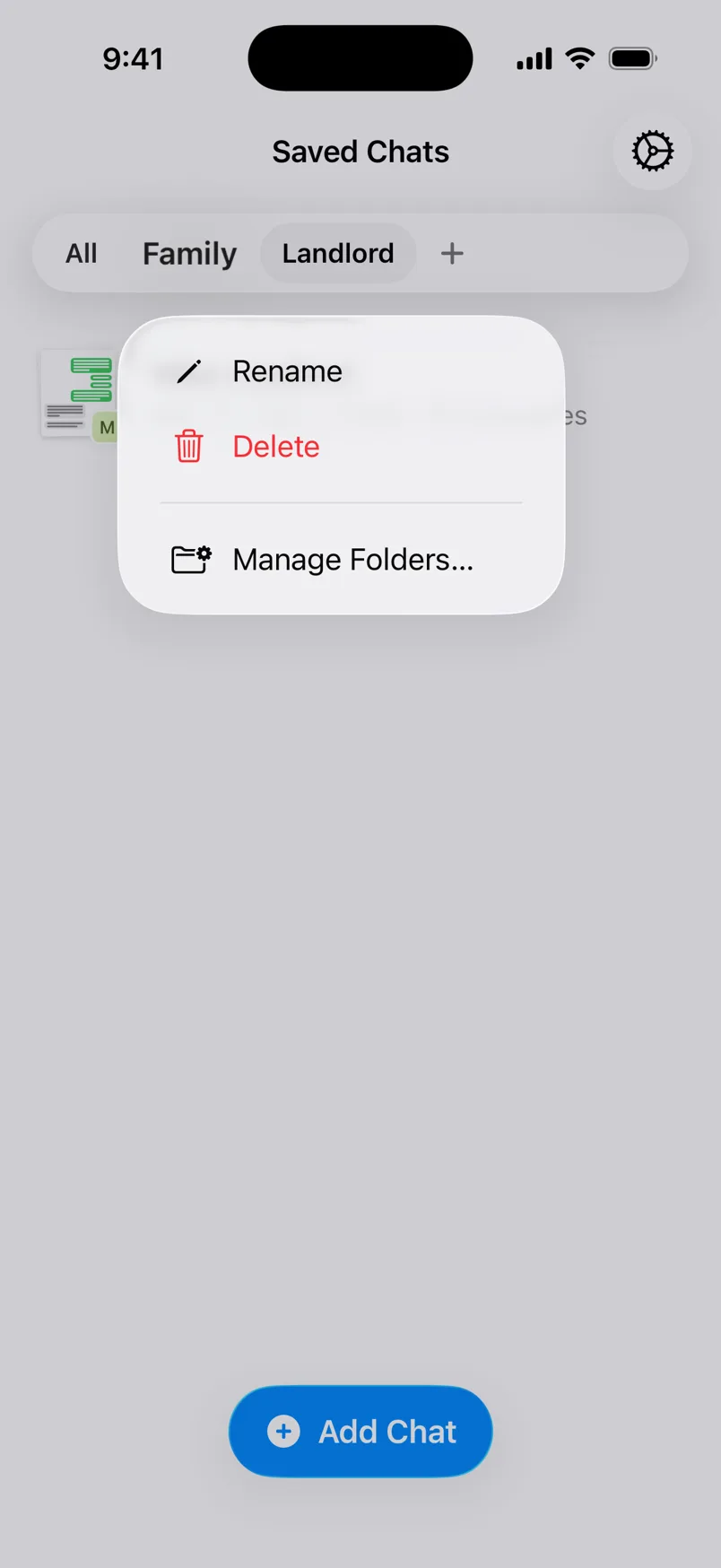
Long press a folder in the bar. Tap Rename or Delete.
Done
Your chats are sorted. Tap a folder at the top of Saved Chats to see just those chats.
Tips
-
A chat can be in one folder at a time. Moving it takes it out of the old one.
-
To take a chat out of a folder, pick None.
-
You can also manage folders in Settings › Chat Folders.
-
Folders are saved on this iPhone only.
Questions
-
They stay. You still see them under All. Only the folder goes away.
-
No. Each chat can be in one folder.
-
Not yet.


Start exporting your messages
Available for iPhone, Mac, and Windows. No computer required.
