

How to rename or delete a folder
Quick answer
In Saved Chats:
- Long press the folder at the top.
- To rename, tap Rename, type the name, then tap the check mark.
- To delete, tap Delete. Slide Slide to delete to the right.
- To see all folders, tap Manage Folders….
Chats in a deleted folder stay in All.
What you need
- ✓TextPort on your iPhone
- ✓A folder you made
Steps
Rename
-
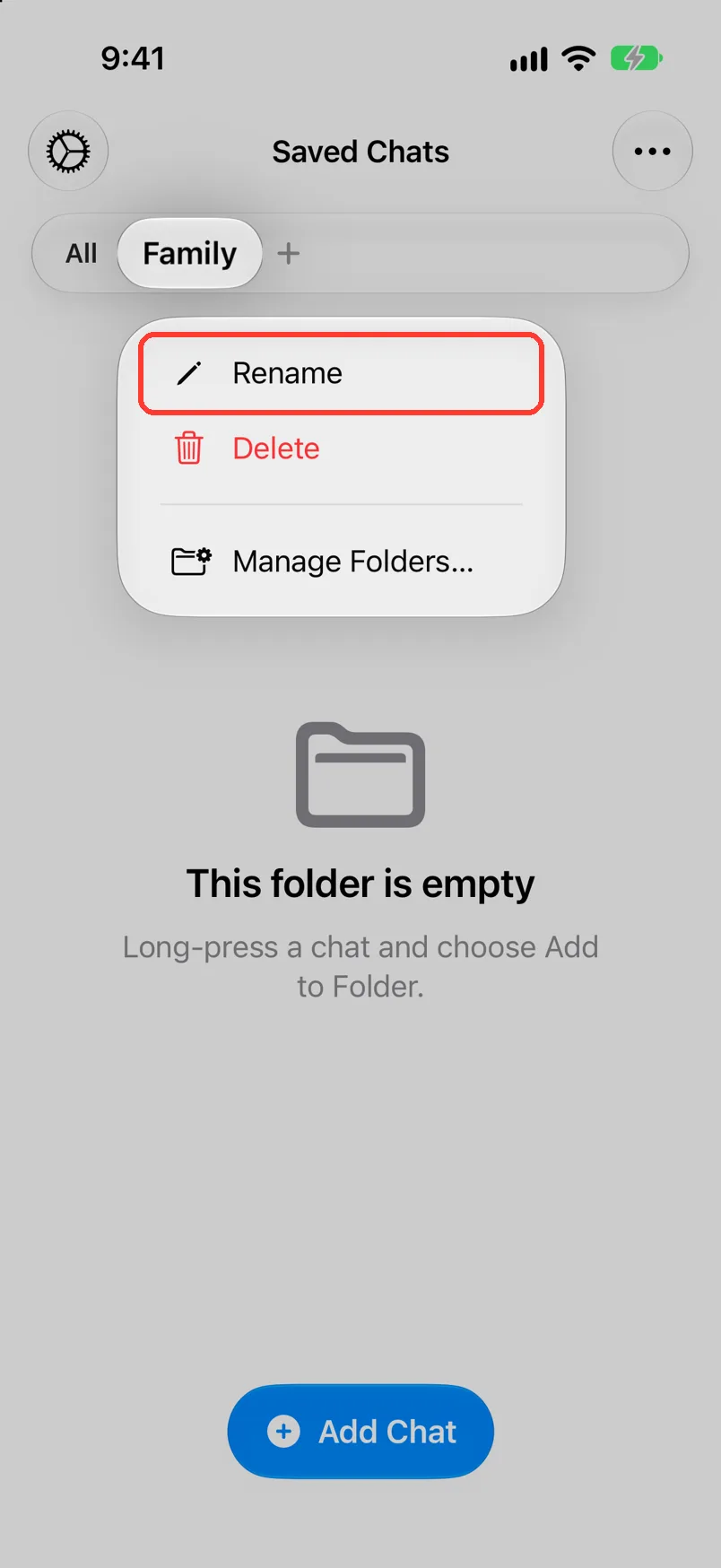
Long press the folder
It is in the bar at the top of Saved Chats. A menu opens.
-
Tap Rename
Rename Folder opens.
-
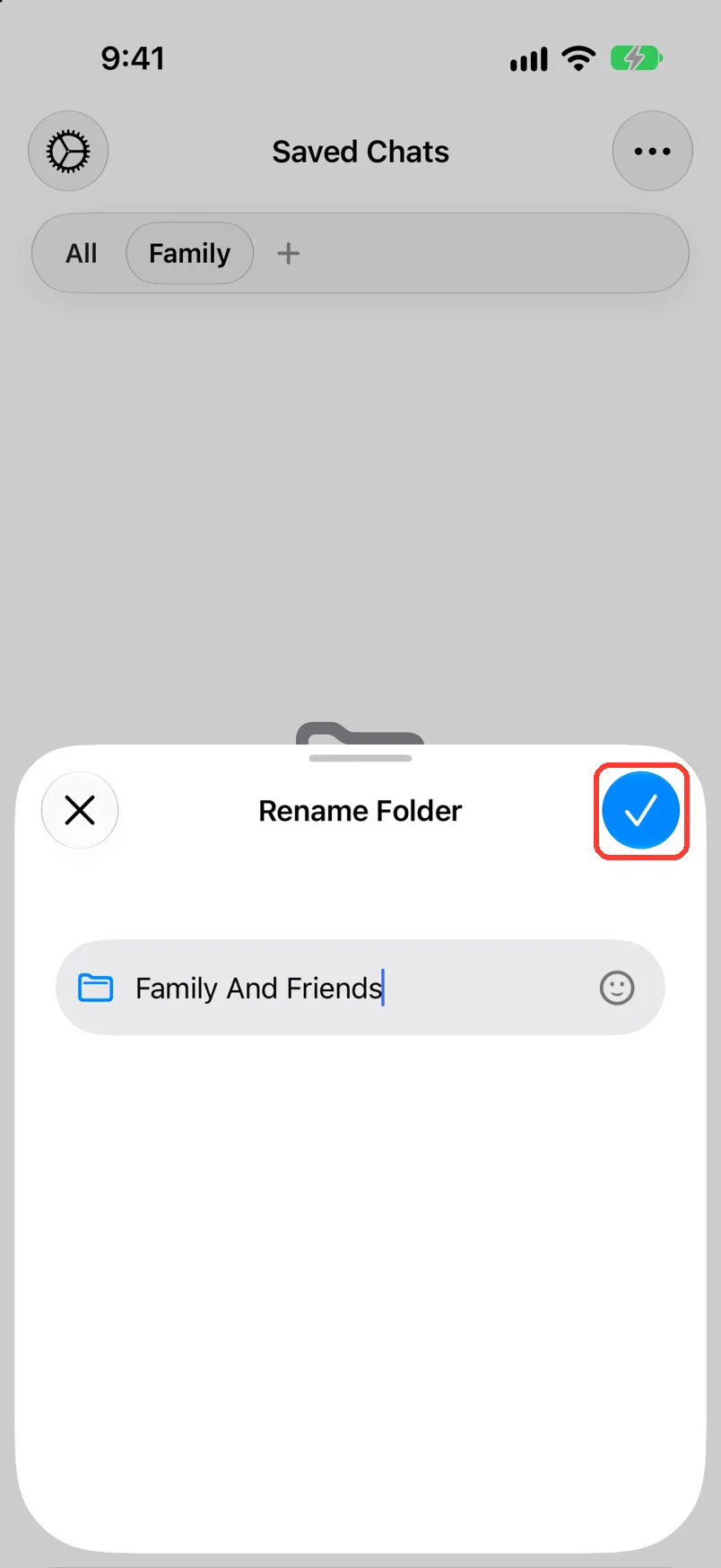
Type the name, then tap the check mark
The check mark is the blue button at the top. The bar shows the new name.
Delete
-
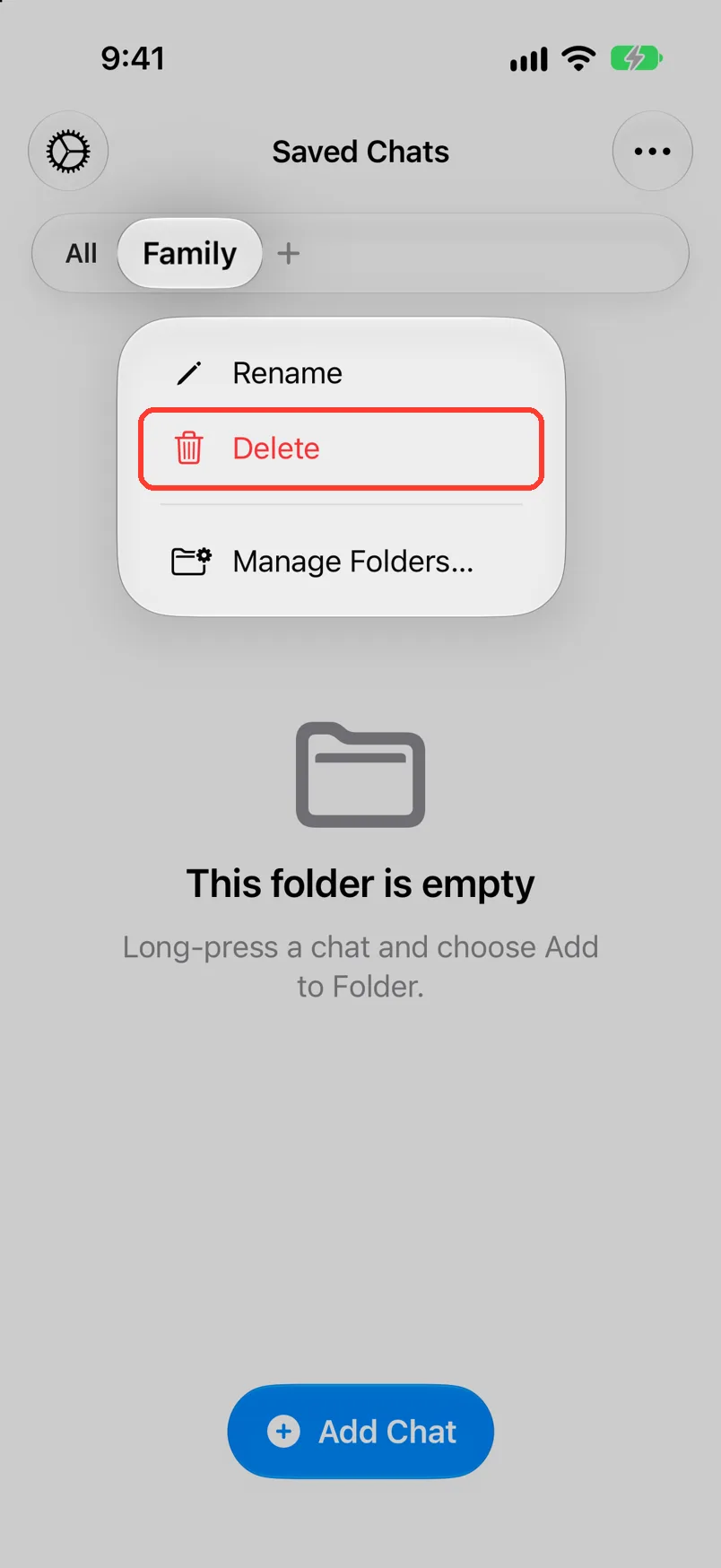
Long press the folder
It is in the bar at the top of Saved Chats. A menu opens.
-
Tap Delete
A sheet asks Delete Folder?
-
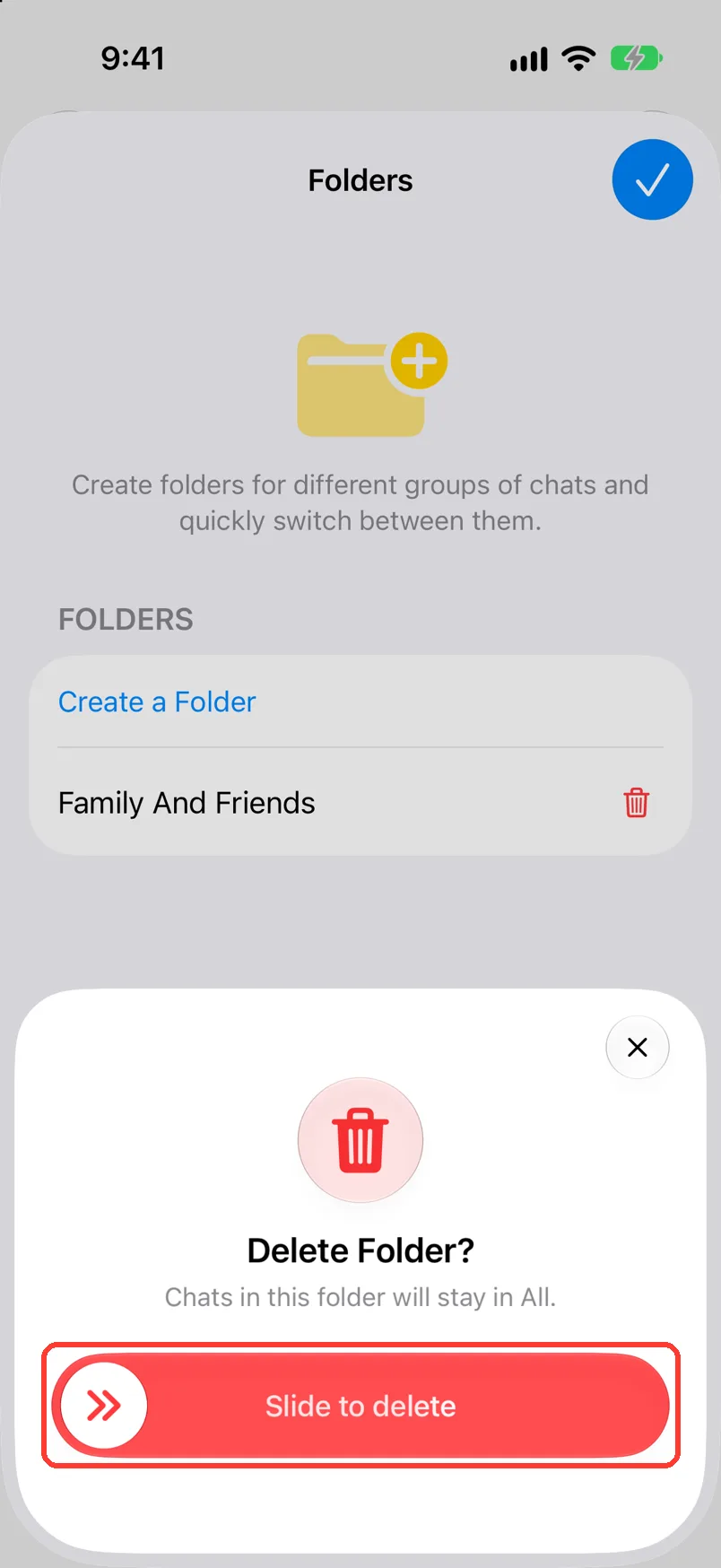
Slide Slide to delete to the right
Drag the button all the way across. The folder is gone. Its chats stay in All.
To keep the folder, tap the X at the top of the sheet.
See all folders
-
Long press a folder
It is in the bar at the top of Saved Chats. A menu opens.
You can also open Settings, then Chat Folders.
-
Tap Manage Folders…
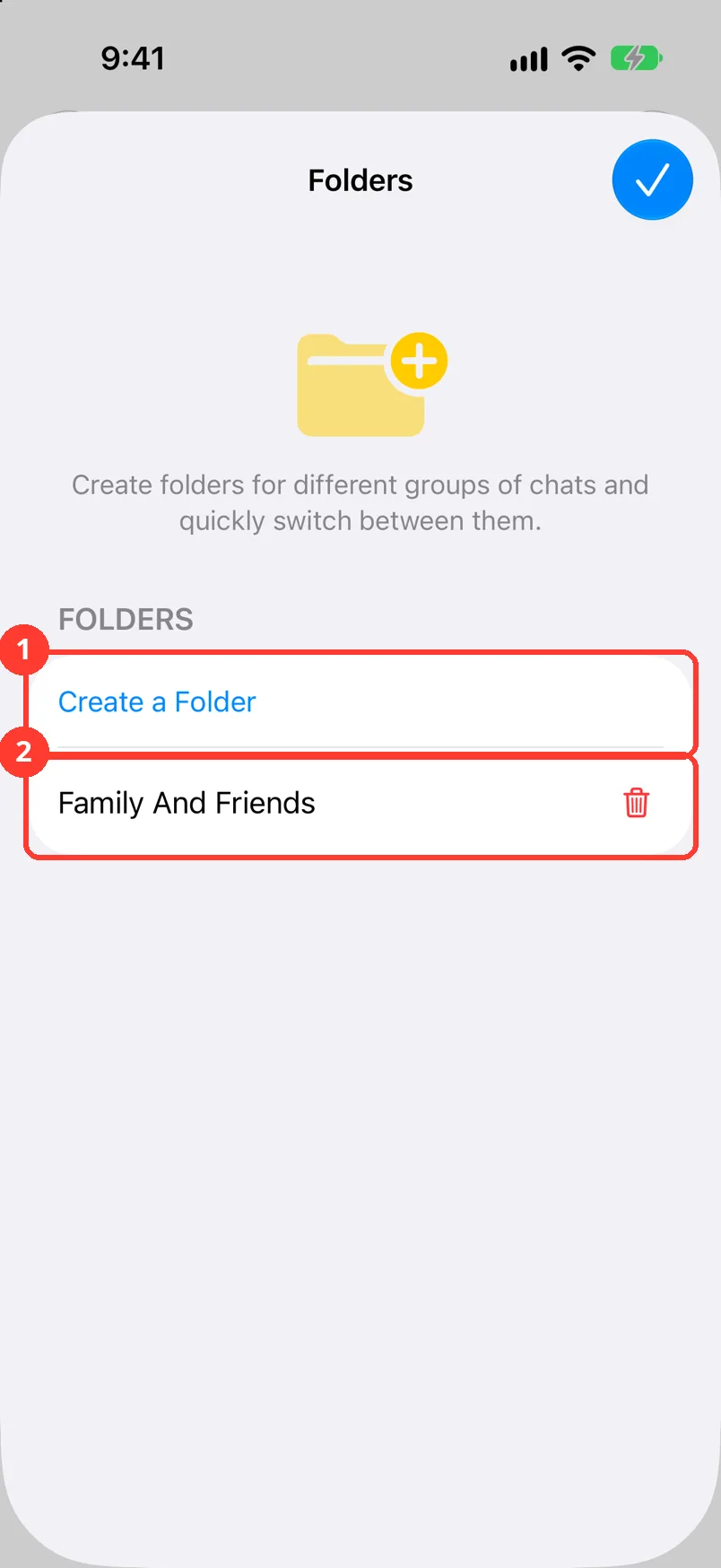
Folders opens.
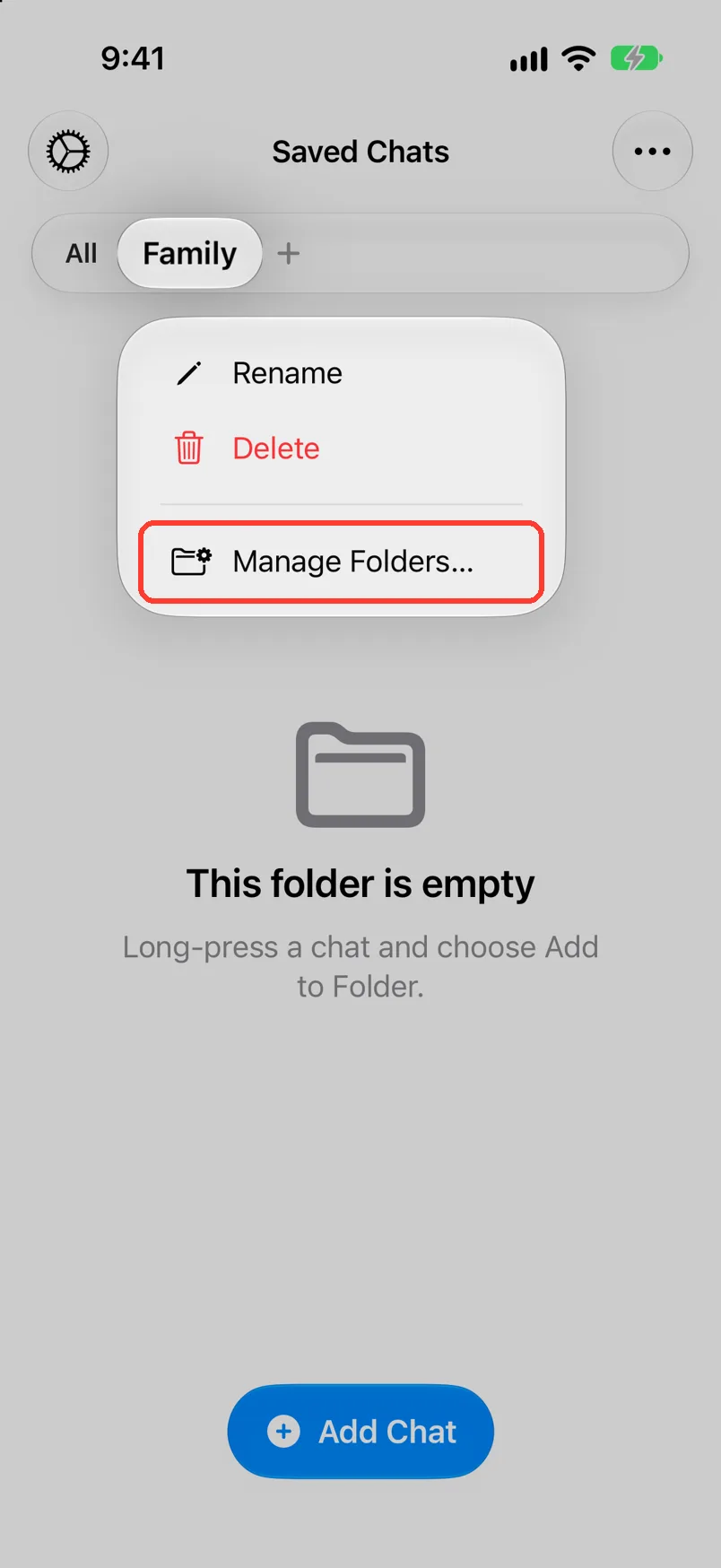
-
Change your folders
Tap Create a Folder (1) to add one. Tap a name (2) to change it. Tap the red trash can, then slide Slide to delete, to delete one.
-
Tap the check mark
It is in the top right. Folders closes.
Done
Your folders are up to date. Your chats are all still there.
Problems
There is no folder bar.
You have no folders yet. See Put chats in folders.
Something went wrong
Tap OK. Do the steps again.
None of these match.
Email [email protected]. Say which step you were on. Say what you saw. We usually reply within a day.
Questions
-
They stay. TextPort says Chats in this folder will stay in All.
Next guides




Start exporting your messages
Available for iPhone, Mac, and Windows. No computer required.
