

How to see all photos, videos, and files in a chat
You will see every photo, video, and file in one chat, and save the ones you want.
What you need
- ✓TextPort on your iPhone
- ✓A chat with photos or files, such as a WhatsApp or Messages chat
View Attachments puts every photo, video, and file from one chat in one place.
Steps
-
1
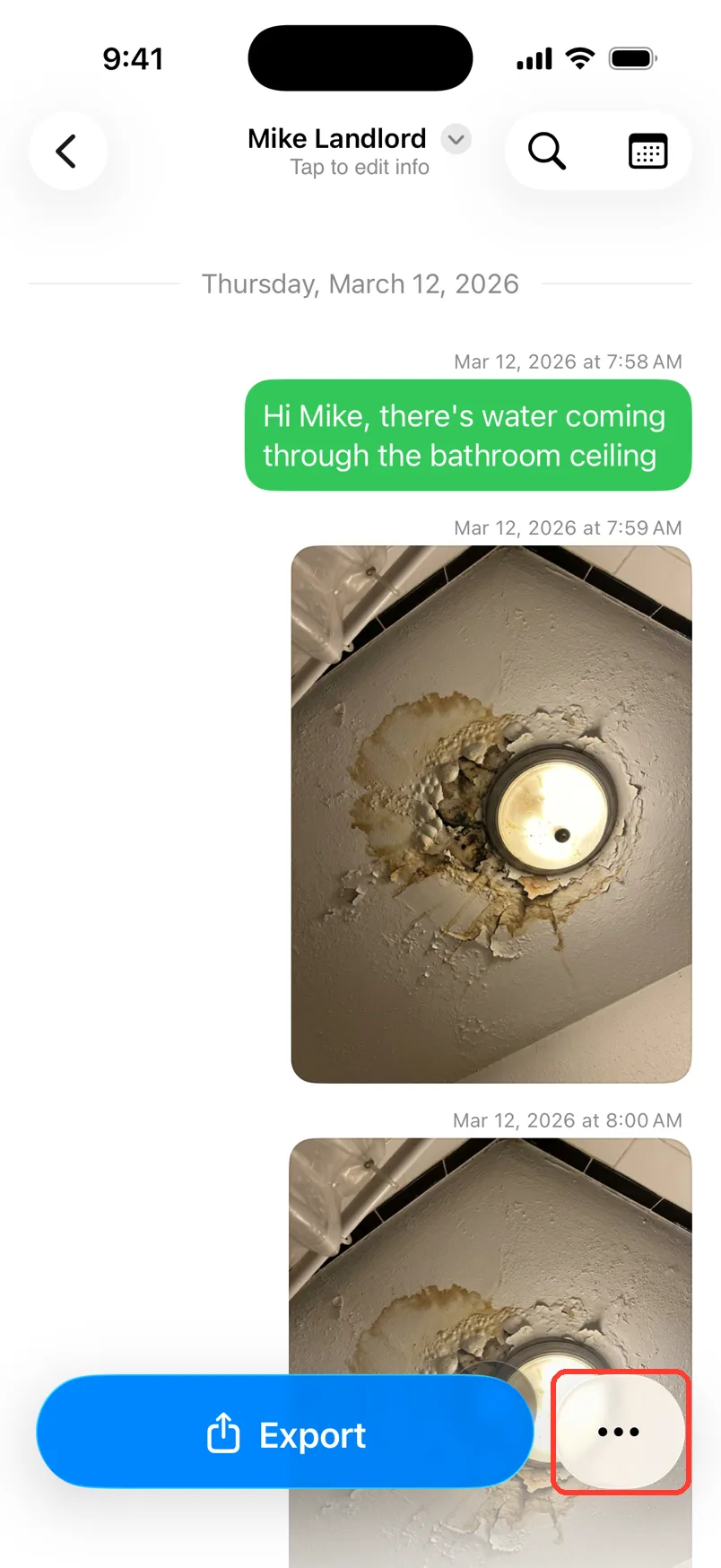
Open the … menu
Open the chat. Tap the … button at the bottom right.
-
2
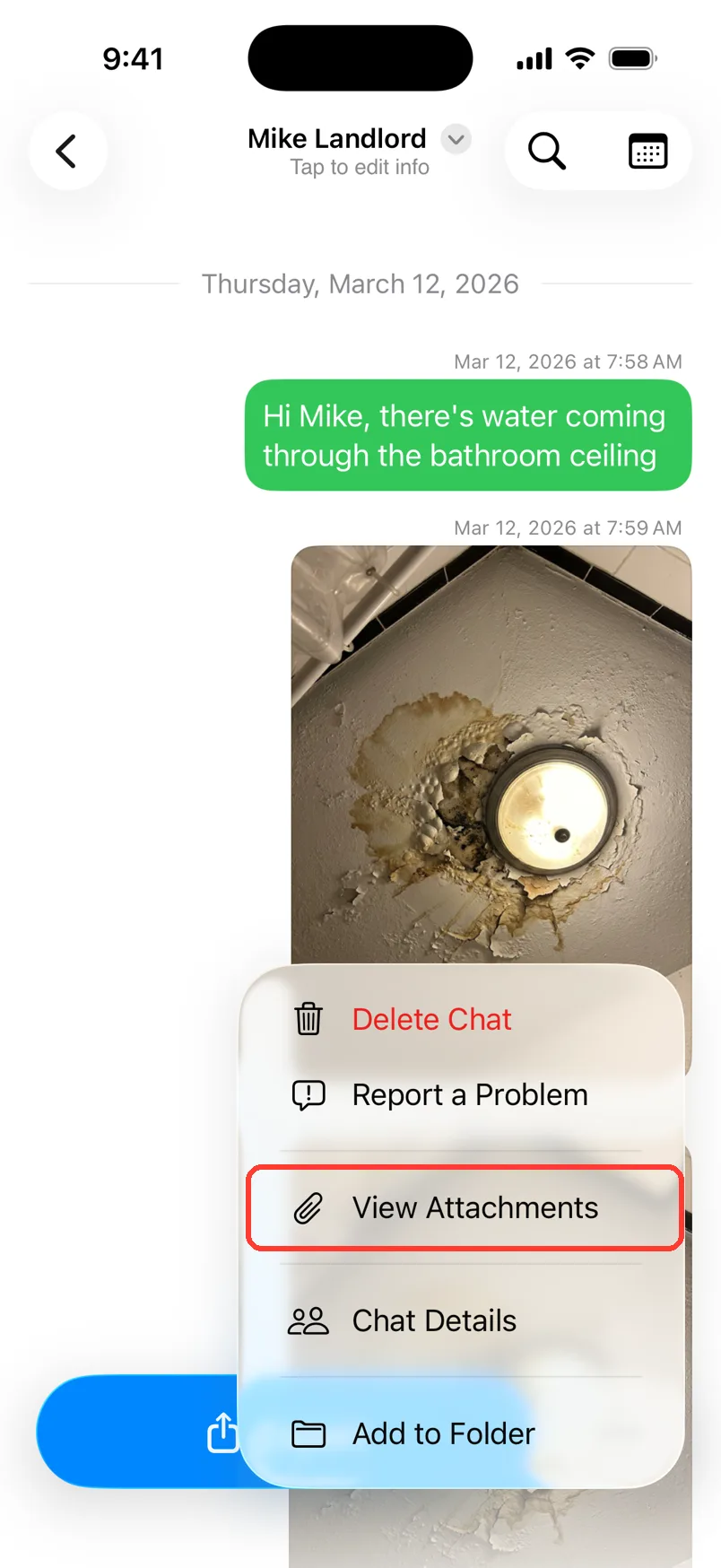
Tap View Attachments
Tap View Attachments. The Attachments screen opens.
-
3
Pick a type
Tap a tab at the top. Images has photos and stickers. Videos has videos. Documents has PDFs and other papers. Other has voice notes and the rest.

-
4
Tap a file
Tap a photo or a file name. It opens full screen.

-
5
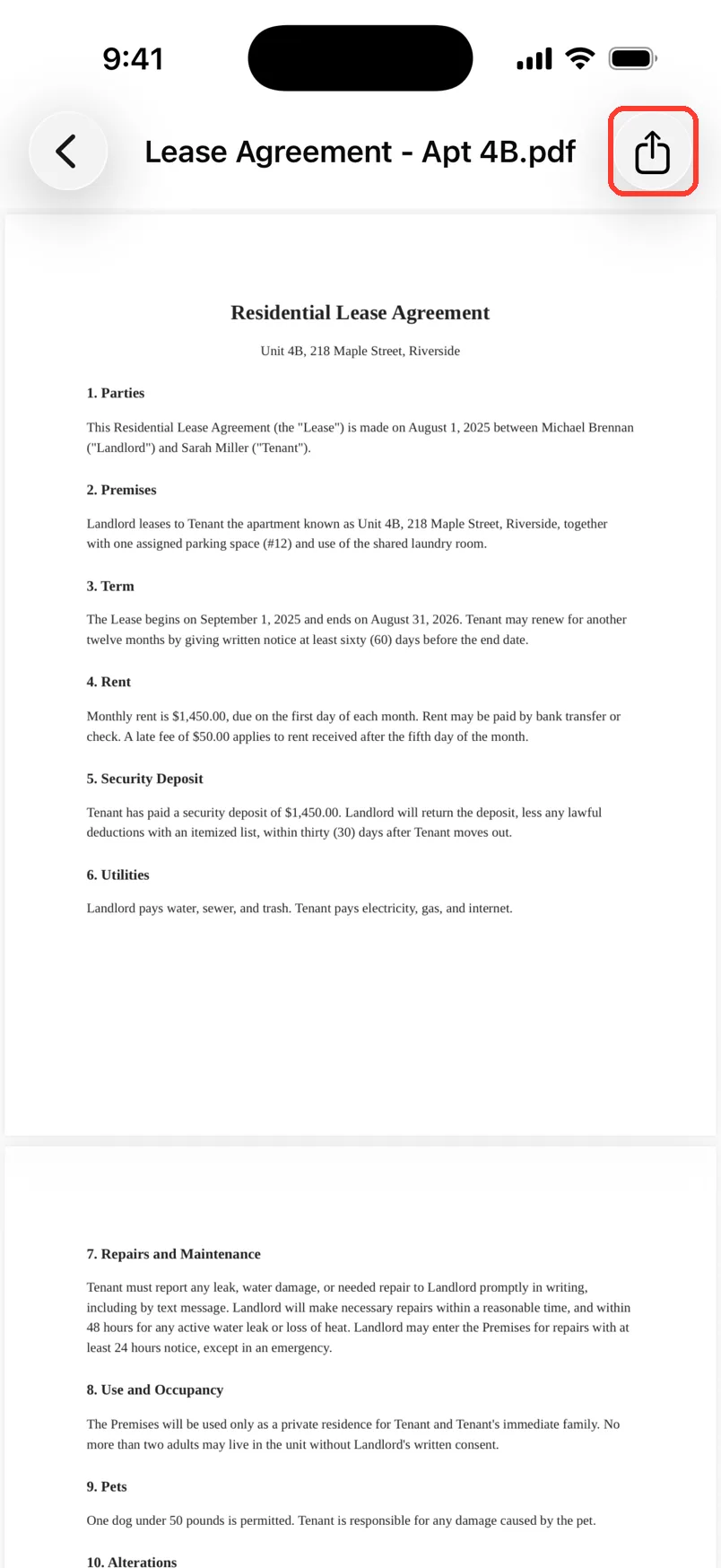
Tap the Share button
Tap the Share button in the top right.
-
6
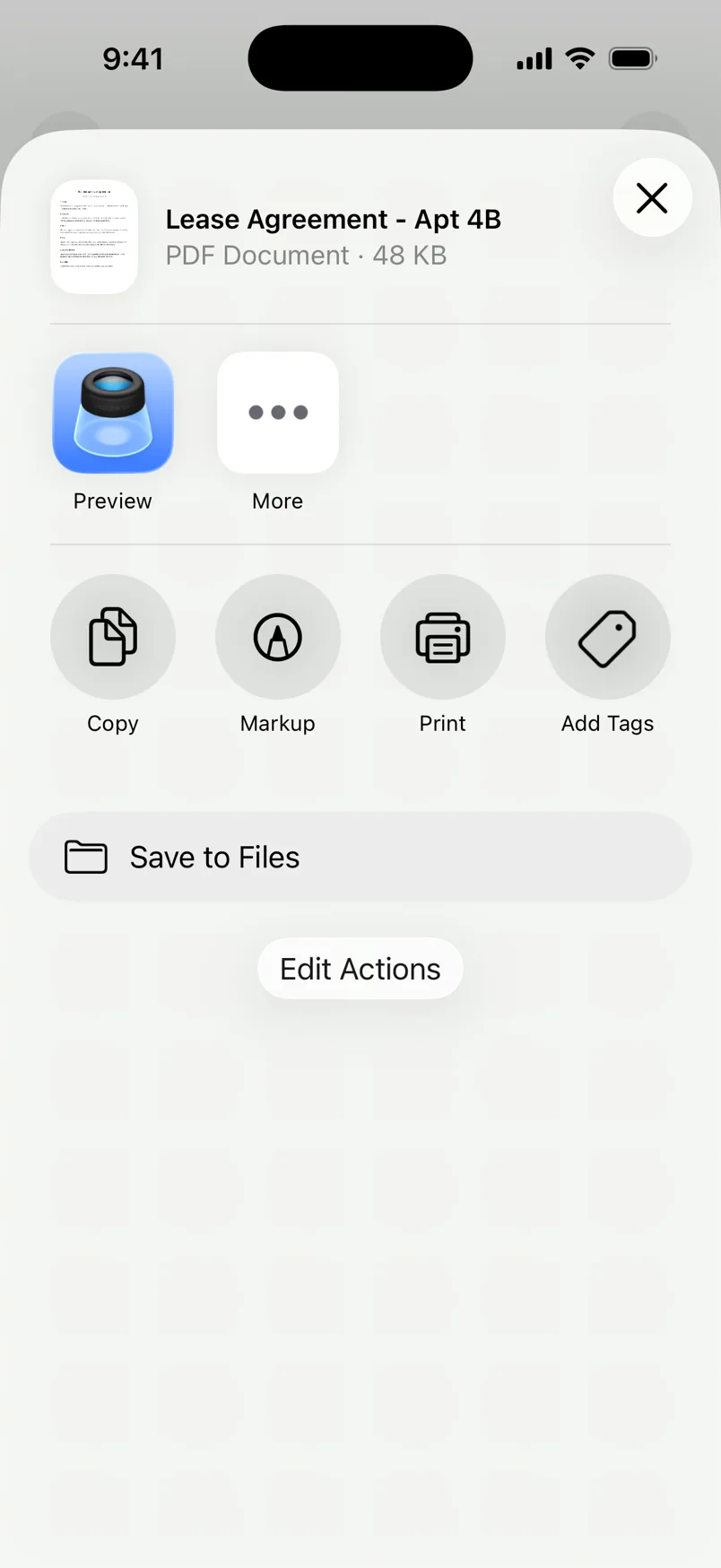
Save or send it
Tap Save to Files to keep it. For a photo, tap Save Image. Or pick an app to send it.
Done
You found the file you wanted. It is saved or sent.
Tips
-
Voice notes are in the Other tab.
-
Tap < to go back to the list. Tap the X to close.
-
You can also long press a photo in the chat and tap Share.
-
Chats from screenshots show View Screenshots. Scroll Capture chats show View Screen Recording.
Questions
-
The chat has no photos or files. Screenshot and Scroll Capture chats only have text, unless you added a photo by hand.
-
The chat has no files of that type. Try the other tabs.
-
In a Messages chat, some photos can be missing at first. See the guide on recovering missing photos.
Next guides
-
 How to recover missing photos and attachments
You will get the photos, videos, and files that were missing after a Messages import.
How to recover missing photos and attachments
You will get the photos, videos, and files that were missing after a Messages import.
-
 How to add a missing attachment by hand
You will put the right photo or file back on a message in your chat.
How to add a missing attachment by hand
You will put the right photo or file back on a message in your chat.
-
 How to export a WhatsApp chat to TextPort
You will get a WhatsApp chat saved in TextPort, with every message and photo.
How to export a WhatsApp chat to TextPort
You will get a WhatsApp chat saved in TextPort, with every message and photo.
-
 How to read a chat in TextPort
You will know who sent each message and when, and how to hide or show the times.
How to read a chat in TextPort
You will know who sent each message and when, and how to hide or show the times.

Start exporting your messages
Available for iPhone, Mac, and Windows. No computer required.
