

How to read and fix voice message transcripts
Quick answer
In the chat:
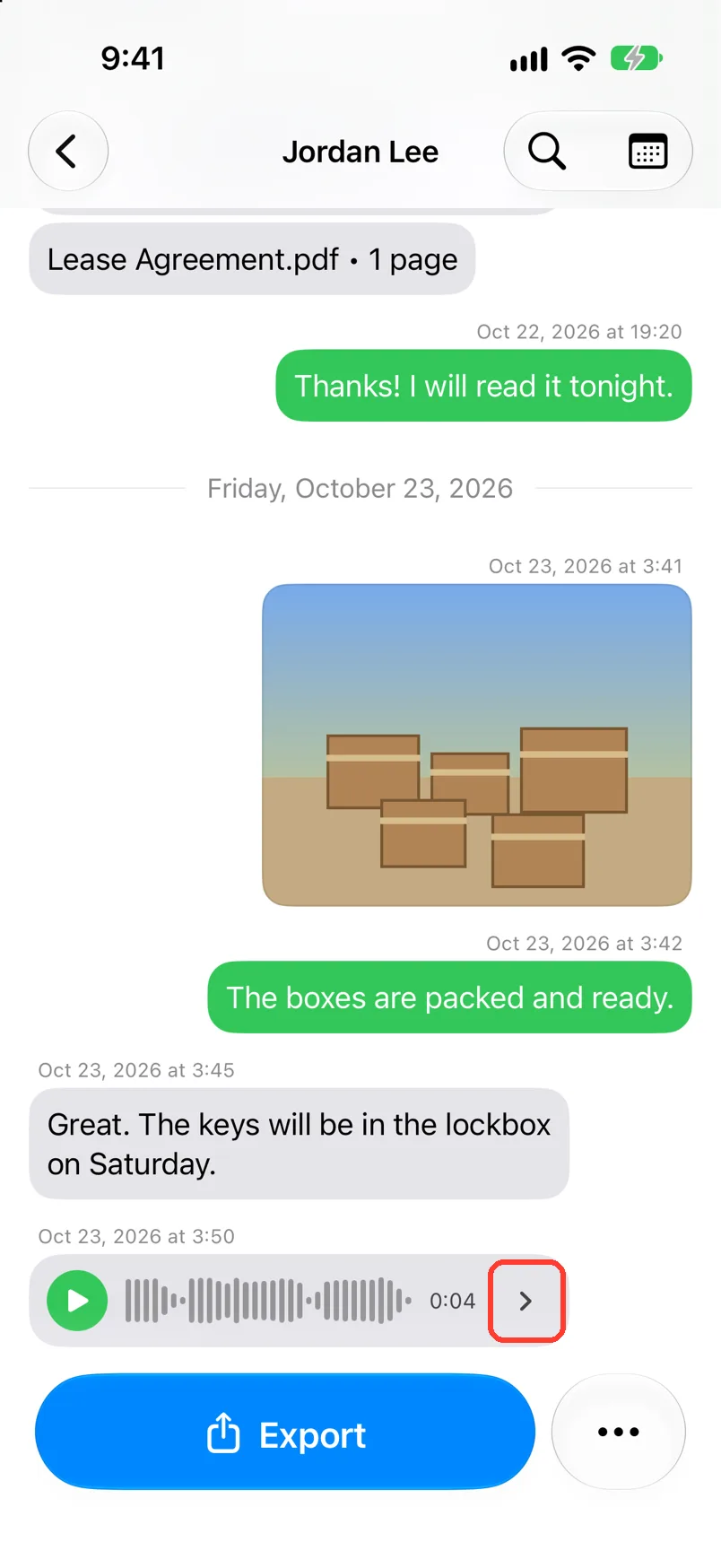
- Tap the arrow on the voice message.
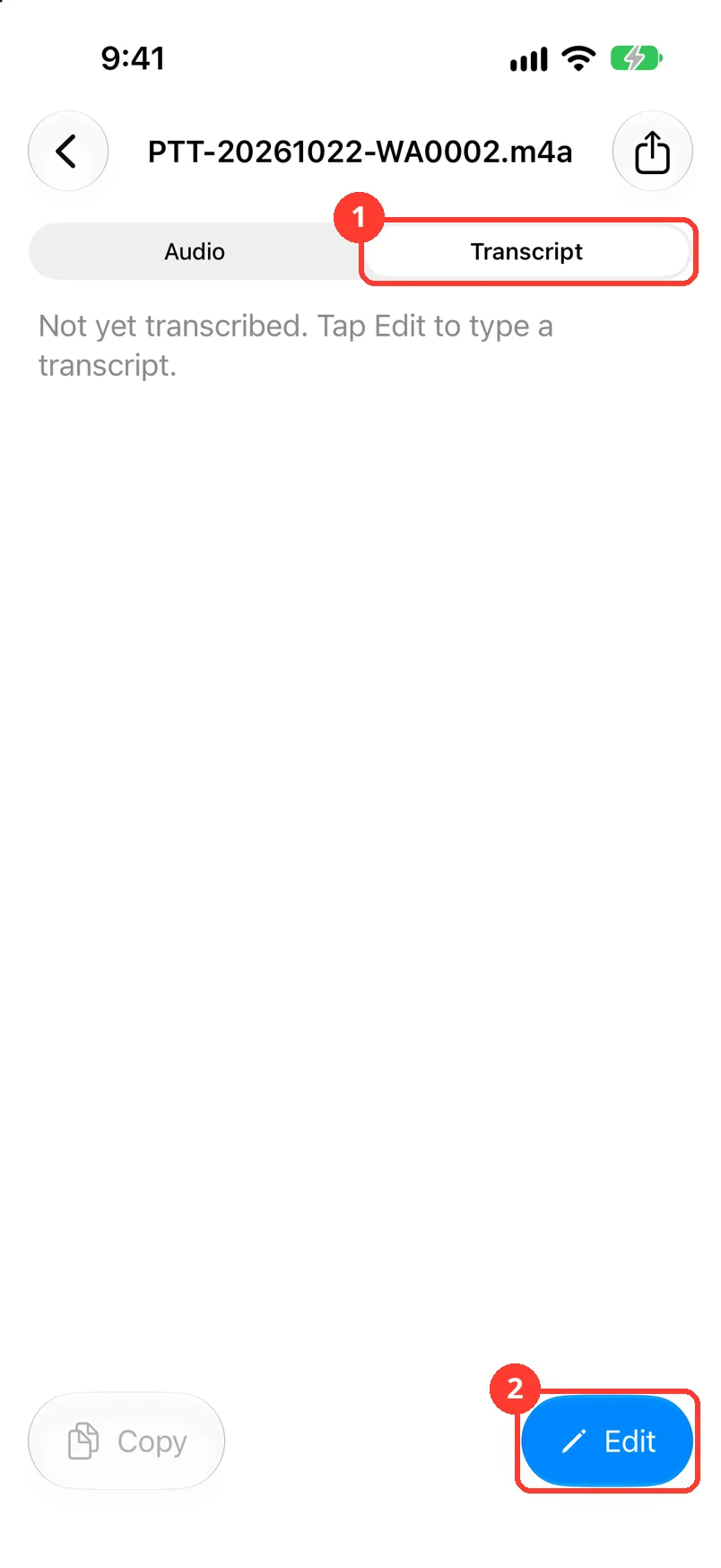
- Tap Transcript.
- Tap Edit. Type or fix the words.
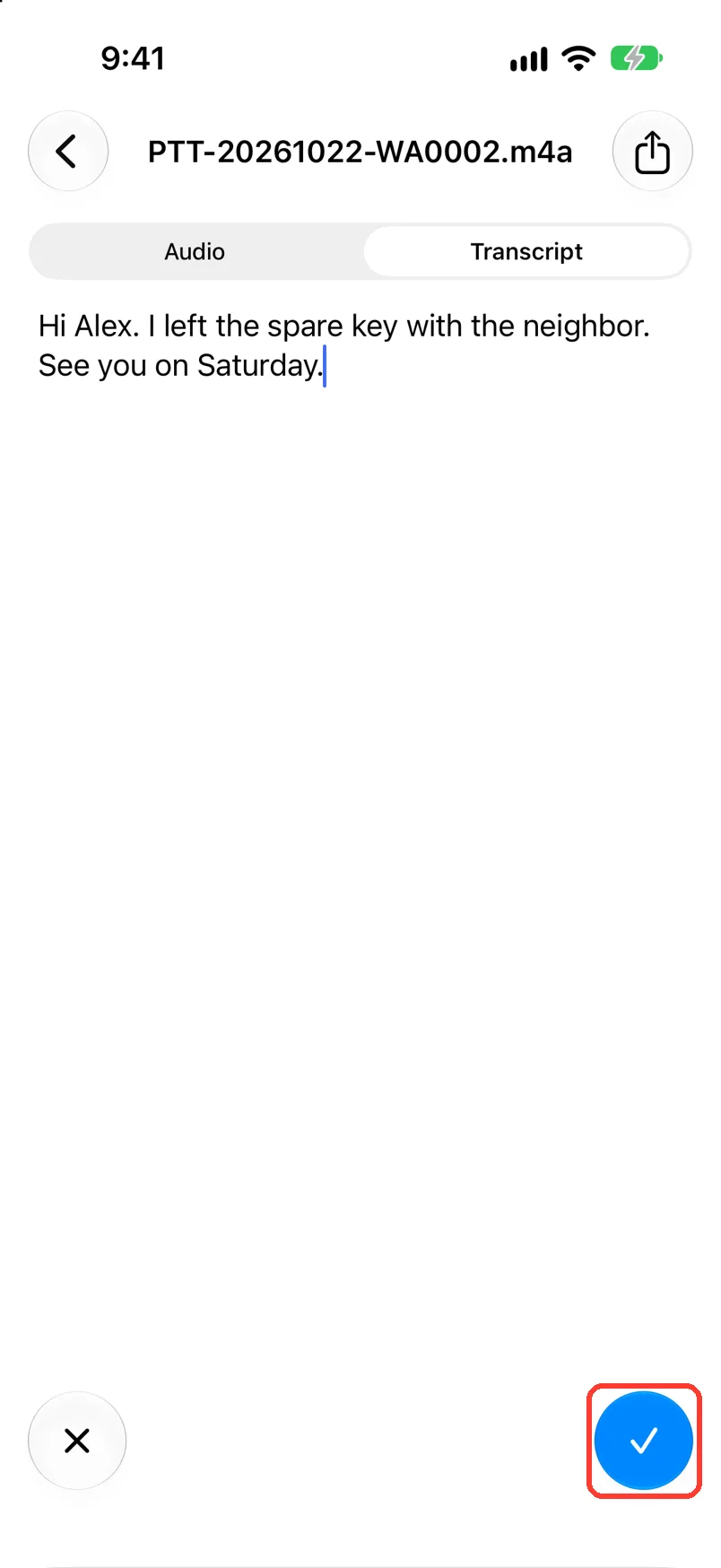
- Tap the check mark.
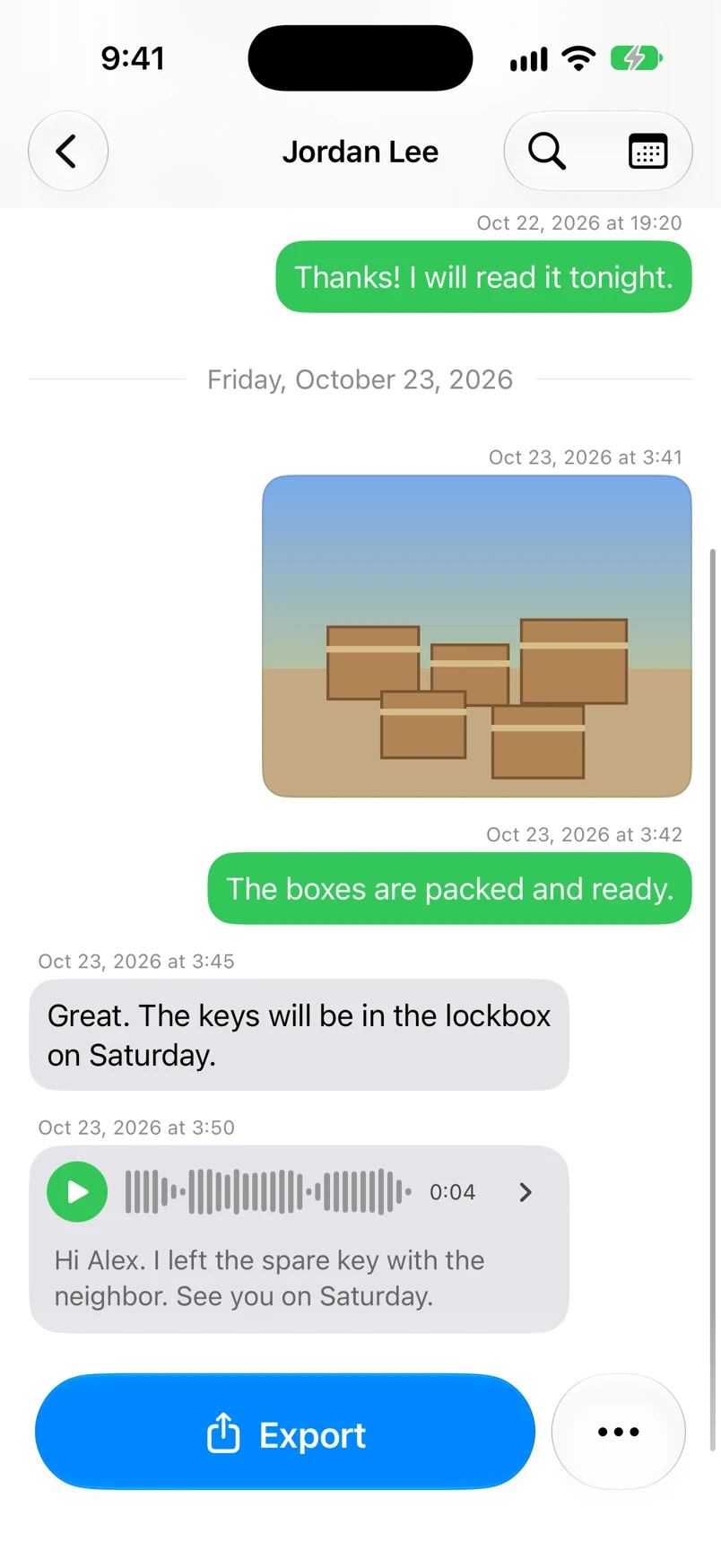
The words then show under the voice message.
What you need
- ✓TextPort on your iPhone
- ✓A chat with a voice message saved on this iPhone
- ✓iOS 26 or newer, for automatic transcripts
Steps
-
Tap the arrow on the voice message
It is at the right of the voice message. The voice message opens.
-
Tap Transcript
It is at the top (1). You see the words, or Not yet transcribed. Tap Edit to type a transcript.
-
Tap Edit
It is at the bottom right (2). The keyboard opens.
-
Type the words, then tap the check mark
The check mark is at the bottom right. Tap the X to leave it as it was.
-
Check the chat
Tap the back button. The words show under the voice message.
-
Choose if PDFs show transcripts
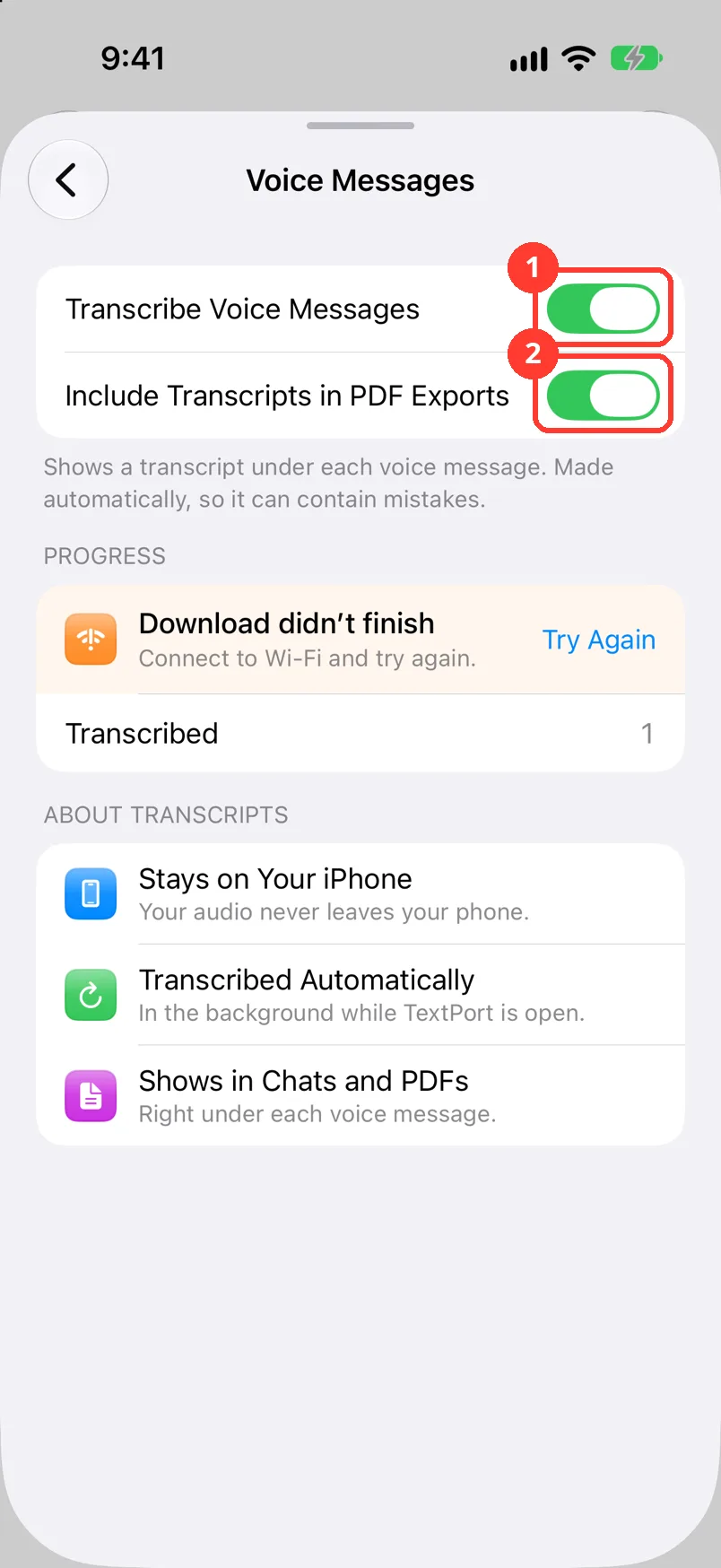
In Saved Chats, tap the gear, then Your Data, then Voice Messages. Use the switches.
Include Transcripts in PDF Exports is for PDFs. Transcribe Voice Messages turns it all on or off.
Done
The voice message has the right words. Your PDFs show them if the switch is on.
Problems
There is no Transcript at the top.
Transcribe Voice Messages is off. Tap the gear, then Your Data, then Voice Messages. Turn it on.
Not yet transcribed. Tap Edit to type a transcript.
Keep TextPort open. It writes the words while it is open. Or tap Edit and type the words.
No speech detected. Tap Edit to type a transcript.
TextPort heard no words. Tap Edit to type them.
Needs iOS 26
Automatic transcripts need iOS 26. Update your iPhone. You can still type the words by hand.
Download didn’t finish
Connect to Wi-Fi. Tap Try Again on the Voice Messages screen.
Voice Messages says it is not available in your language.
Apple does not support this language yet. Tap Edit on the voice message and type the words.
This voice message isn’t saved on this iPhone, so it has no transcript.
The audio file is not on this iPhone. See Recover missing photos and attachments.
None of these match.
Email [email protected]. Say which step you were on. Say what you saw. We usually reply within a day.
Questions
-
No. TextPort says Your audio never leaves your phone.
-
No. It is made by itself, so it can have mistakes. Read it and fix it before you share it.
Next guides
-
 How to see all photos, videos, and files in a chat
You will see every photo, video, and file in one chat, and save the ones you want.
-
 How to export a chat to PDF
You will get a PDF of one chat, with names, dates, and times, ready to share or print.
-
 How to recover missing photos and attachments
You will get the photos, videos, and files that were missing after a Messages import.

Start exporting your messages
Available for iPhone, Mac, and Windows. No computer required.
