

How to recover missing photos and attachments
Quick answer
In the chat in TextPort:
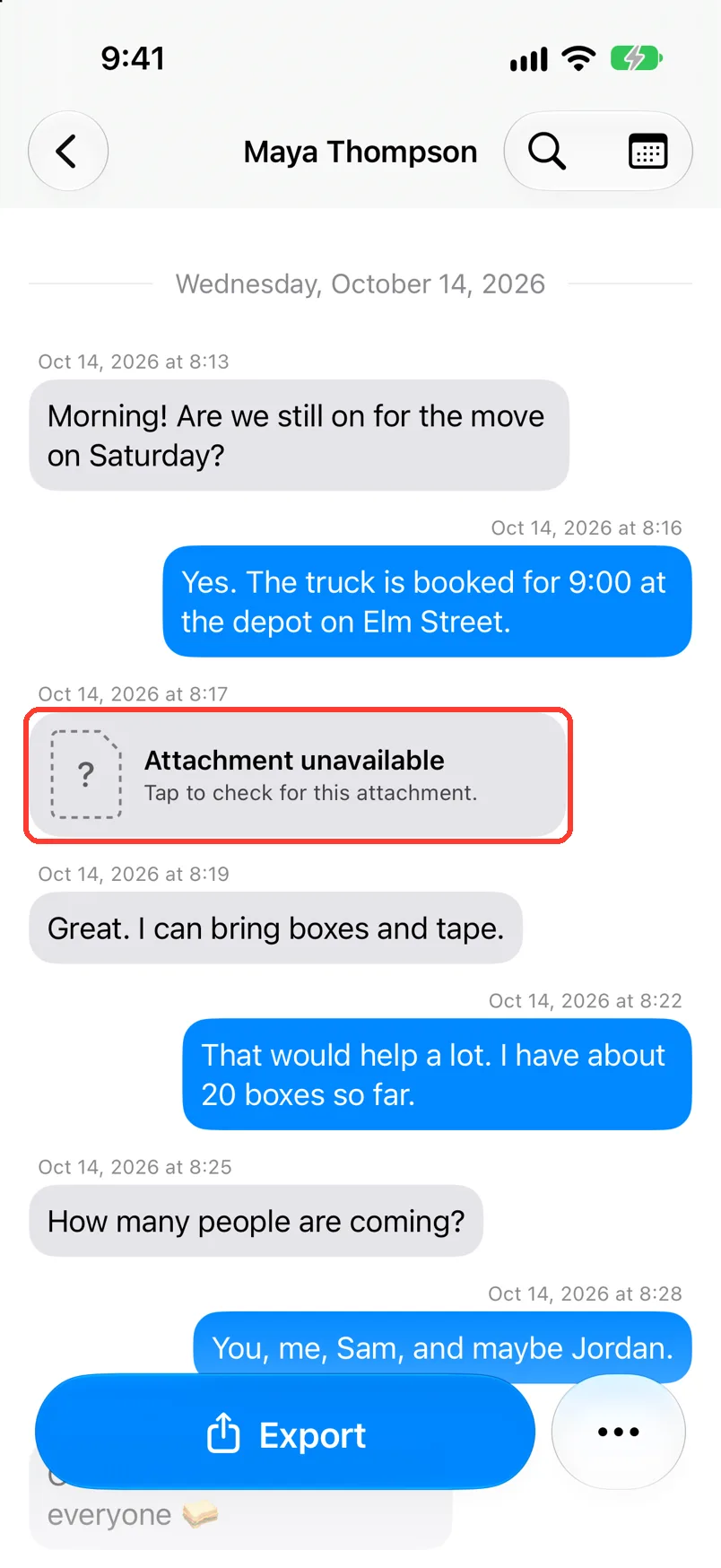
- Tap the gray box where the photo should be.
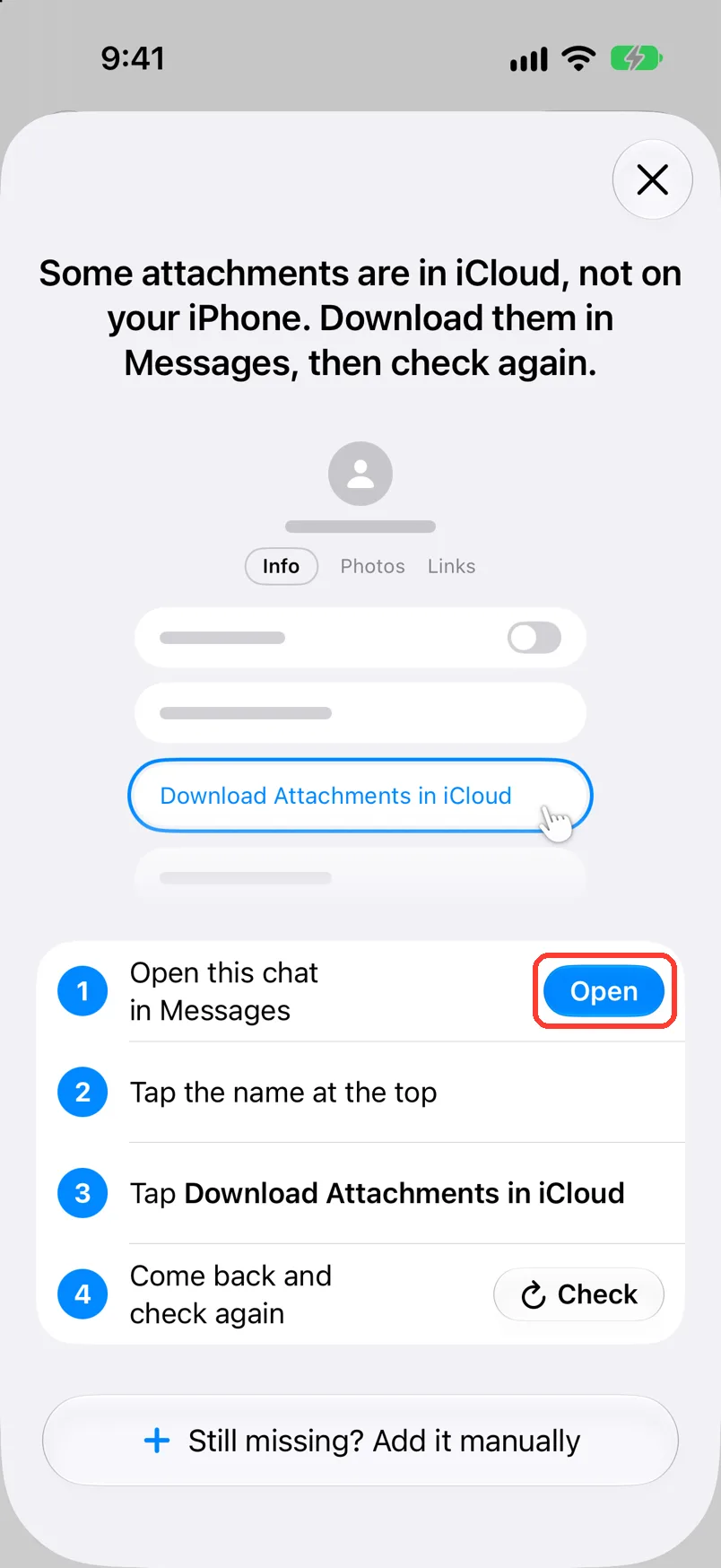
- Tap Open. In Messages, open the same chat.
- Tap the name at the top, then Download Attachments in iCloud.
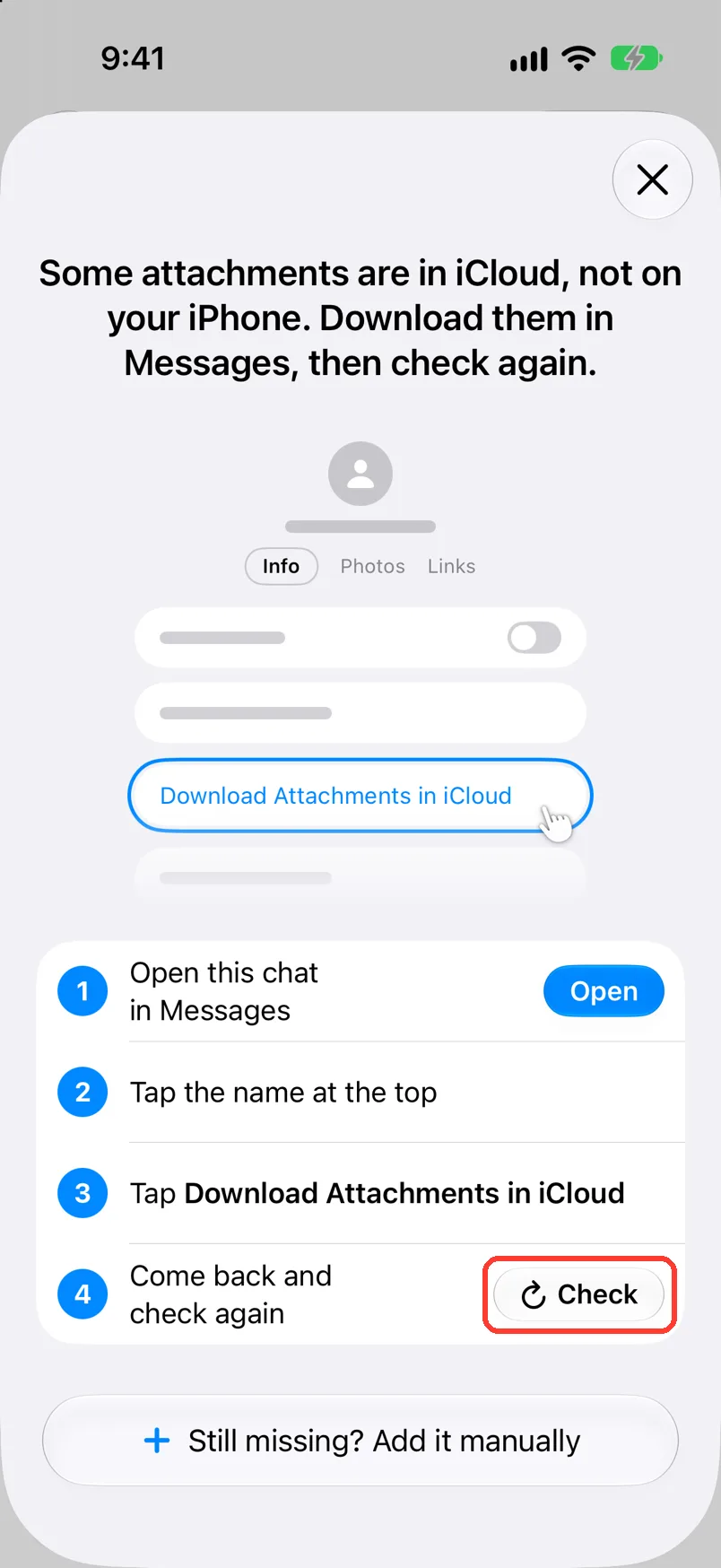
- Go back to TextPort. Tap Check.
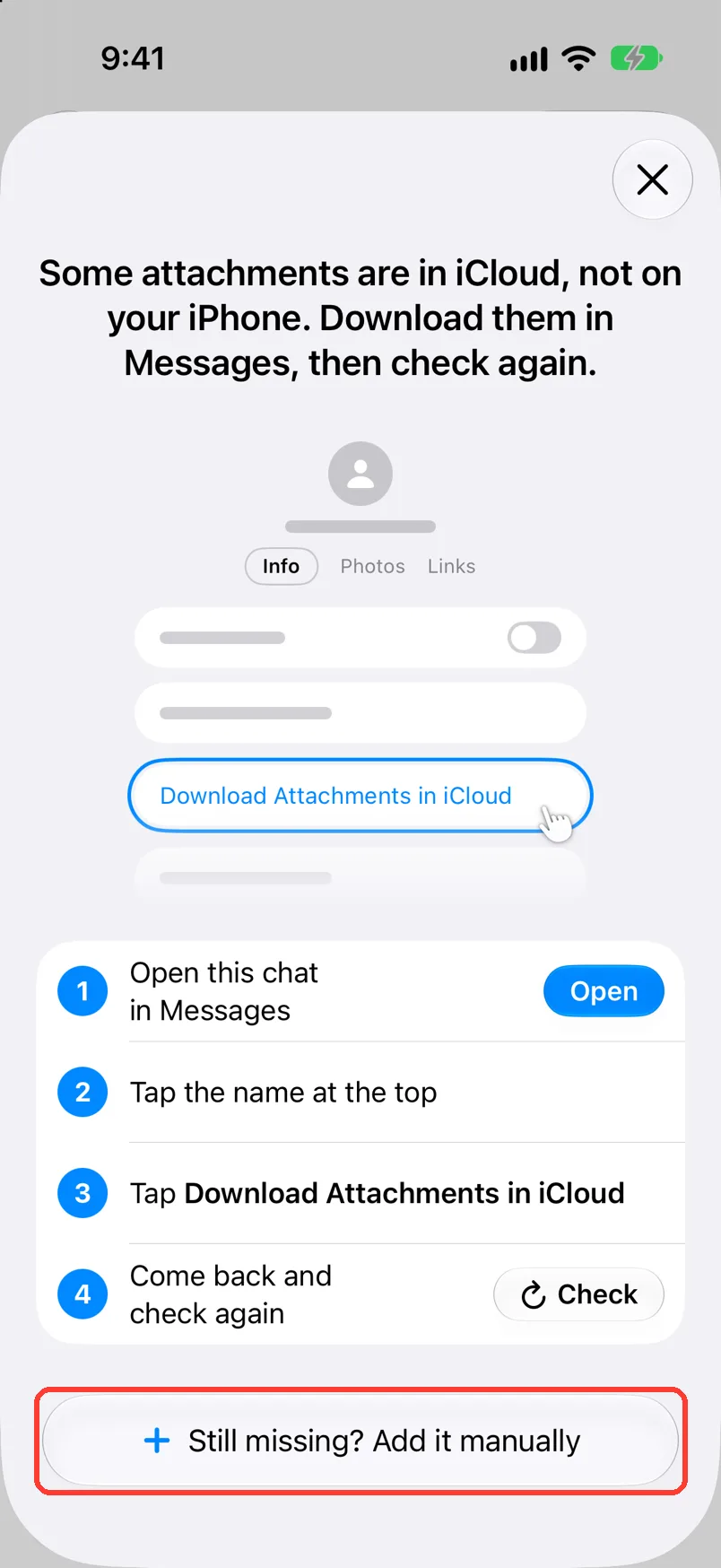
- Still a gray box? Tap Still missing? Add it manually.
The photos then show in the chat.
What you need
- ✓TextPort on your iPhone
- ✓A chat imported with the TextPort shortcut
- ✓Apple's Messages app on the same iPhone
Steps
-
Tap the gray box
Open the chat. The box says Tap to check for this attachment. A sheet opens.
-
Tap Open
It is next to step 1 on the sheet. Messages opens.
-
Tap the same chat
Find the chat in Messages. The chat opens.
-
Tap the name at the top
It is at the top of the chat. The Info tab opens.
-
Tap Download Attachments in iCloud
Scroll down to find it. Wait for the downloads to finish.
If there is no such button, open each missing photo in Messages.
-
Go back to TextPort
Open TextPort again. The sheet is still there.
-
Tap Check
It is next to step 4. TextPort looks for every missing file in this chat.
iOS 27
-
Keep TextPort open
TextPort shows Finding missing photos and files. Stay in TextPort until it is done.
If you see Paused when you left, tap Resume.
iOS 26 and earlier
-
Keep Shortcuts open
Shortcuts opens and looks for the files. Do not close it. Do not lock your iPhone.
-
Tap a gray box that is still there
Do this only if one is left. The sheet opens again.
-
Tap Still missing? Add it manually
It is at the bottom of the sheet. Add attachment opens.
If you see Choose a message, tap the message first.
Done
The photos, videos, and files TextPort could find are in your chat. They show in the PDF too. Any that are still missing keep the gray box.
Problems
The gray box is still there after Check.
The file is not on this iPhone. If you have a copy in Photos or Files, add it by hand. See Add a missing attachment by hand.
Couldn’t check for missing files
Tap Get help. It lists fixes. Or tap OK and tap Check again.
TextPort asks you to add the shortcut again.
Tap Add Shortcut. Add it in Shortcuts. Then go back to TextPort and tap Check again.
The check stops part way.
Your iPhone has iOS 27, but Shortcuts opens for the check.
TextPort uses the older flow on your iPhone. Follow the iOS 26 and earlier steps.
None of these match.
Email [email protected]. Say which step you were on. Say what you saw. We usually reply within a day.
Questions
-
Your iPhone saves space by keeping old attachments in iCloud. This happens to ones you sent, too. The shortcut can only read files that are on the phone. Downloading them in Messages puts them back on the phone.
-
No. TextPort only looks for the missing files. Your edits stay.
Next guides
-
 How to add a missing attachment by hand
You will put the right photo or file back on a message in your chat.
How to add a missing attachment by hand
You will put the right photo or file back on a message in your chat.
-
 How to import iMessage and SMS with the TextPort Shortcut
You will get a chat from Apple Messages saved in TextPort, with every message word for word.
How to import iMessage and SMS with the TextPort Shortcut
You will get a chat from Apple Messages saved in TextPort, with every message word for word.
-
 How to fix a stuck or failed Shortcut import
You will get a Messages import that finishes, or know exactly what to tell support.
How to fix a stuck or failed Shortcut import
You will get a Messages import that finishes, or know exactly what to tell support.

Start exporting your messages
Available for iPhone, Mac, and Windows. No computer required.
