

How to fix a stuck or failed Shortcut import
Quick answer
An import is stuck only when the count on Importing messages... has not moved for three minutes. Then try these in order:
- Tap Open Shortcuts. Leave Shortcuts on the screen.
- Close Shortcuts and open it again.
- Restart your iPhone. Start again with fewer days.
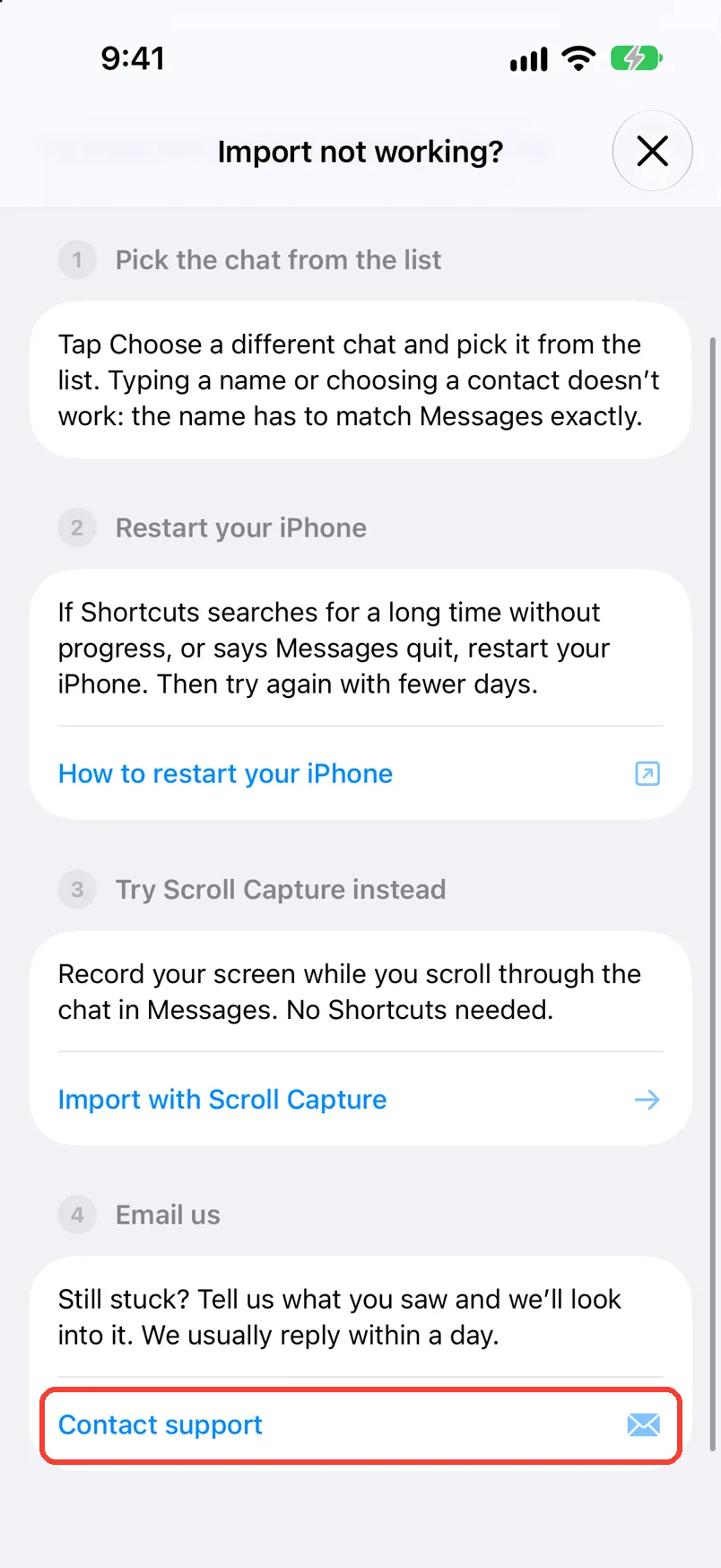
- Tap Import not working?, then Contact support.
On iOS 27 the import runs in TextPort. Tap Resume or Try again.
- On Mac: How to fix “TextPort can’t read your Messages” on Mac
- On Windows: How to fix a stuck or stopped backup on Windows
What you need
- ✓TextPort on your iPhone
- ✓Apple's Shortcuts app
Steps
-
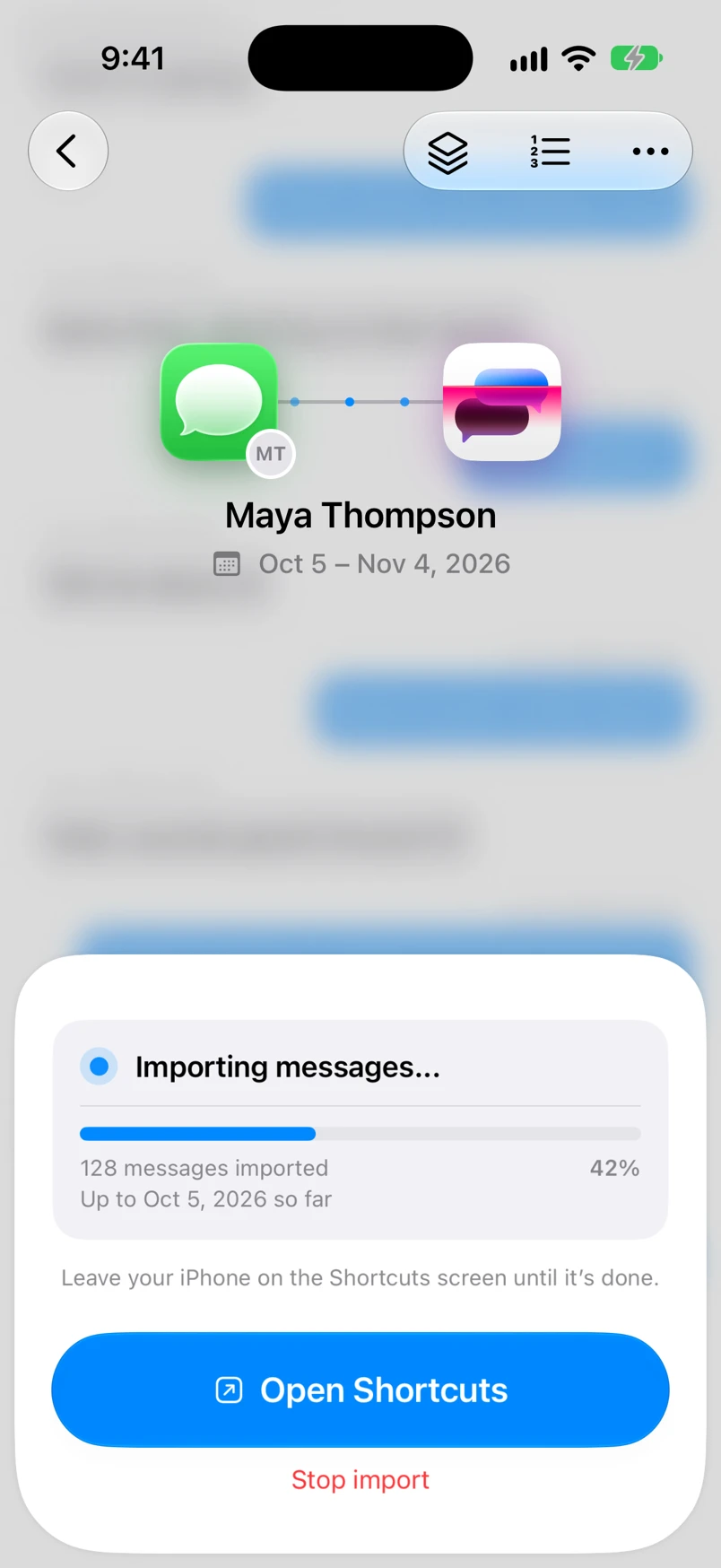
Check the count
Open TextPort. Look at the count on Importing messages.... If it goes up, the import works. Wait.
-
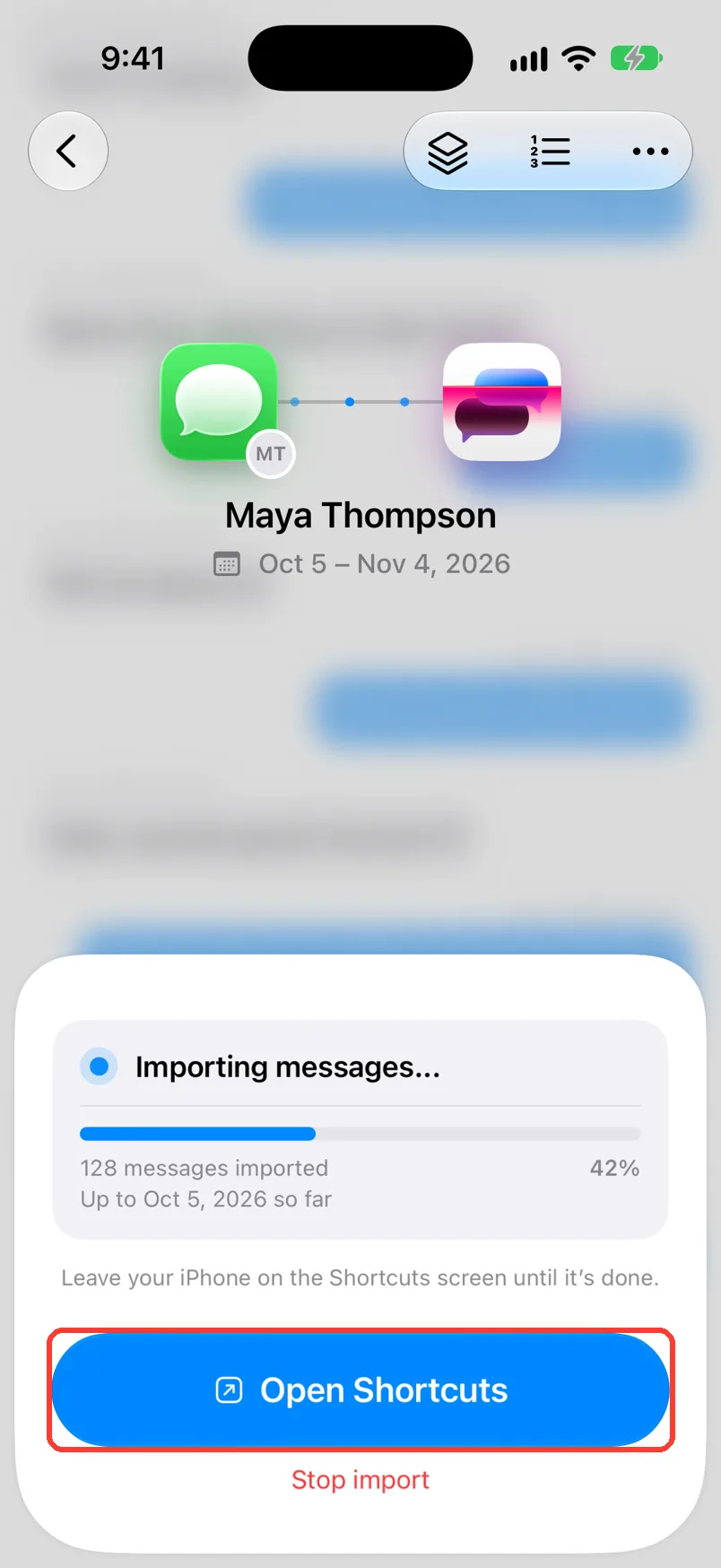
Tap Open Shortcuts
Leave Shortcuts on the screen. The count starts again.
-
Close and reopen Shortcuts
Swipe up from the bottom and hold. Swipe Shortcuts up and away. Then open TextPort and tap Open Shortcuts.
Do this only if the count has not moved for three minutes.
-
Restart your iPhone
Hold the side button and a volume button. Slide to power off. Turn the iPhone on again.
-
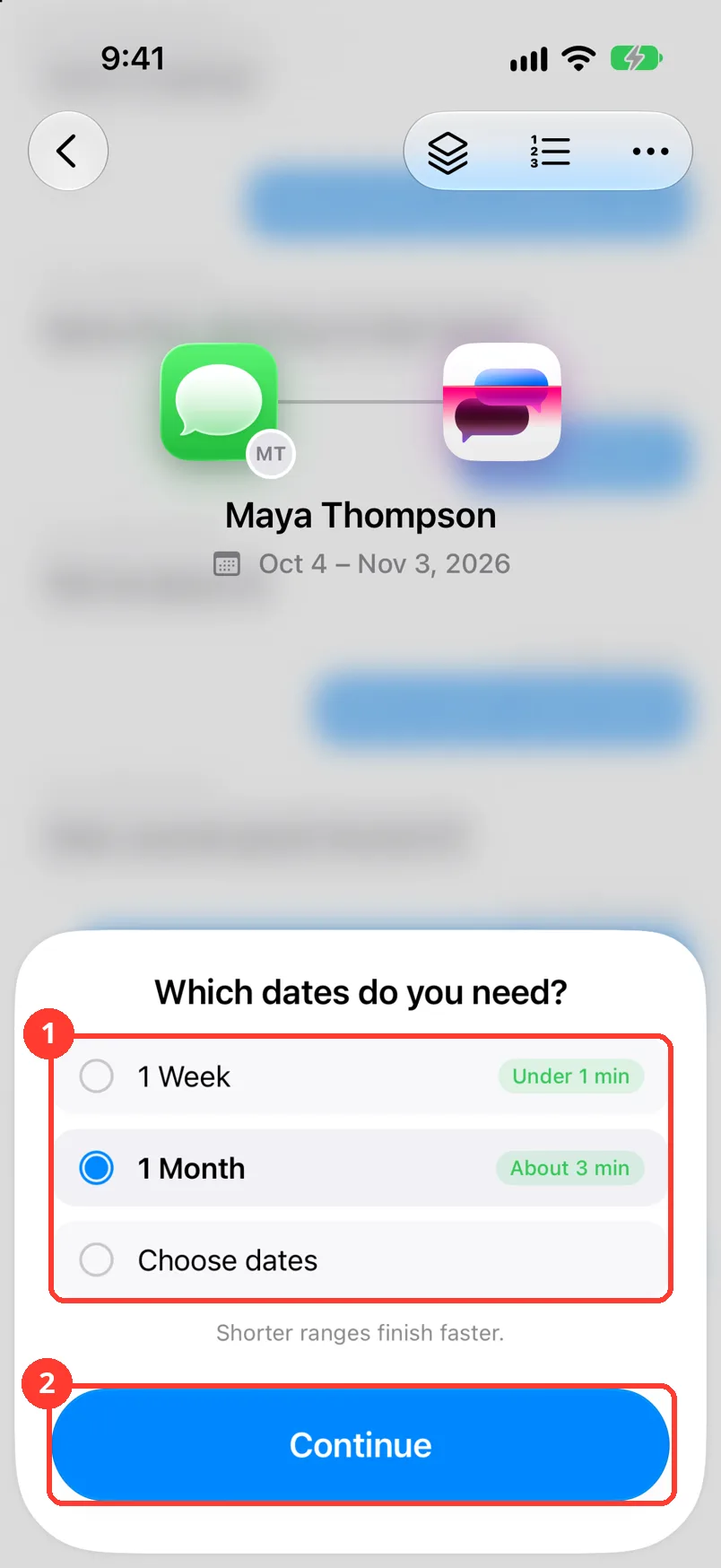
Tap a shorter range, then Continue
Start the import again. Tap 1 Week (1), or 1 Month on iOS 27. Tap Continue (2). Fewer days are less likely to stop.
-
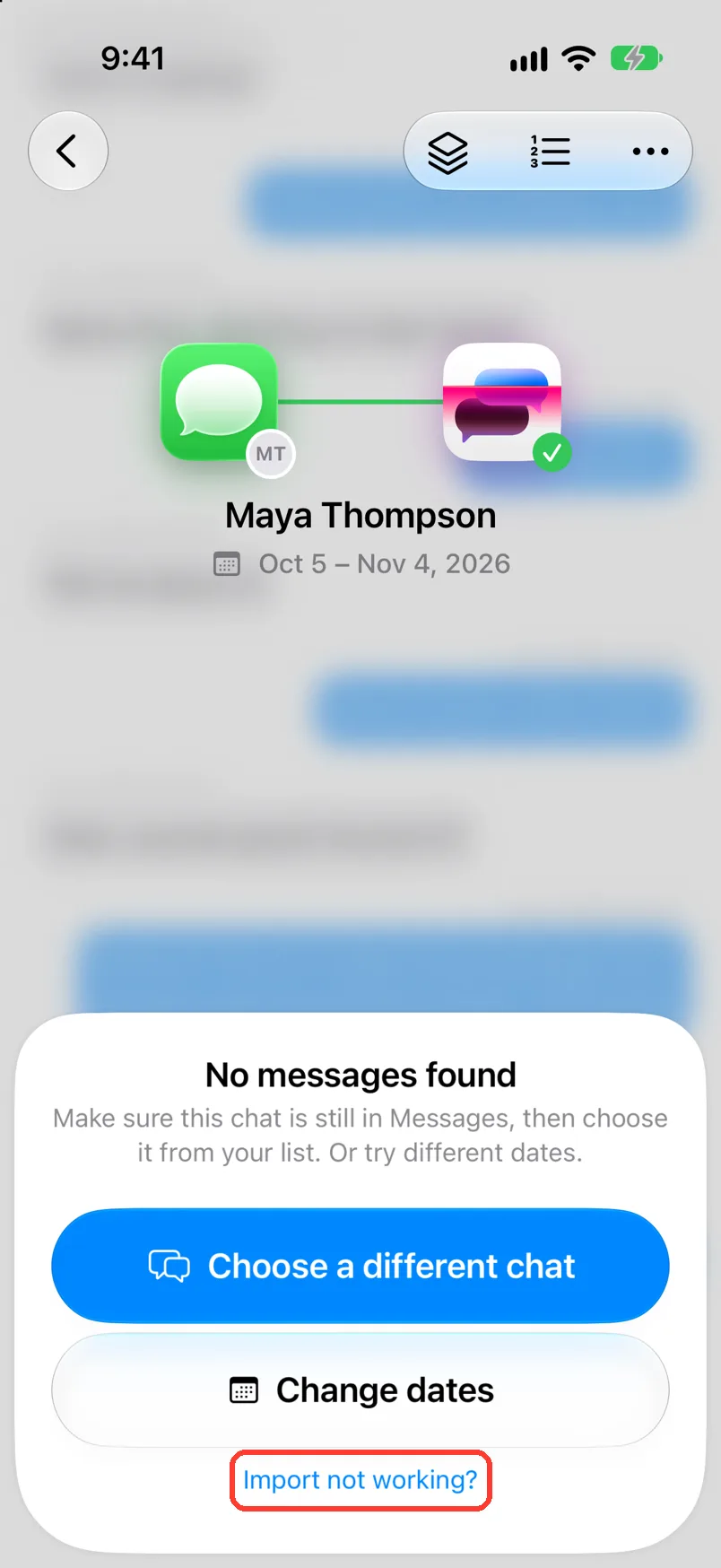
Tap Import not working?
It is at the bottom of the import card. Import not working? opens with a list of fixes.
-
Tap Contact support
Support opens. Type your email. Say which step you were on and what you saw. Tap Submit.
Done
The import is done. Or support has what it needs to help you.
Problems
The count goes up slowly.
The import works. Big group chats are slow. Wait.
The count has not moved for three minutes.
Do steps 2 and 3.
Shortcuts keeps searching. Or it says Messages quit.
Restart your iPhone (step 4). Then start again with fewer days.
Paused when you left
On iOS 27 the import runs in TextPort. It pauses when you leave TextPort. Tap Resume.
The import stopped
On iOS 27, tap Try again. Your messages so far are saved. If it stops again, tap Import not working?
The shortcut didn’t start
On iOS 27, tap Open Automations. Turn on When I get a notification from TextPort. Go back to TextPort. Tap Try again.
No messages found
The chat has no messages in those dates. Tap Change dates. Pick more days.
The import stops when the iPhone locks.
In iOS Settings, set Auto-Lock to Never for the import. Set it back after.
Shortcuts says the TextPort shortcut is missing.
In TextPort, tap Add Chat, then Import from Messages. Tap Add Shortcut again.
The import is done, but some photos are missing.
Old photos may still be in iCloud. See Recover missing photos and attachments.
Nothing works.
Use Import with Scroll Capture. It works for any chat. See Import a chat with Scroll Capture.
None of these match.
Email [email protected]. Say which step you were on. Say what you saw. We usually reply within a day.
Questions
-
Yes. Tap Stop import. TextPort asks Stop this import? Tap Stop and keep 120 messages (120 is your count) to save the messages it has. Tap Discard messages to throw them away.
-
iOS pauses Shortcuts when it goes to the background. The import then stops until Shortcuts is in front again.
Next guides
-
 How to import iMessage and SMS with the TextPort Shortcut
You will get a chat from Apple Messages saved in TextPort, with every message word for word.
How to import iMessage and SMS with the TextPort Shortcut
You will get a chat from Apple Messages saved in TextPort, with every message word for word.
-
 How to recover missing photos and attachments
You will get the photos, videos, and files that were missing after a Messages import.
How to recover missing photos and attachments
You will get the photos, videos, and files that were missing after a Messages import.
-
 How to import a chat with Scroll Capture
You will get a chat from any app saved in TextPort, made from a screen recording of you scrolling.
How to import a chat with Scroll Capture
You will get a chat from any app saved in TextPort, made from a screen recording of you scrolling.

Start exporting your messages
Available for iPhone, Mac, and Windows. No computer required.
