

How to import iMessage and SMS with the TextPort Shortcut
Quick answer
In TextPort:
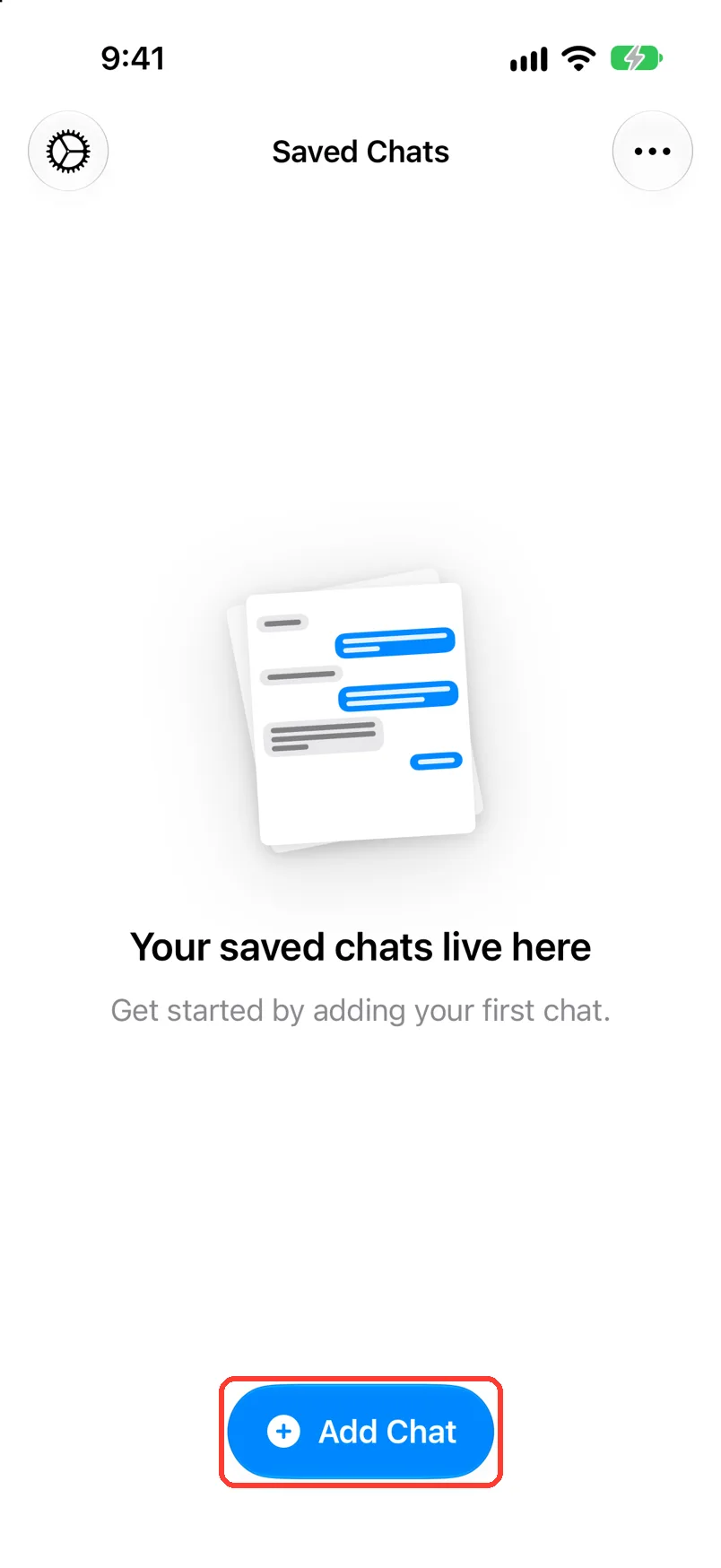
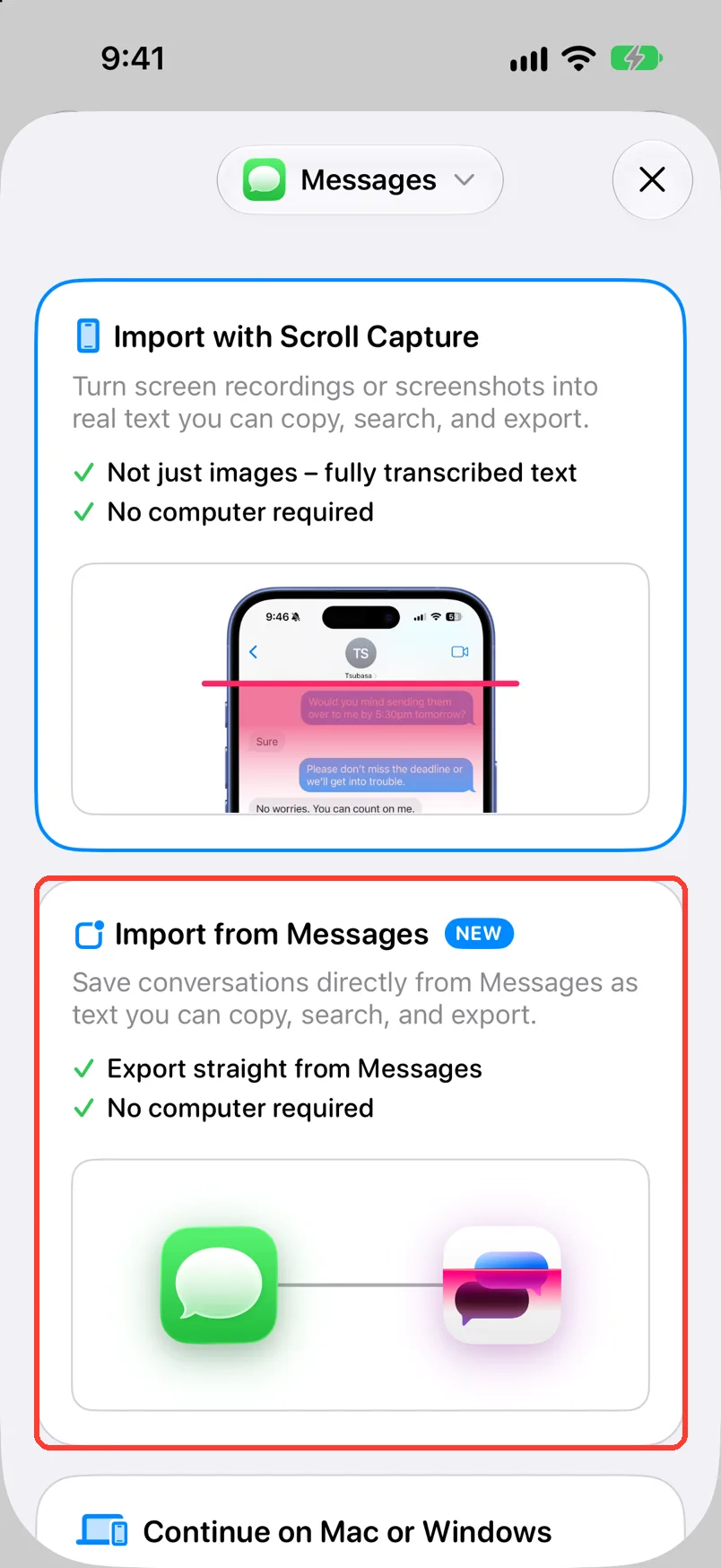
- Tap Add Chat, then Import from Messages.
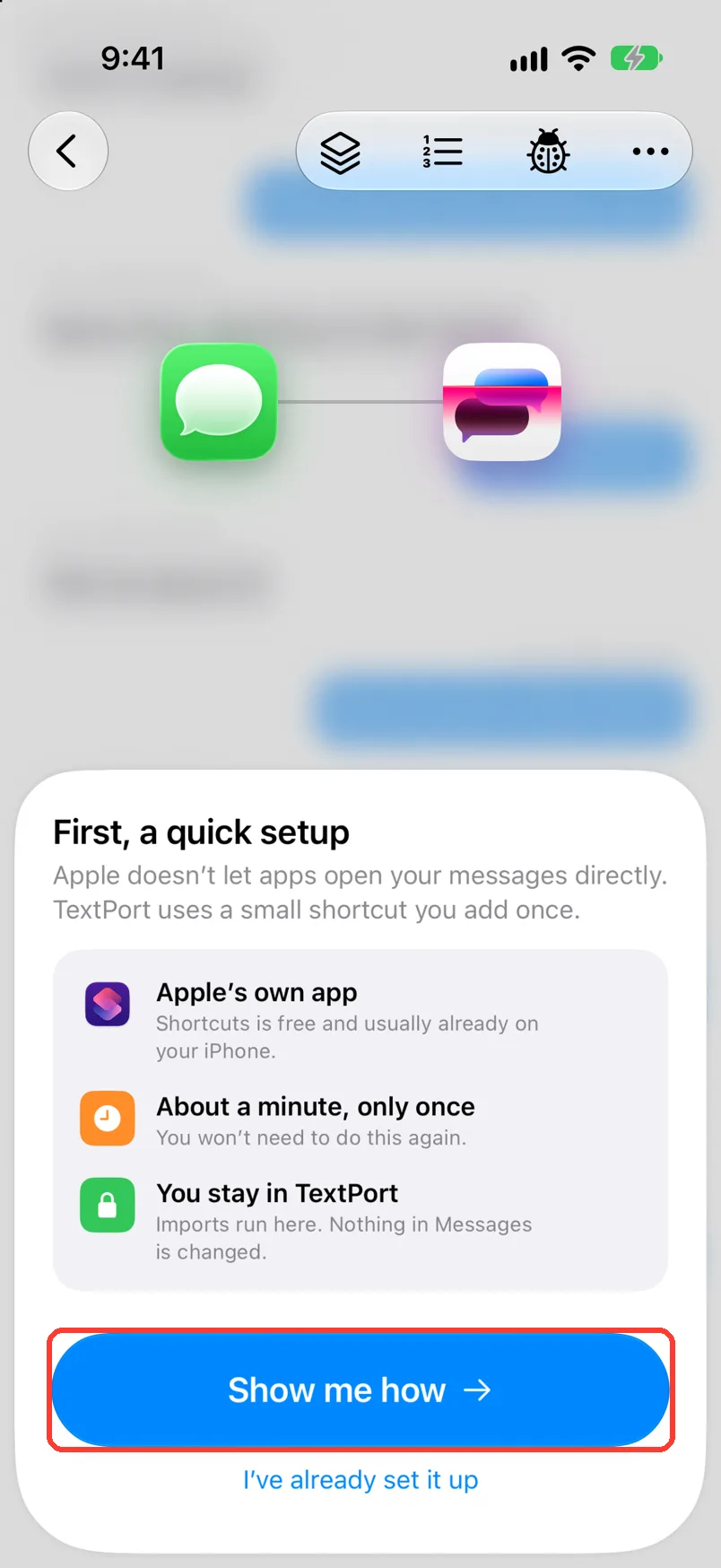
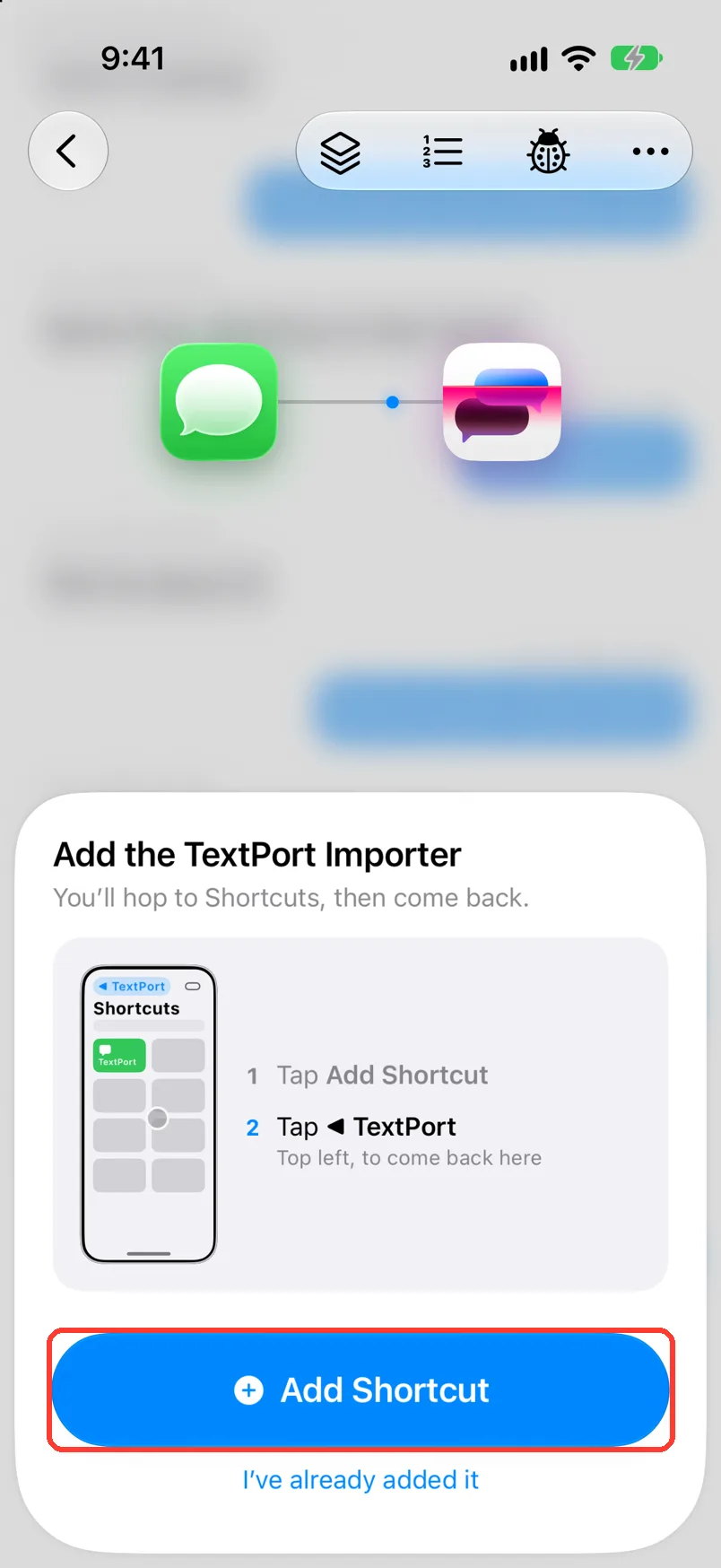
- First time only, add the shortcut: tap Show me how, then Add Shortcut.
- Tap Find chats. Pick the chat and the dates.
- Tap Start import.
- Keep TextPort open on iOS 27, or Shortcuts open on iOS 26, until it is done.
- Tap your name, then Finish import.
The chat then opens. It is also in Saved Chats.
- On Mac: How to install TextPort for Mac and give it Messages access
- On Windows: How to back up your iPhone to your PC with TextPort
What you need
- ✓TextPort on your iPhone
- ✓Apple's Shortcuts app (it comes with iOS)
Steps
-
Tap Add Chat
Open TextPort. It is at the bottom of Saved Chats.
-
Tap Import from Messages
Check that Messages is picked at the top.
iOS 27
-
Tap Show me how
You see this only the first time. The card says First, a quick setup.
If you set it up before, tap I’ve already set it up.
-
Tap Add Shortcut
The card says Add the TextPort Importer. Shortcuts opens.
-
Tap Add Shortcut in Shortcuts
Then tap ◀ TextPort in the top left. You are back in TextPort.
-
Tap Continue
Shortcuts opens once to check the shortcut. Then you are back in TextPort.
If Shortcuts asks for permission, tap Always Allow or Allow.
-
Tap Open Automations
The card says Turn on the automation. Shortcuts opens on Automation.
-
Turn on the automation
Find When I get a notification from TextPort. Turn it on. Then go back to TextPort.
-
Tap I’ve turned it on
TextPort may ask for notifications next. The card says Allow notifications.
-
Tap Allow notifications
When iOS asks, tap Allow. The card says Next, find your chats.
If you see Turn on notifications, tap Open Settings. Turn on Allow Notifications.
-
Tap Find chats
TextPort shows Finding your chats…. Then your chats show.
-
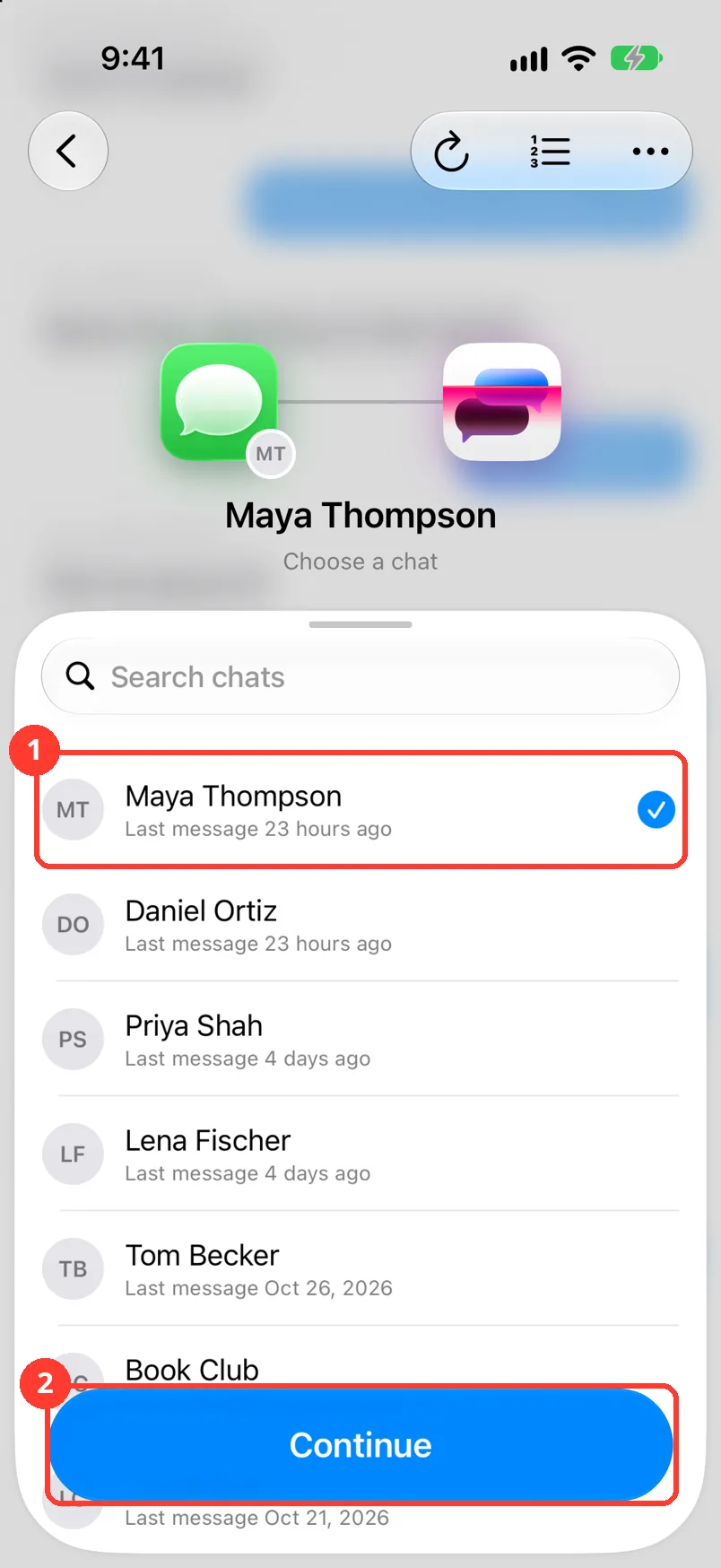
Tap the chat, then Continue
Tap the chat (1). You can search by name. Tap Continue (2). Which dates do you need? opens.
-
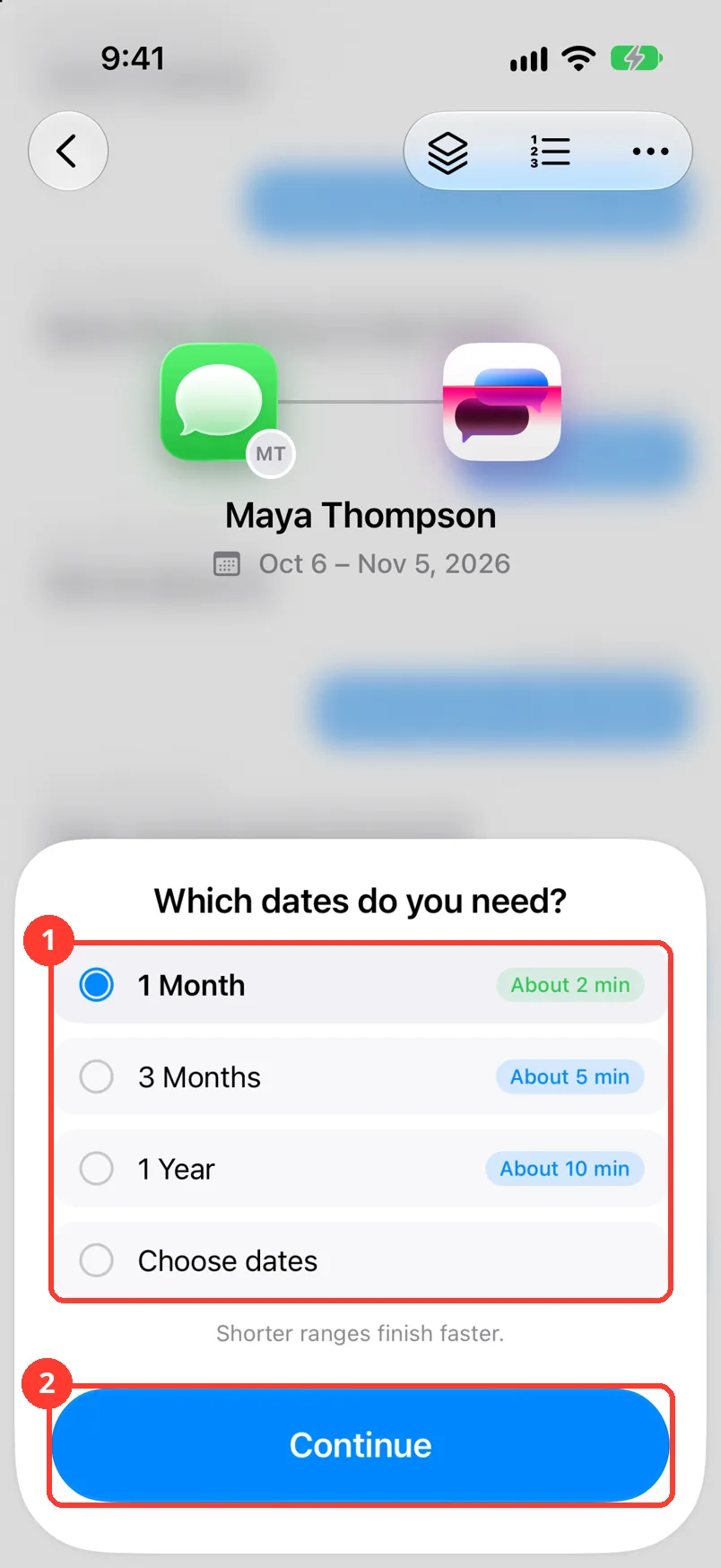
Tap the dates, then Continue
Tap 1 Month, 3 Months, 1 Year, or Choose dates (1). Tap Continue (2). What happens next opens.
-
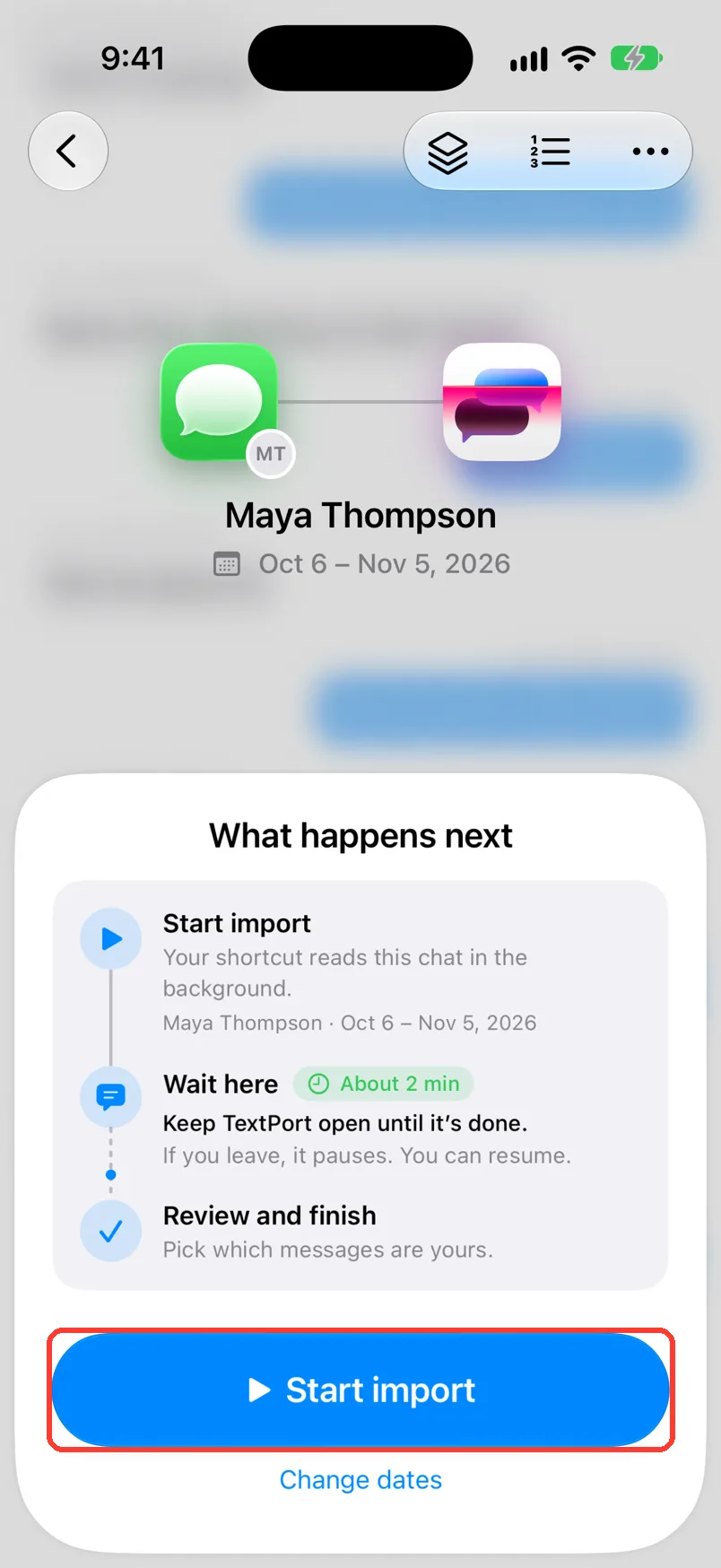
Tap Start import
TextPort shows Importing your messages and a progress bar.
-
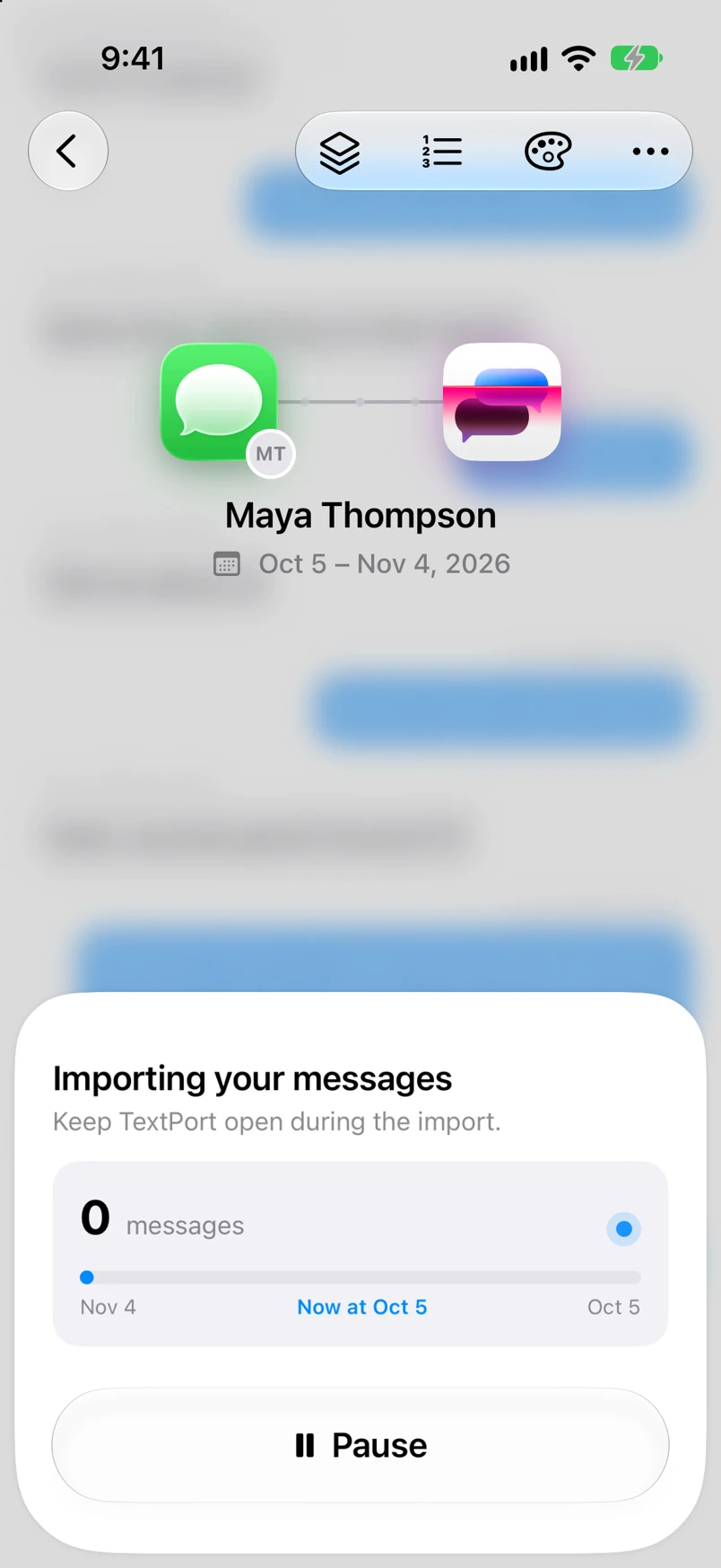
Keep TextPort open
Stay in TextPort until it is done. If you leave, the import pauses.
If you see Paused when you left, tap Resume.
iOS 26 and earlier
-
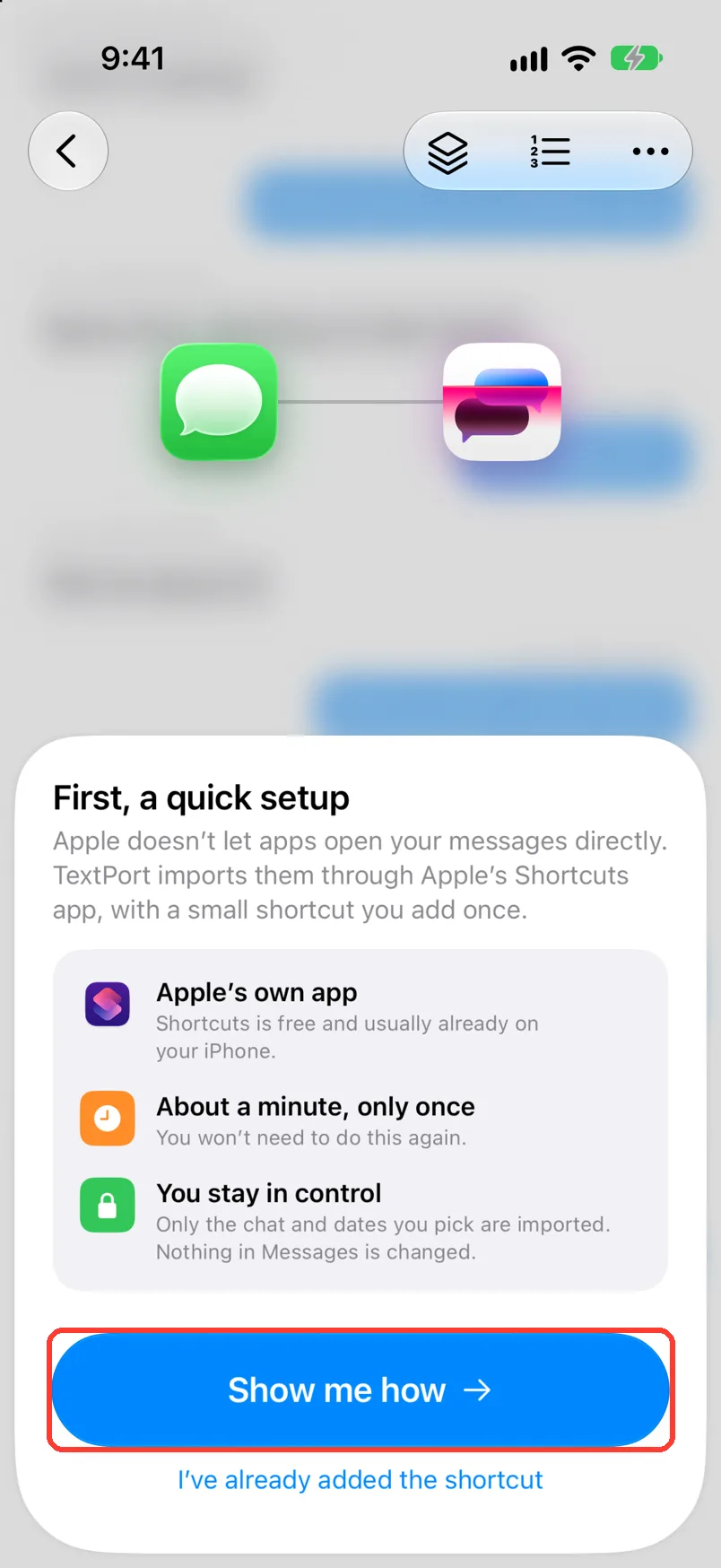
Tap Show me how
You see this only the first time. The card says First, a quick setup.
If you added it before, tap I’ve already added the shortcut.
-
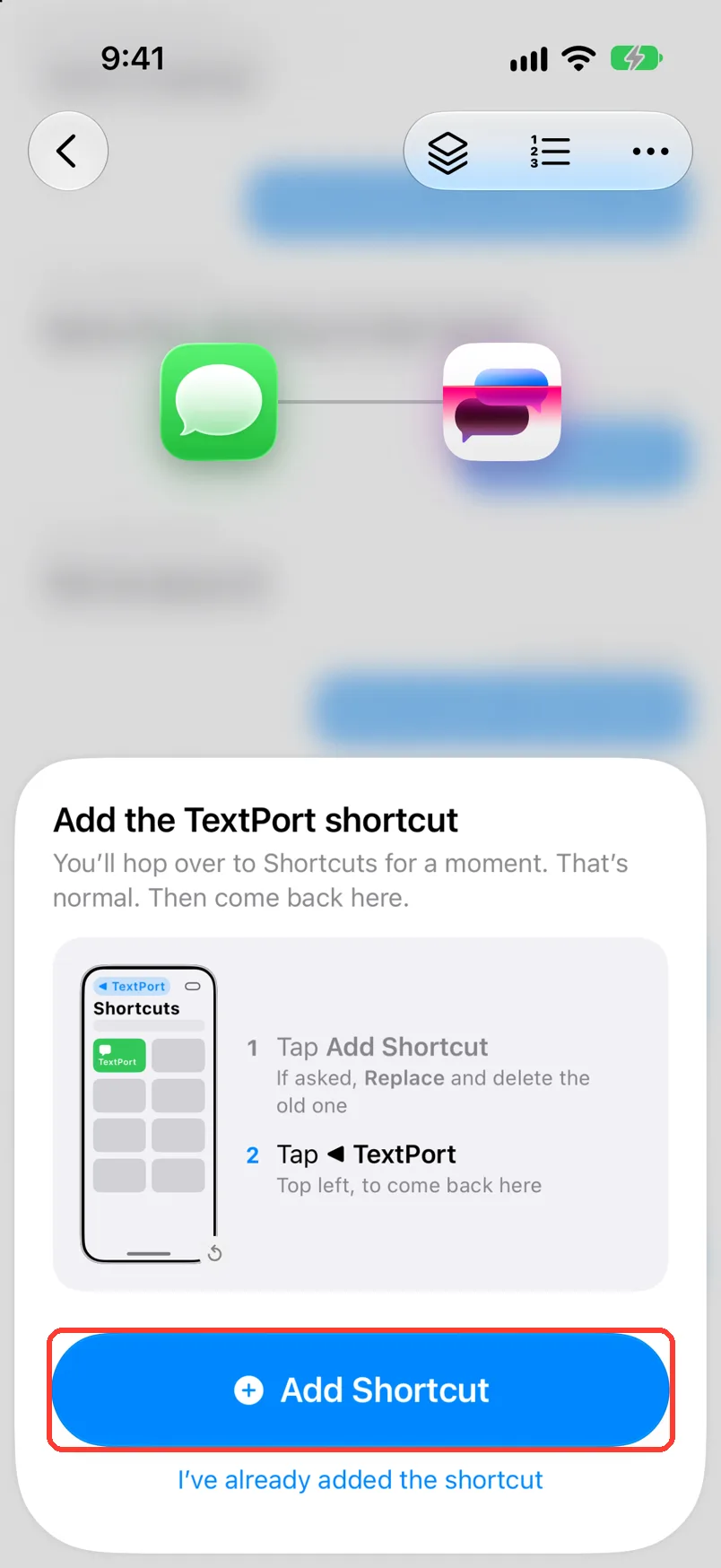
Tap Add Shortcut
The card says Add the TextPort shortcut. Shortcuts opens.
-
Tap Add Shortcut in Shortcuts
Scroll down to find it. Then go back to TextPort.
-
Tap Find chats
Shortcuts opens for a moment. Then your chats show in TextPort.
If Shortcuts asks for permission, tap Always Allow or Allow.
-
Tap the chat, then Continue
Tap the chat (1). You can search by name. Tap Continue (2). Which dates do you need? opens.
-
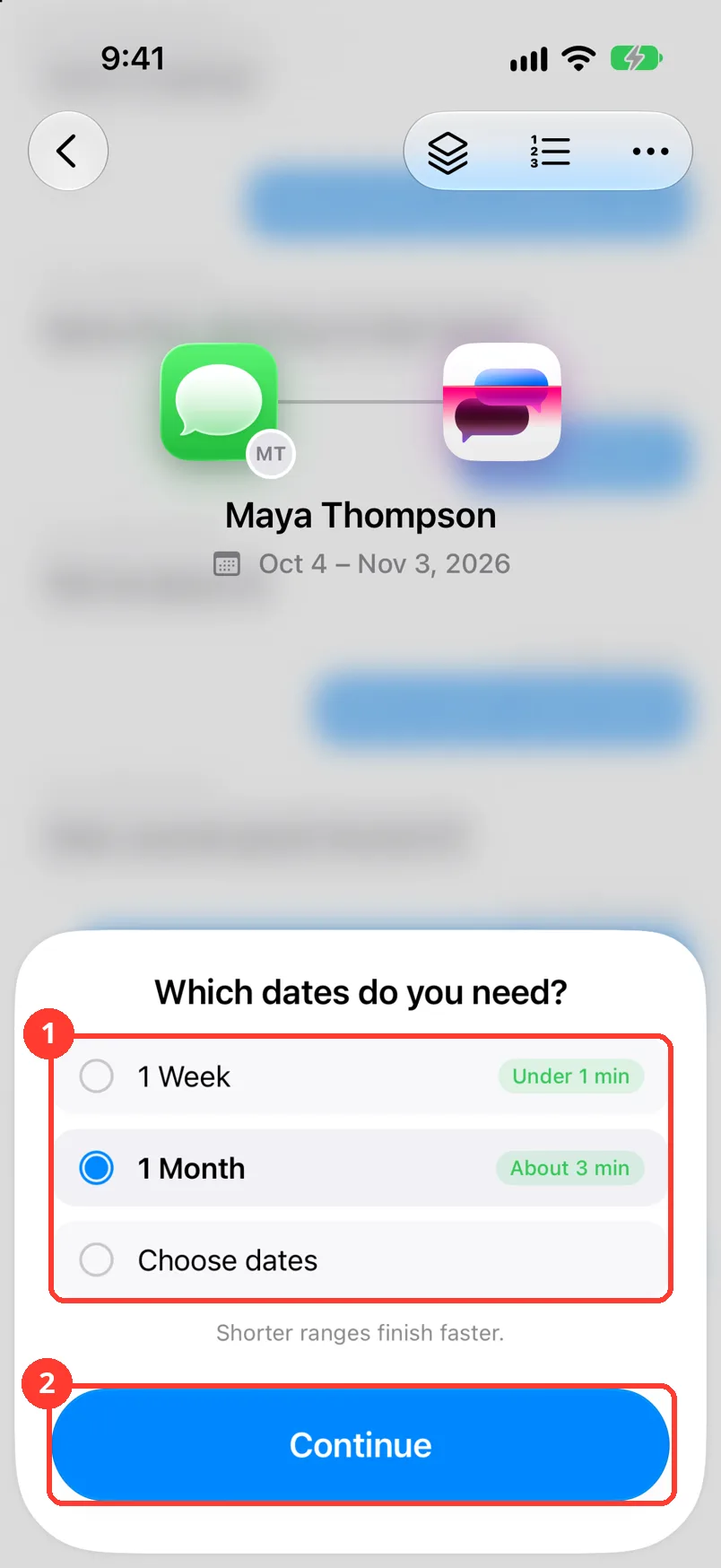
Tap the dates, then Continue
Tap 1 Week, 1 Month, or Choose dates (1). Tap Continue (2). What happens next opens.
-
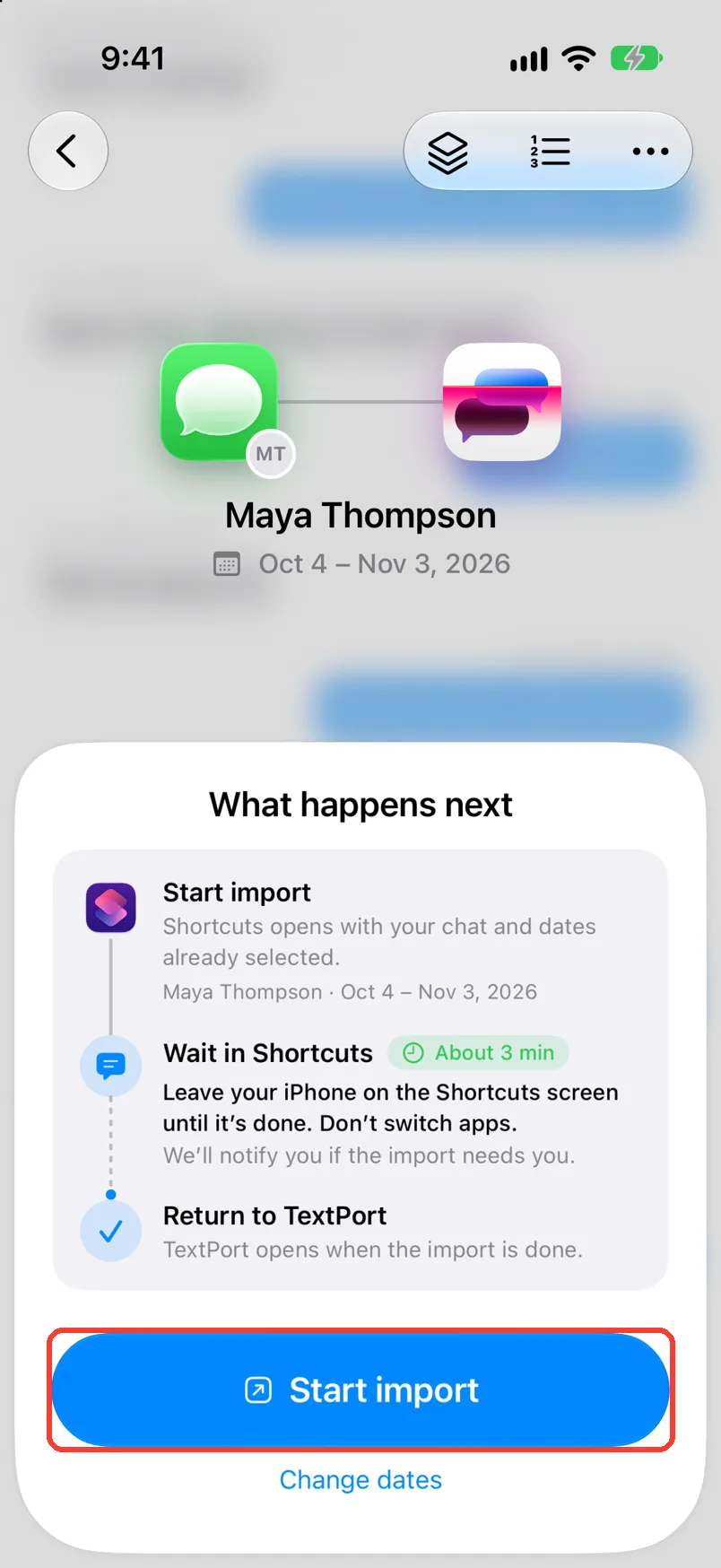
Tap Start import
Shortcuts opens and collects your messages.
-
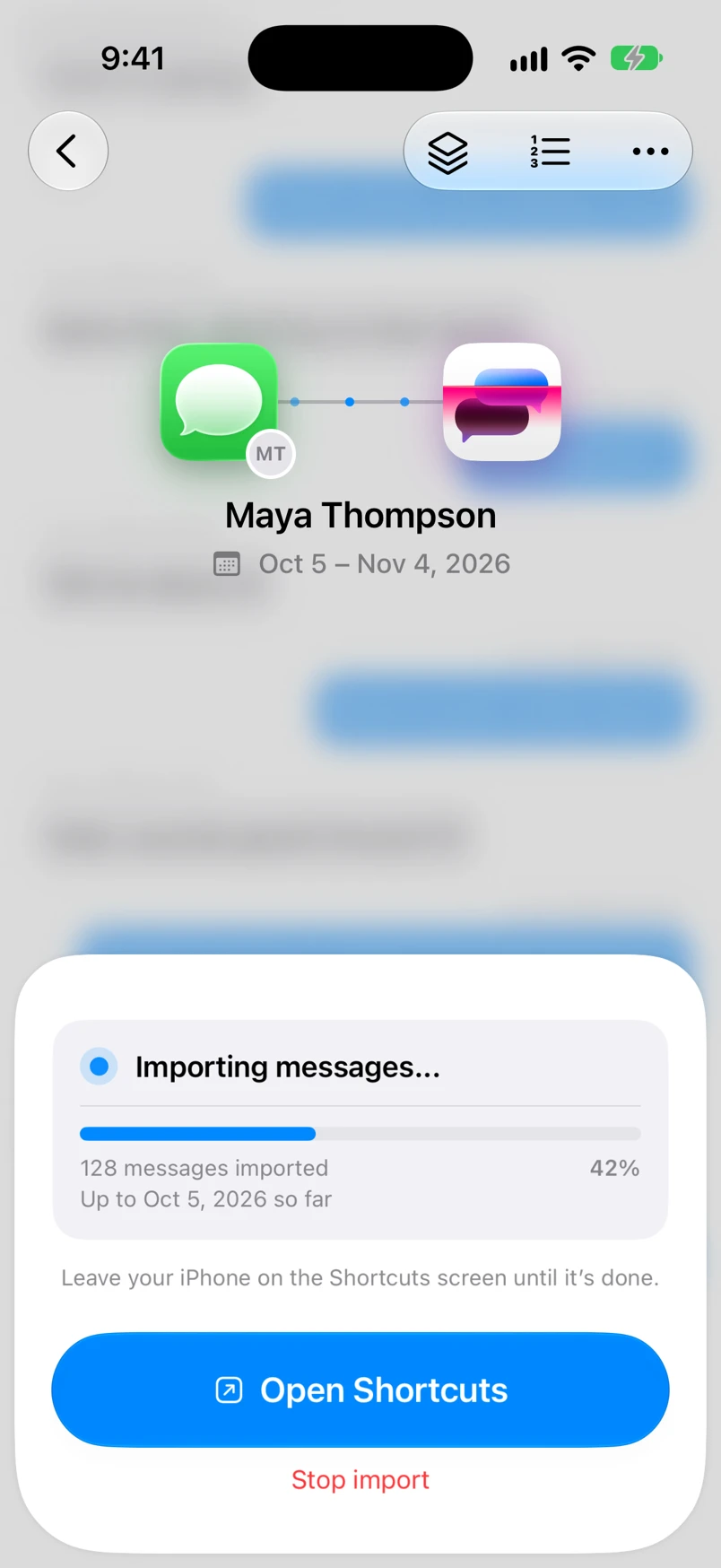
Keep Shortcuts open
Do not close Shortcuts. Do not lock your iPhone. TextPort shows Importing messages... and a count.
If the count stops, tap Open Shortcuts.
-
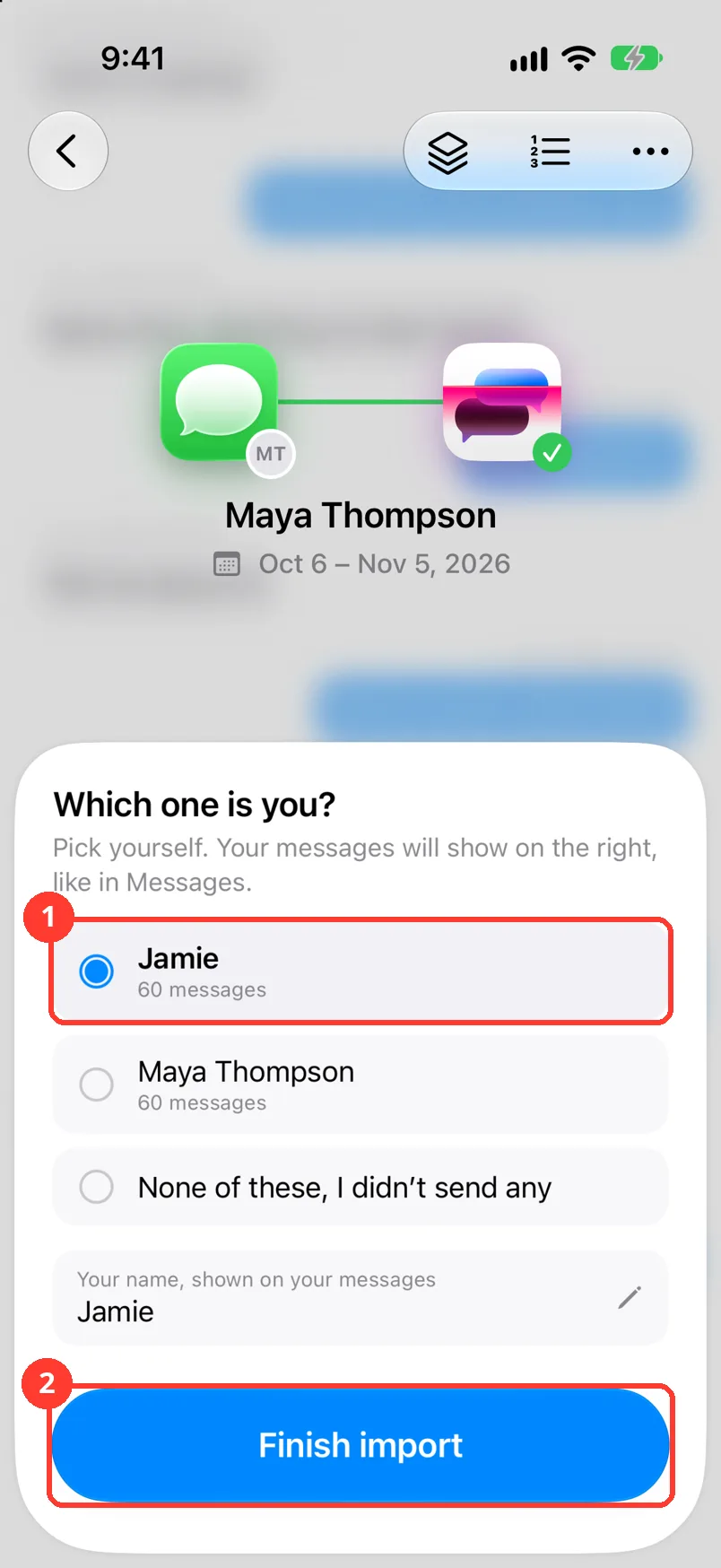
Tap your name, then Finish import
When the import is done, TextPort asks Which one is you? Tap your name (1). Tap Finish import (2).
-
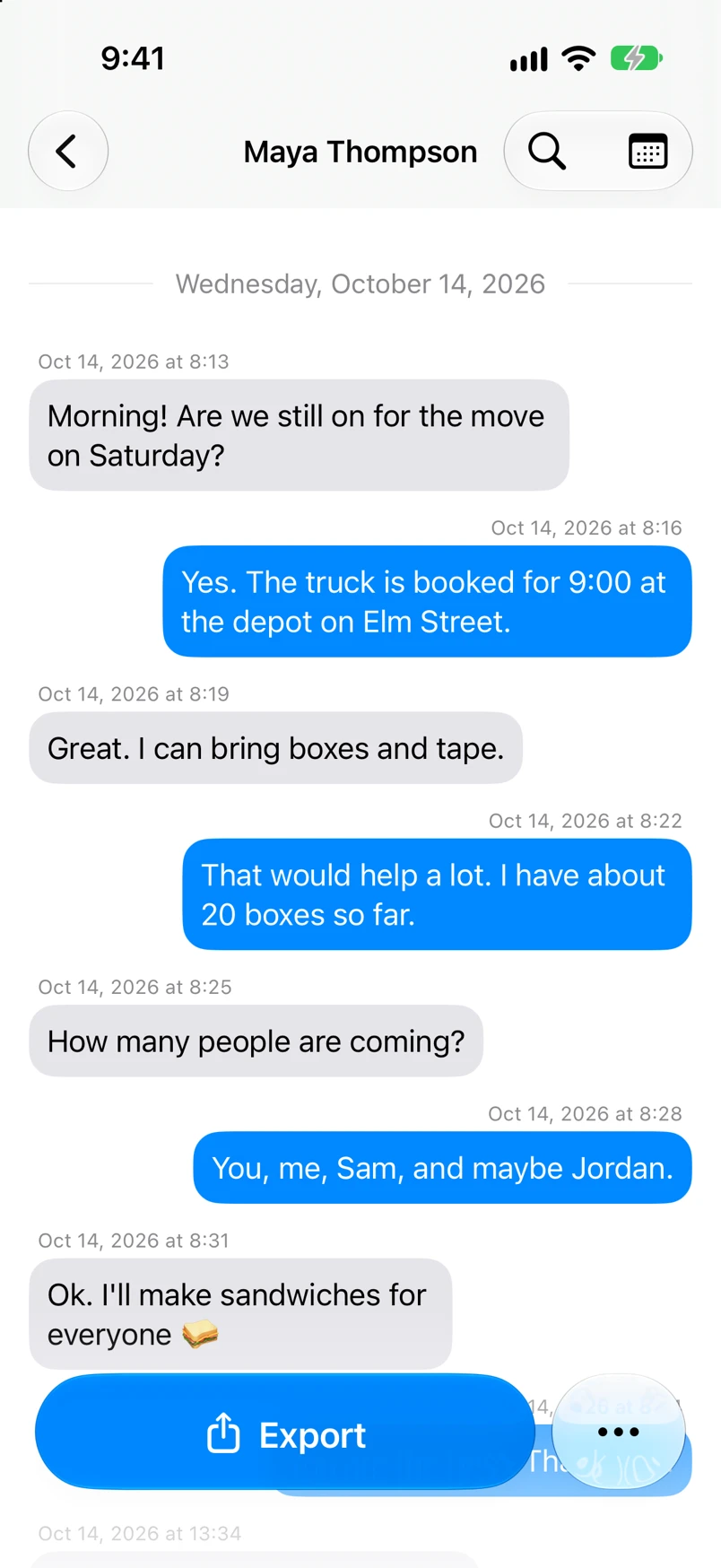
Read the chat
The chat opens by itself with every message. It is also in Saved Chats.
Done
The chat is saved in TextPort. Every message has its date and time.
Problems
Your iPhone has iOS 27, but the card says Add the TextPort shortcut.
TextPort shows the older flow on your iPhone. Follow the iOS 26 and earlier steps.
The count stops going up.
No messages found
The chat has no messages in those dates. Tap Change dates. Pick more days.
Some photos are missing.
Tap the gray box where the photo should be. See Recover missing photos and attachments.
There is no Import from Messages card.
Update iOS and TextPort. It needs iOS 26 or newer. Or use Import with Scroll Capture.
None of these match.
Email [email protected]. Say which step you were on. Say what you saw. We usually reply within a day.
Questions
-
Apps cannot read Messages by themselves. Apple's Shortcuts app can, if you allow it. The shortcut reads the chat and gives it to TextPort.
-
First it reads your list of chats, so you can pick one. Then it reads only the chat and the dates you pick. You can see every step of it in the Shortcuts app.
-
No. Import one chat. Then start again for the next one.
-
It depends on how many messages there are. A big chat can take several minutes. Fewer days is faster.
Next guides
-
 How to install the TextPort Shortcut
You will have the TextPort shortcut on your iPhone, ready to find your chats.
How to install the TextPort Shortcut
You will have the TextPort shortcut on your iPhone, ready to find your chats.
-
 How to choose a chat and dates for a Messages import
You will have the right chat and the right dates picked, ready to start the import.
How to choose a chat and dates for a Messages import
You will have the right chat and the right dates picked, ready to start the import.
-
 How to tell TextPort which person is you
Your own messages will show on the right side of the chat, marked as yours.
How to tell TextPort which person is you
Your own messages will show on the right side of the chat, marked as yours.
-
 How to fix a stuck or failed Shortcut import
You will get a Messages import that finishes, or know exactly what to tell support.
How to fix a stuck or failed Shortcut import
You will get a Messages import that finishes, or know exactly what to tell support.
-
 How to recover missing photos and attachments
You will get the photos, videos, and files that were missing after a Messages import.
How to recover missing photos and attachments
You will get the photos, videos, and files that were missing after a Messages import.
-
 How to export a chat to PDF
You will get a PDF of one chat, with names, dates, and times, ready to share or print.
How to export a chat to PDF
You will get a PDF of one chat, with names, dates, and times, ready to share or print.

Start exporting your messages
Available for iPhone, Mac, and Windows. No computer required.
