

How to choose a chat and dates for a Messages import
Quick answer
In a Messages import:
- Tap Find chats.
- Tap the chat. Tap Continue.
- Tap a date range, or Choose dates. Tap Continue.
- Tap Start import.
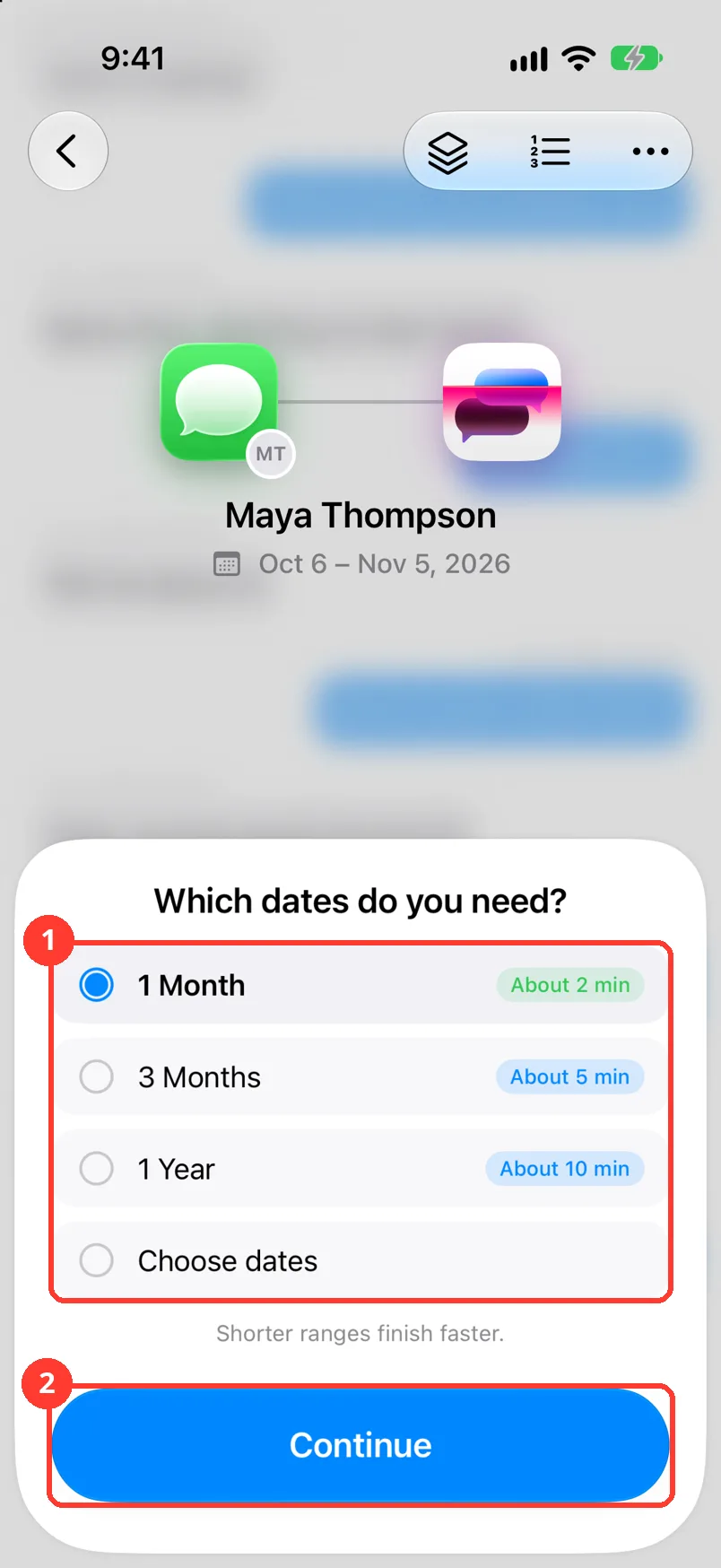
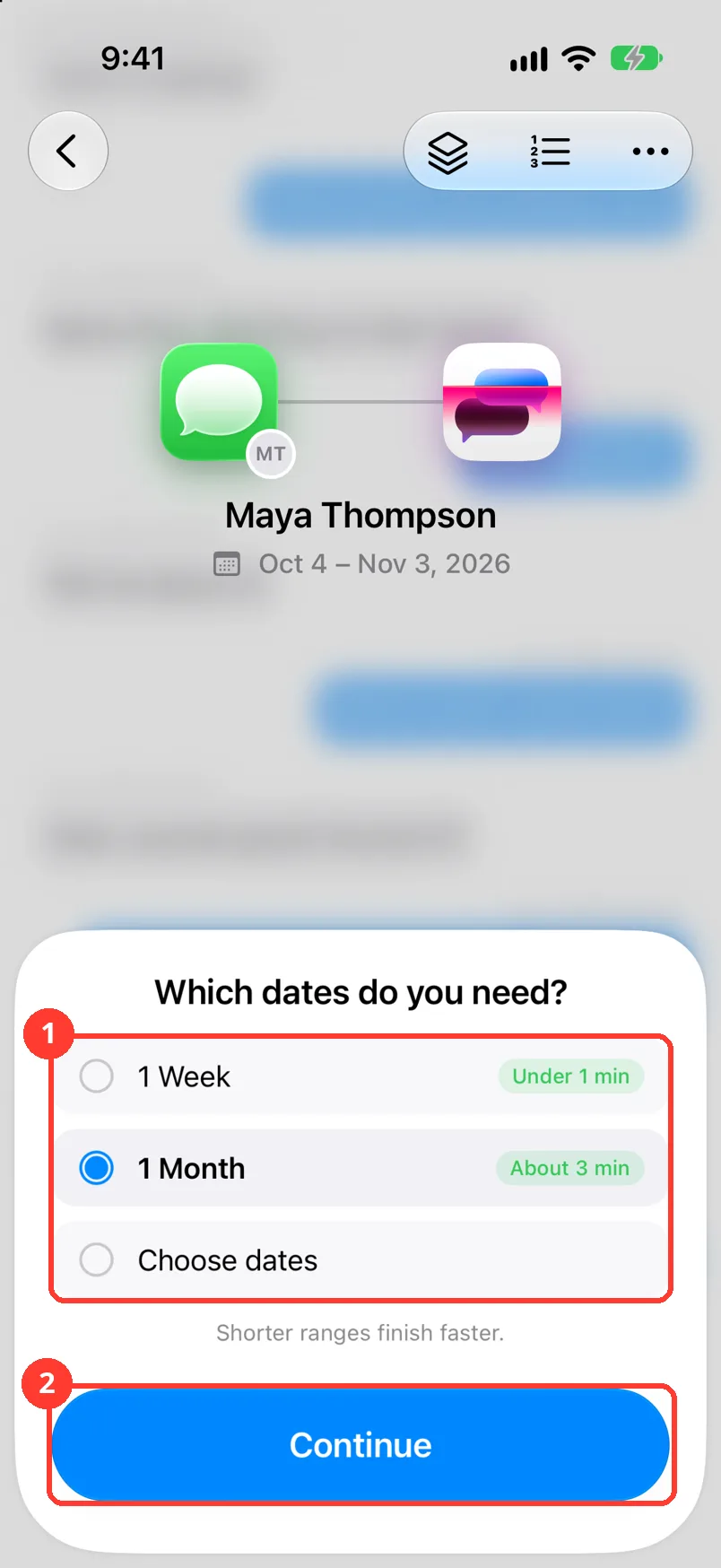
On iOS 27 the ranges are 1 Month, 3 Months, and 1 Year. On iOS 26 they are 1 Week and 1 Month.
What you need
- ✓TextPort on your iPhone
- ✓The TextPort shortcut on your iPhone
Steps
-
Tap Find chats
The card says Next, find your chats. TextPort shows Finding your chats…. Then your chats show.
No such card? First install the TextPort Shortcut.
-
Tap the chat, then Continue
Tap the chat (1). You can search by name. Tap Continue (2). Which dates do you need? opens.
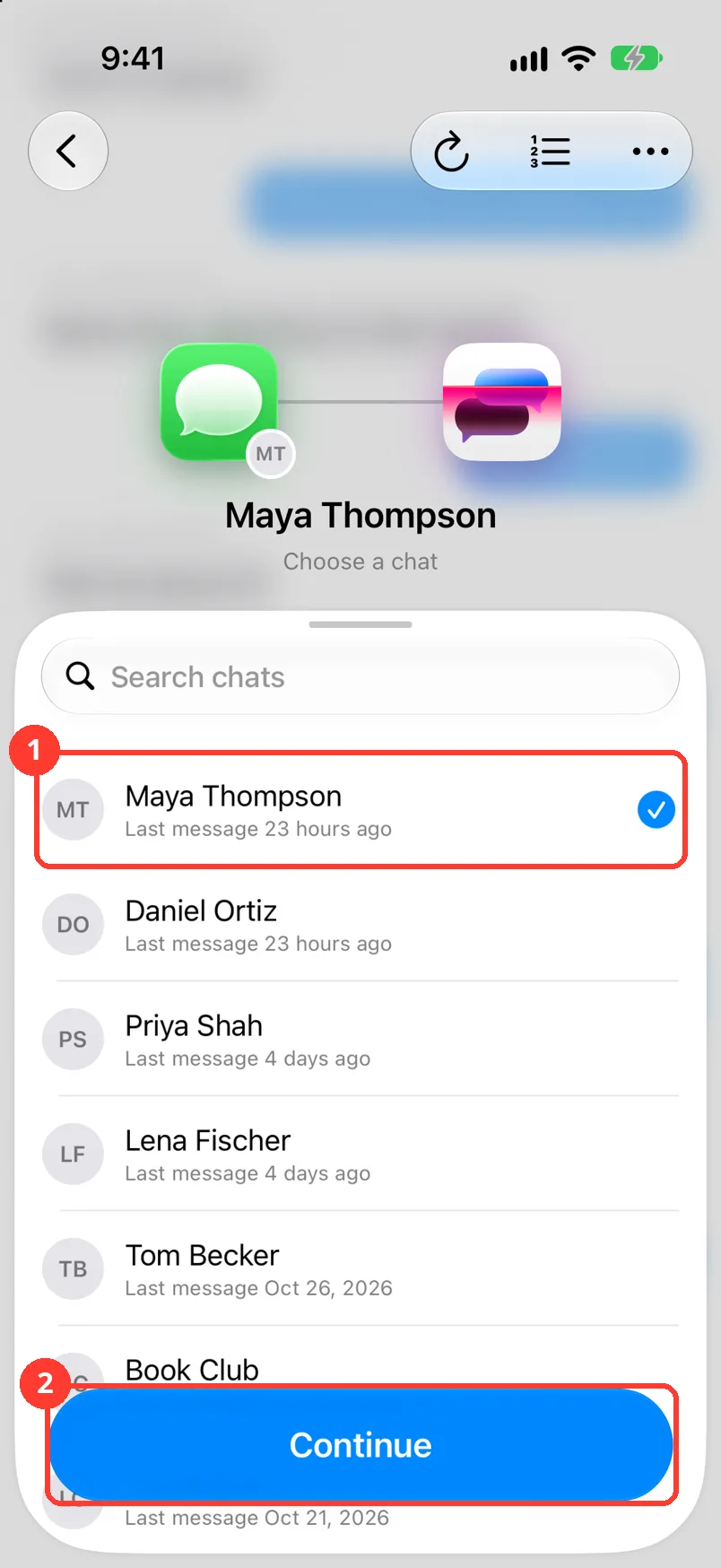
iOS 27
-
Tap the dates, then Continue
Tap 1 Month, 3 Months, 1 Year, or Choose dates (1). Tap Continue (2). What happens next opens.
iOS 26 and earlier
-
Tap the dates, then Continue
Tap 1 Week, 1 Month, or Choose dates (1). Tap Continue (2). What happens next opens.
-
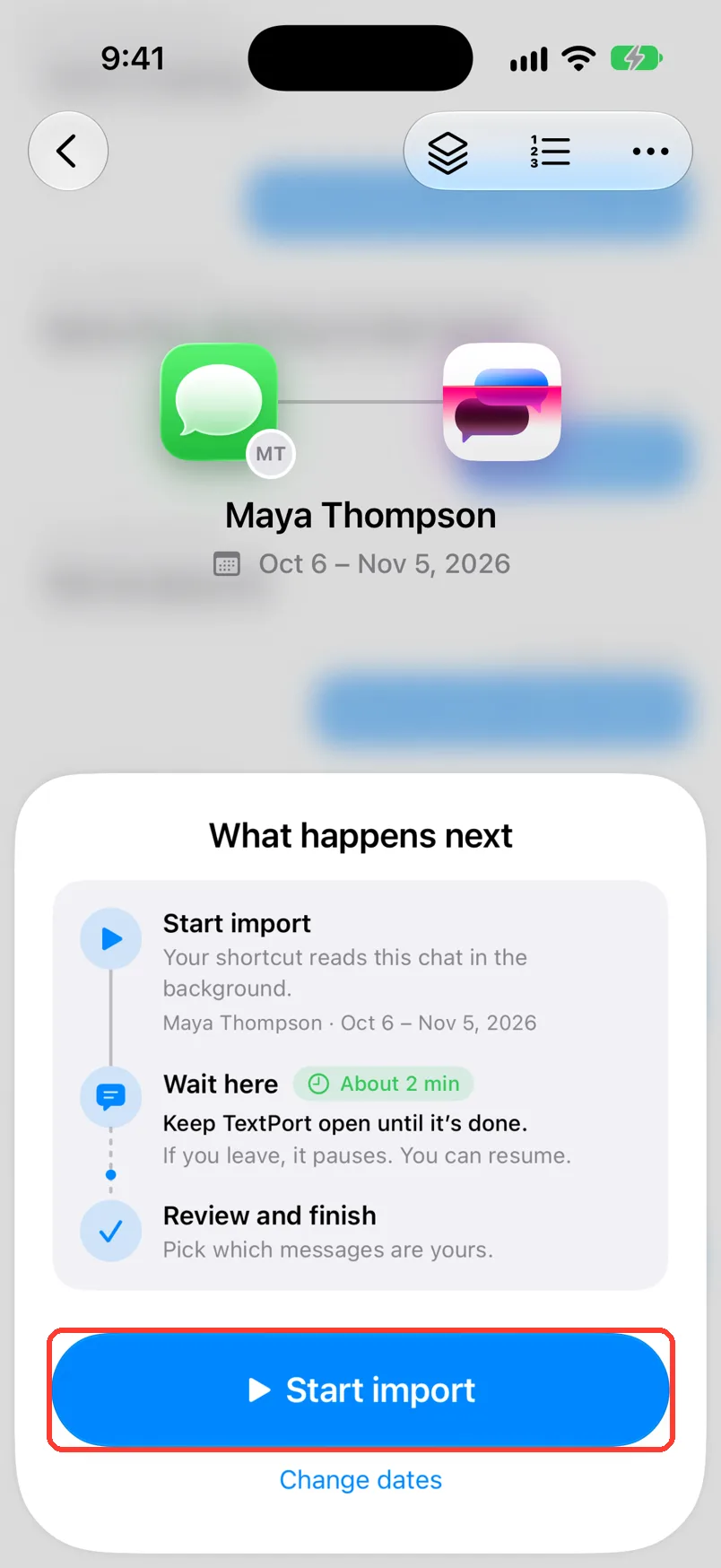
Tap Start import
It is on What happens next. To change the days first, tap Change dates. Then see the import guide.
Done
TextPort is importing the chat you picked, for the dates you picked.
Problems
Your iPhone has iOS 27, but you see 1 Week.
TextPort shows the older flow on your iPhone. Follow the iOS 26 and earlier steps.
You need exact days.
Tap Choose dates. Tap the date next to Start date and pick a day. Do the same for End date. Then tap Continue.
Your chat is not in the list.
Scroll to the end of the list. Tap Find more chats. Or tap Choose from Contacts. The name must match Messages exactly.
No messages found
Tap Change dates and pick more days. Or tap Choose a different chat and pick it from the list.
TextPort says This may take a long time.
Tap Continue anyway. Or tap Change dates and pick fewer days.
This date range contains more than 200,000 messages. Choose a shorter range.
Tap Choose dates. Pick fewer days. Then import the other days as a second chat.
Search stopped
Tap Find chats again. On iOS 26, keep Shortcuts open while it looks.
None of these match.
Email [email protected]. Say which step you were on. Say what you saw. We usually reply within a day.
Questions
-
TextPort shows a guess next to each range. Shorter ranges finish faster. A big chat can take longer.
-
Yes. Tap Choose dates. Set Start date to before the first message.
-
No. Import one chat. Then start again for the next one.
Next guides
-
 How to import iMessage and SMS with the TextPort Shortcut
You will get a chat from Apple Messages saved in TextPort, with every message word for word.
-
 How to tell TextPort which person is you
Your own messages will show on the right side of the chat, marked as yours.
-
 How to fix a stuck or failed Shortcut import
You will get a Messages import that finishes, or know exactly what to tell support.

Start exporting your messages
Available for iPhone, Mac, and Windows. No computer required.
