

How to install the TextPort Shortcut
Quick answer
In TextPort:
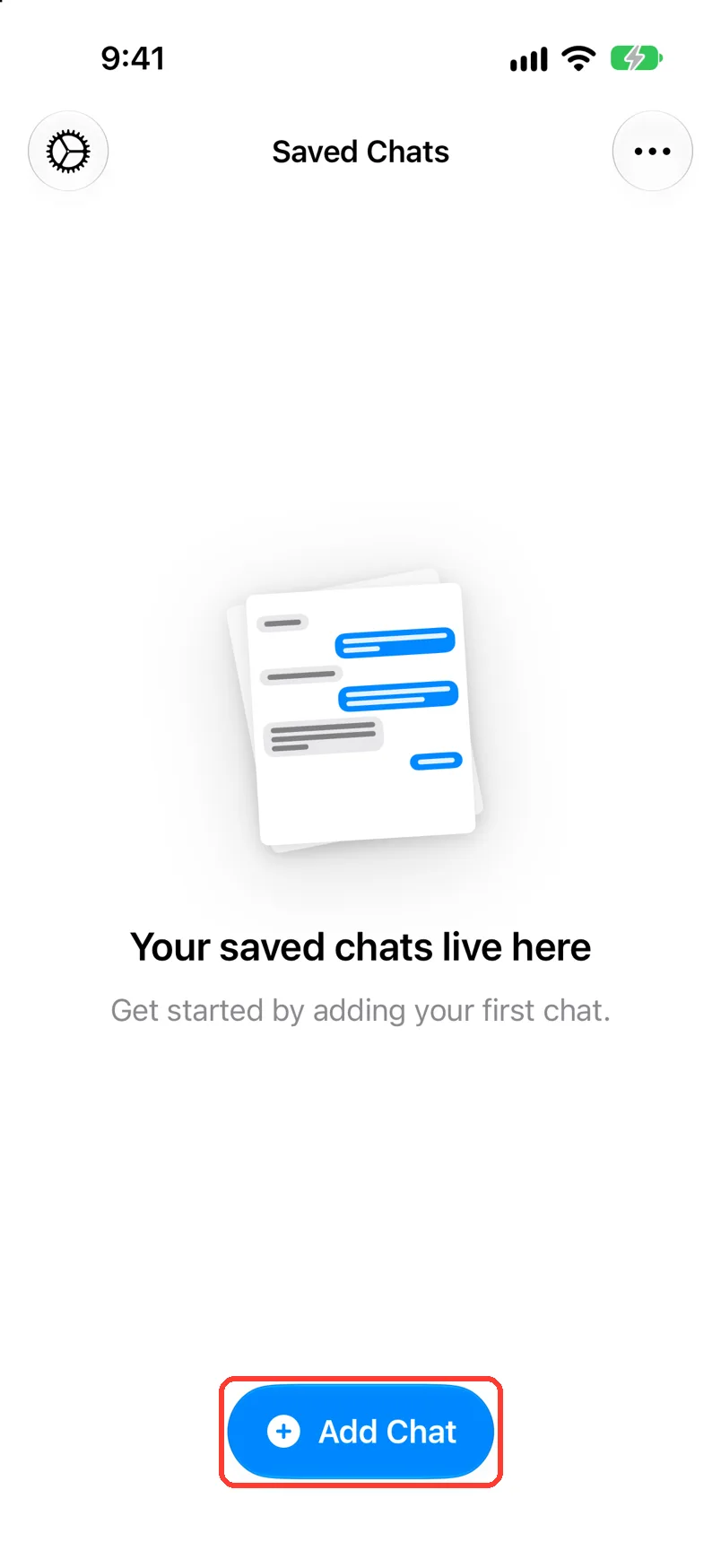
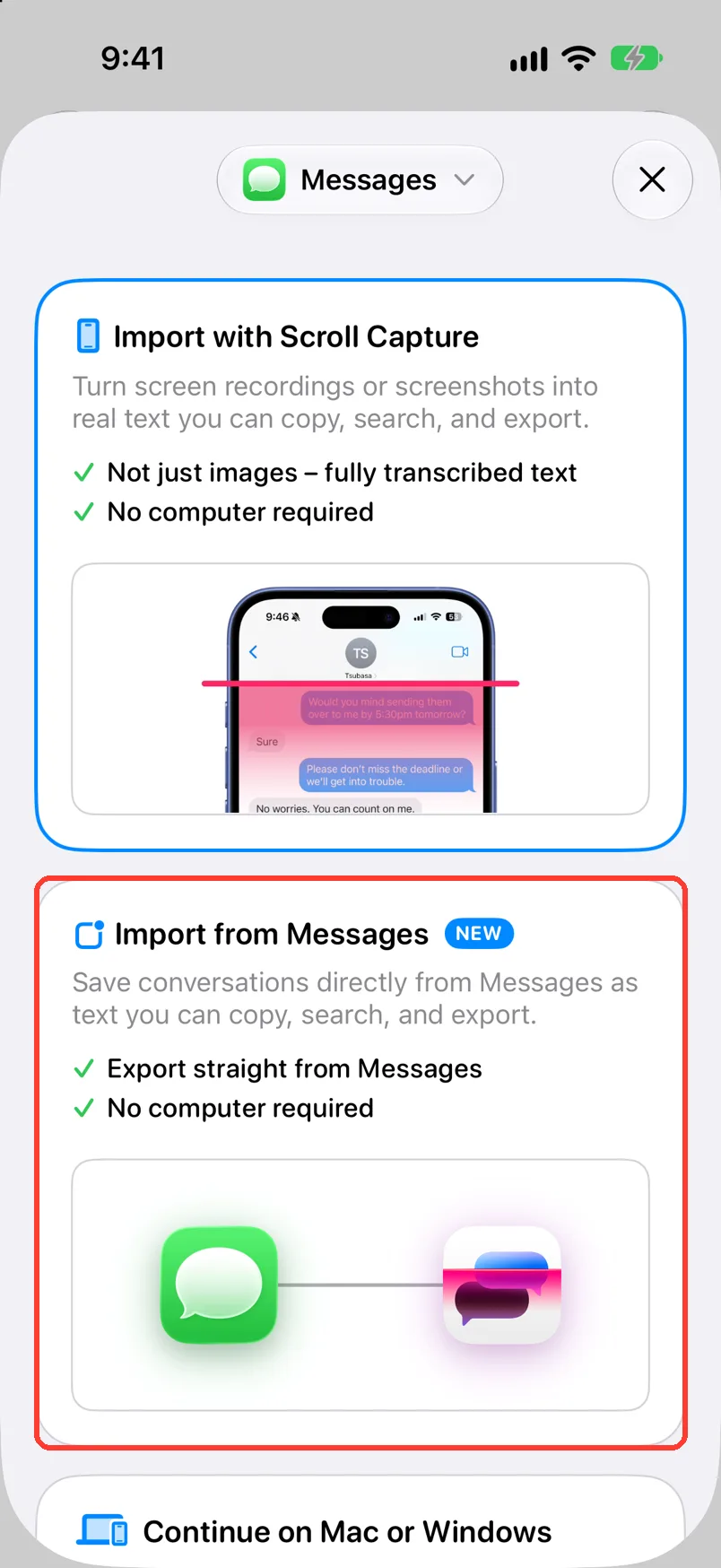
- Tap Add Chat, then Import from Messages.
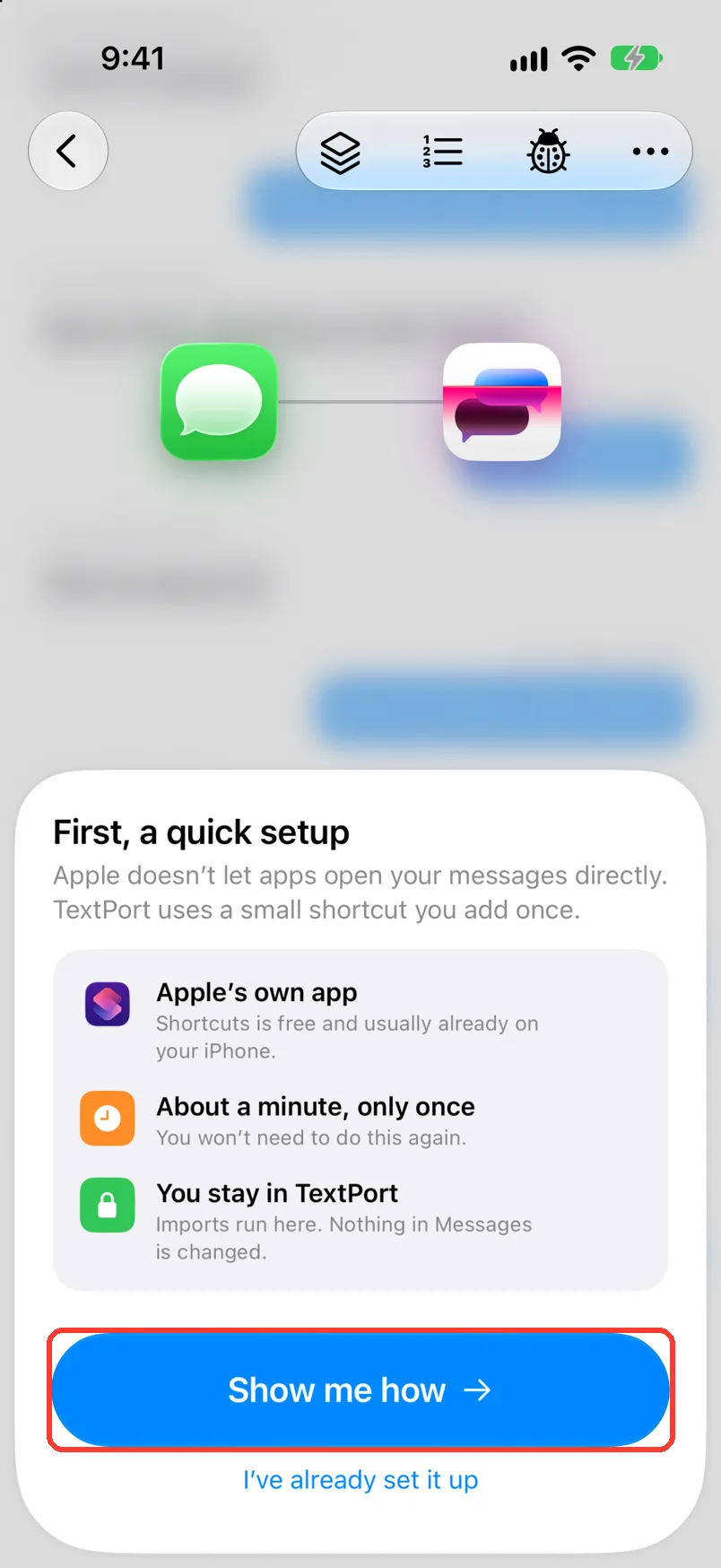
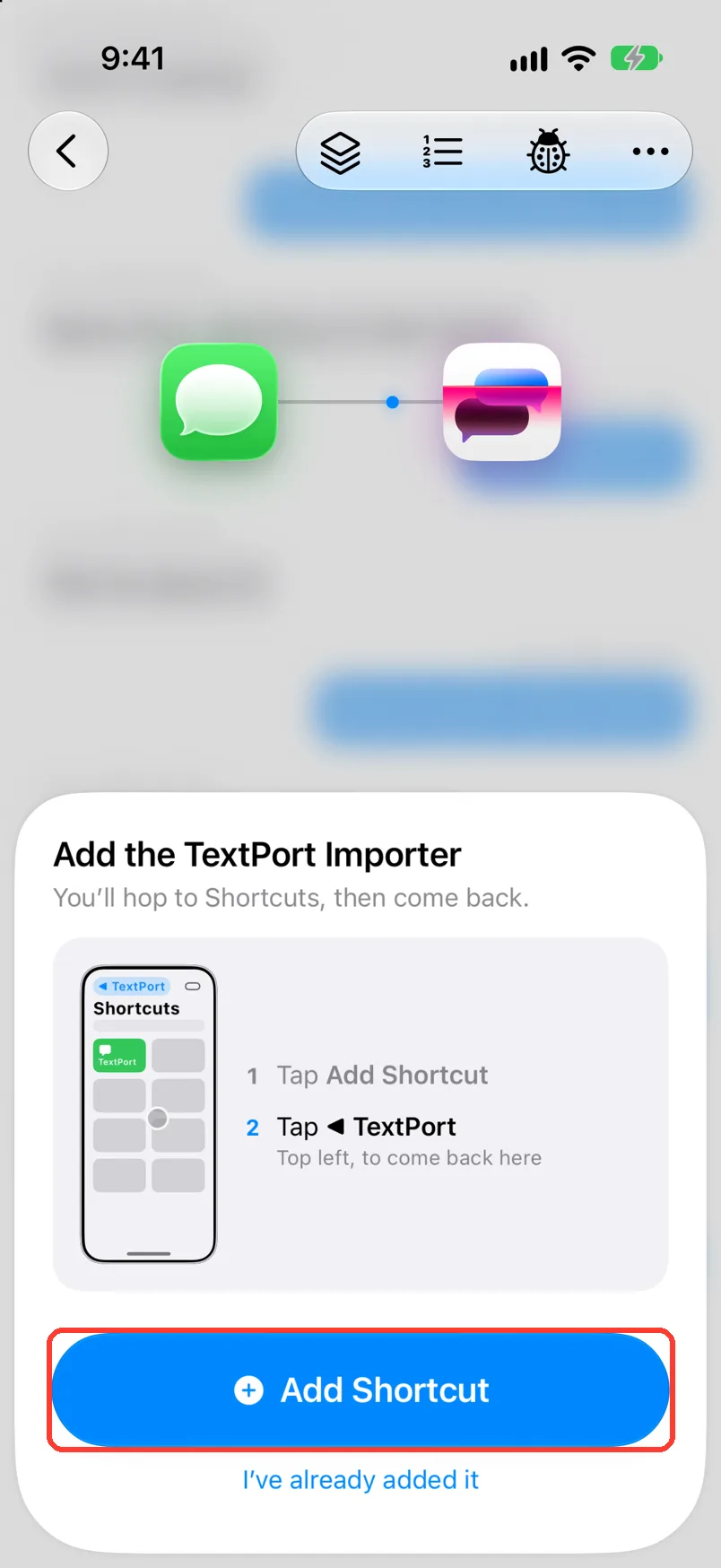
- Tap Show me how, then Add Shortcut.
- In Shortcuts, tap Add Shortcut. Go back to TextPort.
- On iOS 27, follow the cards to turn on the automation and notifications.
You do this once. The card then says Next, find your chats.
What you need
- ✓TextPort on your iPhone
- ✓Apple's Shortcuts app (it comes with iOS)
Steps
-
Tap Add Chat
Open TextPort. It is at the bottom of Saved Chats.
-
Tap Import from Messages
Check that Messages is picked at the top.
iOS 27
-
Tap Show me how
The card says First, a quick setup.
If you set it up before, tap I’ve already set it up.
-
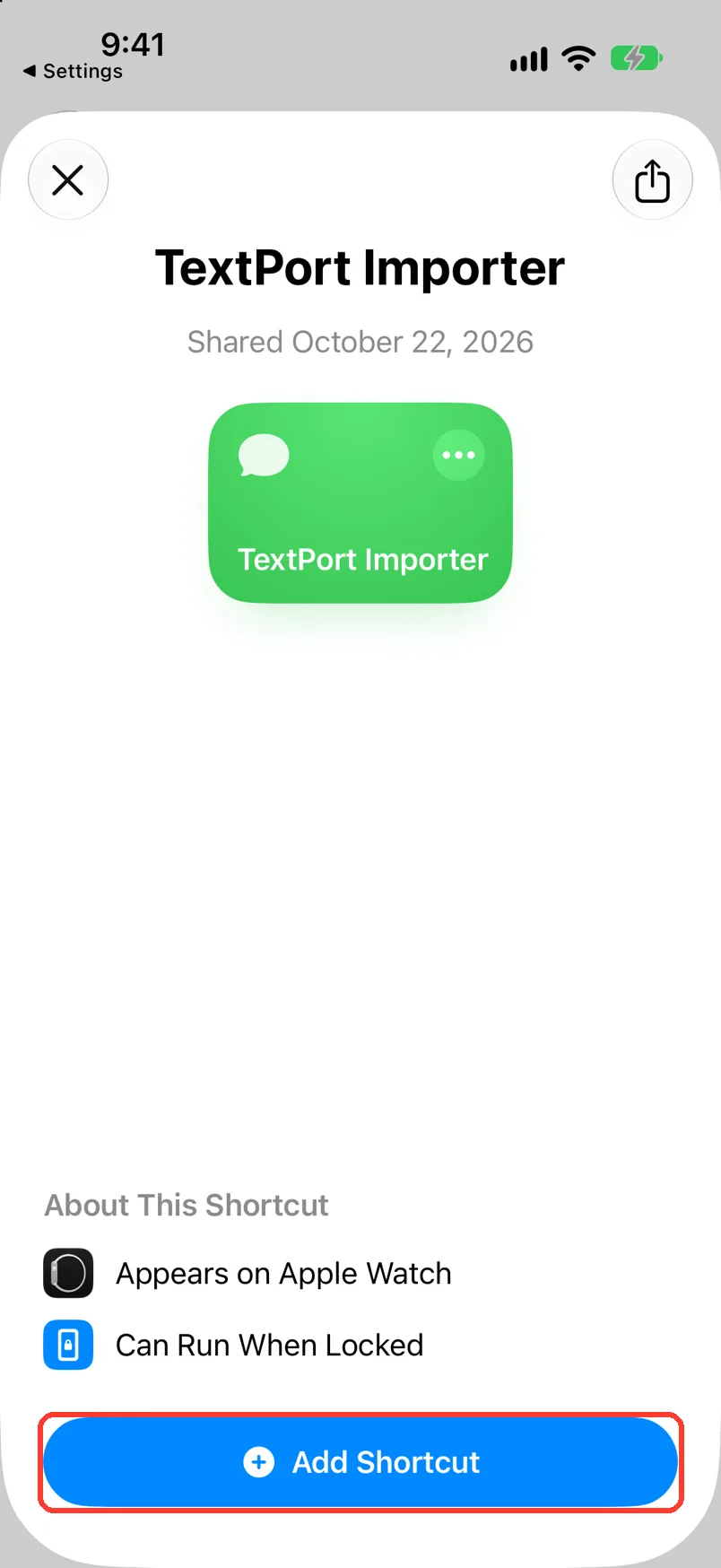
Tap Add Shortcut
The card says Add the TextPort Importer. Shortcuts opens.
-
Tap Add Shortcut in Shortcuts
Then tap ◀ TextPort in the top left. You are back in TextPort.
-
Tap Continue
Shortcuts opens once to check the shortcut. Then you are back in TextPort.
If Shortcuts asks for permission, tap Always Allow or Allow.
-
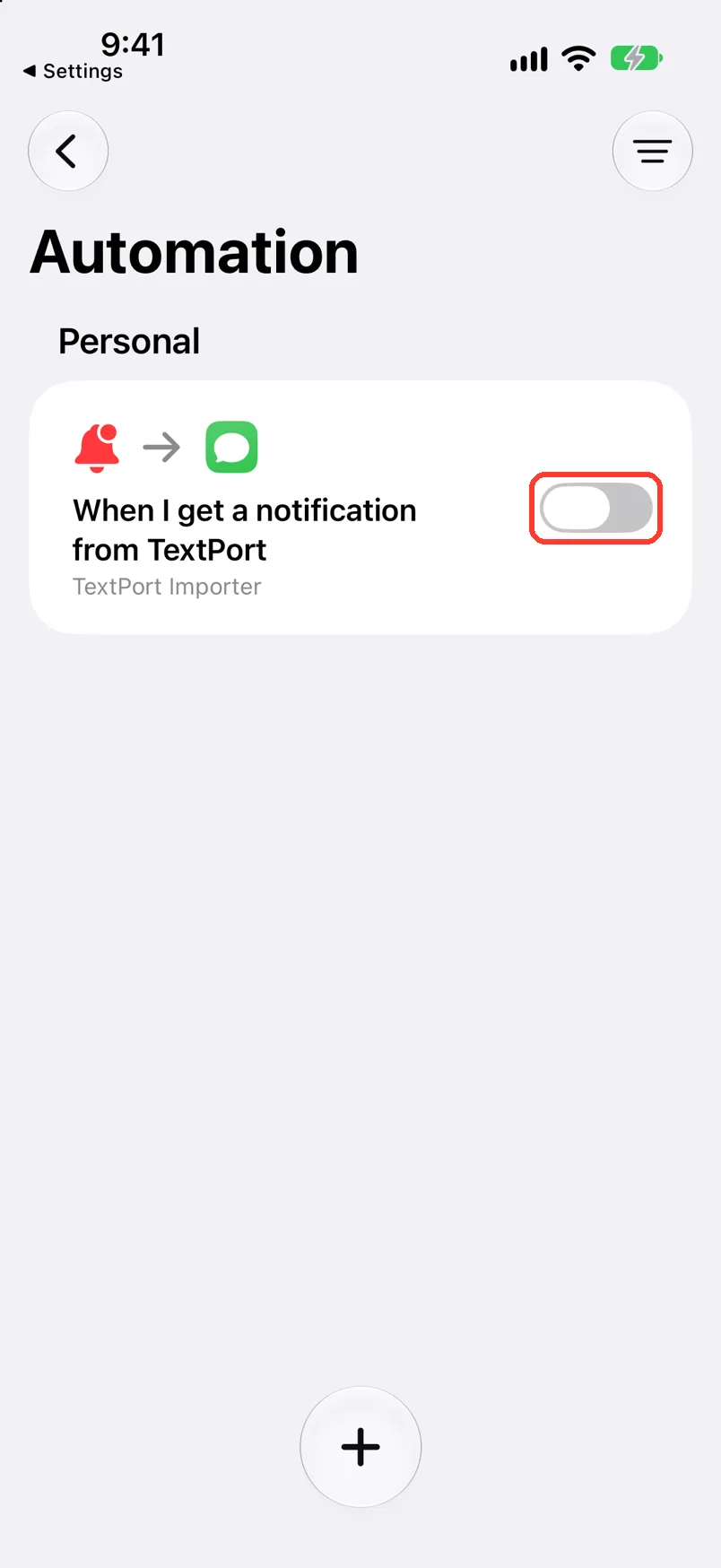
Tap Open Automations
The card says Turn on the automation. Shortcuts opens on Automation.
-
Turn on the automation
Find When I get a notification from TextPort. Turn it on. Then go back to TextPort.
-
Tap I’ve turned it on
TextPort may ask for notifications next. The card says Allow notifications.
-
Tap Allow notifications
When iOS asks, tap Allow.
If you see Turn on notifications, tap Open Settings. Turn on Allow Notifications.
iOS 26 and earlier
-
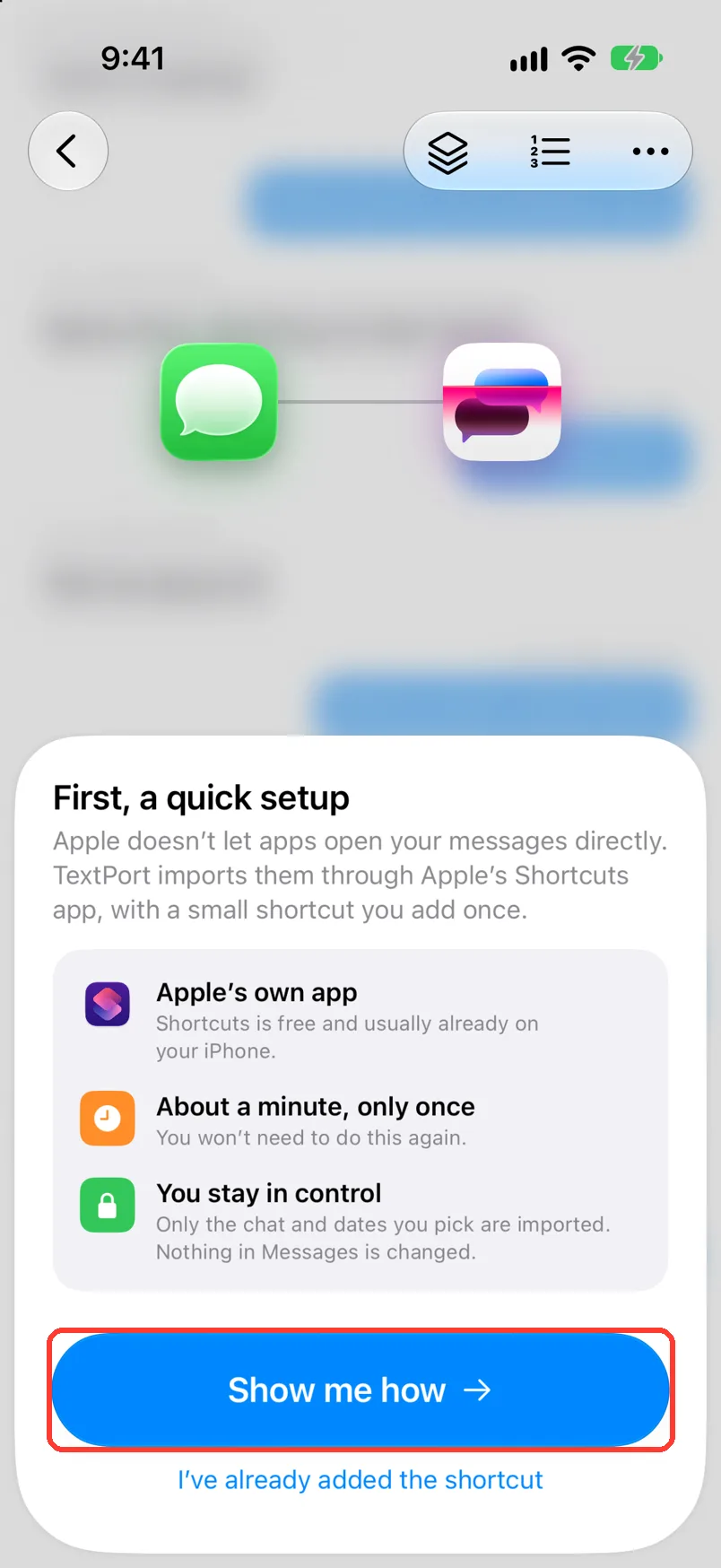
Tap Show me how
The card says First, a quick setup.
If you added it before, tap I’ve already added the shortcut.
-
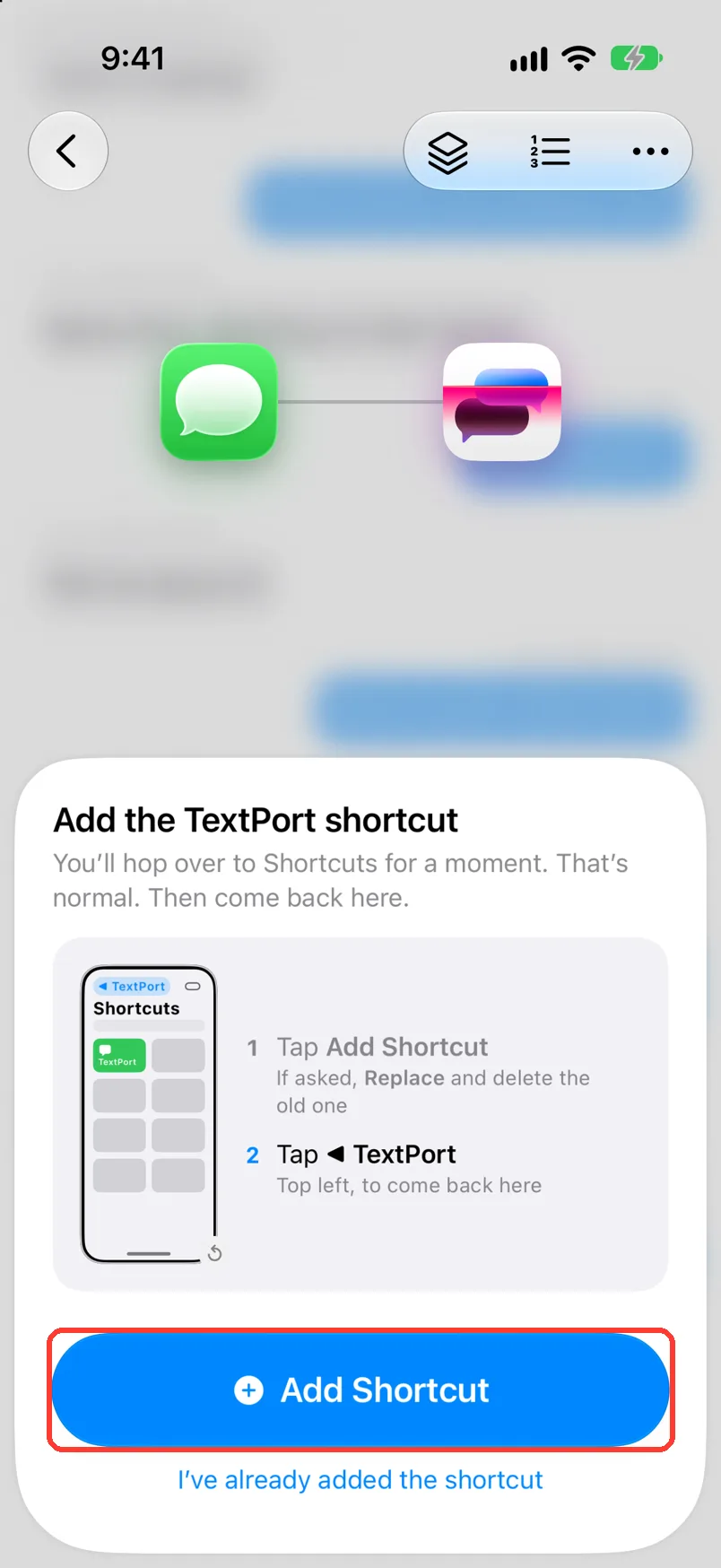
Tap Add Shortcut
The card says Add the TextPort shortcut. Shortcuts opens.
-
Tap Add Shortcut in Shortcuts
Scroll down to find it. Then go back to TextPort.
-
Check for Next, find your chats
The setup is done. Tap Find chats when you are ready. See Choose a chat and dates.
Done
The TextPort shortcut is on your iPhone. You do not need to add it again.
Problems
Your iPhone has iOS 27, but the card says Add the TextPort shortcut.
TextPort shows the older flow on your iPhone. Follow the iOS 26 and earlier steps.
Update your iPhone first
This import needs a newer iOS. Tap Open Settings and update. Or tap Use Scroll Capture instead.
Shortcuts is not on your iPhone.
Tap Get Shortcuts. Get it from the App Store. Then go back to TextPort.
We didn’t hear from the shortcut
On iOS 27, the shortcut may not have been added. Tap Add Shortcut again. Then tap Continue.
The shortcut didn’t start
Add the TextPort shortcut first
Shortcuts could not find it. Tap Add Shortcut. Go back to TextPort. Tap Try again.
Update the TextPort shortcut
TextPort needs a newer version. Tap Update Shortcut. If Shortcuts asks, tap Replace.
Is there only one TextPort left?
Open Shortcuts. If you see two, hold the second one and tap Delete. Go back to TextPort. Tap Yes, continue import.
Shortcuts asks for permission.
Tap Always Allow or Allow. It may ask twice.
None of these match.
Email [email protected]. Say which step you were on. Say what you saw. We usually reply within a day.
Questions
-
Apple does not let apps open your messages directly. Apple's Shortcuts app can, if you allow it. The shortcut reads the chat and gives it to TextPort.
-
No. You add it once. TextPort may ask you to update it later.
-
No. Nothing in Messages is changed.
Next guides
-
 How to import iMessage and SMS with the TextPort Shortcut
You will get a chat from Apple Messages saved in TextPort, with every message word for word.
-
 How to choose a chat and dates for a Messages import
You will have the right chat and the right dates picked, ready to start the import.
-
 How to fix a stuck or failed Shortcut import
You will get a Messages import that finishes, or know exactly what to tell support.

Start exporting your messages
Available for iPhone, Mac, and Windows. No computer required.
