
How to add a missing attachment by hand
You will put the right photo or file back on a message in your chat.
What you need
- ✓TextPort on your iPhone
- ✓A saved chat with a missing photo or file
- ✓The photo in Photos, or the file in Files
Sometimes a photo does not come along with a chat. If you still have it, you can add it back to the right message.
Steps
-
1
Find the message
Open the chat. Find the message that needs the photo. In a Messages chat, it is a gray box that says Attachment unavailable.
-
2
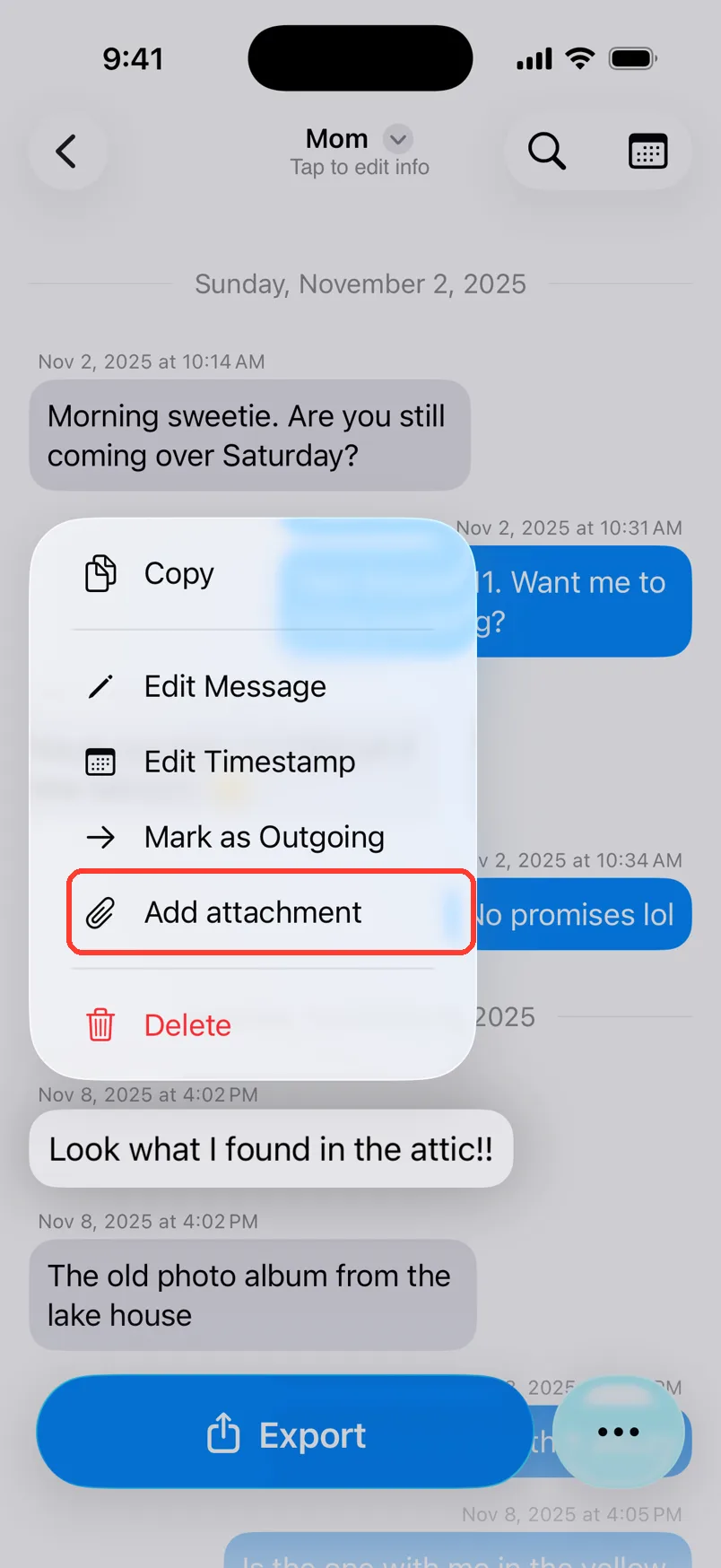
Long press the message
Press and hold the message for one second. A menu appears.
-
3
Tap the add button
On a gray box, tap Manually add attachment. In a chat from screenshots or Scroll Capture, tap Add attachment.
-
4
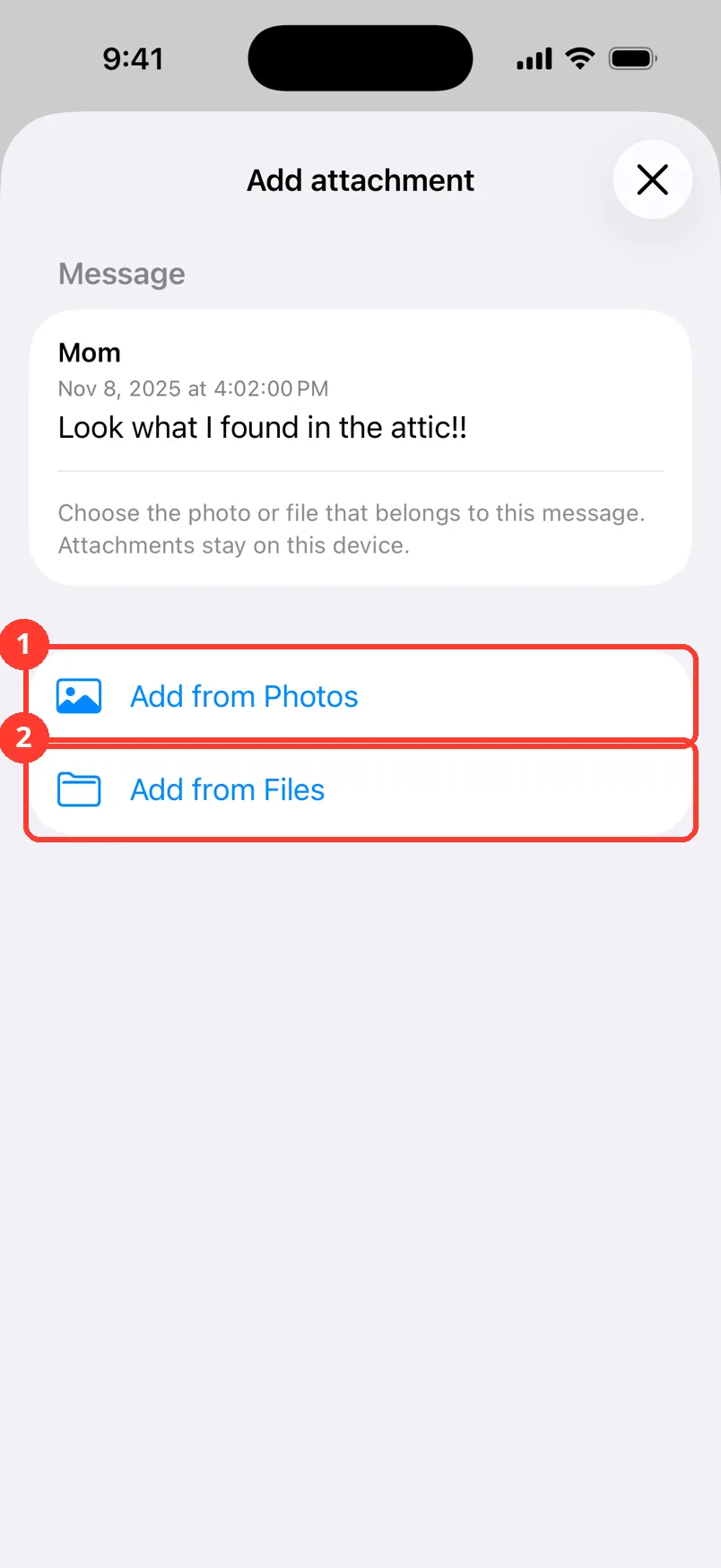
Pick where the file is
The Add attachment sheet shows the message. Tap Add from Photos (1) for a photo or video. Tap Add from Files (2) for a file saved in Files.
-
5
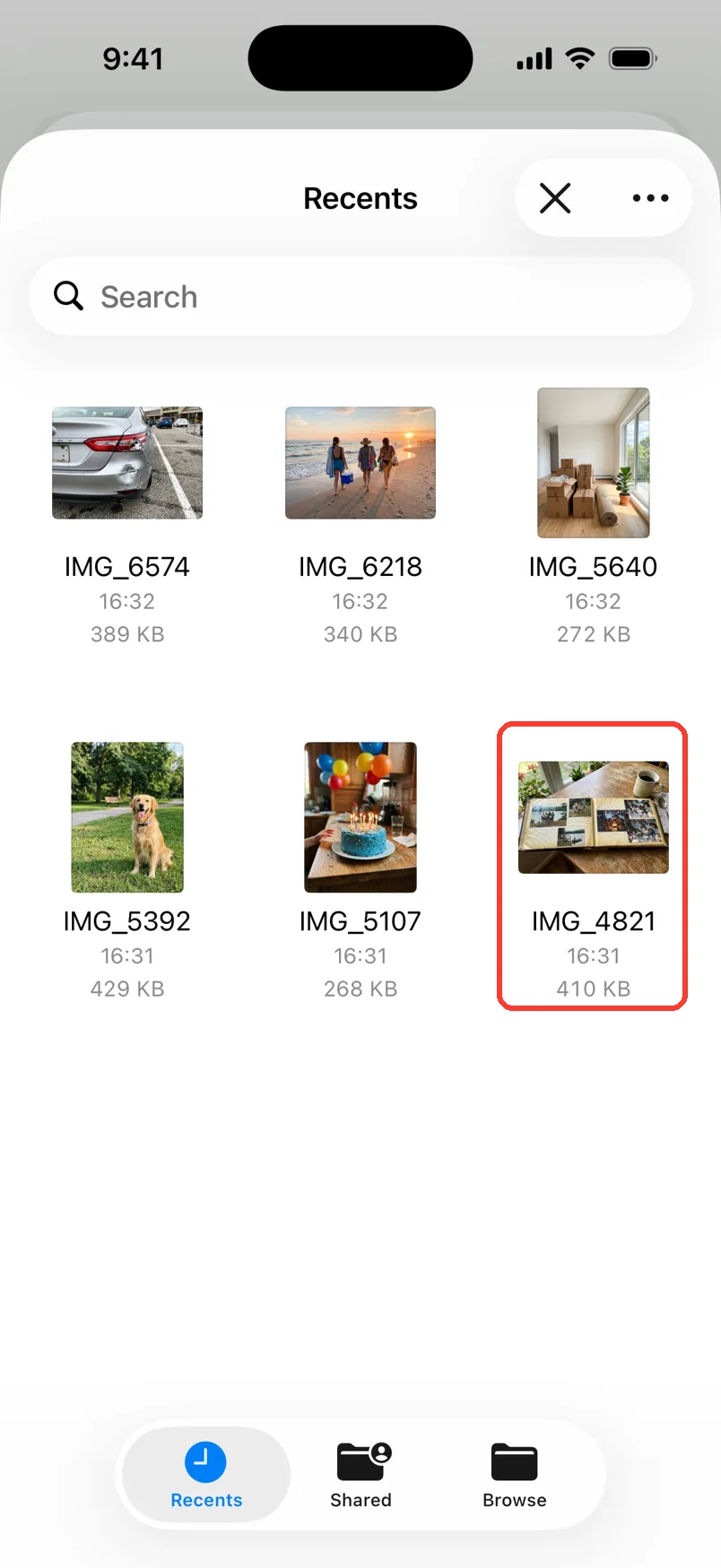
Tap the file
Find the right photo or file. Tap it once.
-
6
Wait
The sheet says Saving attachment…. Then it closes. The photo shows in the message.
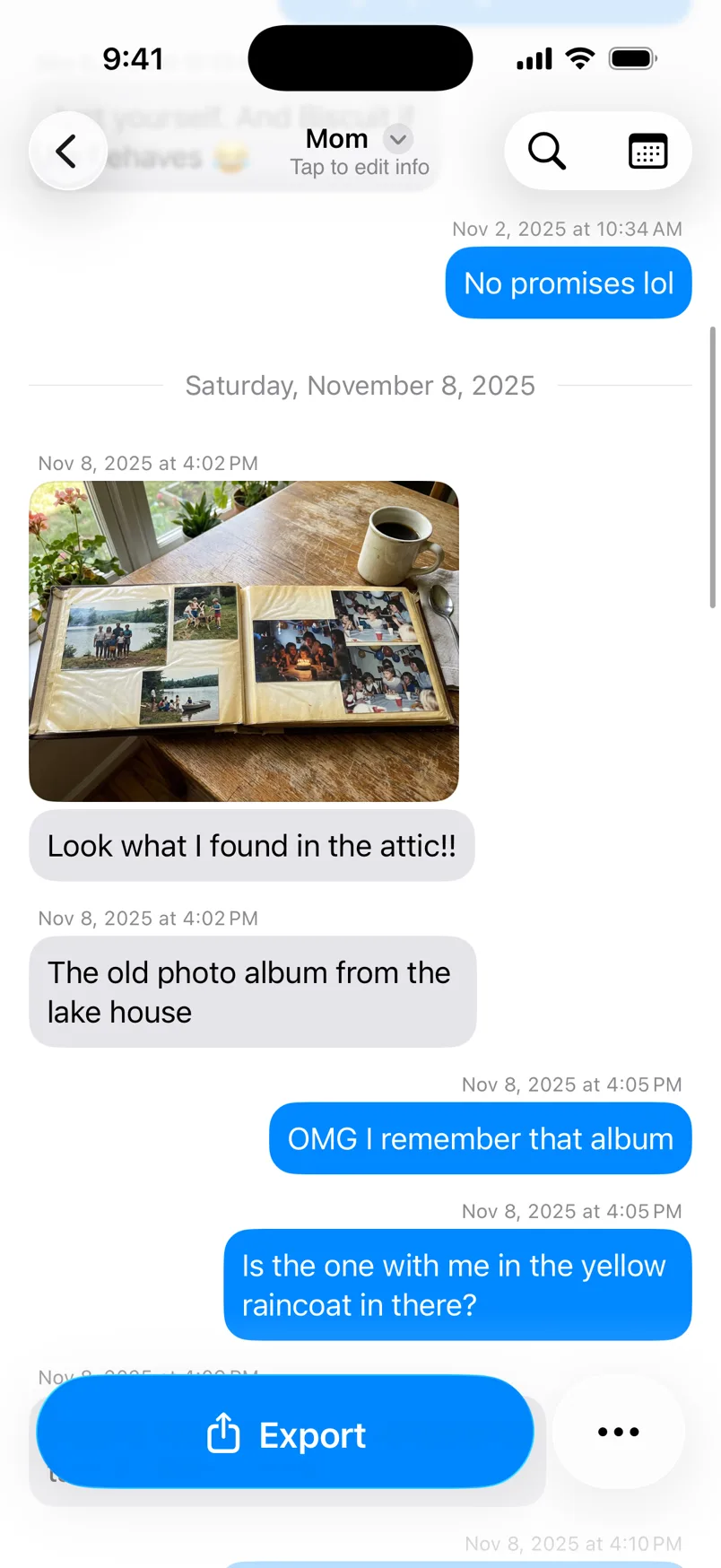
Done
The message has its photo or file again. You see it right in the chat.
Tips
-
In a Messages chat, try the gray box first. Tap it. If you see Try Again, tap that. It asks Messages for the file again.
-
Picked the wrong one? Long press the message. Tap Edit attachment. Tap Replace from Photos or Replace from Files.
-
To take it off, tap Edit attachment, then Remove attachment. The message stays.
-
Files you add stay on this iPhone.
Questions
-
Messages chats, on any gray Attachment unavailable box. Chats from screenshots or Scroll Capture, on any message without a file. WhatsApp chats bring their own files.
-
Tap the add button and pick the file again. If it keeps failing, close the chat, open it again, and try once more.
-
No. Your photo stays in Photos or Files. Only the link in TextPort goes away.
Next guides
-
 How to recover missing photos and attachments
You will get the photos, videos, and files that were missing after a Messages import.
How to recover missing photos and attachments
You will get the photos, videos, and files that were missing after a Messages import.
-
 How to see all photos, videos, and files in a chat
You will see every photo, video, and file in one chat, and save the ones you want.
How to see all photos, videos, and files in a chat
You will see every photo, video, and file in one chat, and save the ones you want.
-
 How to fix wrong text, times, or missing messages
You will fix any message that TextPort read wrong from a screenshot or recording.
How to fix wrong text, times, or missing messages
You will fix any message that TextPort read wrong from a screenshot or recording.

Start exporting your messages
Available for iPhone, Mac, and Windows. No computer required.
