

How to see all photos and files in a chat on Mac
Quick answer
In TextPort for Mac:
- Click the chat in the list on the left.
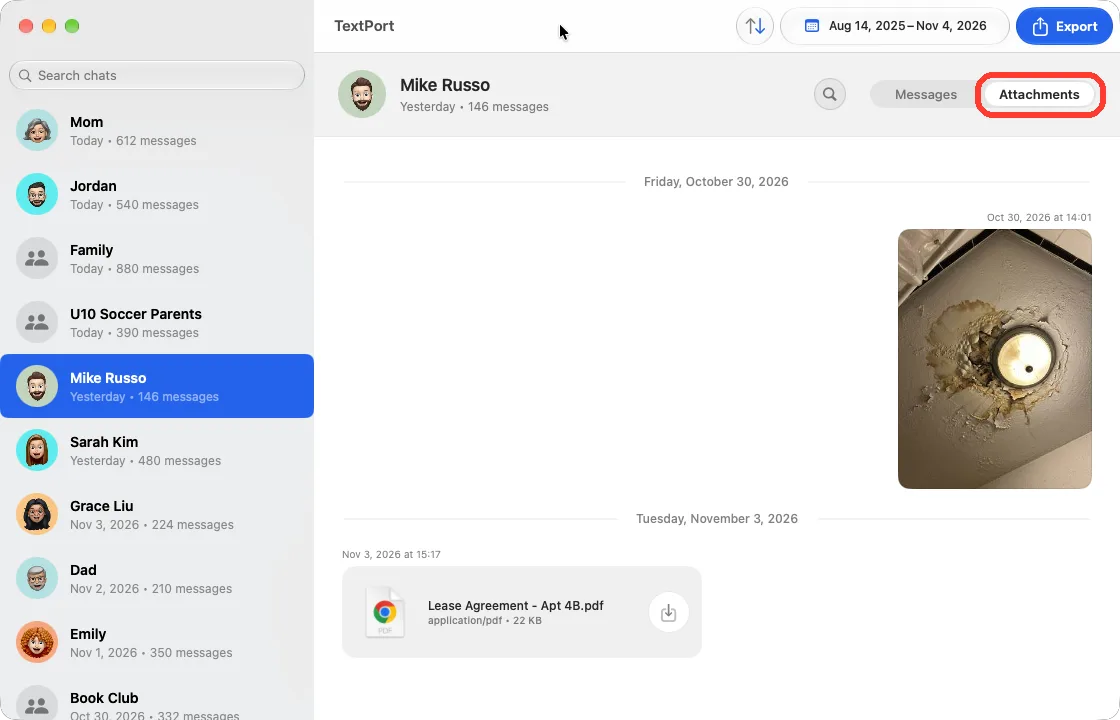
- Click Attachments at the top of the chat.
To see the whole chat again, click Messages.
What you need
- ✓TextPort for Mac, set up with Messages access
Steps
-
Click the chat
It is in the list on the left. Its messages show on the right.

-
Click Attachments
It is next to Messages. The chat shows only photos, videos, voice messages, and files.
Done
You see every attachment in the chat, with its date and time.
Problems
No attachments found
The chat has no attachments in those dates. If you picked dates, click the date range in the toolbar, then Reset.
A file says Didn’t sync to this Mac.
In Messages, open the chat and click the name at the top. Then click Download Attachments in iCloud. When it is done, click Check Again in TextPort.
A chat says Show Attachments Again, or shows Show photos and attachments.
TextPort cannot read the Attachments folder. See how to show photos and names.
None of these match.
Email [email protected]. Say which step you were on. Say what you saw. We usually reply within a day.
Questions
-
Yes. When you open another chat, TextPort shows Messages again.
-
Yes. Click Export in the toolbar on this tab and the file leaves out the text. Click Messages first to export the whole chat.
-
Yes. See how to open or save one file, or save them all as a ZIP.
Next guides
-
 How to open or save one photo or file on Mac
You will open one photo or file, or save a copy of it on your Mac.
-
 How to save all photos and files from a chat on Mac
You will get one ZIP file with every photo, video, and file from a chat.
-
 How to play voice messages and videos on Mac
You will hear a voice message or watch a video right in the chat.

Start exporting your messages
Available for iPhone, Mac, and Windows. No computer required.
