

How to show photos and names in TextPort for Mac
Quick answer
Open a chat in TextPort for Mac. Then use the card at the bottom:
- Show photos and attachments: click Choose Folder, then Choose Attachments.
- Show names instead of numbers: click Allow Access. Allow it when macOS asks.
Closed the card? Use TextPort › Settings….
What you need
- ✓TextPort for Mac, set up with Messages access
Steps
Photos and files
-
Click Choose Folder
It is on the Show photos and attachments card at the bottom of the chat. A folder picker opens.

-
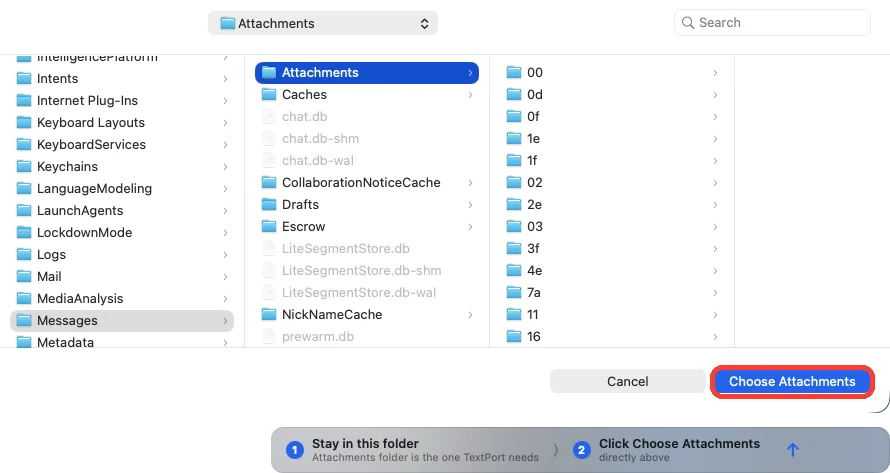
Click Choose Attachments
The picker opens in the Attachments folder. Do not open a folder in it.
Names
-
Click Allow Access
It is on the Show names instead of numbers card at the bottom of the chat. macOS asks about your Contacts.

-
Allow it
Click the button in the macOS window that allows access. Names and photos of people show in your chats.
Done
Your chats show photos and files, and names instead of numbers.
Problems
You closed the card, or there is no card.
Choose TextPort › Settings…. Click Choose Folder… next to Attachments Access, or Allow Access… next to Contacts Access. No button means access is already on.
The card says Open System Settings….
Contacts access was turned down before. Click the button and turn on Contacts for TextPort. Then go back to TextPort.
The picker says a folder isn’t the Attachments folder.
The picker opens again in Attachments. Do not click a folder. Click Choose Attachments.
The picker says you chose a folder inside Attachments.
The picker opens again. Click Attachments once. Then click Choose Attachments.
A photo says Didn’t sync to this Mac.
The file is still in iCloud. See what to do when a file did not sync.
None of these match.
Email [email protected]. Say which step you were on. Say what you saw. We usually reply within a day.
Questions
-
No. TextPort still shows and exports your messages. Without Contacts, chats show numbers and emails. Without attachments, a chat shows a **Show Attachments Again** card instead of photos, and PDFs show placeholders.
-
No. Your attachments and contacts never leave your device.
-
TextPort shows the photos card first, and only in a chat with attachments. The names card comes after it.
Next guides
-
 How to fix “TextPort can’t read your Messages” on Mac
You will get TextPort for Mac to show your chats again, with photos and names.
-
 How to install TextPort for Mac and give it Messages access
You will have TextPort for Mac open, showing every chat saved in Messages on that Mac.
-
 How to save all photos and files from a chat on Mac
You will get one ZIP file with every photo, video, and file from a chat.

Start exporting your messages
Available for iPhone, Mac, and Windows. No computer required.
