

How to open or save one photo or file on Mac
Quick answer
In TextPort for Mac:
- Find the photo or file in the chat.
- Click it to see a preview.
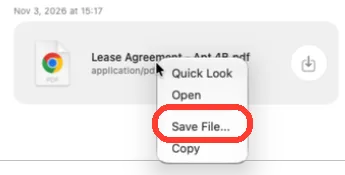
- To save it, right-click it and click Save File....
- Pick a folder and click Save.
What you need
- ✓TextPort for Mac, set up with Messages access
- ✓Access to the Attachments folder, so TextPort can read the file
Steps
-
Right-click the photo or file
A menu opens with Quick Look, Open, Save File..., and Copy.
Quick Look shows a preview. Open uses the app for that file. Copy lets you paste it elsewhere.
-
Click Save File...
A save window opens with the file name filled in.
On a file card, the round Save Attachment button does the same.
-
Pick a folder and click Save
Pick the folder next to Where. TextPort saves a copy there.
Done
You have a copy of the file on your Mac. The original stays in Messages.
Problems
TextPort Can’t Read This Attachment
Click Choose Attachments Folder…. In the picker, click Choose Attachments. Then try again.
Attachment Isn’t Available
The file is not on this Mac. See what to do when a file did not sync.
None of these match.
Email [email protected]. Say which step you were on. Say what you saw. We usually reply within a day.
Tips
-
You can also drag a photo or file out of the chat to your Desktop or a Finder window.
Questions
-
No. TextPort copies the original file from Messages.


Start exporting your messages
Available for iPhone, Mac, and Windows. No computer required.
