

How to play voice messages and videos on Mac
Quick answer
In TextPort for Mac:
- Click the chat in the list on the left.
- Click the round play button on the voice message or video.
- Click again to pause.
Only one plays at a time.
What you need
- ✓TextPort for Mac, set up with Messages access
Steps
Voice message
-
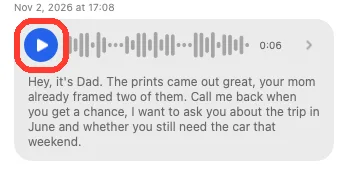
Click the play button
It is at the left of the voice message. The words Messages wrote show under it, when it made them.
Click the arrow at the right to open a preview.
Video
-
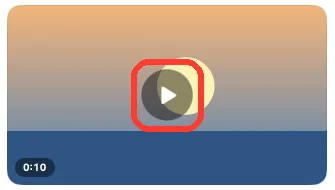
Click the play button
It is in the middle of the video. The video plays in the chat.
Click while it plays to pause. Click off the button to open a preview.
Done
The voice message or video plays in the chat.
Problems
It says Didn’t sync to this Mac.
It shows as a file card, with no play button.
TextPort cannot play that file type. Right-click it and click Open.
A voice message has no words under it.
Messages did not make a transcript for it. TextPort cannot add one.
None of these match.
Email [email protected]. Say which step you were on. Say what you saw. We usually reply within a day.
Questions
-
Not by themselves. Click Attachments at the top of the chat to see them with the photos and files. See how to see all photos and files.
-
Yes, unless you turn that off. See how to hide transcripts in PDFs.



Start exporting your messages
Available for iPhone, Mac, and Windows. No computer required.
