
How to hide voice message transcripts in PDFs on Mac
Quick answer
In TextPort for Mac:
- Choose TextPort › Settings….
- Click General.
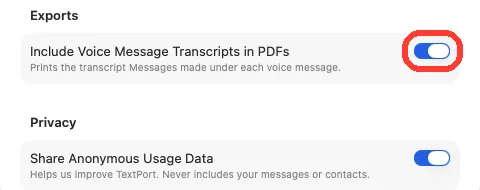
- Under Exports, turn off Include Voice Message Transcripts in PDFs.
Then export the PDF again.
What you need
- ✓TextPort for Mac
Steps
-
Choose TextPort › Settings…
It is in the menu bar at the top of the screen. The General tab opens.
Or press Command-, (comma).
-
Turn off Include Voice Message Transcripts in PDFs
It is under Exports. New PDFs leave out the transcripts.
-
Export the PDF again
A PDF you made before does not change. See how to export a chat.
Done
New PDFs show voice messages with no transcript under them.
Problems
Settings opens on About.
Click General at the top of the window.
The PDF still has transcripts.
That PDF was made with the switch on. Export it again.
None of these match.
Email [email protected]. Say which step you were on. Say what you saw. We usually reply within a day.
Questions
-
On. PDFs print each transcript unless you turn it off.
-
Messages does. TextPort prints what Messages made, and some voice messages have none.
-
Yes. A printout follows the same switch. Transcripts still show in the chat in TextPort.
Next guides
-
 How to play voice messages and videos on Mac
You will hear a voice message or watch a video right in the chat.
-
 How to export one chat to PDF, CSV, or TXT on Mac
You will get a file of one chat on your Mac, as a PDF, a spreadsheet, or plain text.
-
 How to print a chat from your Mac
You will have a chat printed on paper, with each message's date and time.

Start exporting your messages
Available for iPhone, Mac, and Windows. No computer required.
