

How to export all conversations at once on Windows
You will have one folder on your PC with a file for every conversation.
What you need
- ✓TextPort for Windows, with your iPhone backed up
- ✓Free space on your PC for the files
Steps
-
1
Click Messages
Click Messages at the top of TextPort.
-
2
Click the three dots above the list
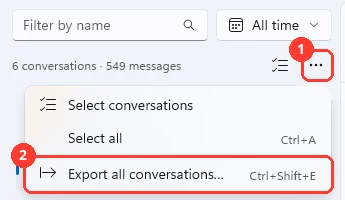
Click … above the conversation list (1). A menu opens.
-
3
Click Export all conversations…
Click Export all conversations… (2). Or press Ctrl+Shift+E.
-
4
Pick the formats
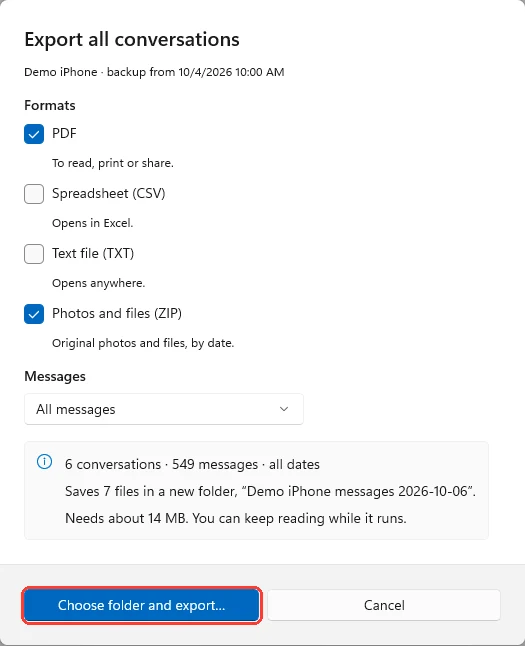
Check PDF, Spreadsheet (CSV), Text file (TXT), or Photos and files (ZIP). The box at the bottom says how many files you get. It also says how much space they need.
-
5
Click Choose folder and export…
Windows asks for a folder.
-
6
Pick a folder and click Select Folder
Click Select Folder. TextPort makes a new folder in it. The name has your iPhone’s name and today’s date.

-
7
Wait for Export complete
A bar at the top shows the progress. You can keep reading meanwhile. When it says Export complete, click Open folder.
Done
Every conversation is saved in one folder, one file per conversation and format.
Tips
-
Click Pause to stop for a while. Click Resume to go on. Files that are done stay.
-
If TextPort closes during the export, it asks to continue the next time it opens.
-
The folder has a file named Export summary.txt. It lists every file and anything that could not be exported.
-
To export only some conversations, hold Ctrl and click them in the list. Then press Ctrl+E.
Questions
-
It depends on how many messages and photos you have. Thousands of conversations with photos can take an hour. You can keep using TextPort while it runs.
-
No. Each conversation gets its own file. An iMessage and an SMS conversation with the same person are two files.
-
TextPort pauses when the drive is full, the folder is gone, or your iPhone is backing up. The notice says why. Most of the time it goes on by itself when the problem is fixed.
Next guides
-
 How to export a conversation to PDF, CSV, or TXT on Windows
You will get a file of one conversation on your PC, as a PDF, a spreadsheet, or plain text.
How to export a conversation to PDF, CSV, or TXT on Windows
You will get a file of one conversation on your PC, as a PDF, a spreadsheet, or plain text.
-
 How to save photos and attachments as a ZIP on Windows
You will have a ZIP file on your PC with the original photos, videos, and files from one conversation.
How to save photos and attachments as a ZIP on Windows
You will have a ZIP file on your PC with the original photos, videos, and files from one conversation.

Start exporting your messages
Available for iPhone, Mac, and Windows. No computer required.
