

How to export several conversations on Windows
Quick answer
In TextPort, on Messages:
- Click the check mark button above the list. Its name is Select conversations.
- Check the conversations you want.
- Click Export 3 conversations…. The number is how many you checked.
- Check the formats. Click Choose folder and export….
- Pick a folder and click Select Folder.
TextPort says Export complete.
What you need
- ✓TextPort for Windows, with your iPhone backed up
Steps
-
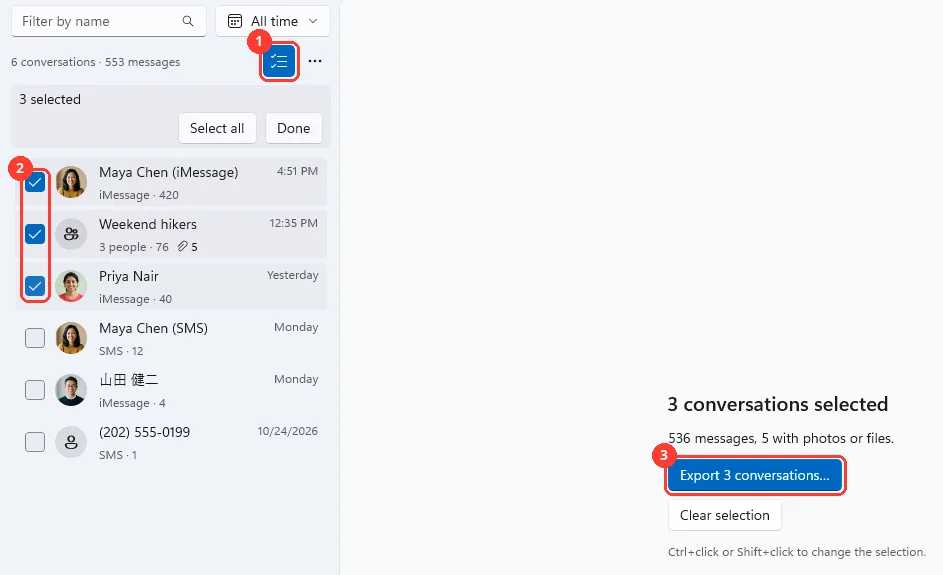
Click Select conversations and check the ones you want
Click the check mark button above the list (1). The open conversation is already checked. Check the others (2). Then click Export 3 conversations… (3).
You can also Ctrl+click or Shift+click in the list.
-
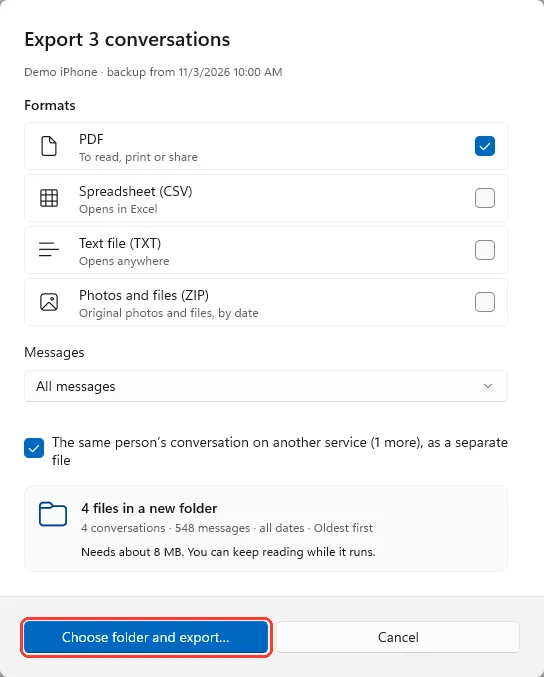
Click Choose folder and export…
Check the formats first. The box above says how many files you get.
-
Click Select Folder
Pick a folder first. TextPort makes a new folder in it.

-
Click Open folder
It is on Export complete. File Explorer opens with the files.
You can keep reading while the export runs.

Done
Your conversations are saved in one folder, one file per conversation and format.
Problems
The window says more conversations than you checked.
Uncheck the box that starts The same person’s conversation or The same people’s conversations. It adds the SMS or iMessage conversation with the same person.
1 of the selected conversations has no messages in these dates and is left out.
Pick more days under Messages, or All messages.
None of these conversations have photos or files.
Check another format. Or pick conversations with photos.
Export paused
None of these match.
Email [email protected]. Say which step you were on. Say what you saw. We usually reply within a day.
Questions
-
Click Done. Your checks stay. Or press Esc to clear them.
-
Click Select all at the top of the list. It selects all the list shows, so filter the list first if you want.
-
Yes. Open Messages in the export window. See Export only some dates.



Start exporting your messages
Available for iPhone, Mac, and Windows. No computer required.
