
How to export only some dates on Windows
Quick answer
In TextPort:
- Click the conversation, then Export.
- Under Messages, pick Custom range.
- Pick the days under From and To.
- Click Export…, then Save.
TextPort says Export complete.
What you need
- ✓TextPort for Windows, with your iPhone backed up
Steps
-
Click the conversation, then Export
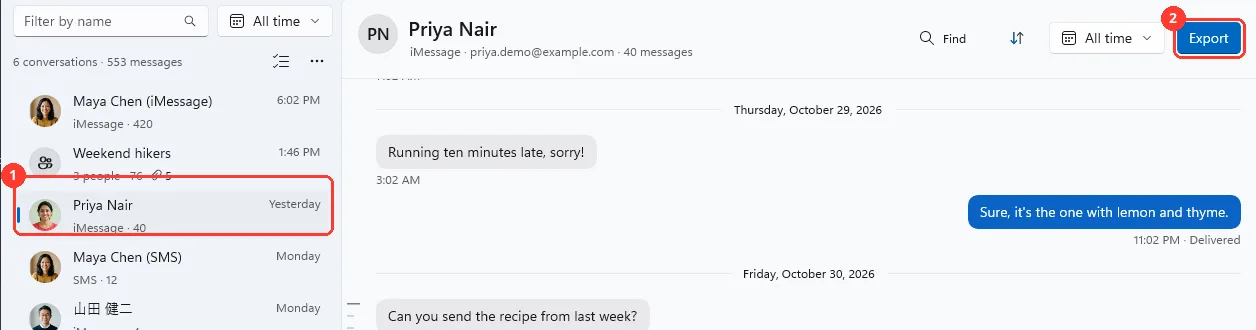
Click it in the list (1). Then click Export at the top right (2). The Export window opens.
-
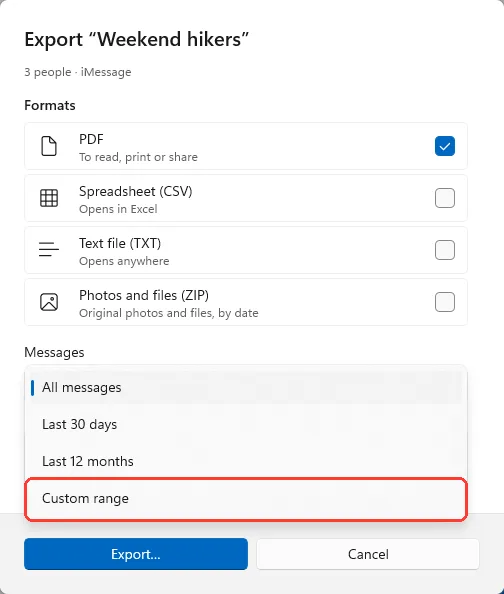
Pick Custom range
Open the list under Messages. From and To show.
You can also pick Last 30 days or Last 12 months.
-
Pick the days and click Export…
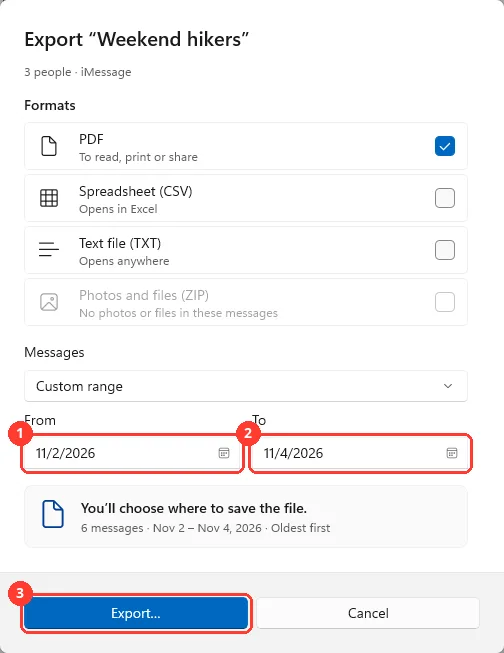
Pick the first day in From (1) and the last day in To (2). Click Export… (3).
With more than one file, the button says Choose folder and export….
-
Click Save
Windows asks where to save the file. Pick a folder, then click Save.
For more than one file, pick a folder and click Select Folder.

Done
The file holds only the messages from the days you picked.
Problems
The start date is after the end date.
Pick an earlier day in From, or a later day in To.
There are no messages in these dates.
Pick more days. Or pick All messages under Messages.
No photos or files in these messages
Photos and files (ZIP) is off because these days have no photos or files. Pick more days to get a ZIP.
The window says 2 files, and you want one.
Uncheck Also include SMS messages. The other conversation is left out.
None of these match.
Email [email protected]. Say which step you were on. Say what you saw. We usually reply within a day.
Questions
-
Yes. The file has every message from both days.
-
Yes. Click All time next to Export, pick the days, and click Apply. The Export window then starts with those days.
-
It shows when the All time button above the list has dates set. It exports those dates.
-
Yes. Export all conversations… has the same Messages list.
Next guides
-
 How to export a conversation to PDF, CSV, or TXT on Windows
You will get a file of one conversation on your PC, as a PDF, a spreadsheet, or plain text.
-
 How to find and read a conversation on Windows
You will have the right conversation open on your PC, at the days you want.
-
 How to export all conversations at once on Windows
You will have one folder on your PC with a file for every conversation.

Start exporting your messages
Available for iPhone, Mac, and Windows. No computer required.
