

How to turn off iPhone backup encryption on Windows
Your iPhone’s backups will be unencrypted, and TextPort will start the backup.
What you need
- ✓TextPort for Windows, with your iPhone plugged in and trusted
- ✓Your iPhone’s backup password
Steps
-
1
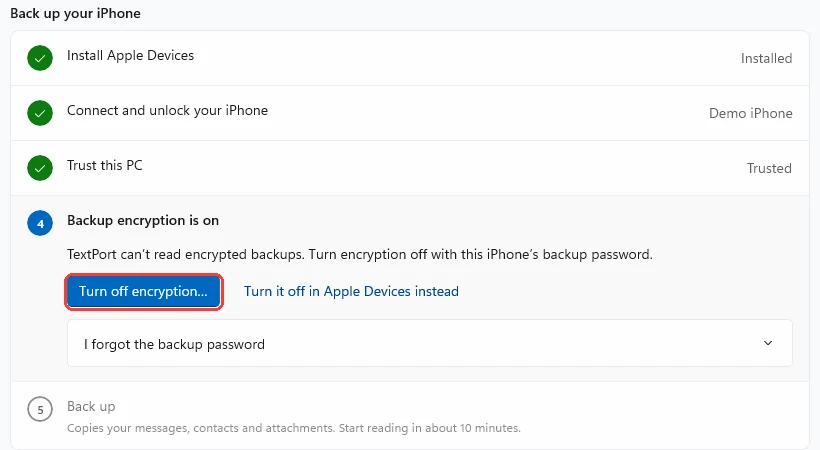
Click Turn off encryption…
TextPort shows Backup encryption is on. It can’t read encrypted backups. Click Turn off encryption….
-
2
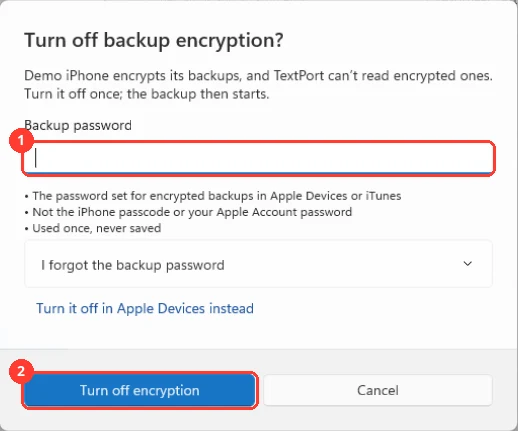
Type your backup password
Type it in the Backup password box (1). This is the password set for backups in Apple Devices or iTunes. It is not your iPhone passcode. It is not your Apple Account password.
-
3
Click Turn off encryption
Click Turn off encryption (2).
-
4
Enter your passcode on the iPhone, if asked
Look at your iPhone. If it asks for your passcode, enter it.
-
5
Wait for the backup to start
The dialog closes. The step now says Off. The backup starts by itself.
Done
Backup encryption is off. TextPort is backing up your iPhone.
Tips
-
TextPort uses the password once. It does not save it.
-
You can also turn encryption off in Apple Devices. Click Turn it off in Apple Devices instead for Apple’s steps.
Questions
-
You can remove it on the iPhone. Open Settings, then General, then Transfer or Reset iPhone. Tap Reset, then Reset All Settings, and enter your passcode. Your messages, photos, and apps stay. Wi-Fi, wallpaper, and privacy settings reset. Then click Check again in TextPort.
-
The backup stays on your PC. TextPort never uploads it. Encrypted backups also keep saved passwords and health data, which TextPort does not need. You can turn encryption back on in Apple Devices later.
-
No. It only changes how the next backups are saved. Nothing on your iPhone is deleted.



Start exporting your messages
Available for iPhone, Mac, and Windows. No computer required.
