

How to fix an iPhone not showing up on Windows
Your iPhone will show up in TextPort for Windows, so you can back it up.
What you need
- ✓TextPort for Windows on your PC
- ✓Your iPhone and its USB cable
Steps
-
1
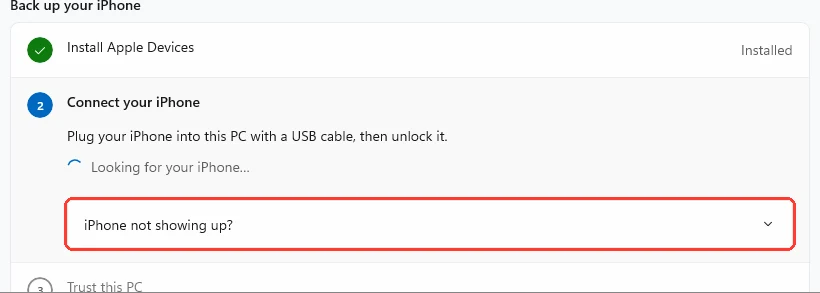
Click iPhone not showing up?
It is under Looking for your iPhone… on the Connect your iPhone step. A list of fixes opens.
-
2
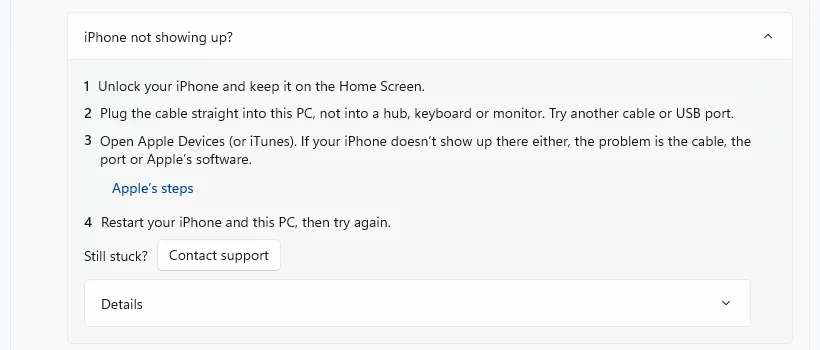
Unlock your iPhone
Unlock it and stay on the Home Screen. A locked iPhone does not talk to the PC.
-
3
Check the cable
Plug the cable straight into your PC. Do not use a hub, keyboard, or monitor port. Try another USB port. Some cables only charge. Try the cable that came with your iPhone.
-
4
Tap Trust on your iPhone
Look at your iPhone. If it asks Trust This Computer?, tap Trust and enter your passcode.
-
5
Open Apple Devices
Open the Apple Devices app on your PC, or iTunes. Look for your iPhone there. If it is not there either, the problem is the cable, the port, or Apple’s software. Click Apple’s steps in TextPort for help from Apple.
-
6
Restart both
Restart your iPhone. Restart your PC. Then open TextPort and plug in your iPhone again.
-
7
Click Contact support if it still fails
Click Contact support under Still stuck?. Type your email and what happened. Click Send. Your logs go with it, so we can see what went wrong.
Done
TextPort shows your iPhone’s name on the Connect step. You can go on with the backup.
Tips
-
TextPort checks again by itself. You don’t need to restart TextPort after each fix.
-
If two iPhones are plugged in, TextPort asks you to choose one.
Questions
-
Restart your PC. That fixes it most of the time. Or click Show Apple’s steps to restart the Apple Mobile Device Service. Then click Check again.
-
Click Get Apple Devices and install it from the Microsoft Store. TextPort checks again by itself when it is done.
-
Your antivirus may block the part of TextPort that talks to iPhones. Click Copy folder path and allow that folder in your antivirus. Then click Check again.
-
Tap Trust and enter your passcode each time. If it still fails, unplug the iPhone, plug it back in, and click Ask again in TextPort.



Start exporting your messages
Available for iPhone, Mac, and Windows. No computer required.
