

How to install TextPort for Windows
You will have TextPort open on your Windows PC, ready to back up your iPhone.
What you need
- ✓A PC with Windows 10 or Windows 11
- ✓An internet connection for the download
TextPort for Windows copies the messages from your iPhone to your PC. Then you can read them, print them, and save them as PDF, CSV, or text files.
Steps
-
1
Go to the download page
On your PC, open textport.com/desktop/windows.
-
2
Click Download for Windows
Your browser saves a file named TextPort-Setup-x64.exe. It goes to your Downloads folder.
-
3
Open the setup file
Click the file in your browser. Or find it in your Downloads folder and double-click it.
-
4
Get past a Windows warning, if you see one
Windows may say Windows protected your PC. Click More info. Then click Run anyway.
-
5
Wait for TextPort to open
Setup takes a few seconds. You don’t need to click anything. TextPort opens by itself and shows Get your iPhone messages on this PC.
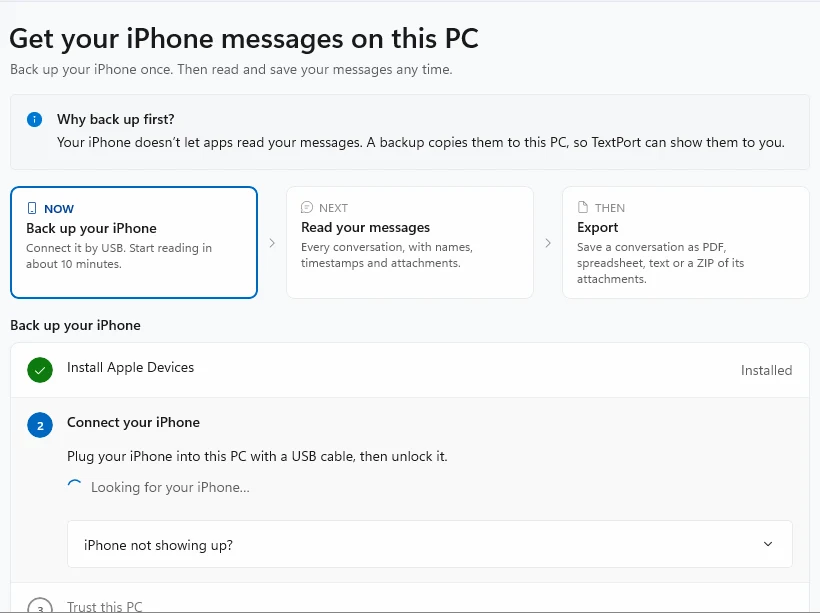
Done
TextPort is installed. Next, back up your iPhone so TextPort can show your messages.
Tips
-
Next time, open TextPort from the Start menu.
-
TextPort updates itself. When an update is ready, it shows Update ready with a Restart TextPort now button.
Questions
-
TextPort for Windows is signed by Tsubasa Technologies LLC, the company that makes TextPort. New apps are sometimes flagged because few people have installed them yet. Download it only from textport.com. If your antivirus moved the file to quarantine, restore it there, or allow it, and run it again.
-
No. TextPort for Windows has no account. Your messages stay on your PC.
-
Use TextPort for Mac instead. It reads the Messages app on your Mac.
-
Install the new one the same way. Your old backups stay on your PC, and the new app shows them.


Start exporting your messages
Available for iPhone, Mac, and Windows. No computer required.
