

How to move from the older TextPort app on Windows
Quick answer
In the new TextPort:
- Close the older TextPort app if it is open.
- Click Backups to see your old backups.
- Click Remove old version if you see it.
- Click Yes when Windows asks.
Your backups stay on your PC.
What you need
- ✓The new TextPort for Windows
Steps
-
Close the older TextPort app
You see The older TextPort app is still open while it runs. The notice goes away when you close it.

-
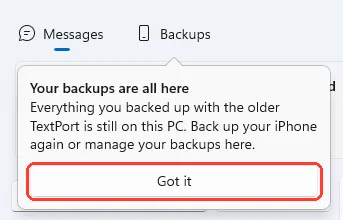
Click Got it
It is on Your backups are all here, the first time only.
-
Click Backups
It is at the top. Your old backups show under On this PC.
-
Click Remove old version
It is on An older version of TextPort is still installed. Windows asks for permission.
If you closed the notice, click the gear. Then click Remove under Troubleshooting.

-
Click Yes
Windows asks if the app can make changes. TextPort says The old version was removed.
Done
You use the new TextPort. Your old backups are in it, and the old app is gone.
Problems
Close the older TextPort app first.
Back up now waits for this. Close the older app. TextPort goes on by itself.
The older TextPort app is still open does not go away.
Close it again. If the notice stays, restart your PC.
The old version is still installed
You said no when Windows asked. You can remove it later in Settings, under Troubleshooting.
Couldn’t remove the old version
Click Try again. Or remove it in Windows Settings, under Apps.
Saving to ends with (restored from your previous backups).
TextPort found your old backup folder from your backups. New backups save there. Click Change folder if you want another one.
None of these match.
Email [email protected]. Say which step you were on. Say what you saw. We usually reply within a day.
Questions
-
No. Backups stay on your PC. The new app shows them, and old incomplete backups show as Incomplete.
-
No. Your old backups open as they are. Back up again when you want newer messages.
-
Both use the same files. The new app waits while the old one is open. Remove the old one when you can.



Start exporting your messages
Available for iPhone, Mac, and Windows. No computer required.
