

How to find your iPhone backups on your PC
You will see the folder of an iPhone backup in File Explorer.
What you need
- ✓TextPort for Windows with at least one backup
Steps
-
1
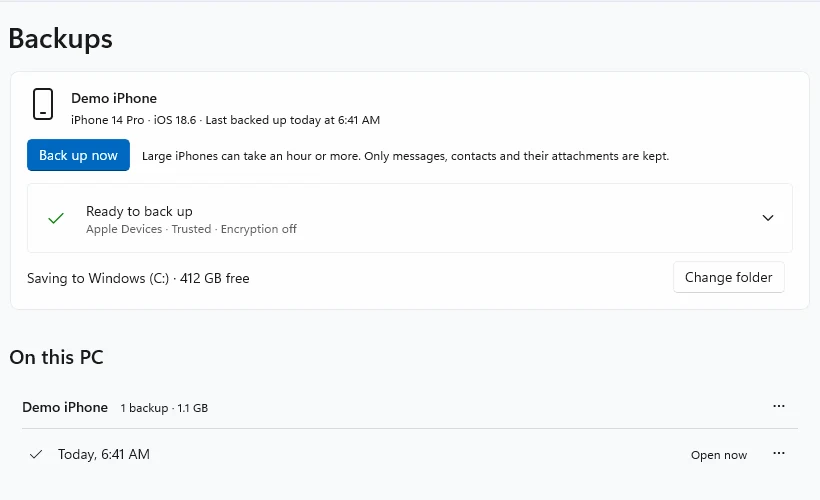
Click Backups
Click Backups at the top of TextPort. Your backups show under On this PC.
-
2
Click the three dots next to a backup
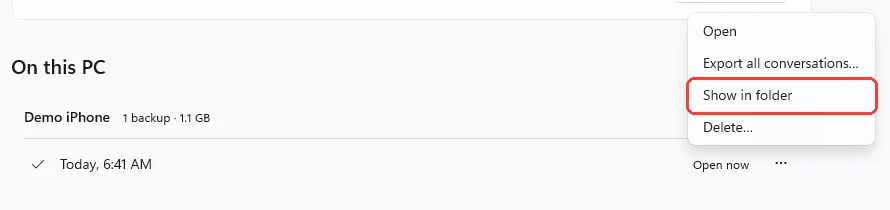
Click … at the right of the backup you want. A menu opens.
-
3
Click Show in folder
File Explorer opens with that backup’s folder selected.
Done
File Explorer shows where the backup is saved on your PC.
Tips
-
New backups go to
%APPDATA%\TextPort\backups\snapshotsunless you chose another folder. -
To save new backups somewhere else, click Change folder on the Backups page. Old backups stay where they are.
-
You can also click the gear for Settings, then Open backups folder.
-
Backups made by Apple Devices or iTunes show in their own group: Made by Apple Devices or iTunes. TextPort only reads those.
Questions
-
No. The files in a backup are in Apple’s format and have no names you can read. Open the backup in TextPort to read and export your messages.
-
No. A backup is a copy of your iPhone data that TextPort reads. An export is a file you can open anywhere, like a PDF, CSV, or text file.
-
Yes. Click … next to a backup and click Delete…. It is gone for good. It does not go to the Recycle Bin.
-
Back up your iPhone again on the other PC. It is the simplest way to get a working backup there.
Next guides


Start exporting your messages
Available for iPhone, Mac, and Windows. No computer required.
