

How to read messages while the backup runs on Windows
Quick answer
During a backup in TextPort:
- Wait until your messages are ready. They may open by themselves.
- If you see Read messages, click it.
- Click a conversation.
Keep your iPhone plugged in. Photos and files show when TextPort says Backup complete.
What you need
- ✓TextPort for Windows, with a backup running
Steps
-
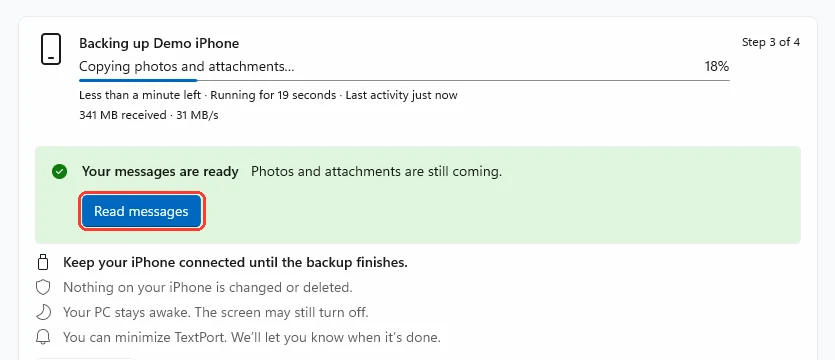
Click Read messages if you see it
You see it if you are reading another backup or on another page. Messages opens.
Messages opens by itself if no other backup is open.
-
Click a conversation
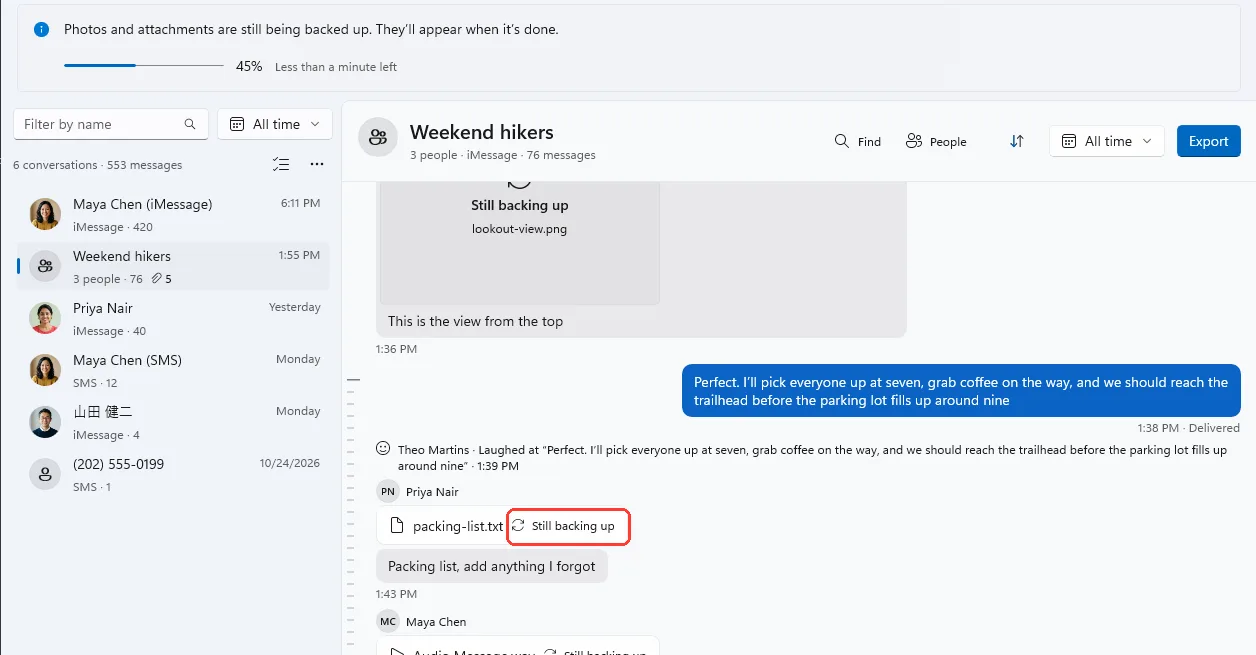
Read and search as usual. Photos and files say Still backing up.
-
Keep your iPhone plugged in
The bar at the top shows the progress. You can keep reading.
-
Wait for Backup complete
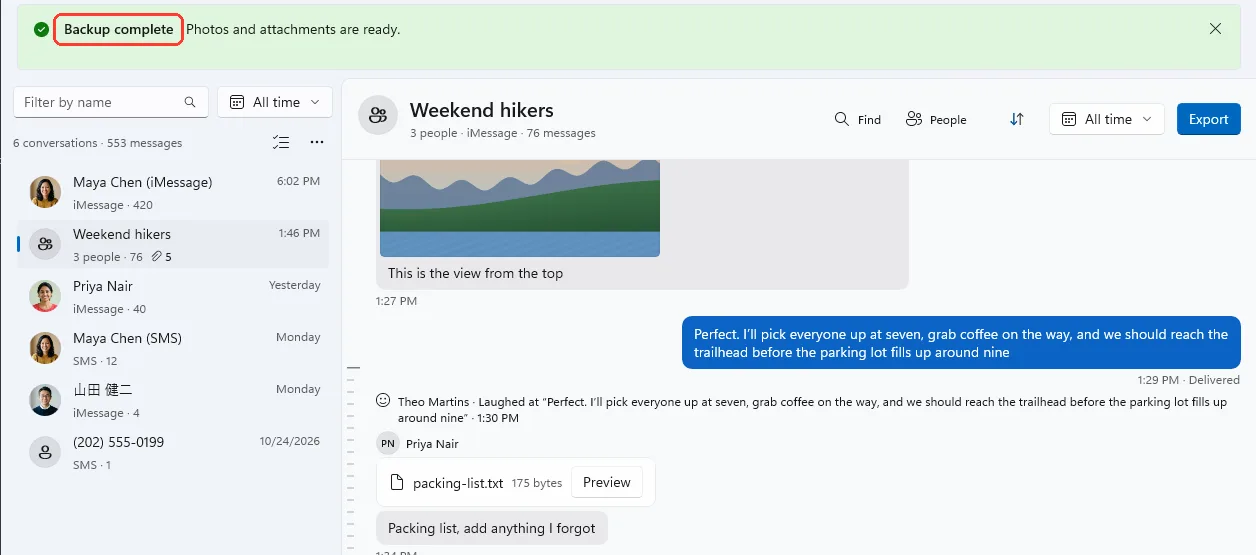
It shows at the top. The conversation stays open, and photos and files appear.
Done
You read your messages early. Now the backup is done, and photos and files are in too.
Problems
You never see Read messages.
Look on Messages first. They may have opened by themselves. If not, they open when the backup is done. This happens when your iPhone sends its contacts late. It also happens when the backup folder is on some USB drives.
Photos and attachments are still being backed up
You can still export. Each photo or file shows as [Attachment unavailable]. To include them, export again after Backup complete.
Backup stopped
You can keep reading these messages. Photos and files were not copied. See Fix a stuck or stopped backup.
Couldn’t open the finished backup
You can keep reading. Click Try again to get the photos and files.
None of these match.
Email [email protected]. Say which step you were on. Say what you saw. We usually reply within a day.
Questions
-
Yes. The file has every message. Photos and files come only with an export after the backup is done. An export of several conversations waits until the backup is done.
-
No. Click Read messages when you want to switch.
-
Click Backups at the top. Or click the backup status next to the search box.
Next guides
-
 How to back up your iPhone to your PC with TextPort
You will have a backup of your iPhone on your PC, and your messages open in TextPort.
-
 How to fix a stuck or stopped backup on Windows
Your iPhone backup will finish, or you will know what to send to support.
-
 How to export a conversation to PDF, CSV, or TXT on Windows
You will get a file of one conversation on your PC, as a PDF, a spreadsheet, or plain text.

Start exporting your messages
Available for iPhone, Mac, and Windows. No computer required.
